
Updates Import
The option to start the import is called “Updates Import”. It is available under Import in project menu > Start Import > Updates Import option.
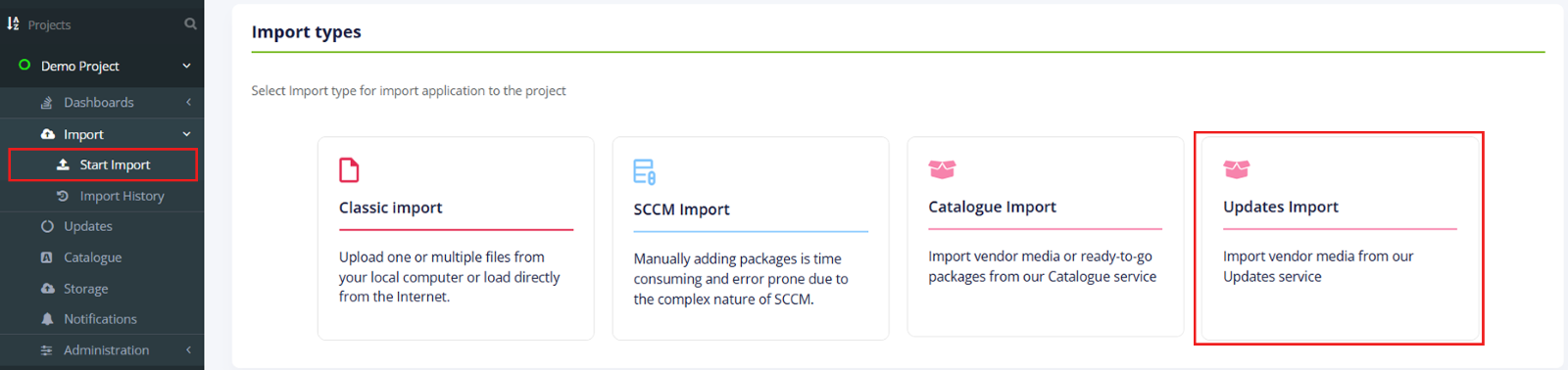
When successfully imported, Apptimized shows the Choose Applications from Updates step.
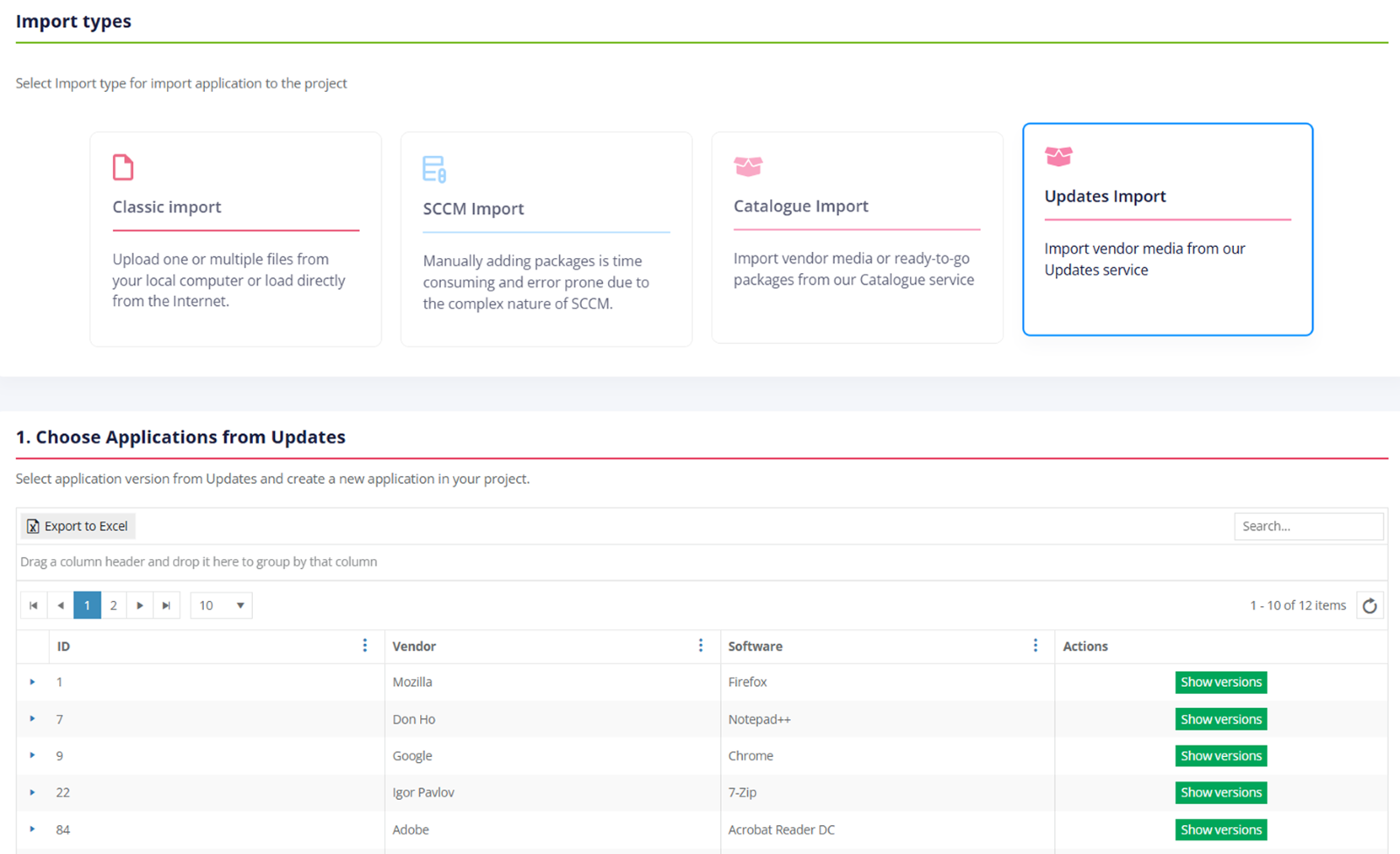
Application import data is grouped into 4 categories:
-
ID;
-
Vendor;
-
Software;
-
Actions.
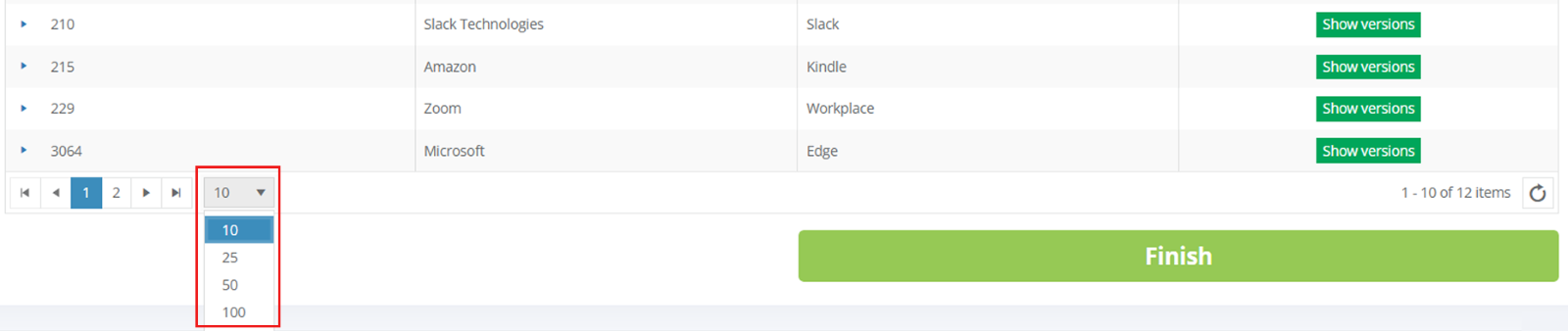
The default view is 10 items per page. The number of items per page can be changed to 10, 50, 100, or all items.
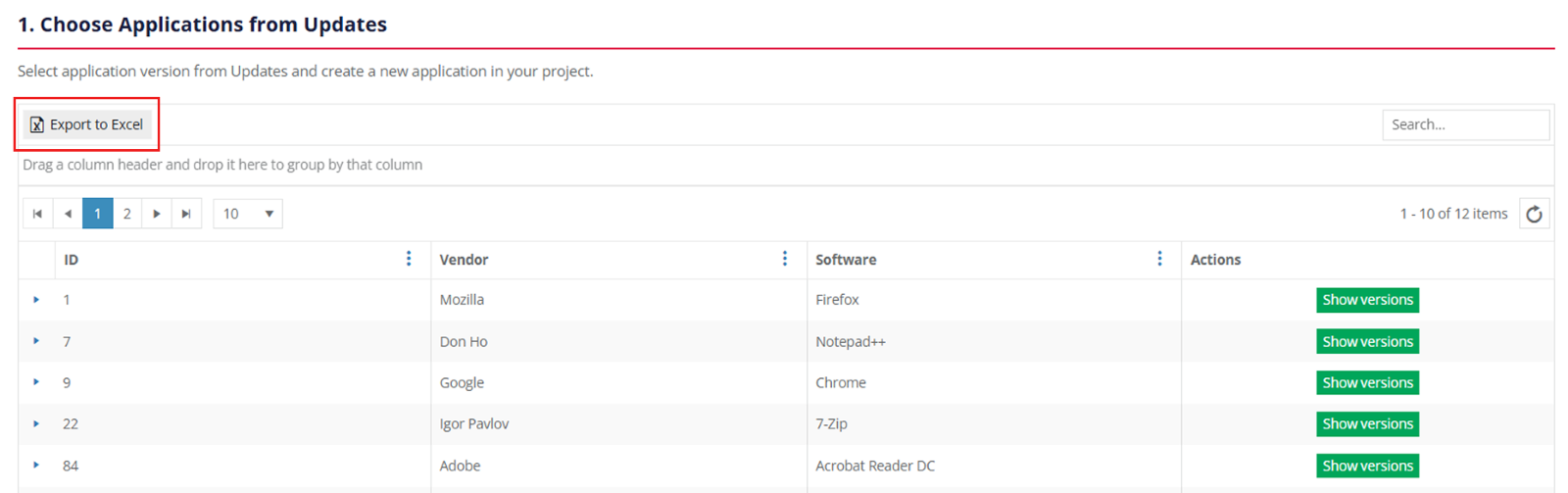
An application database can be downloaded as an Excel file by clicking on the Export to Excel button.
The columns in the import table can be swapped and grouped in any order. A user can drag and drop a column header to a suitable place.
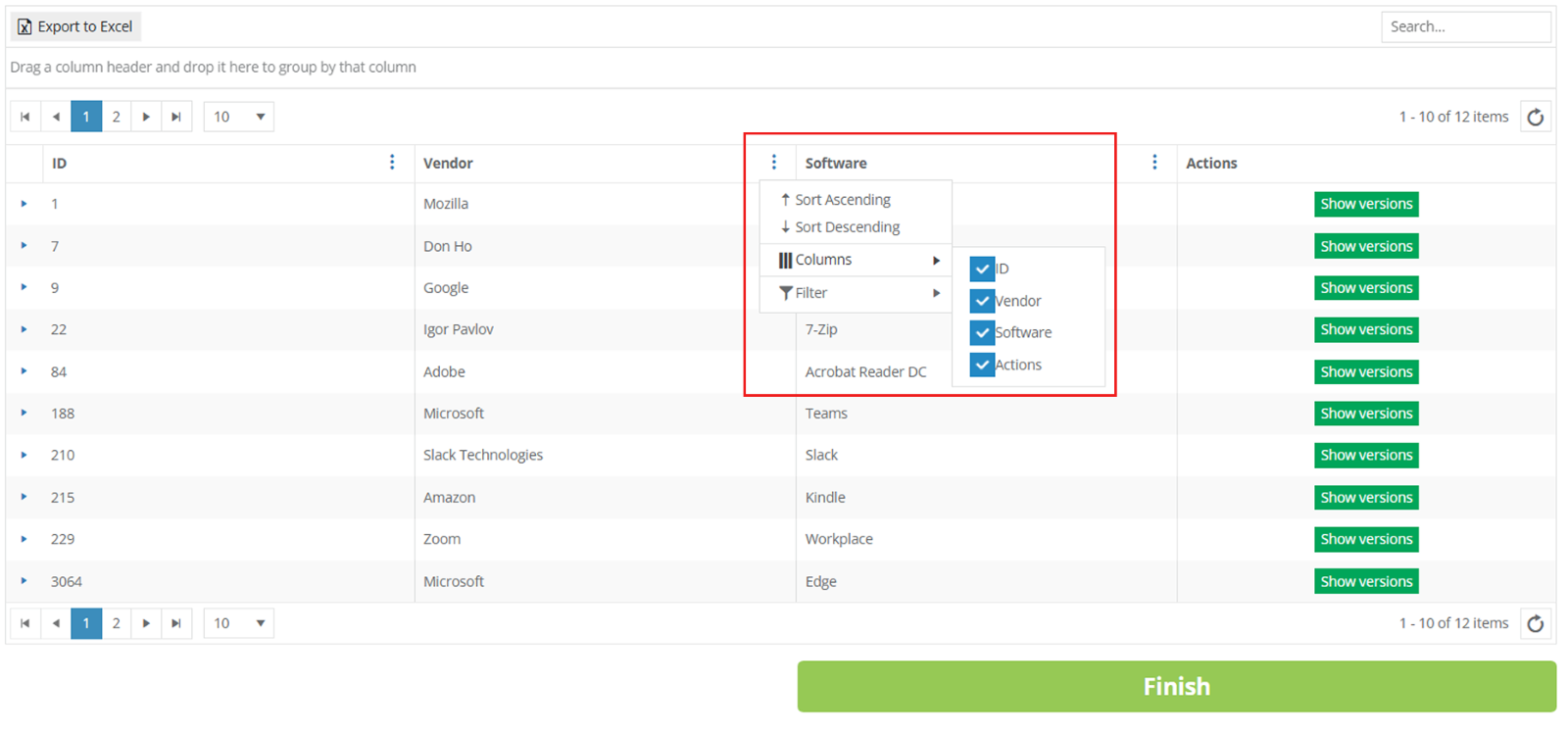
To exclude columns in the import table, uncheck the box next to the column name not required in view. This option is available under Columns.
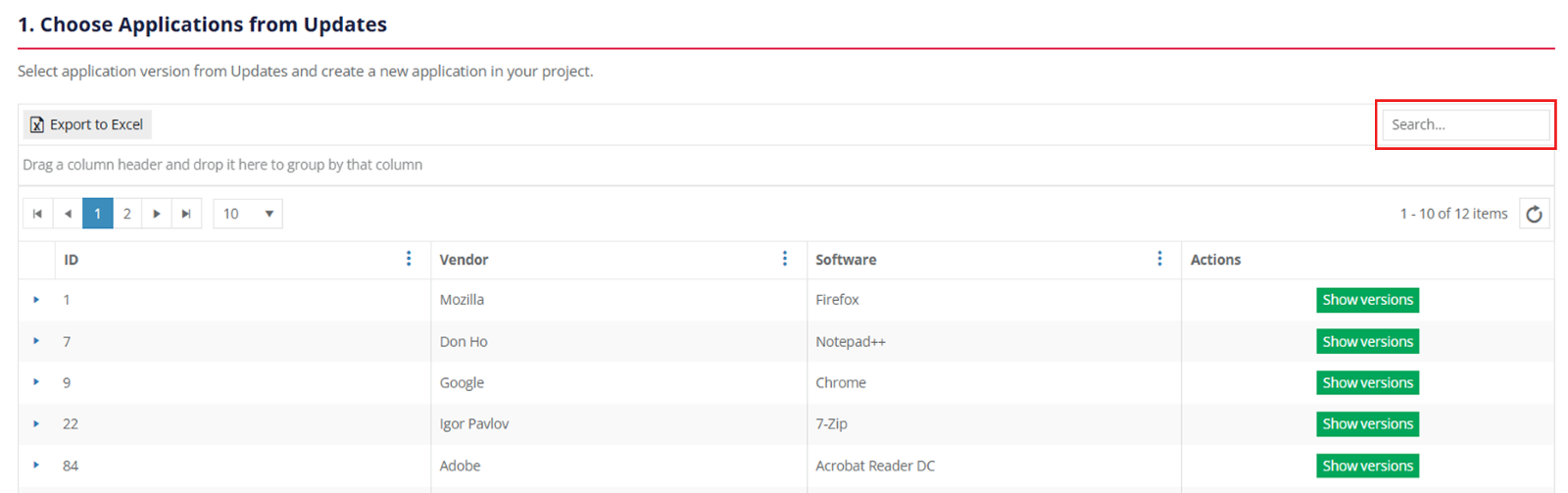
 Keyword search mode available:
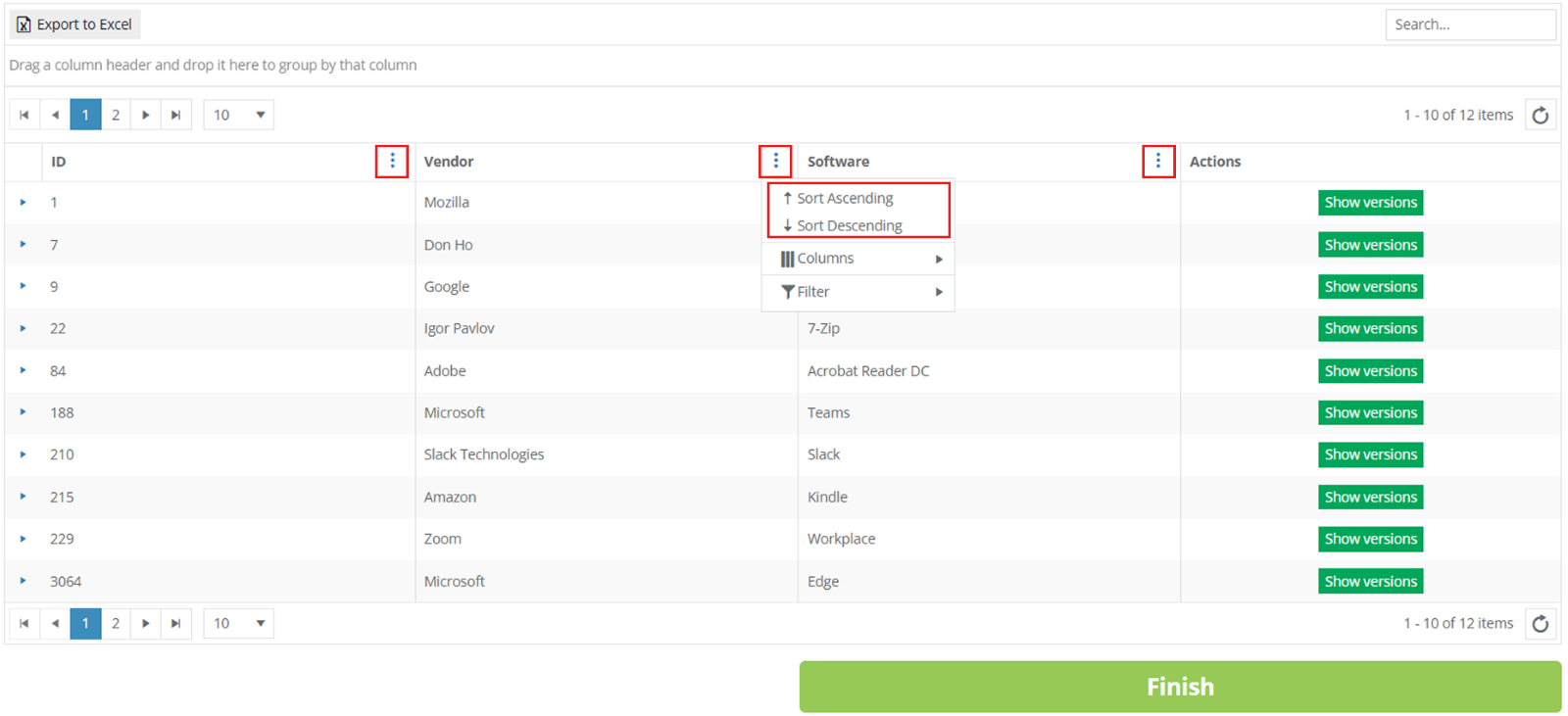
To sort data in columns ID, Vendor, or Software, select ascending or descending mode: Click the table header > Click the arrow symbol.
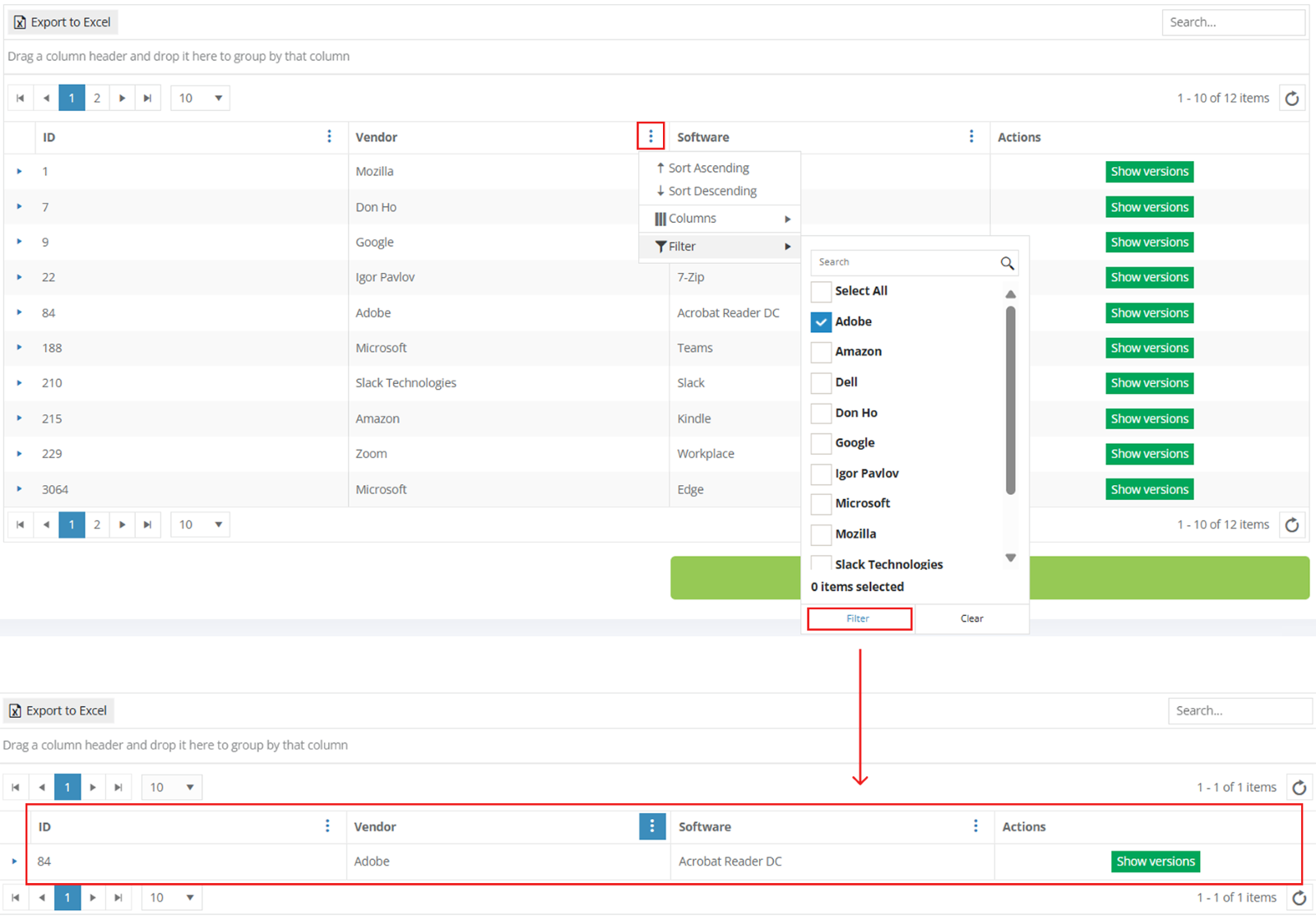
 To filter data in columns ID, Vendor, or Software, use Edit Column Settings > Filter > Select one or multiple items > Filter button. To exclude data from the import table, uncheck boxes next to the name not required in view.
The option to see all available application versions is available under the Show versions button.

Apptimized shows the following screen when successful:
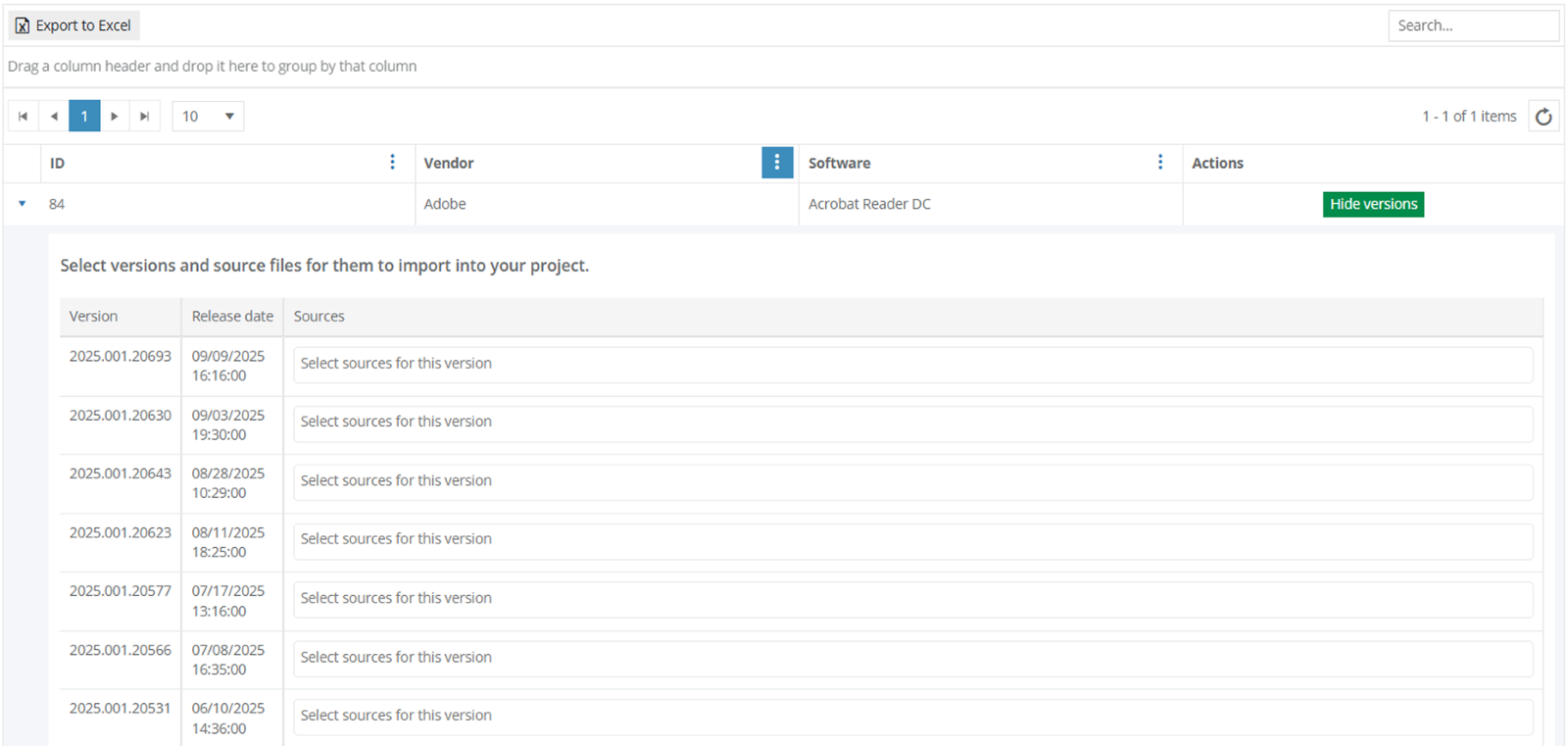
The option to select an application version from Update is available under the Select sources to this version field.
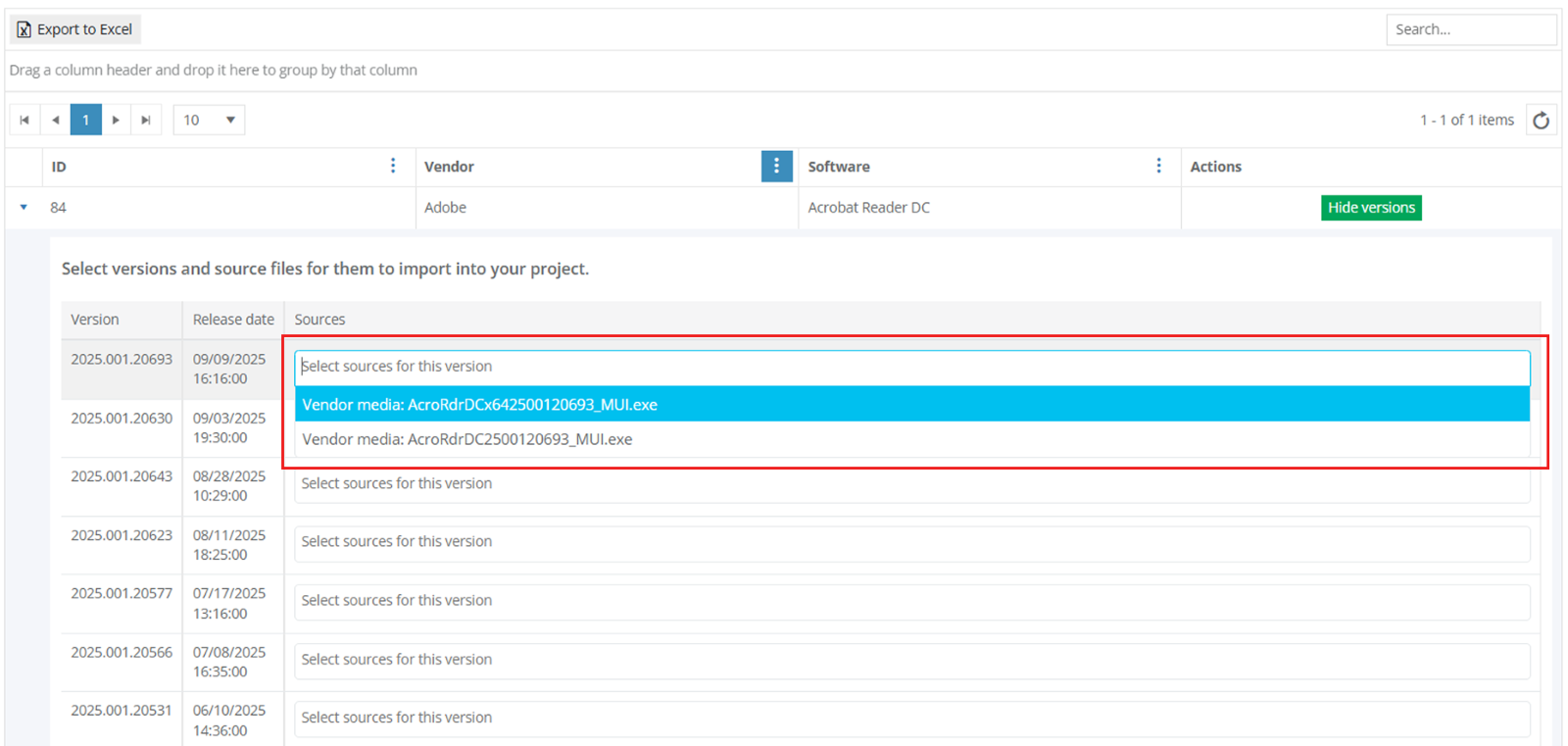
Apptimized shows the following notification when the application version selected:

The Update Import finalizes by clicking on the Finish button at the end of the list.
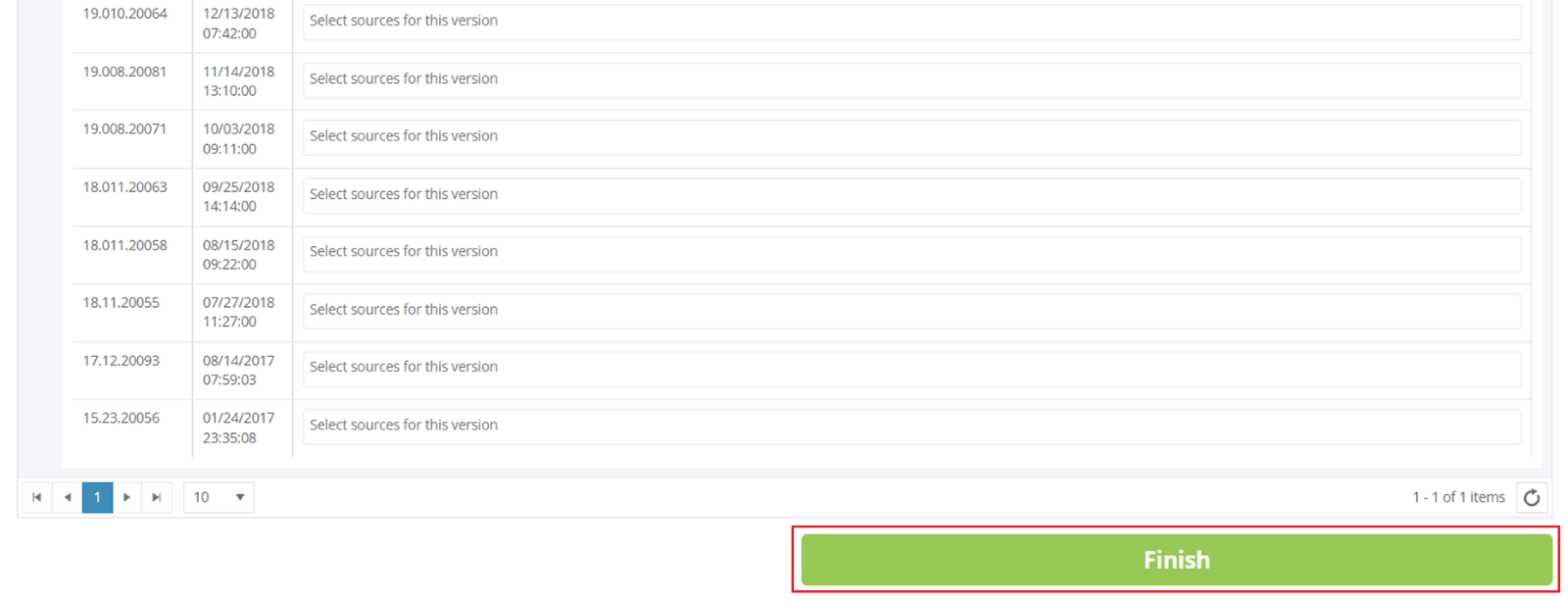
Apptimized shows the following notification when successful:

The imported applications are available in portfolio.
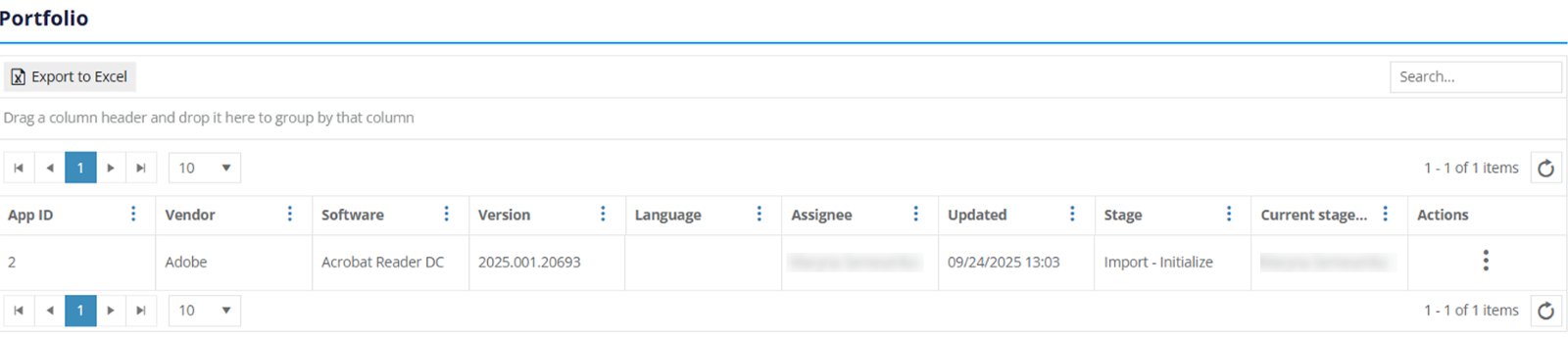
No comments to display
No comments to display