
Care and Care+
Care
Apptimized Care is one of the Apptimized services that provides access to a store, where a user can track the version package of the application which is packaged according to a standard procedure and is ready for use.
The latest application versions available for orders within 2 hours release of the update by the vendor, and ready for download within seconds after the request.
Note. The "Updates" option appears in the project menu after it is initiated in the project settings by the project administrator.
Apptimized sends the follow-up email when the user has accessed the Apptimized Care:
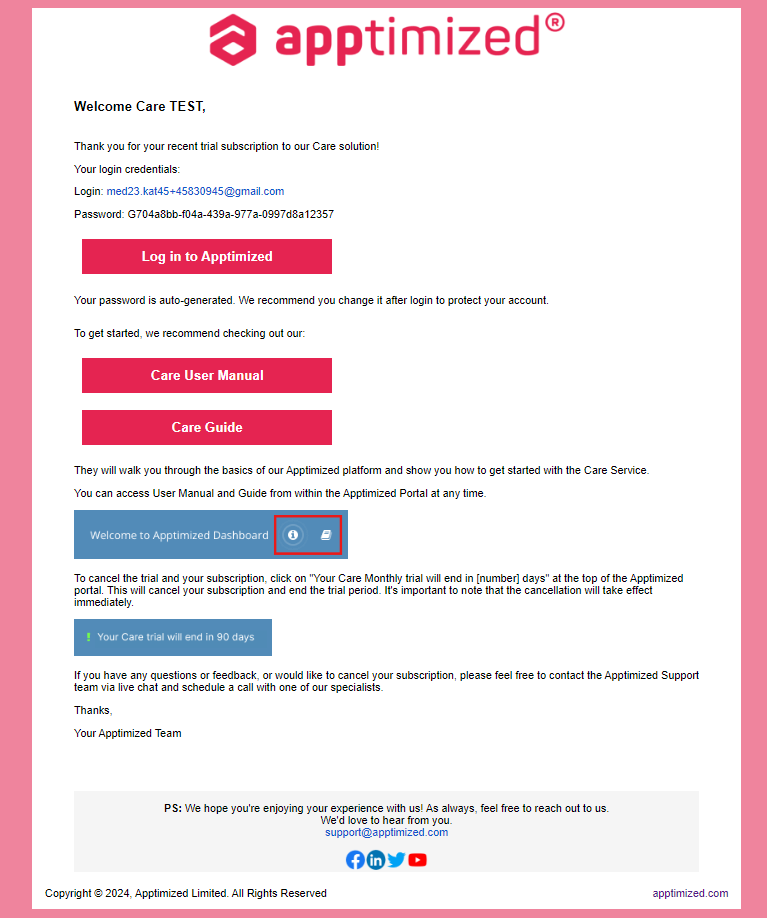
Apptimized Care interface
The Care is available under the Project menu > Updates
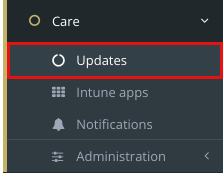
Apptimized shows the following screen when clicking Updates button:
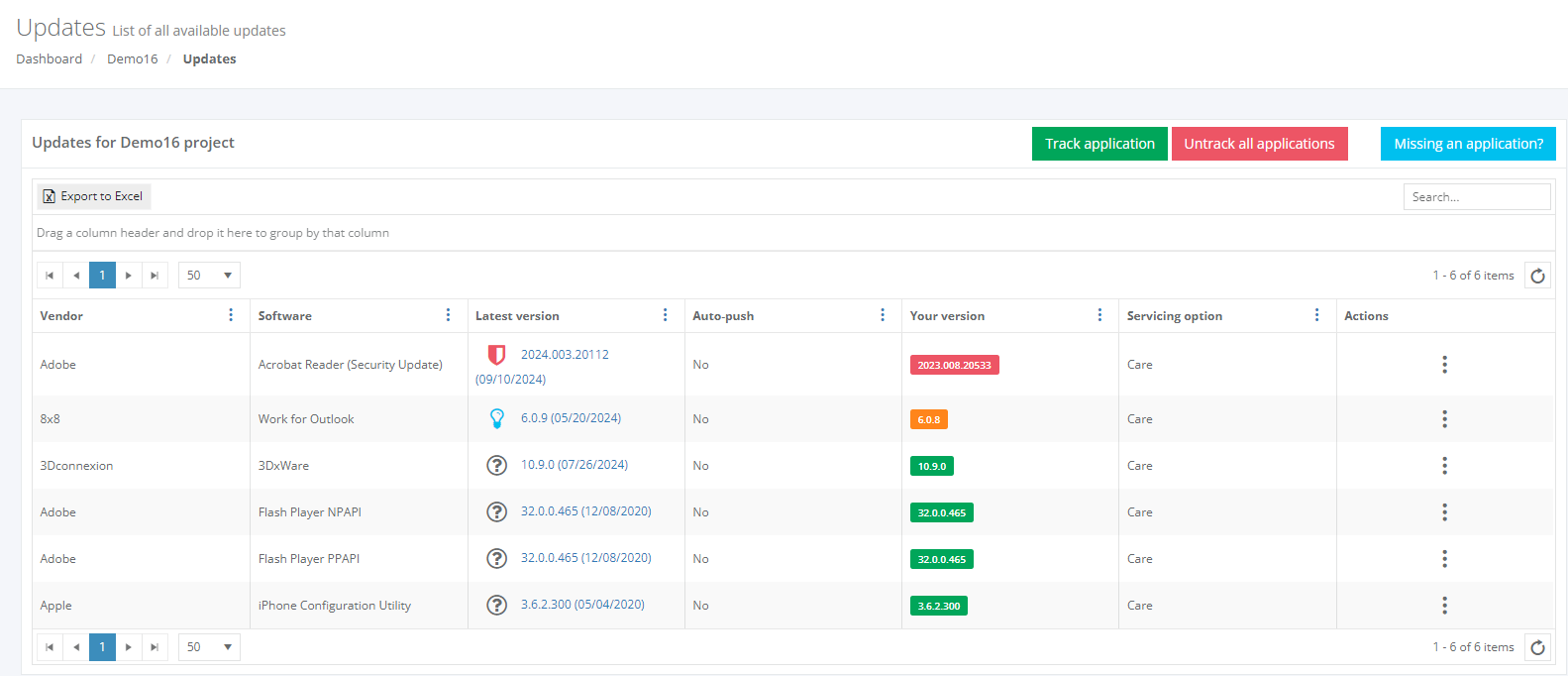
The screen above shows the default Apptimized Portal interface when several applications are added.
Care groups data into six categories:
Table 1. Care data categories
|
Category |
Details |
|
Vendor |
This category provides the details about the application’s vendor (e.g., Tim Kosse) |
|
Software |
This category provides the details about the application’s name (e.g., FileZilla) |
|
Latest version |
This category provides information about the newest version of the application released by the vendor and available in the Apptimized Platform. |
|
Autopush |
This category shows if Autopush is active. |
|
Your version |
This category provides information about the latest version of the application that is pinned within the recent user’s activities in the Care page. The following colors are implemented to indicate the current state of the monitored application:
Note. The application version can be pinned in the following cases: 2. A user requested to process the latest version of the application (Actions column > Process version packages section > Select the Windows bitness > Select PSADT or Intunewin package > Download package or Push to SCCM / Intune > Confirm update software > Yes button) |
|
Servicing option |
This category provides information on whether the Care or Care+ service is enabled. The following options are available:
|
|
Actions |
This category enables a user to provide the activities under the monitored applications. The following actions are available:
|
Application Versions Page
The separate window with all available application versions is available under Actions column > Versions option.
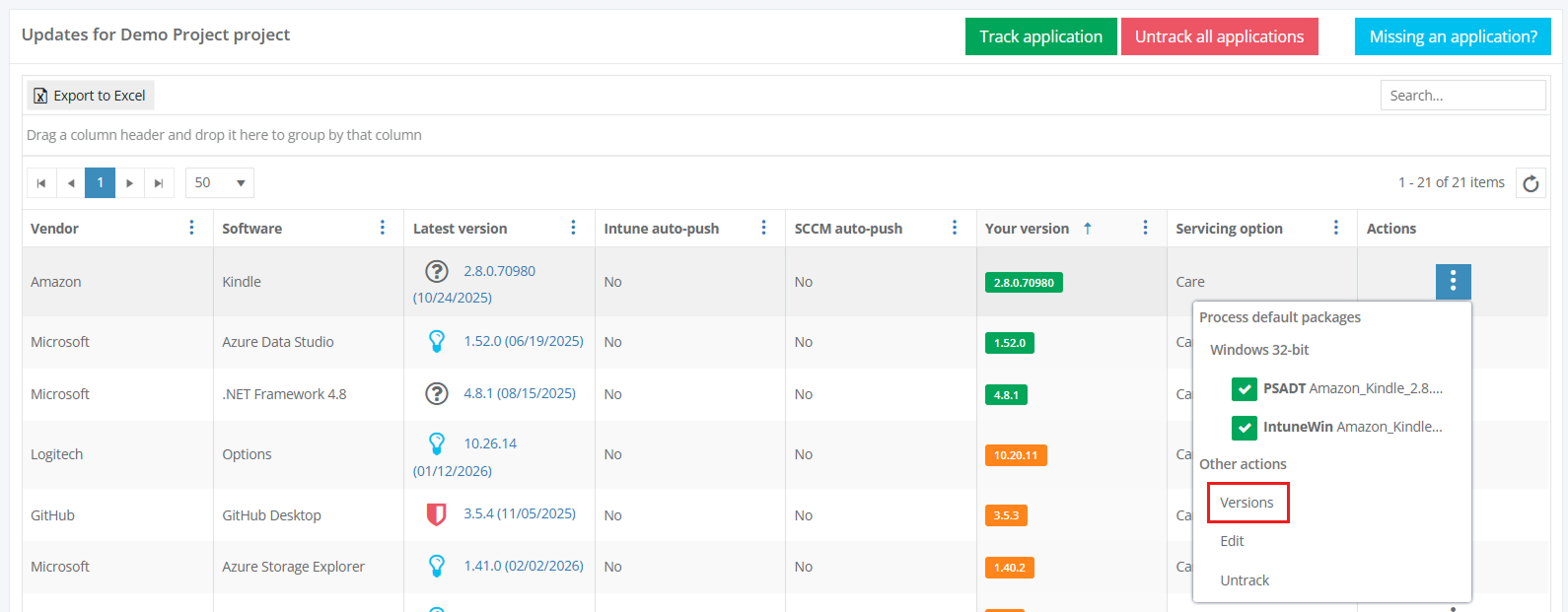
When successful, Apptimized shows the following screen:

The page displays all available versions of the selected application, including release date and release type information, and allows processing of source files and default packages for a selected version.
The Process default package column displays available default packages for the selected version. The PSADT label indicates the PSADT version used to build the package.
The version table supports search by Version column, sorting by Version and Release Date.
The Release Date column displays the vendor release date using user date/time formatting.
New request
New package request
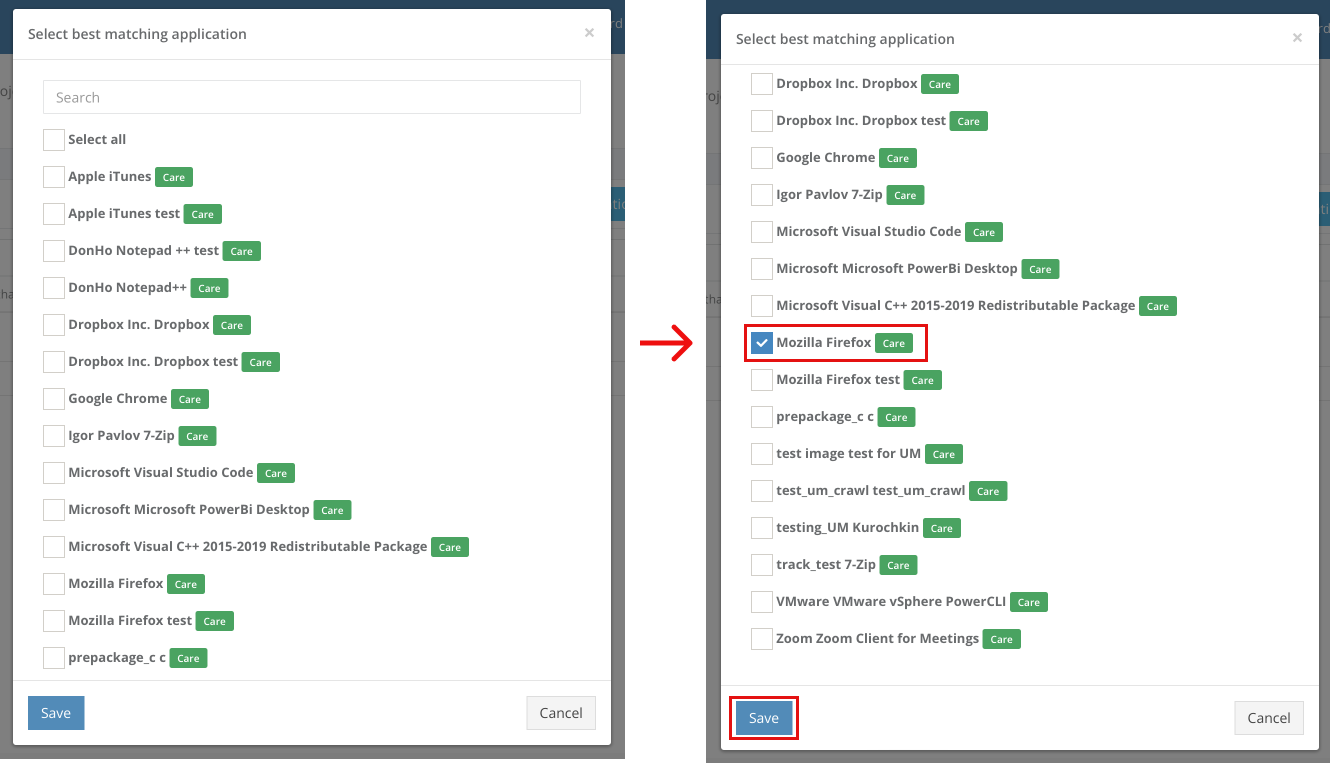
The option to track an application package and add it to the monitoring list is available under the Track application button > Select the best matching application > Save button.
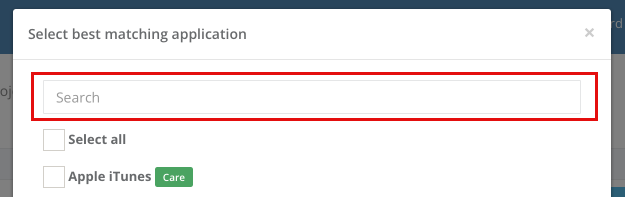
Keyword search mode available.
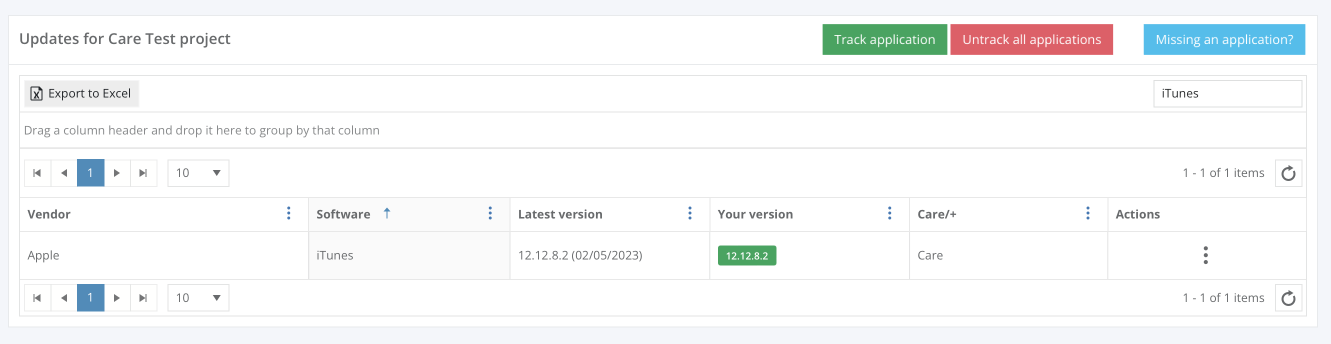
The application appears in the list of monitored applications when successful:
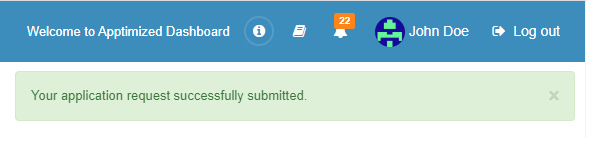
Apptimized notifies the user when the request is submitted. The following screen provides an example of the notifications:
New application request
The option to create a request to add an application to the Update monitoring list is available under the Missing an application? button. The Apptimized Team will check the possibility to add the application to the Update monitoring list.
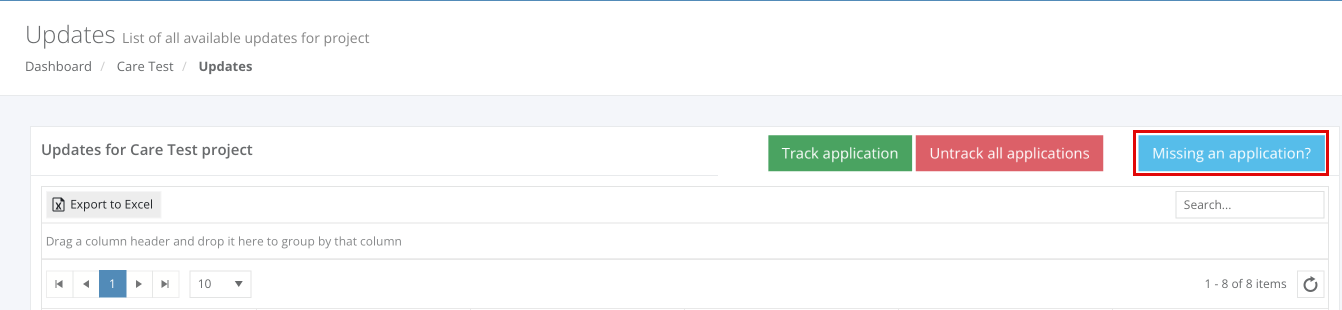
Apptimized shows the modal window when successful:
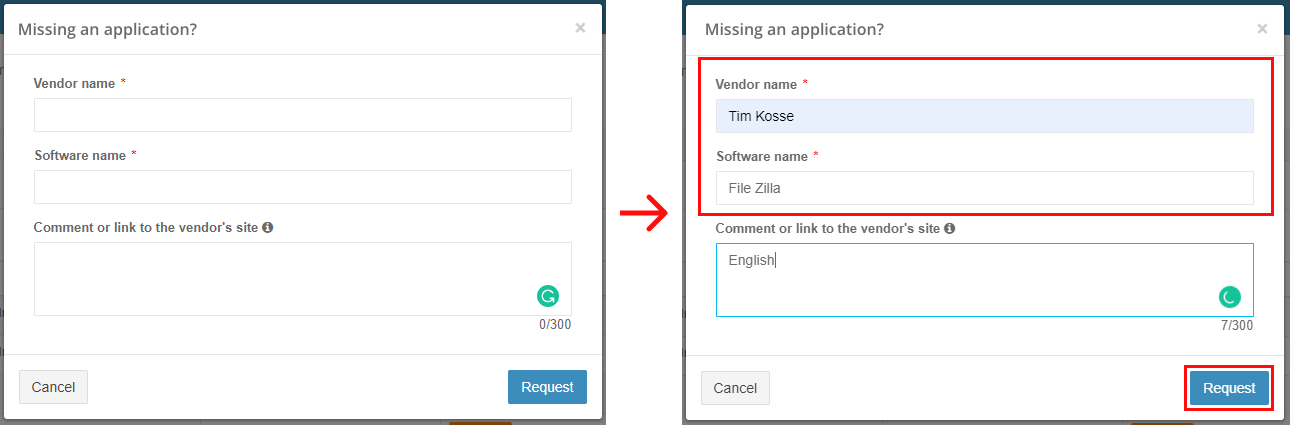
Enter the value in the Vendor name field > Enter the value in the Software name field > Request button. All required fields are marked with an asterisk *.
Apptimized notifies the user when the request is submitted. The following screen provides an example of the notification:
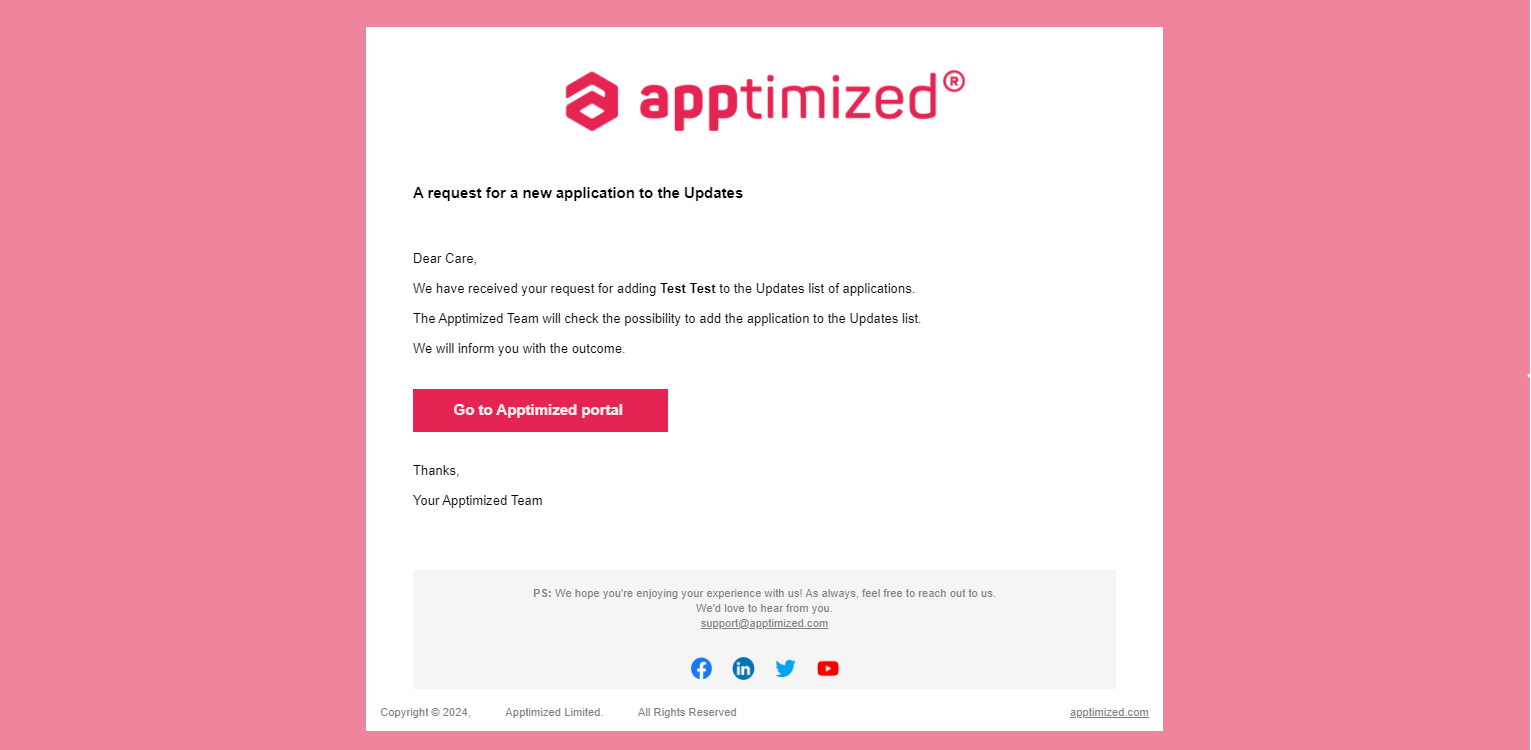
Apptimized sends the following email when the application can be added to the Care list of apps.
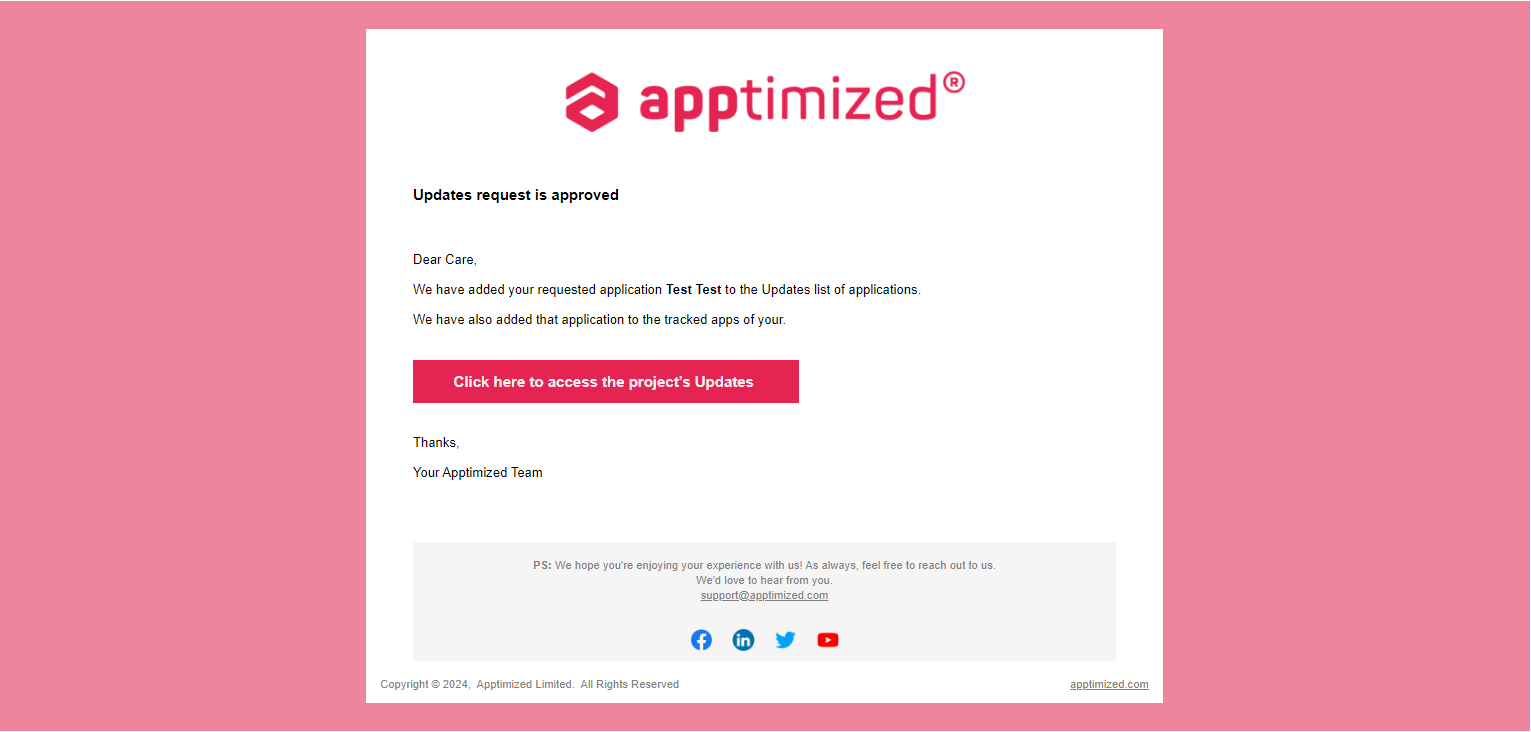
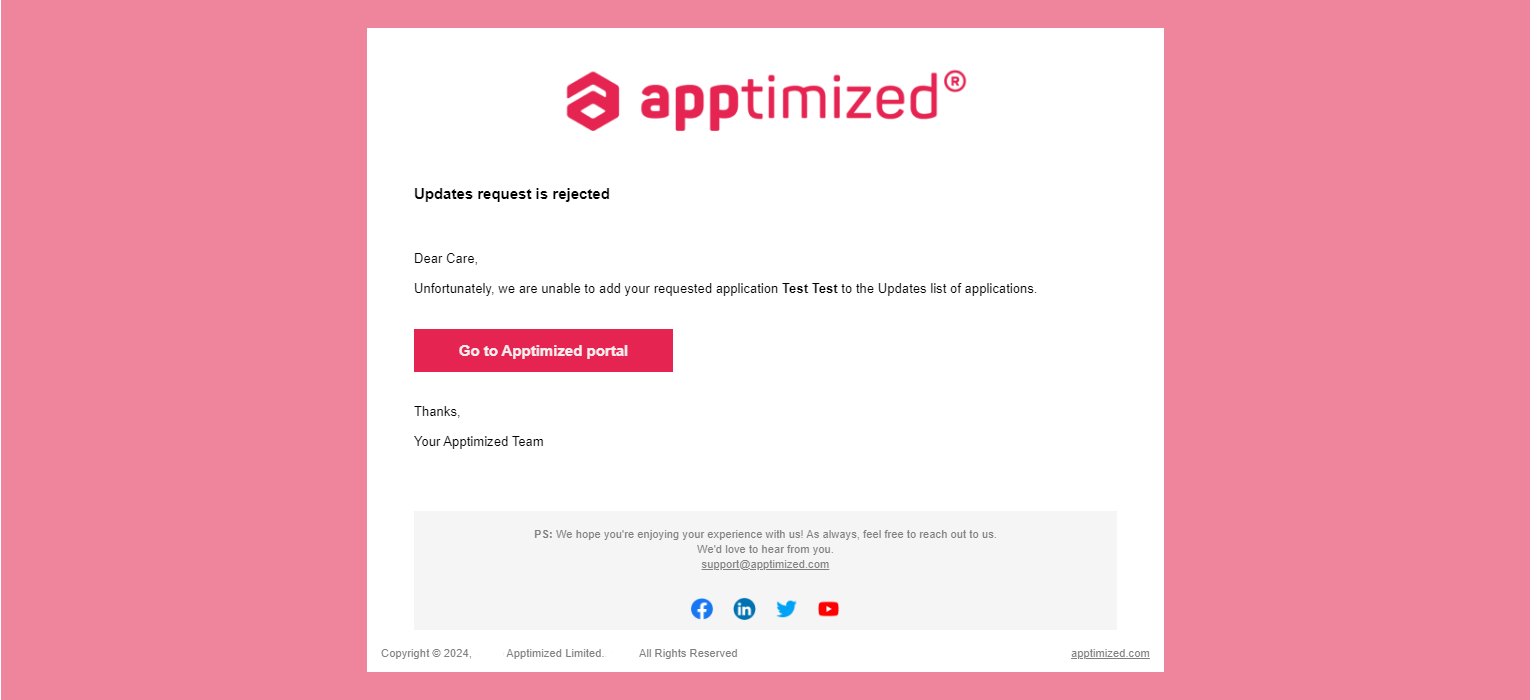
Apptimized sends the following email when the application can't be added to the Сare list of apps.
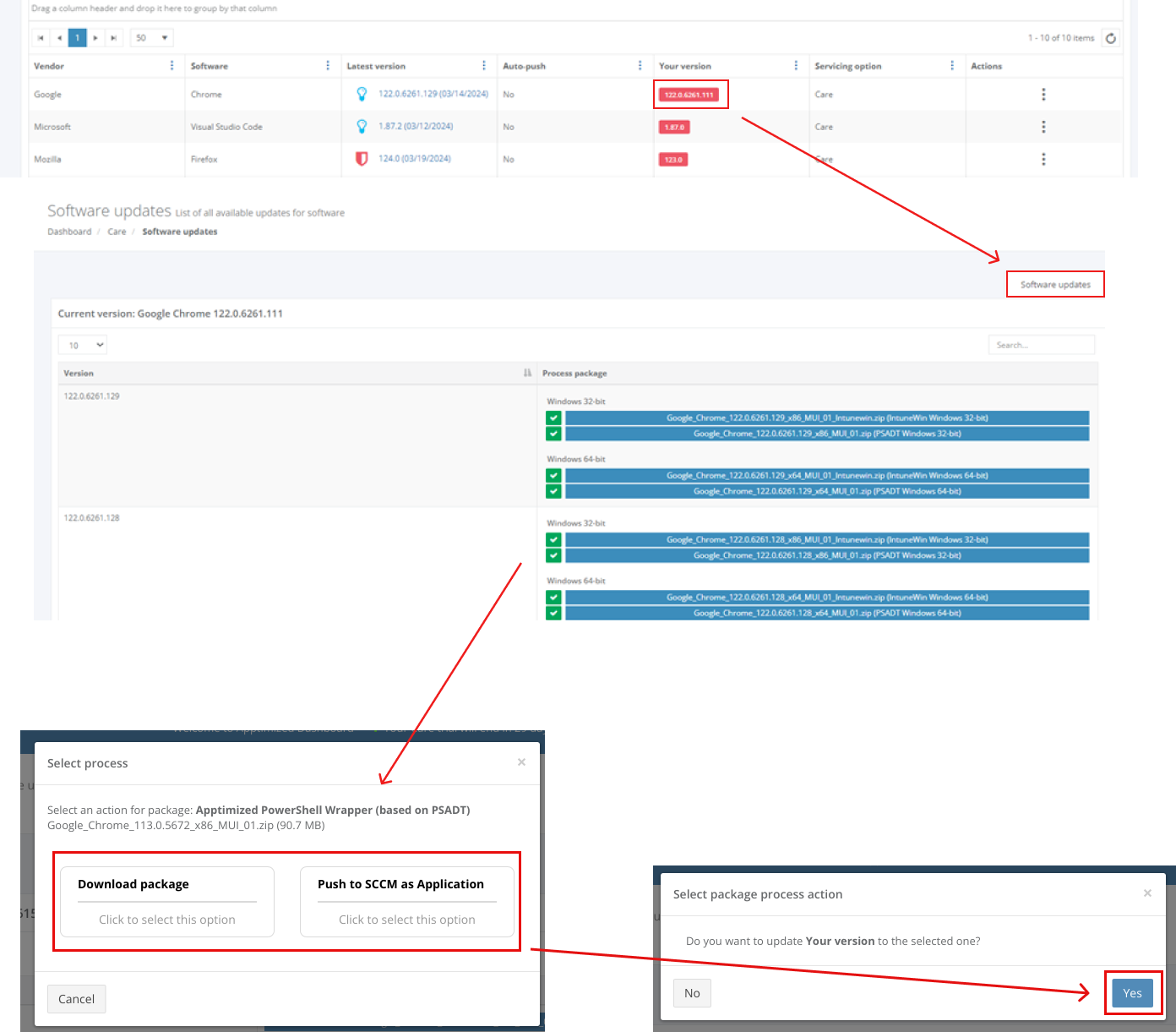
Update the application’s version
The option to update the application’s version is available under:
- Your version column > Click on the highlighted application version > Process package column > Select the application’s version > Select the packaging format > Download Package/Push to SCCM as Application / Push to Intune buttons > Confirm update software > Yes button).
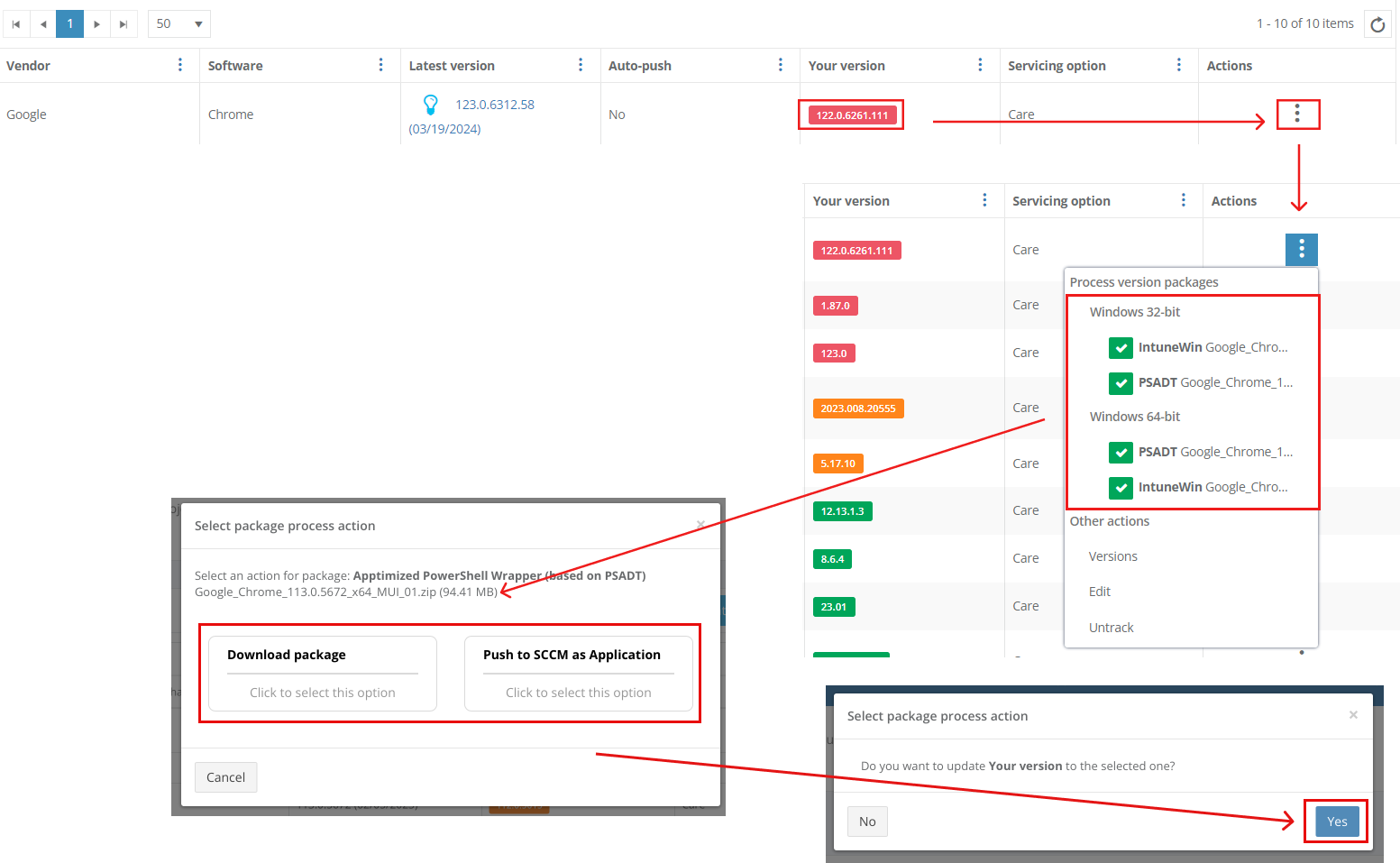
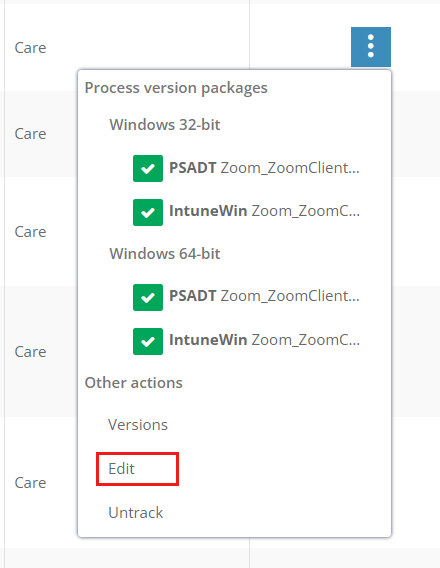
- Actions column > Process version packages section > Select the Windows bitness > Select PSADT or Intunewin package > Download package or Push to SCCM / Intune > Confirm update software > Yes button)
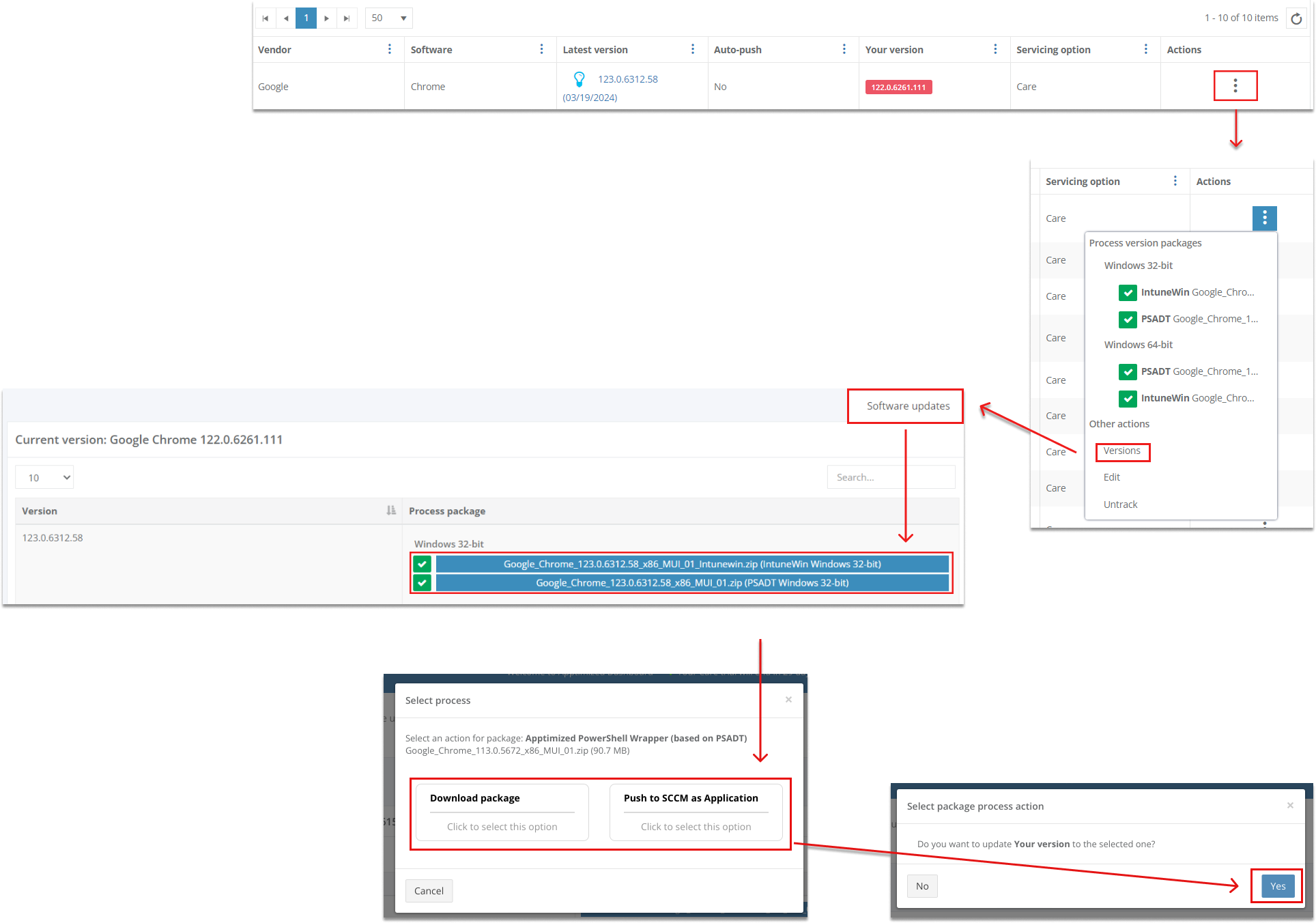
- Actions column > Versions button > Process package column > Select the application’s version > Select the packaging format > Download Package/Push to SCCM as Application / Push to Intune buttons > Confirm update software > Yes button).
Note. In the case of the packages are not available for a new update version for a time, Apptimized shows the following screen: 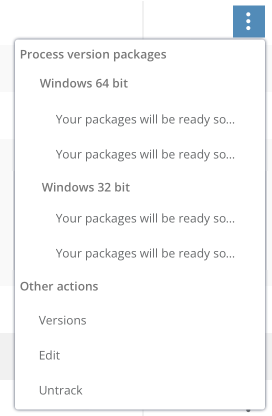
- Actions column > Edit button > Edit software modal window > Your version field > Enter the numeric value > Save button.
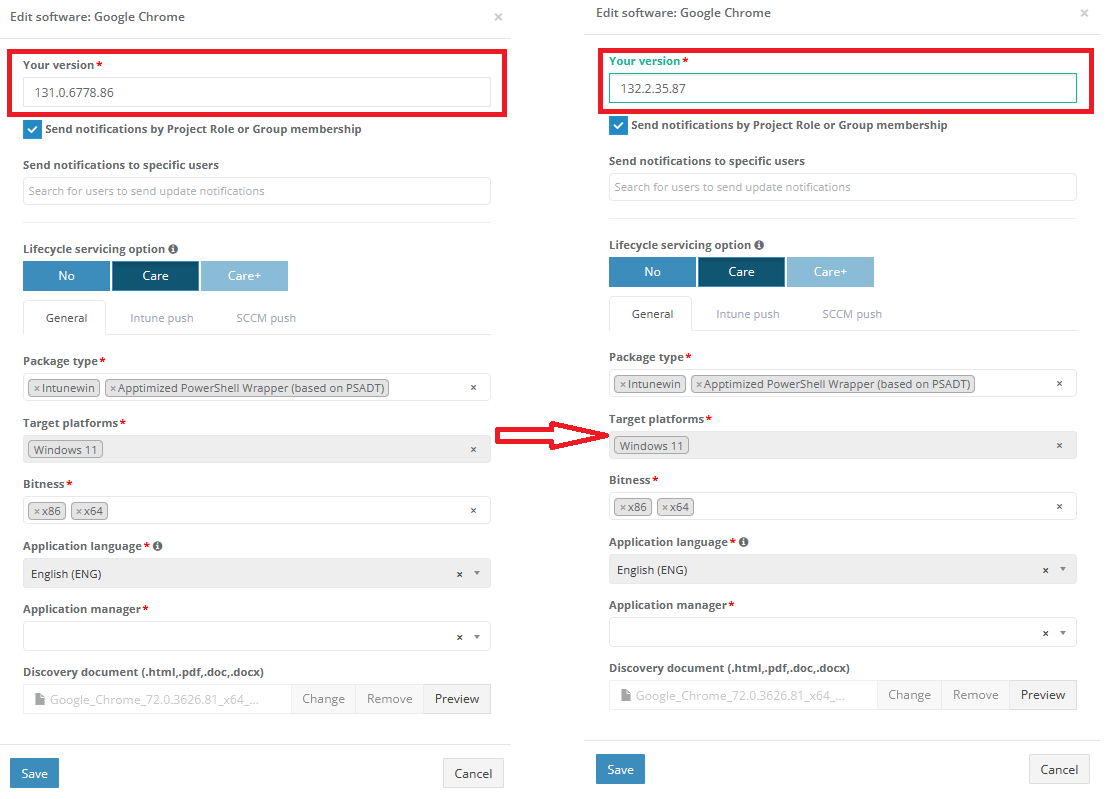
Edit monitored application settings
The option to change settings of the monitored application is available under the Actions > Edit button. Apptimized shows the modal windows when successful:
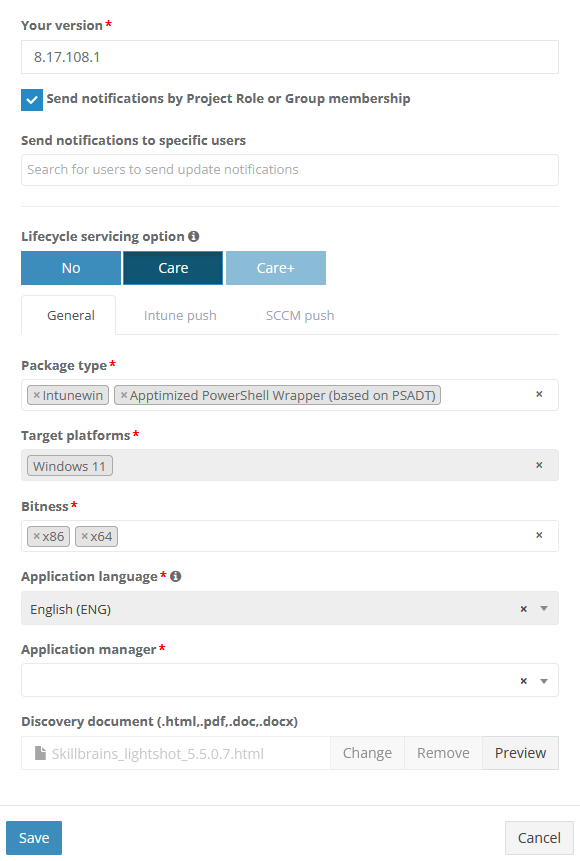
All required fields are marked with an asterisk *.
The option to change the version of the application manually is available under the Your version field.
The option to create the Apptimized packaging request for the monitored application is available under the Сreate package request on update option. The following options are available
|
Option |
Description |
|
Care |
This option enables the Care service (see Care) |
|
Care+ |
This option enables the Care+ service (see Care+) |
Care option is enabled by default.
General Tab
Table 2. Packaging request
|
Option |
Description |
|
Packaging technology |
This option indicates which packaging technology should be implemented by Apptimized specialists. The following packaging technologies available:
This option is required. Both technologies enabled by default. |
|
Target platforms |
This option indicates which packaging platform should be implemented by Apptimized specialists. The following packaging platforms available:
This option is required. Packaging platform option is enabled by default. |
|
Bitness |
This option indicates the bitness of the created package. The following options available:
This option is required. Both options enabled by default. |
|
Application manager |
This option allows to set up default user assignee for managing application (downloading, editing, deploying, untracking). |
|
Discovery document |
This option allows to upload the discovery document of the application provided by the Apptimized team. |
|
Application language |
Specifies the default language of the application included in the delivered Care package. |
Note. The multiple-choice option is available in the Package types and Bitness fields.
Updates Configuration
A user goes to Administration > Settings > Updates Sections
The Updates section in the Administration > Settings menu includes three parts: General, Intune, and SCCM. Below is a description of each section and its available options:
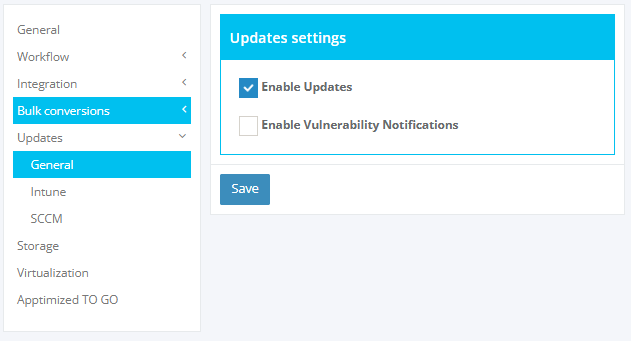
Table 3. Updates Settings
|
Section |
Description |
Options |
|
General |
Configure general settings for updates and notifications. |
|
|
Intune |
Predefine default templates for Intune Auto-Push Deployments. |
|
|
SCCM |
Predefine default templates for SCCM Auto-Push Deployments. |
|
The Intune section in the Updates settings allows configuring default templates for Intune Auto-Push deployments. Below are the available options:
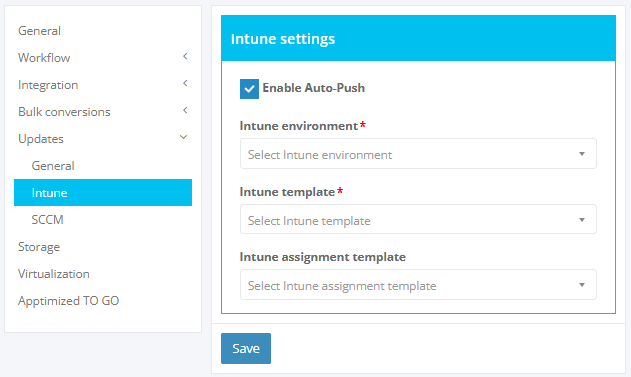
Table 4. Intune Settings
|
Option |
Description |
Required |
|
Enable Auto-Push (checkbox) |
If enabled, additional options for configuring Intune Auto-Push are displayed. |
no |
|
Intune Environment |
Specifies the target Intune environment for deployments, |
yes |
|
Intune Template |
Predefined template for configuring application deployment settings in Intune. |
yes |
|
Intune Assignment Template |
Optional template for assigning applications to groups or users in Intune. |
no |
The SCCM section in the Updates settings allows configuring default templates for SCCM Auto-Push deployments. Below are the available options:
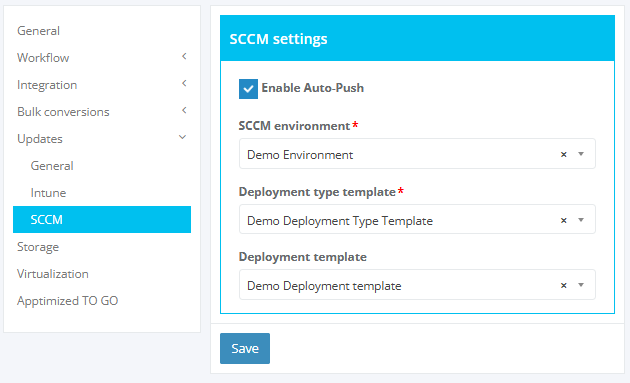
Table 5. SCCM Options
|
Option |
Description |
Required |
|
Enable Auto-Push (checkbox) |
If enabled, additional options for configuring SCCM Auto-Push are displayed. |
no |
|
SCCM Environment |
Specifies the target SCCM environment for deployments, |
yes |
|
Deployment Type Template |
Predefined template for configuring application deployment settings (e.g., installation methods, rules). |
yes |
|
Deployment Template |
Predefined template for configuring deployment settings (e.g., scheduling, user experience settings). |
no |
Intune Push Tab
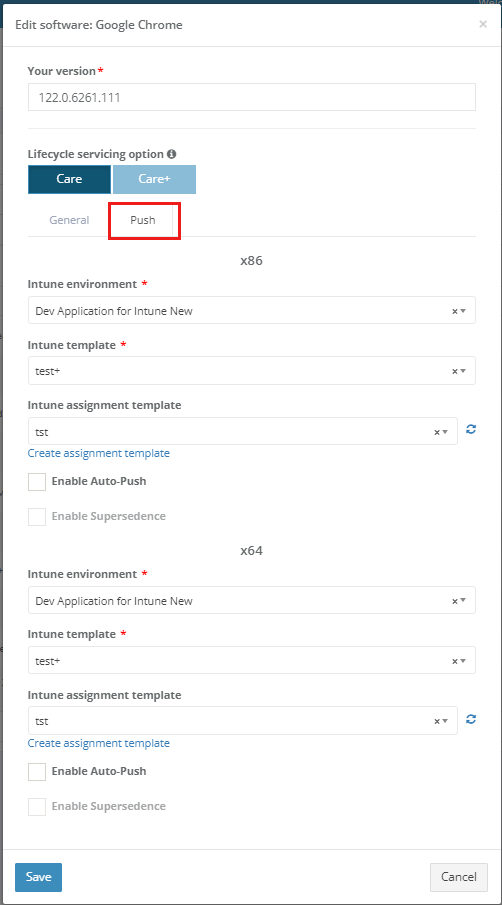
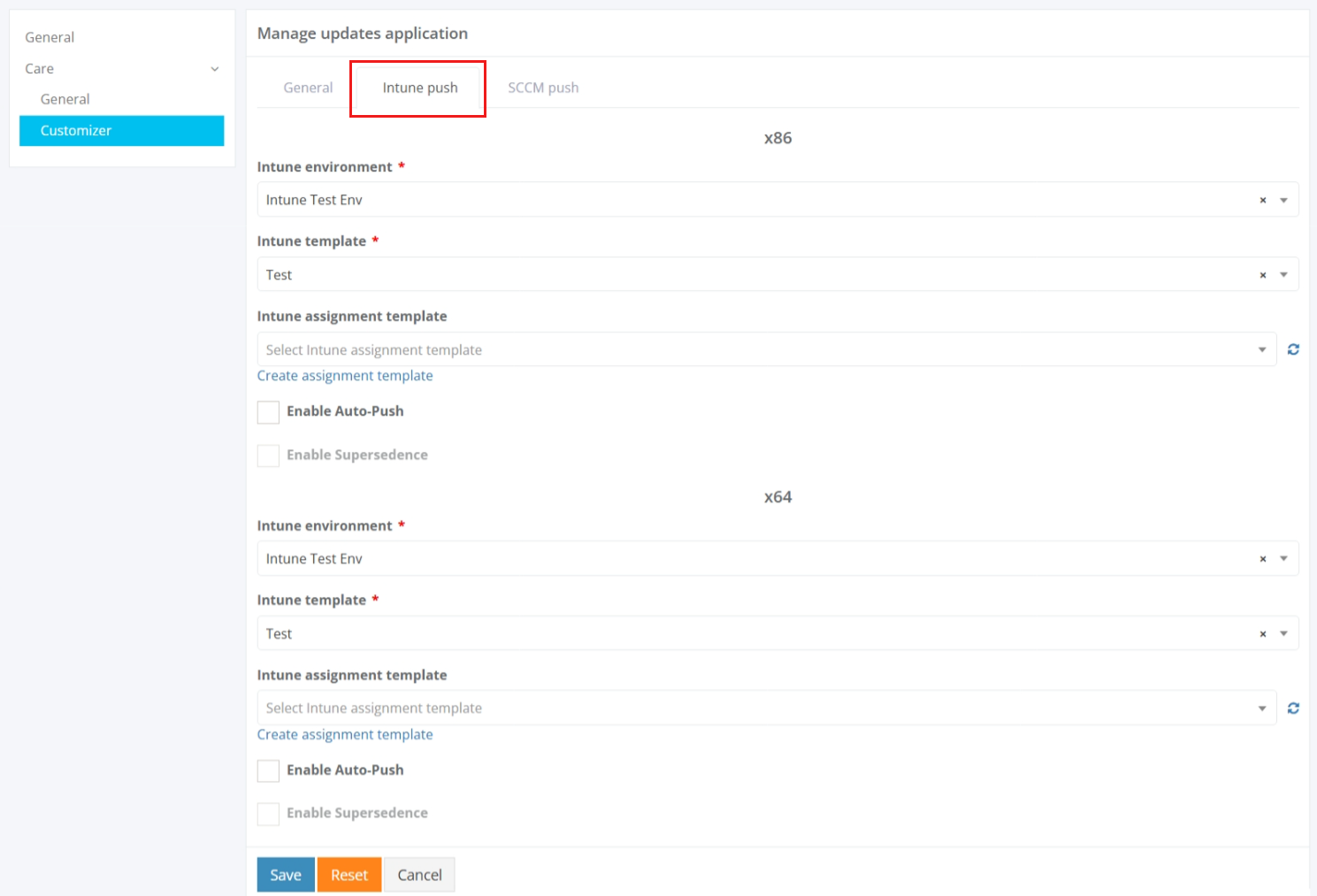
Table 6. Push
|
Option |
Description |
|
Intune Environment |
This option allows choosing an appropriate environment. |
|
Intune Template |
This option allows choosing created templates. |
|
Intune Assignment Template |
This option allows choosing assignment templates. |
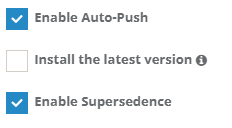
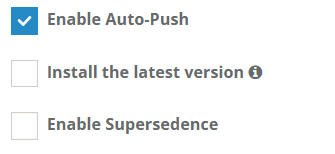
EnablingThe option to enable Auto-Push is available inunder the Auto-Push checkbox. Auto-Push must be enabled at the project level for this option to be available.
EnablingThe option to enable Supersedence is available inunder the Supersedence checkbox.
Auto-The option to enable auto-push for the latest version is available under the "Install the latest version"version. checkbox.
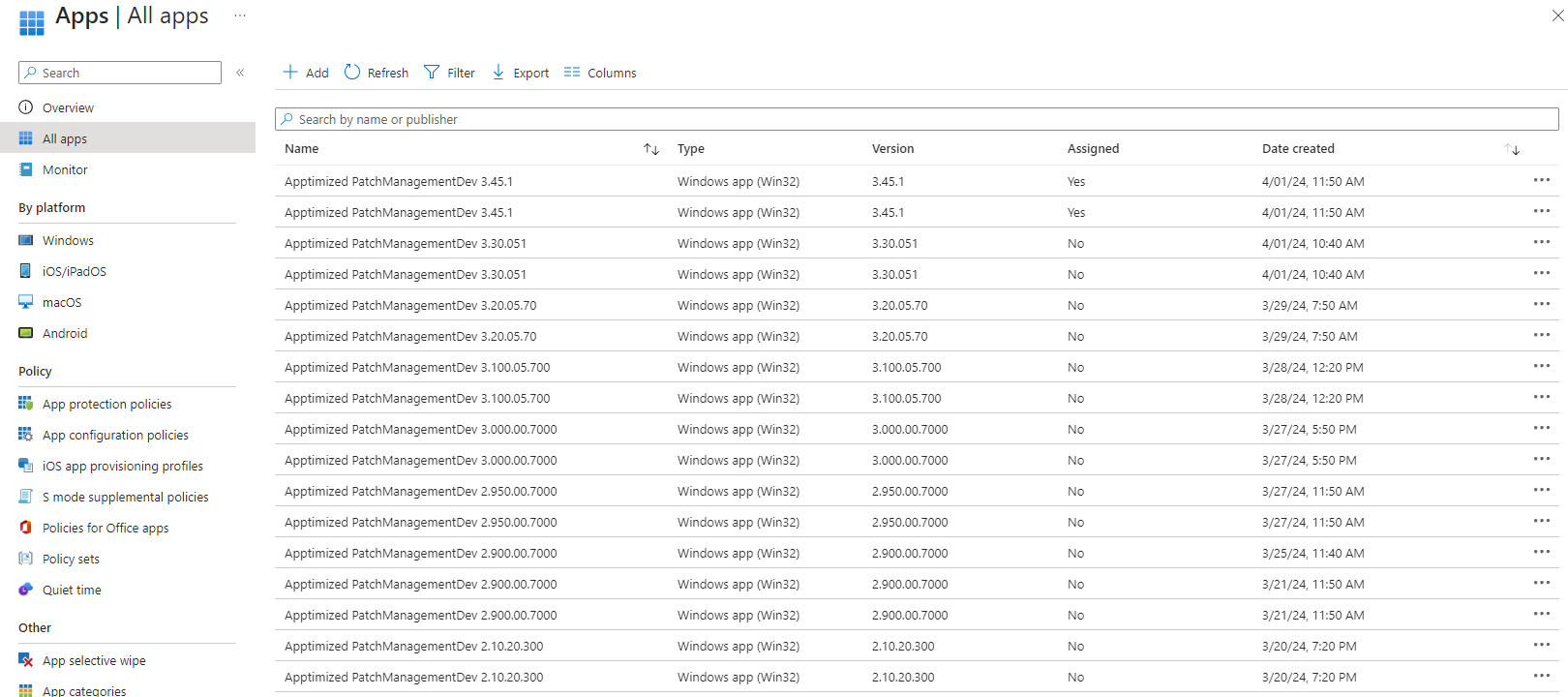
Apptimized shows the following screen when successful:

App versions older than the current ones are cleared during the autopush process.
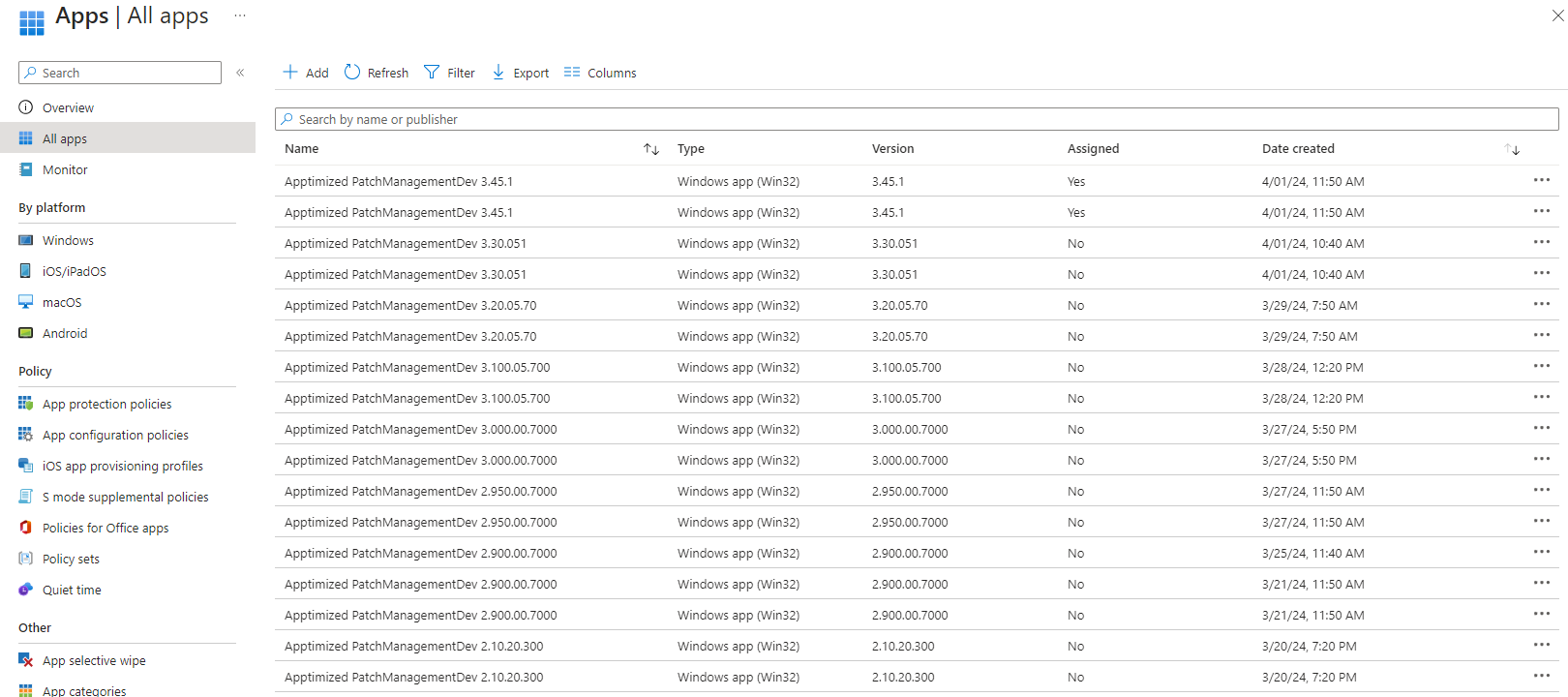
A "Create Assignment Template" button allows creating assignment templates:
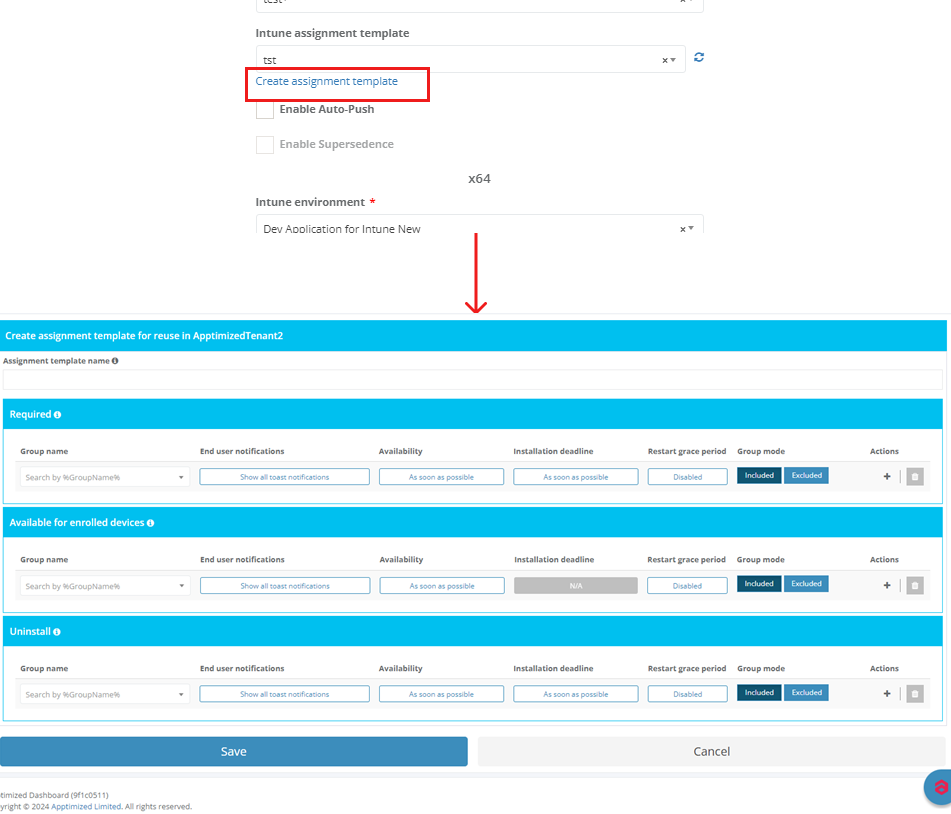
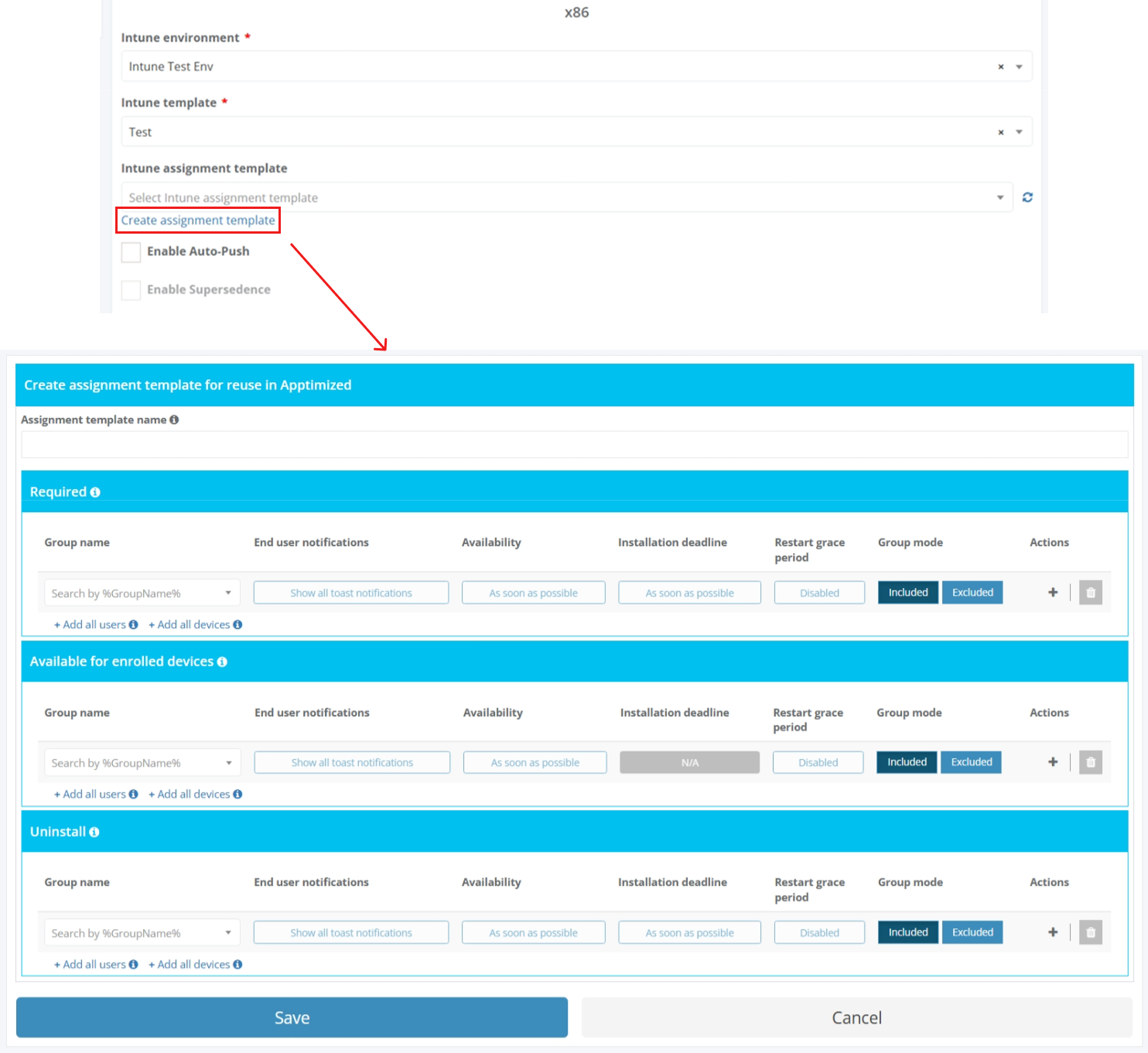
Apptimized shows the following screen when successful:

EditingThe ofoption templateto edit assignment settings is available:available under the End user notifications, Availability, Installation deadline, and Restart grace period fields. The Edit required assignment modal window opens when successful.
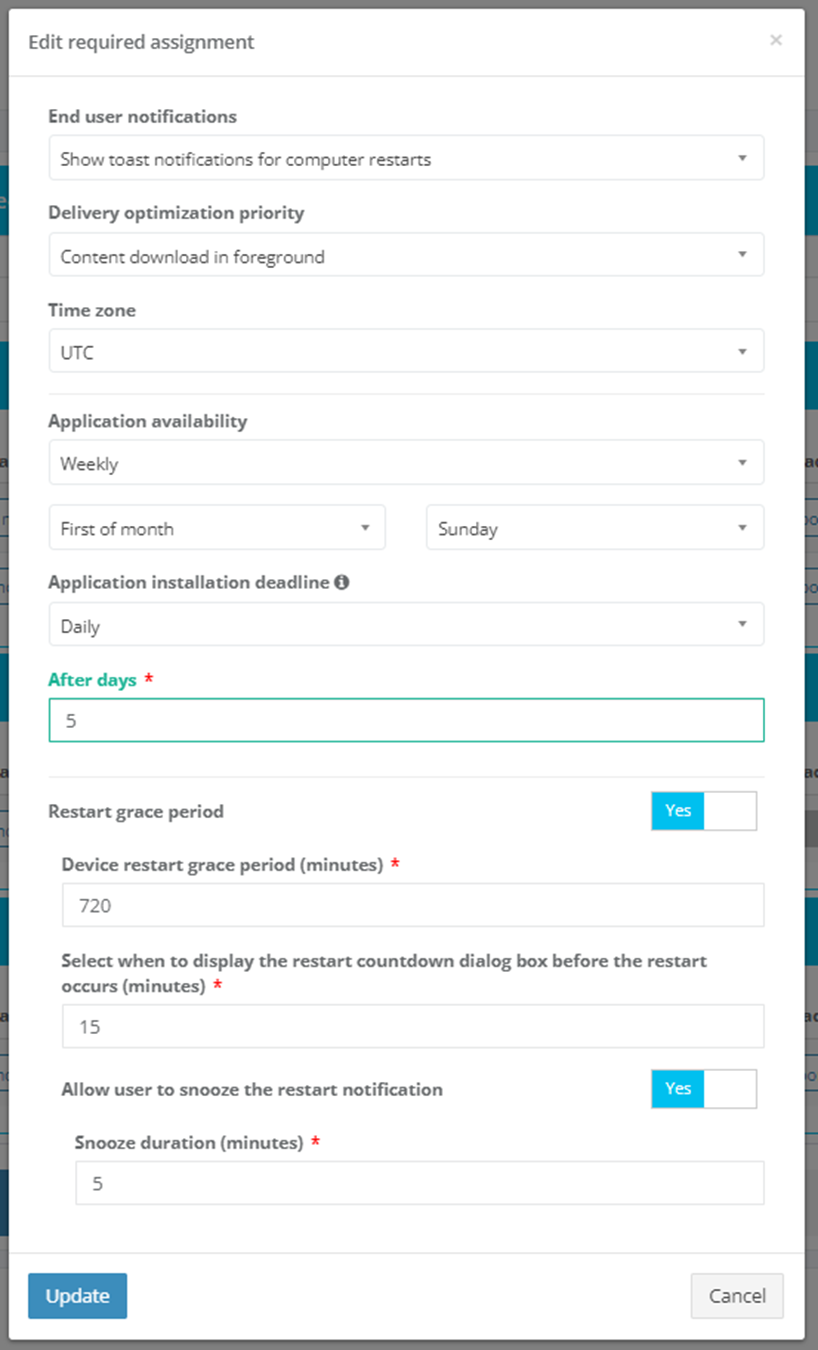
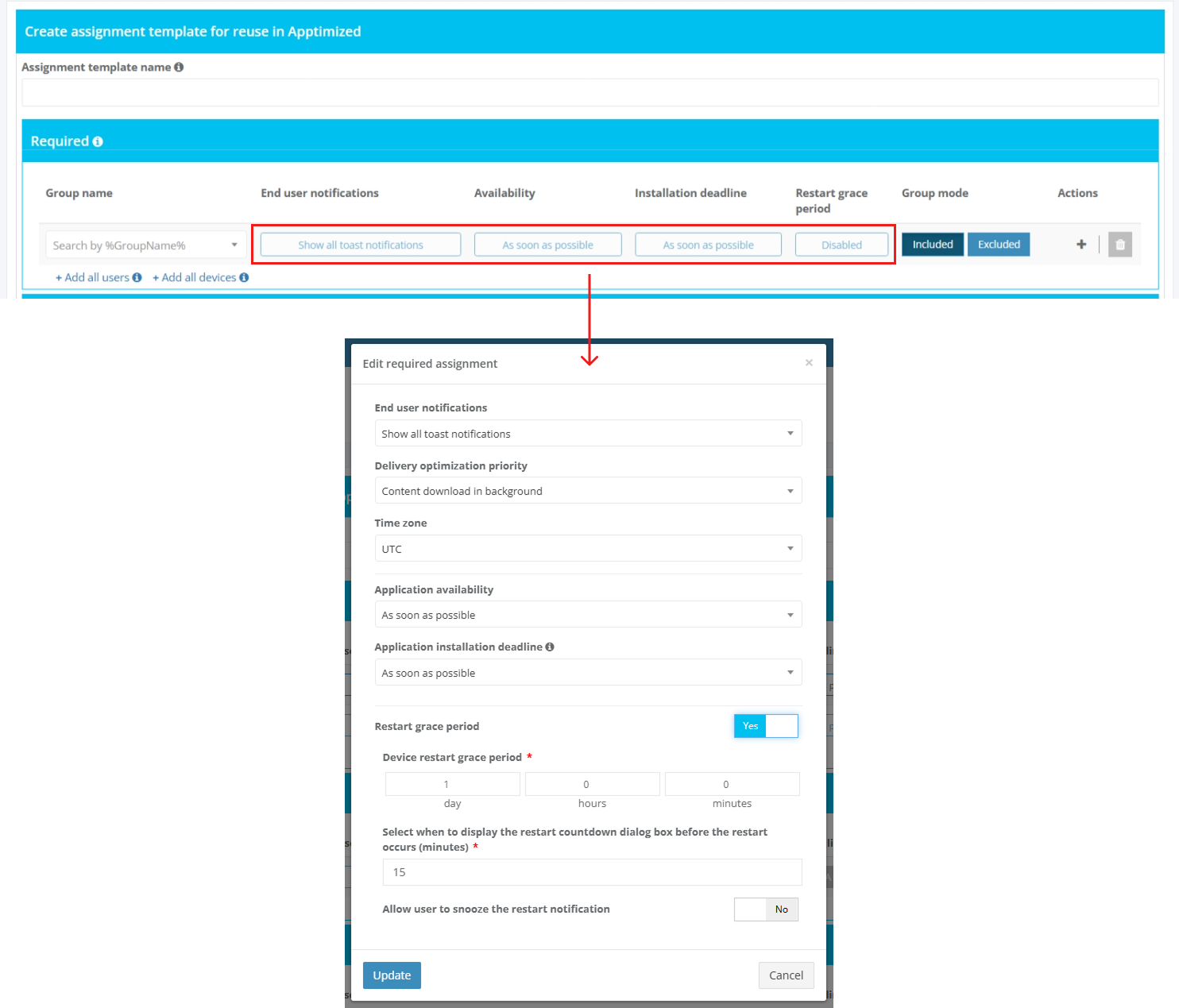
Table 7. Editing Template
|
Option |
Description |
|
End User Notifications |
This option allows choosing to show all toast notifications, |
|
Delivery Optimization Priority |
This option has two functions: "content download in foreground" and "content download in background". |
|
Time Zone |
This option allows choosing an appropriate time zone. |
|
Application Availability |
This option allows specifying when the app is downloaded to the user's device. |
|
Application Installation Deadline |
This option allows specifying when the app is installed on the targeted device. When more than one assignment is made for the same user or device, the app installation deadline time is picked based on the earliest time possible. |
|
Restart Grace Period |
This option allows starting as soon as the app installation has finished on the device. When the setting is disabled, the device can restart without warning. |
|
Device Restart Grace Period |
The default value is 1,440 minutes (24 hours). This value can be a maximum of 2 weeks. |
Restart grace period will be Enabled by default.
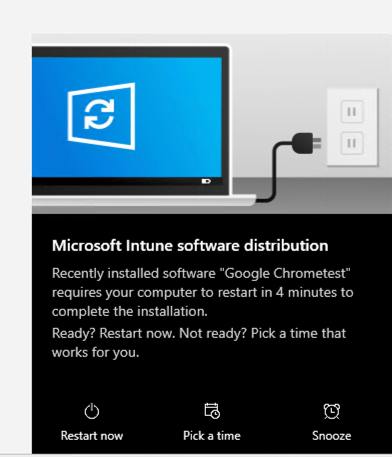
When installing the app, the following window will appear:
SCCM Push Tab
The option to access the SCCM Push tab allows users to configure settings for pushing applications to SCCM (System Center Configuration Manager). Below is aavailable detailedunder explanationUpdates of> theActions options> displayedEdit in> theCustomizer image:> SCCM Push.
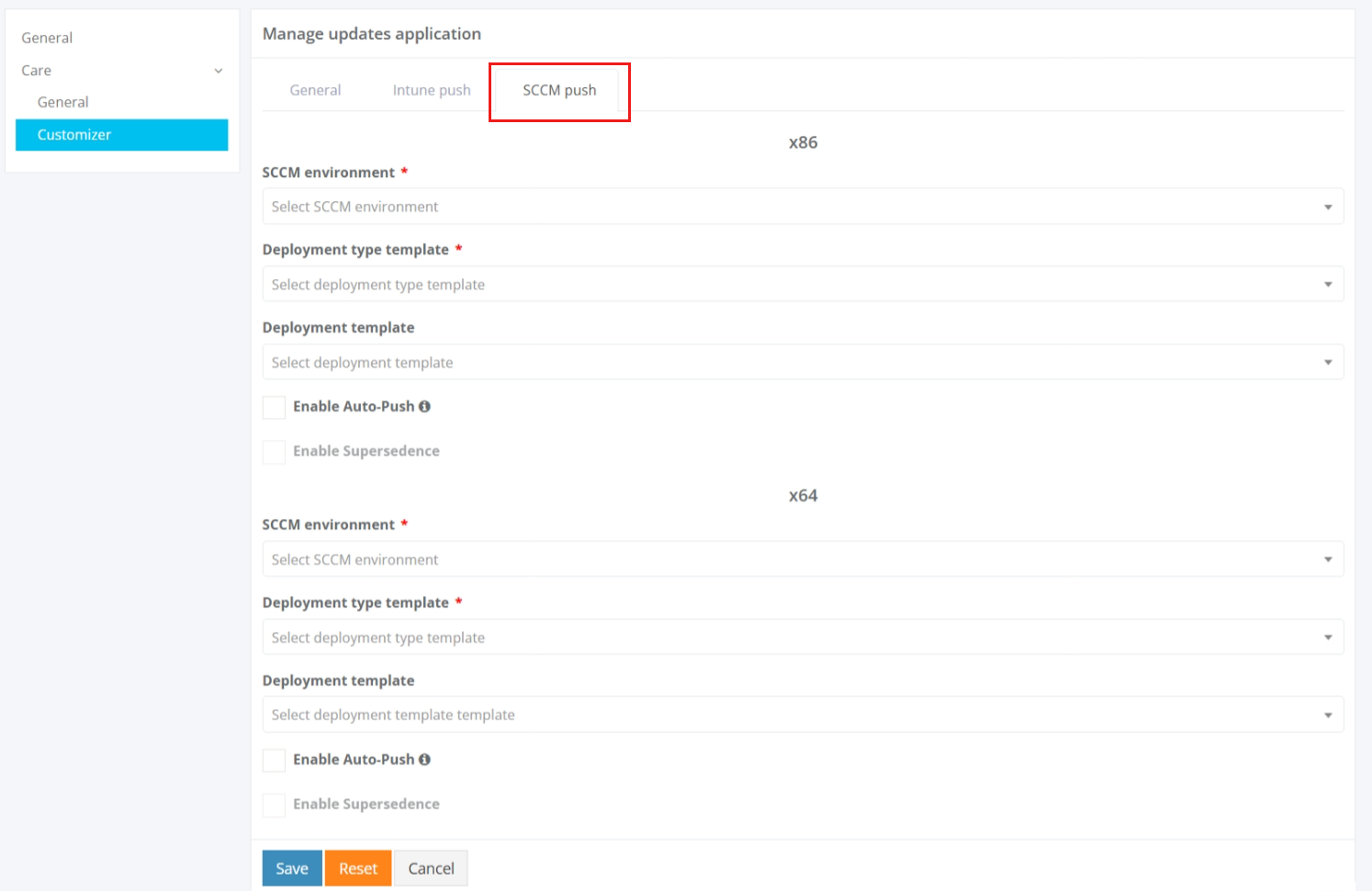
Table 8. SCCM Push
|
Option |
Description |
|
Example
SCCM Environment
SelectThis field defines the target SCCM environment,environment where the application will be deployed.
yes
"Demo Environment"
Deployment Type Template
ChooseThis a predefined template thatfield defines the deployment type settings,template suchused asfor installation methods and deployment rules.
yes
"Demo Deployment Type Template"
Deployment Template
SelectThis afield templatedefines forthe deployment configuration,configuration template, including scheduling and user experience settings.
no
"Demo Deployment Template"
Enable Auto-Push
AutomatesThis option enables automatic application deployment to SCCMSCCM. withoutThe manualoption intervention.
available
when Auto-Push isno
Checkboxproject
(Enabled/Disabled)level.
Install the latest version
AutopushThis foroption enables automatic deployment of the lateslatest available application version into SCCM immediately.
no
Checkbox
(Enabled/Disabled)SCCM.
Enable Supersedence
AllowsThis anoption enables application to supersede an older versionsupersedence during deployment.
no
Checkbox
(Enabled/Disabled)
Auto-Push Workflow
- When Enable Auto-Push is checked:
- The application is automatically exported to SCCM using the selected templates.
YouUser can specify whether the deployment applies to x86, x64, or both architectures (if applicable).- No further manual actions are required for deployment initiation.
- Ensure that the SCCM environment and templates are properly configured to avoid deployment issues.
- Use Case for Auto-Push:
- Automating deployments for routine application updates or large-scale rollouts.
- Reducing manual steps in the SCCM deployment process.
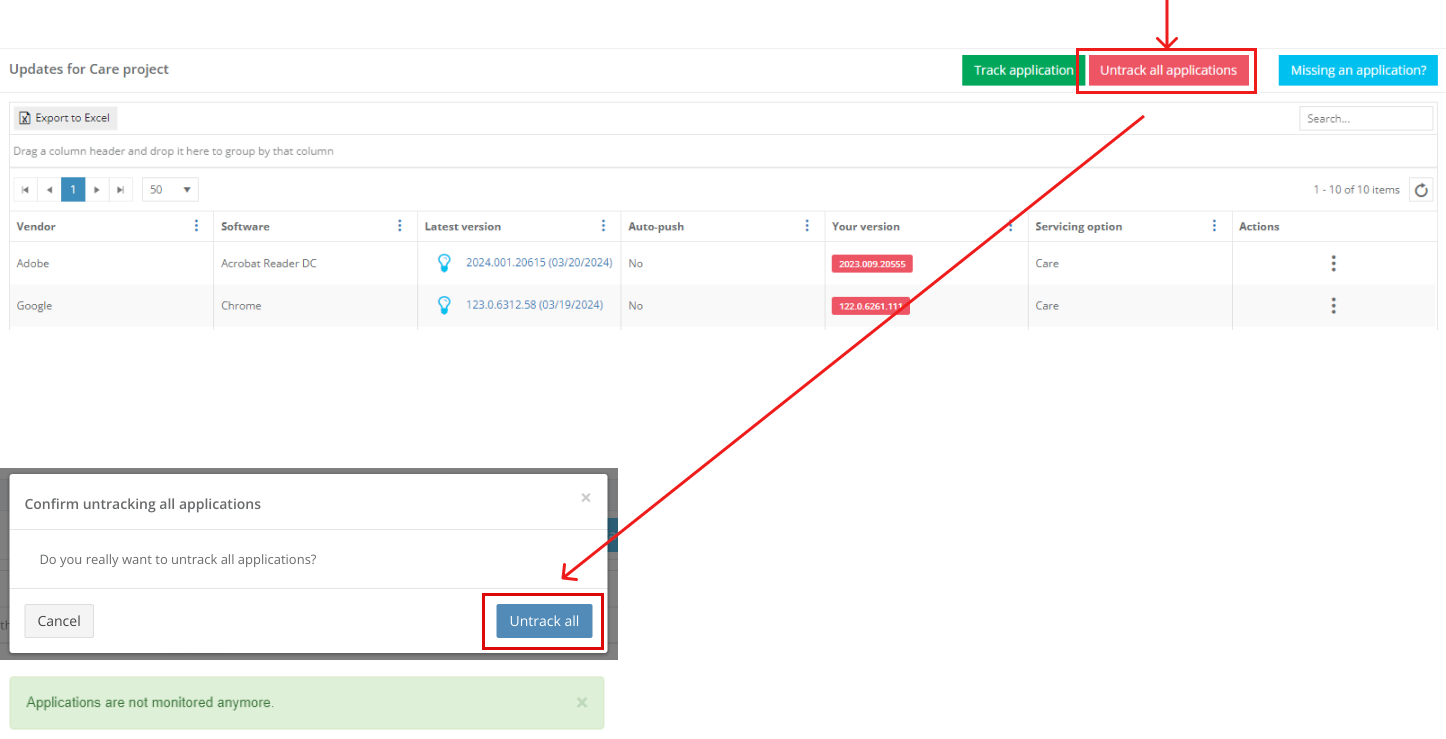
Untrack applications
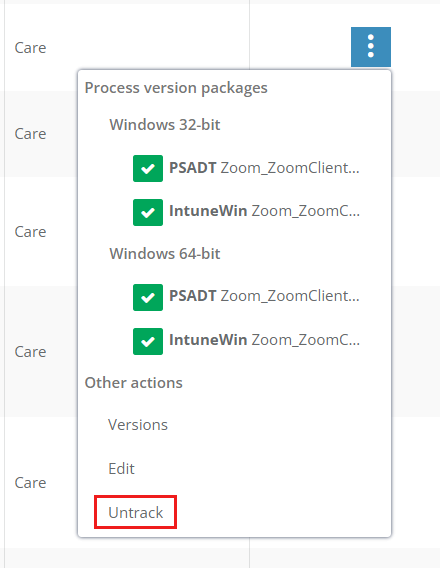
The option to exclude the application from the list of monitored applications is available under the Actions column > Untrack button:
The option to exclude all applications from the list of monitored applications is available under the Untrack all applications button:
Notifications
Apptimized notifies the user when the new package version is available. The following screen provides an example of the email notification:
.png)
Apptimized notifies the user when the application package track request is resubmitted. The following screen provides an example of email notification:
.png)
Care+
Apptimized Care + is a fully configurable automated application lifecycle management and packaging service.
The "Care +" option appears in Updates after it is initiated in the project settings by the project manager.
Apptimized shows the following screen when clicking Updates button:
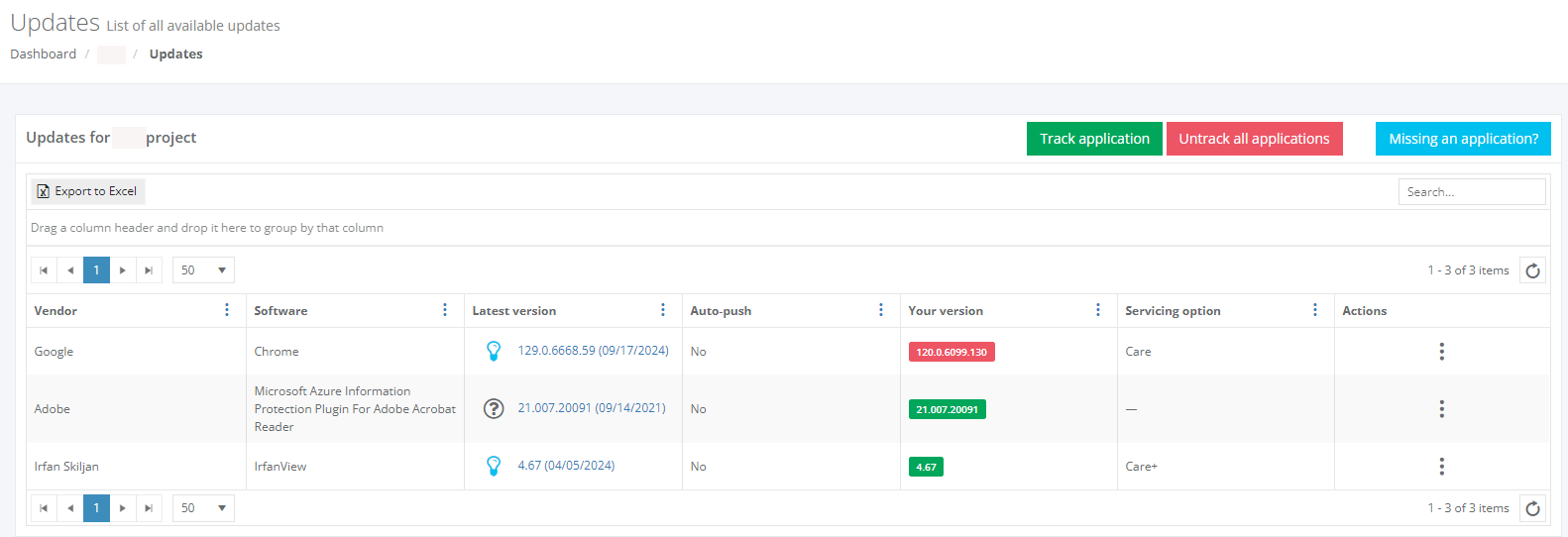
The screen above shows the default Apptimized Portal interface when several applications are added.
Care+ and Care groups data into six categories:
Table 1. Care+ and Care data categories
Category
Details
Vendor
This category provides the details about the application’s vendor (e.g., Tim Kosse)
Software
This category provides the details about the application’s name (e.g., FileZilla)
Latest version
This category provides information about the newest version of the application released by the vendor and available in the Apptimized Platform.
Autopush
This category shows if Autopush function is active.
Your version
This category provides information about the latest version of the application that is pinned within the recent user’s activities in the Care page.
The following colors are implemented to indicate the current state of the monitored application:

- The latest version is available in the user’s packaged application portfolio

- The newer version (in comparison to the one a user has in portfolio) has been released by the vendor

- The version a user has in the packaged application portfolio is outdated. This means that there are two or more recent releases of the application provided by the vendor
Note. The application version can be pinned in the following cases: 1. A user started the application package monitoring (Project menu > Updates option > Track updates button > Select the application > Save button)
2. A user requested to process the latest version of the application (Actions column > Process version packages section > Select the Windows bitness > Select PSADT or Intunewin package > Download package or Push to SCCM / Intune > Confirm update software > Yes button) 3. A user changes the version of the application package (Actions column > Versions button > Process package column > Select the application’s version > Download package or Push to SCCM / Intune > Confirm update software > Yes button) 4. A user changes the version of the application manually (Actions column > Edit button > Your version field > Enter the numeric value > Save button)
Сare/+
This category provides information on whether the Care or Care+ service is enabled.
The following options are available:
Actions
This category enables a user to provide the activities under the monitored applications.
The following actions are available:
New package request
The option to track an application package and add it to the monitoring list is available under the Track application button > Select the best matching application > Save button.
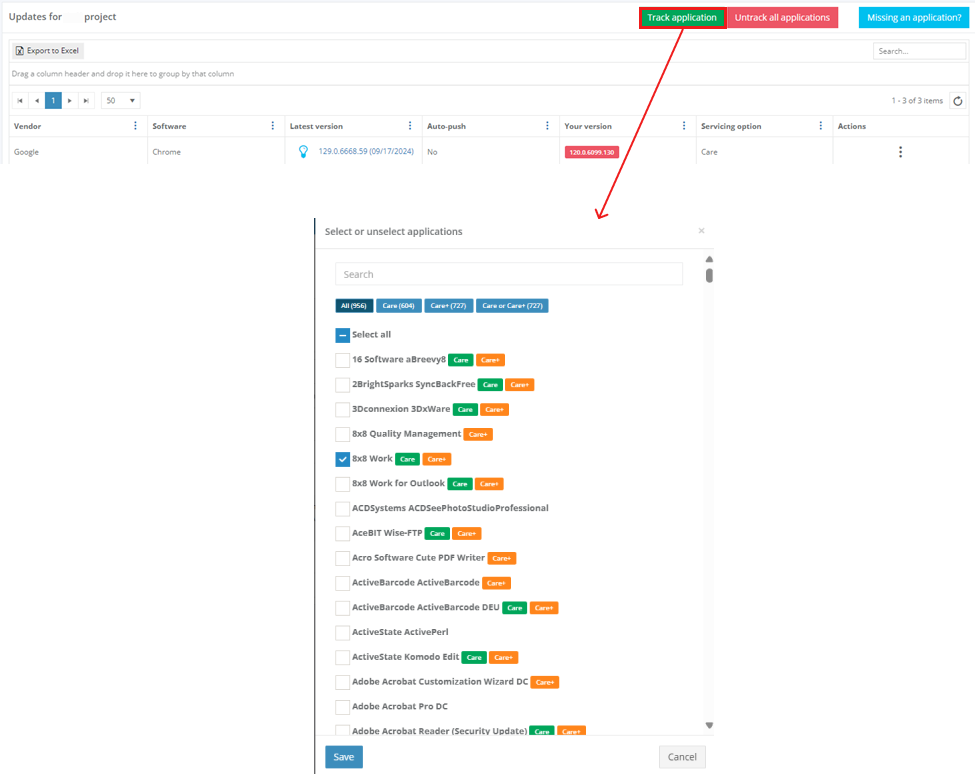
The application appears in the list of monitored applications when successful.
New application request
The option to create a request to add an application to the Update monitoring list is available under the Missing an application? button. The Apptimized Team will check the possibility to add the application to the Update monitoring list.
Apptimized shows the modal window when successful:
Enter the value in the Vendor name field > Enter the value in the Software name field > Request button. All required fields are marked with an asterisk *.
Update the application’s version
The option to update the application’s version is available under Actions >Versions:
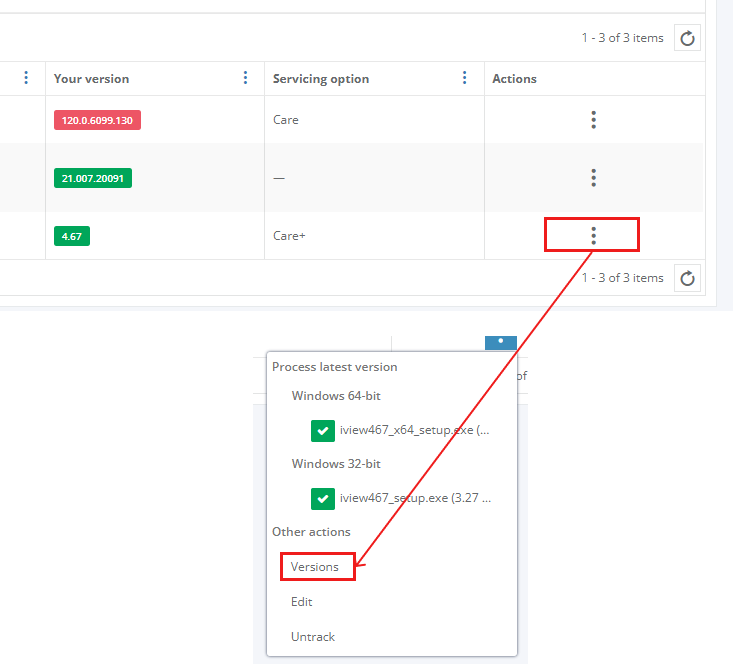
Apptimized shows the following screen:
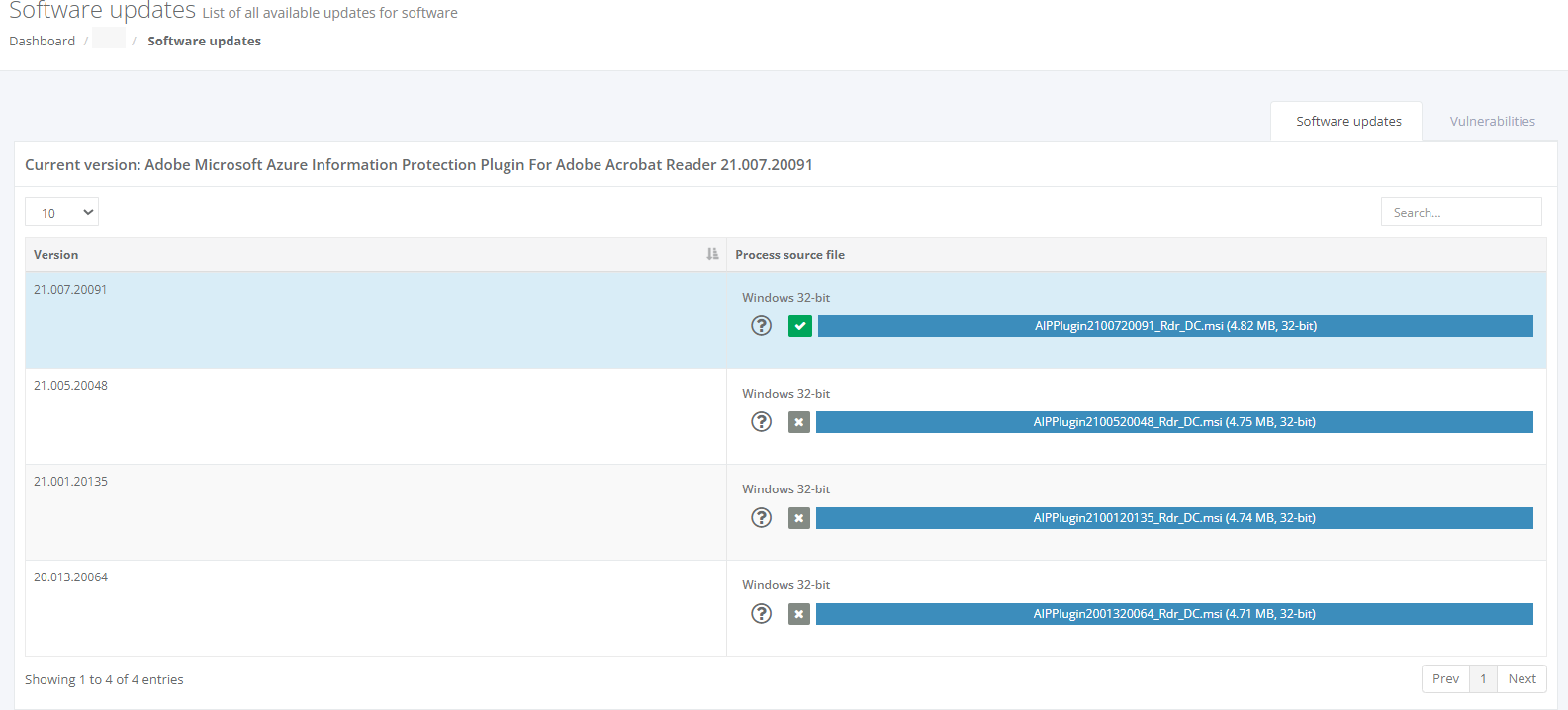
Editing Monitored Application Settings
The option to edit the application’s settings is available under Actions >Edit:
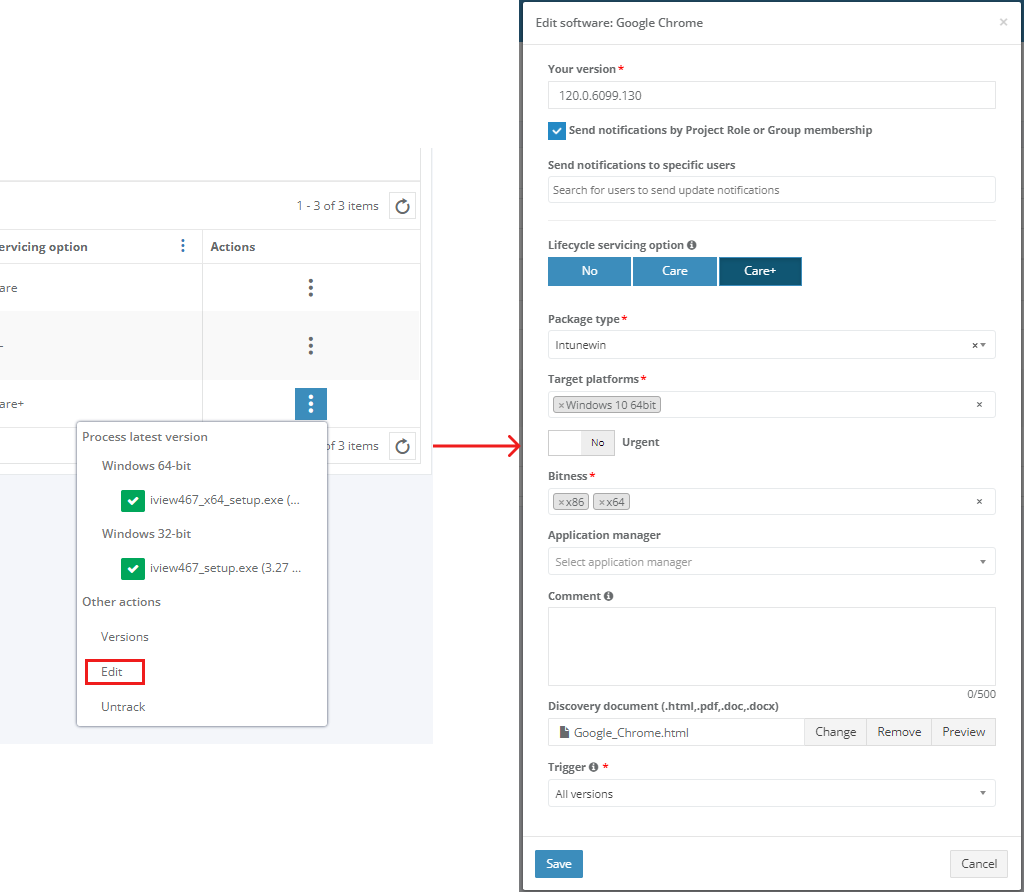
Table 2. Editing Settings
Option
Description
Your Version
This category provides information about the latest version of the application.
Send Notifications by Project Role or Group membership
This checkbox enables sending notifications.
Send Notifications to Specific Users
This option allows choosing specific users by providing their emails.
Lifecycle Servicing Option
This option provides information on whether Care or Care+ service is enabled.
Package type
This option indicates which packaging technology should be implemented by Apptimized specialists.
Target platforms
This option indicates which packaging platform should be implemented by Apptimized specialists.
Packaging platform option is enabled by default.
Urgent
This option gives an opportunity to speed up the packaging process. Please clarify the deadlines with your project manager.
Bitness
This option indicates the bitness of the created package.
The following options available:
This option is required.
Both options enabled by default.
Application Manager
This option allows setting up default user assignee for managing application (downloading, editing, deploying, untracking).
Comment
This field gives an opportunity to provide description to auto generated issues and suggestions.
Discovery Document
This option allows uploading the discovery document of the application provided by the Apptimized team.
Trigger
This option allows defining events to control the frequency of update package delivery.
The following triggers available:
Customizer
Customizer is the next evolution of our Care product, allowing customers to apply custom settings ensuring every Care package meets their requirements.
How to access Customizer
To enable Customizer in a project, navigate to Project Settings and select the corresponding checkbox.
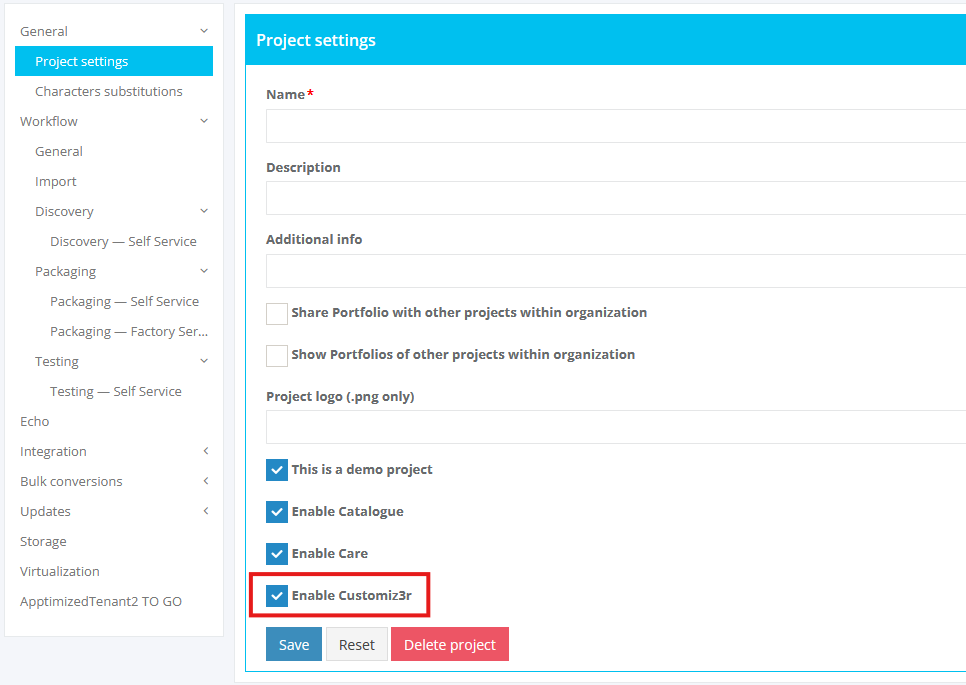
Note: If the checkbox is not visible in the settings, contact the Apptimized support team or the designated contact person from Apptimized to request the necessary permissions.
Customization settings overview
All custom configurations are stored under the “Updates – Customization” and “Updates – Wrapper” sections in the project settings. These settings apply to all Care packages enabled within the project.
The Customization tab contains the following settings:
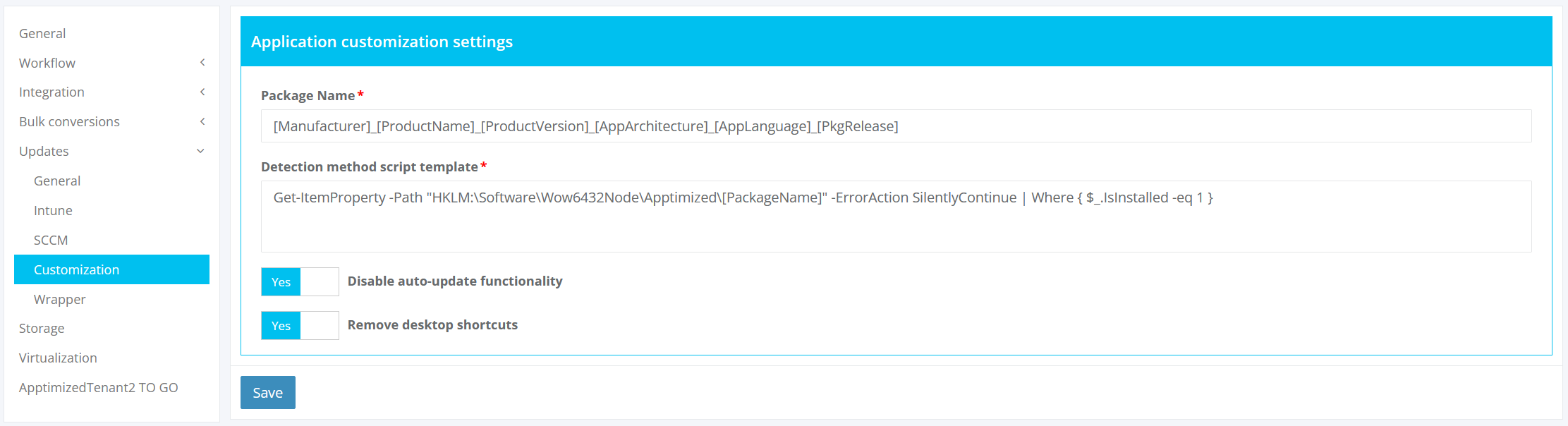
Table 1. Configuration settings
|
Configuration |
Description |
|
Package Name |
Defines the naming convention for packages |
|
Detection method script template |
Specifies the script template used to verify successful installation and uninstallation during Intune deployment |
|
Disable auto-update functionality |
Enables or disables application auto-update functionality (if supported) |
|
Remove desktop shortcuts |
Removes desktop shortcuts or leaves them based on the vendor’s default behavior |
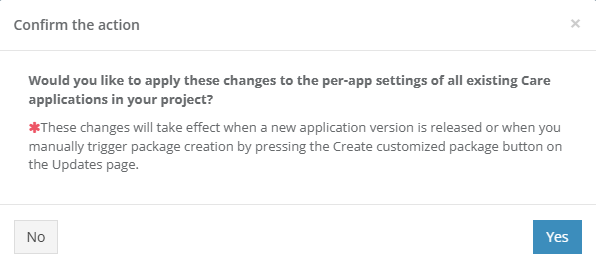
Pressing the Save button opens the Confirm the action modal window. The modal window allows to select whether to apply the updated settings to all existing Care applications in the project or only to new ones.
The Yes button applies the settings to all existing Care applications, while the No button applies them only to new ones.
The Wrapper tab configures the PowerShell App Deployment Toolkit (PSADT) template and includes the following settings:
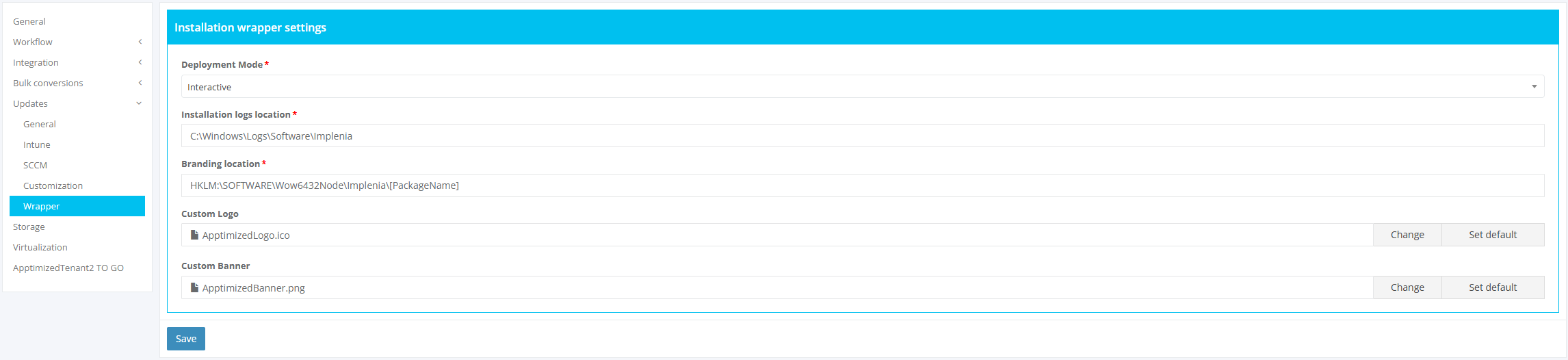
Table 2. Wrapper settings
|
Configuration |
Description |
|
Deployment Mode |
Defines the package installation mode (Silent, Interactive, or Non-Interactive) |
|
Installation logs location |
Specifies the log file path for PSADT and package logs |
|
Branding location |
Configures the registry key path used for package branding |
|
Custom Logo |
Sets a custom logo for the PSADT installation window (preferred format: .ico, 64×64). The Set default option restores the default logo. |
|
Custom Banner |
Sets a custom banner for the PSADT installation window (preferred format: .png, 450×50). The Set default option restores the default banner. |
Per-application settings
In addition to the customization settings applied to all applications within a project, there is an option to configure each application individually with additional customization options.
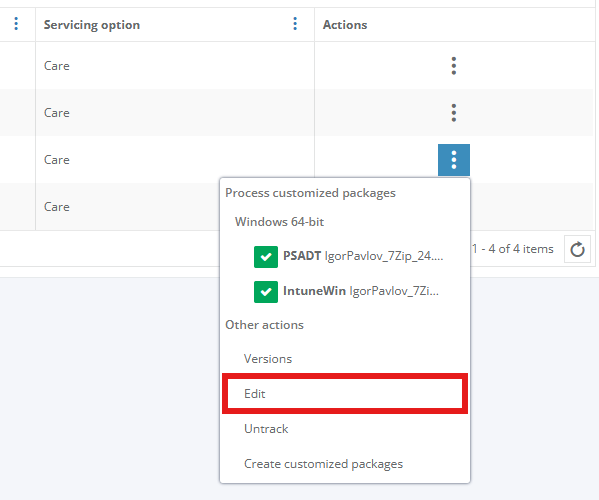
To access per-application settings, navigate to the Updates page > click the Actions (three-dot) button > select Edit for the desired application.
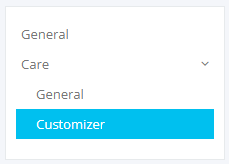
All available settings are displayed under the Care – Customizer submenu item.
Per-application settings include three main sections, each offering different customization options: General, Additional, and Advanced settings.
General per-application settings include the same configurations available in the project settings, providing the option to overwrite them at the application level.
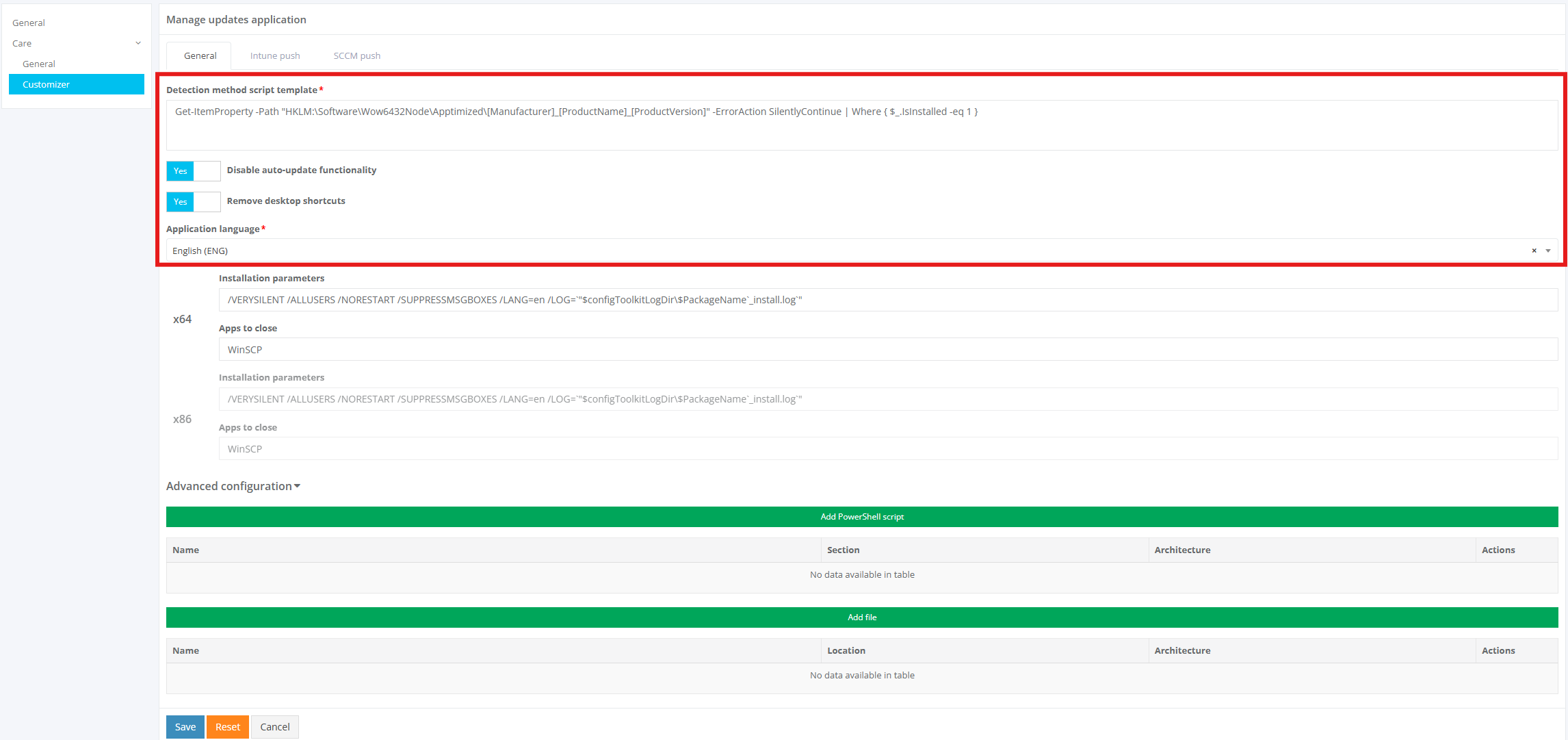
Table 3. General per-application settings
|
Configuration |
Description |
|
Detection method script template |
Specifies the script template used to verify successful installation and uninstallation during Intune deployment |
|
Disable auto-update functionality |
Enables or disables application auto-update functionality (if supported) |
|
Remove desktop shortcuts |
Removes desktop shortcuts or leaves them based on the vendor’s default behavior |
|
Application language |
Specifies the default language of the application included in the delivered Care package |
Additional per-application settings display the default values for installation parameters and applications to close within the Care package. These values can be modified as needed to meet specific application requirements.
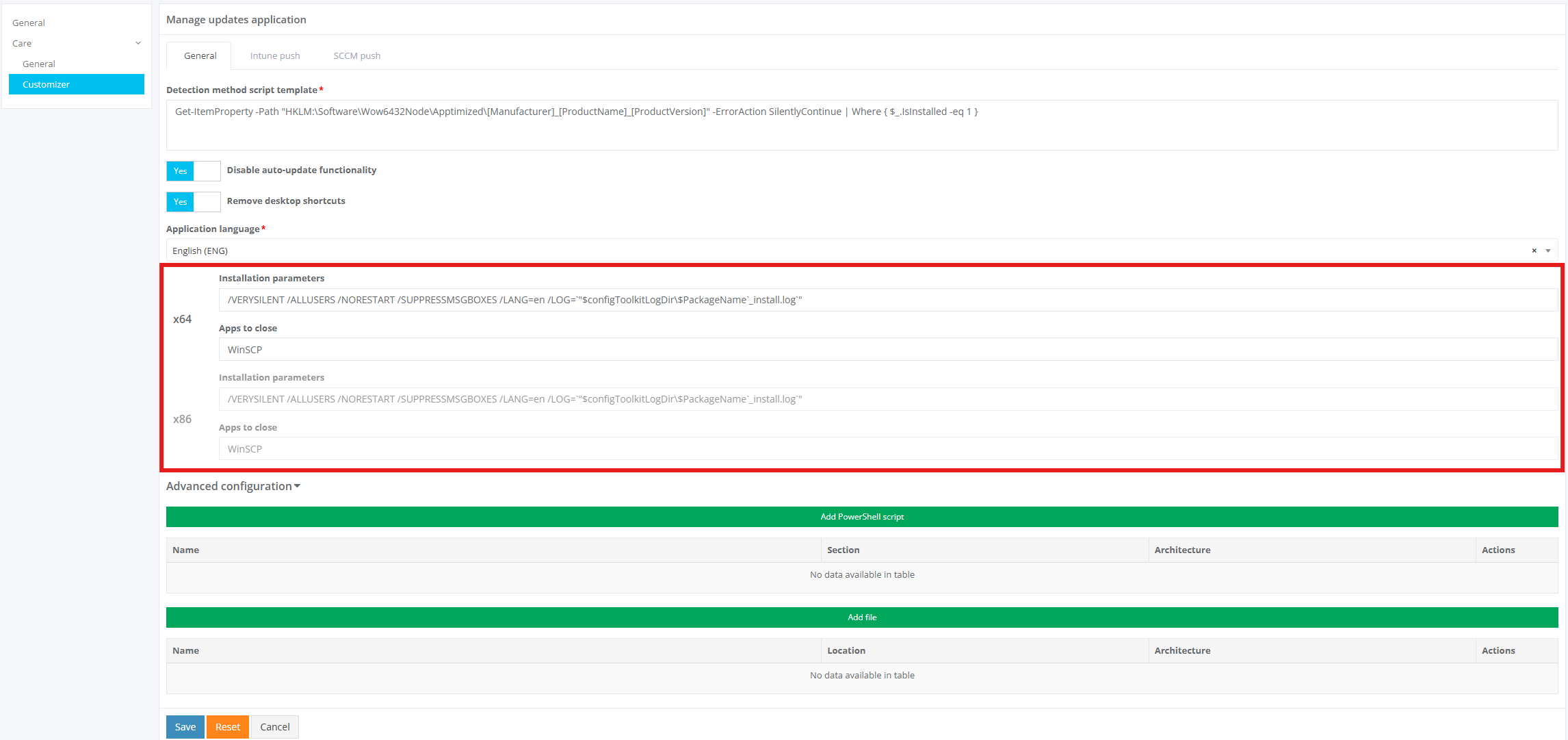
Table 4. Additional per-application settings
|
Configuration |
Description |
|
Installation parameters |
Specifies the set of parameters applied to the application source file during the installation process |
|
Apps to close |
Specifies the list of processes that are closed during package installation and uninstallation |
Advanced per-application settings allow adding PowerShell scripts and files to enable additional customization options.
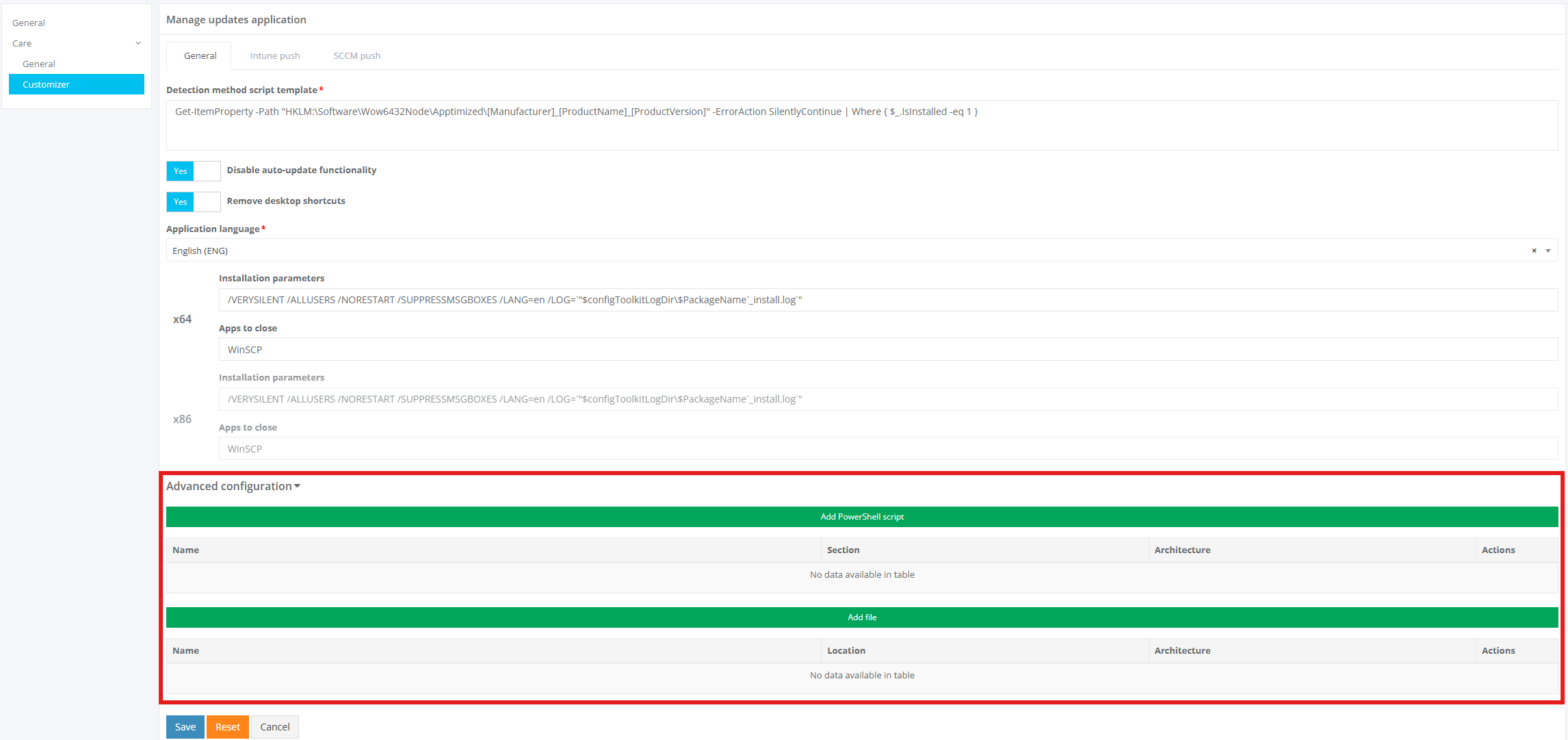
Clicking the Add PowerShell Script button opens a modal window where a PowerShell script can be added to be included in the final generated Care package.
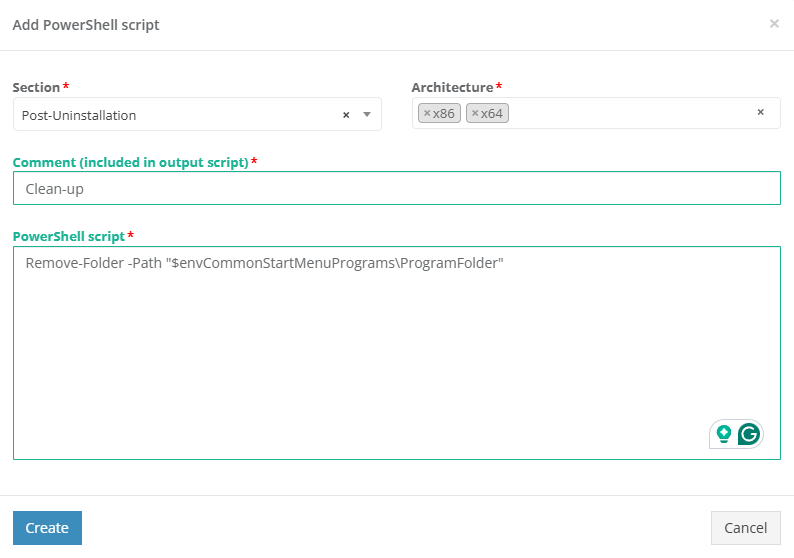
Table 5. Add PowerShell script modal window
|
Configuration |
Description |
|
Section |
Specifies the section where the PowerShell script will be included (Pre-Installation, Installation, Post-Installation, Pre-Uninstallation, Uninstallation, or Post-Uninstallation) |
|
Architecture |
Defines the package architecture(s) to which the PowerShell script applies |
|
Comment |
Adds a comment above the PowerShell script to describe the action it performs |
|
PowerShell script |
A multiline section that may include PowerShell and PSADT cmdlets to be added to the final generated Care package |
Clicking the Add File button opens a modal window where files (up to 100 MB in size) can be added to the package. These files can later be used within PowerShell scripts to include additional configuration files, license files, or prerequisite installers.
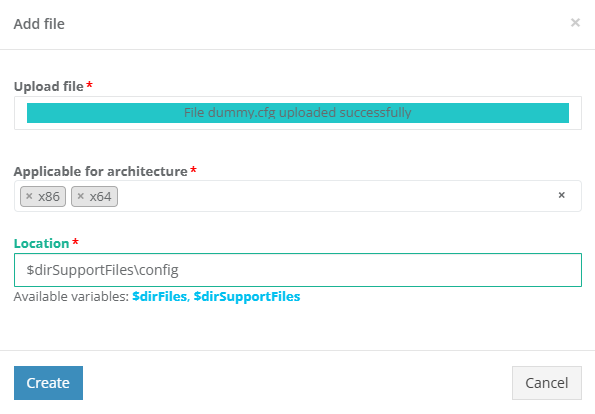
Table 6. Add file modal window
|
Configuration |
Description |
|
Upload file |
Field used to upload a file to the package |
|
Applicable for architecture |
Defines the package architecture(s) to which the file will be added |
|
Location |
Specifies the package folder where the file should be placed (custom subfolders are created automatically if needed) |
After making the necessary changes, click the Save button. Clicking the Reset button restores default values for all fields but does not remove PowerShell scripts or added files.
Intune Push Tab
The option to access the Intune Push settings is available under Updates > Actions > Edit > Customizer > Intune Push.
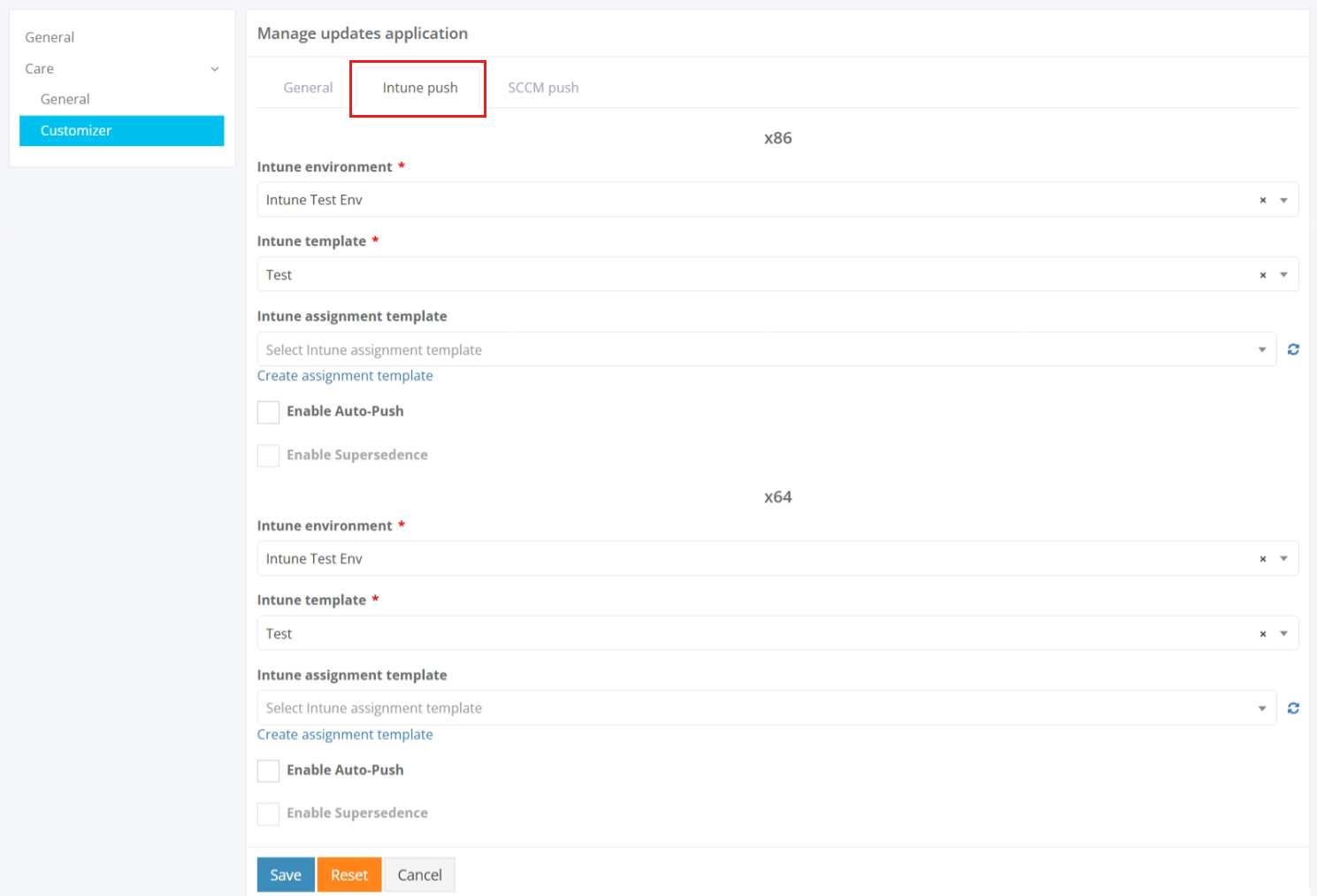
Table 6. Push
|
Option |
Description |
|
Intune Environment |
This option allows choosing an appropriate environment. |
|
Intune Template |
This option allows choosing created templates. |
|
Intune Assignment Template |
This option allows choosing assignment templates. |
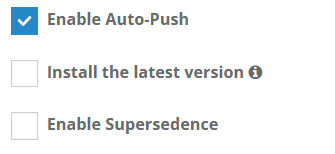
The option to enable Auto-Push is available under the Auto-Push checkbox. Auto-Push must be enabled at the project level for this option to be available.
The option to enable Supersedence is available under the Supersedence checkbox.
The option to enable auto-push for the latest version is available under the Install the latest version checkbox.
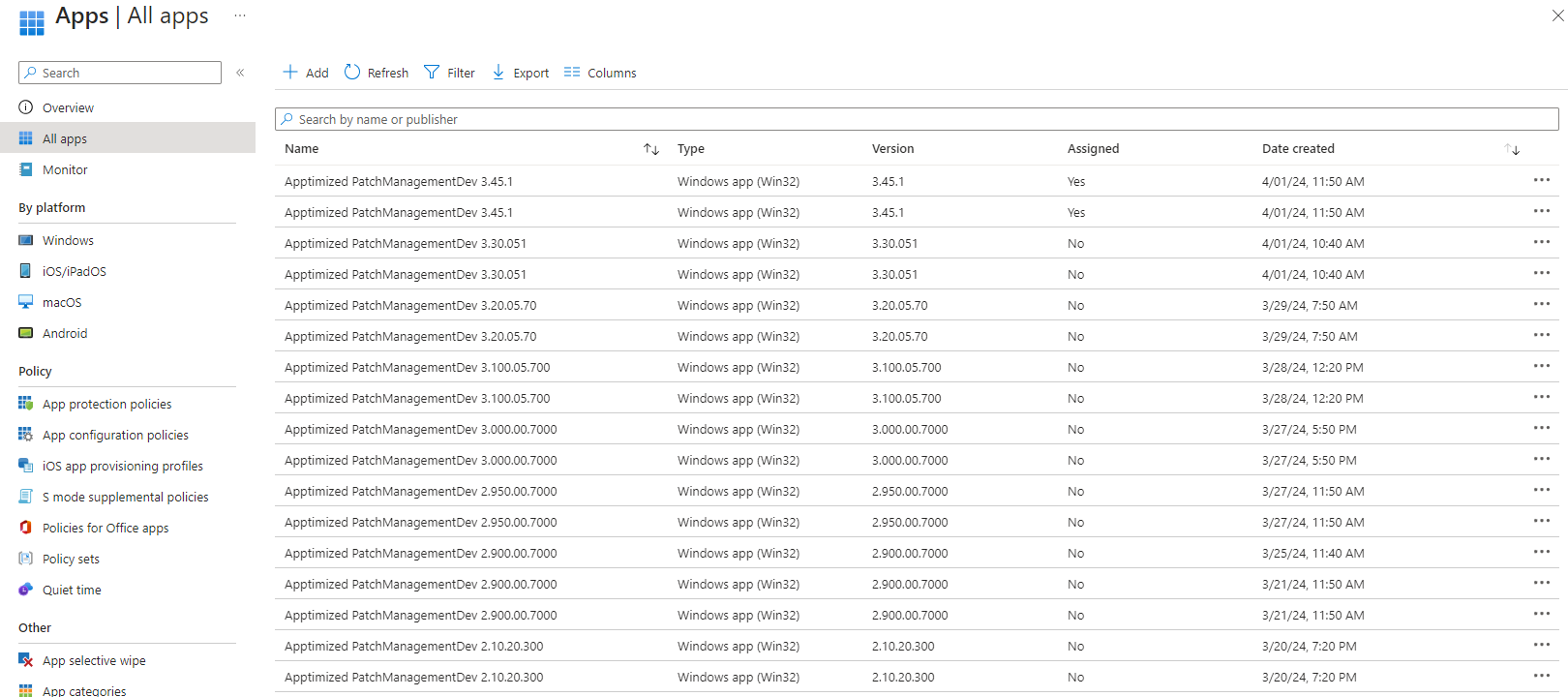
Apptimized shows the following screen when successful:
App versions older than the current ones are cleared during the autopush process.
A "Create Assignment Template" button allows creating assignment templates:
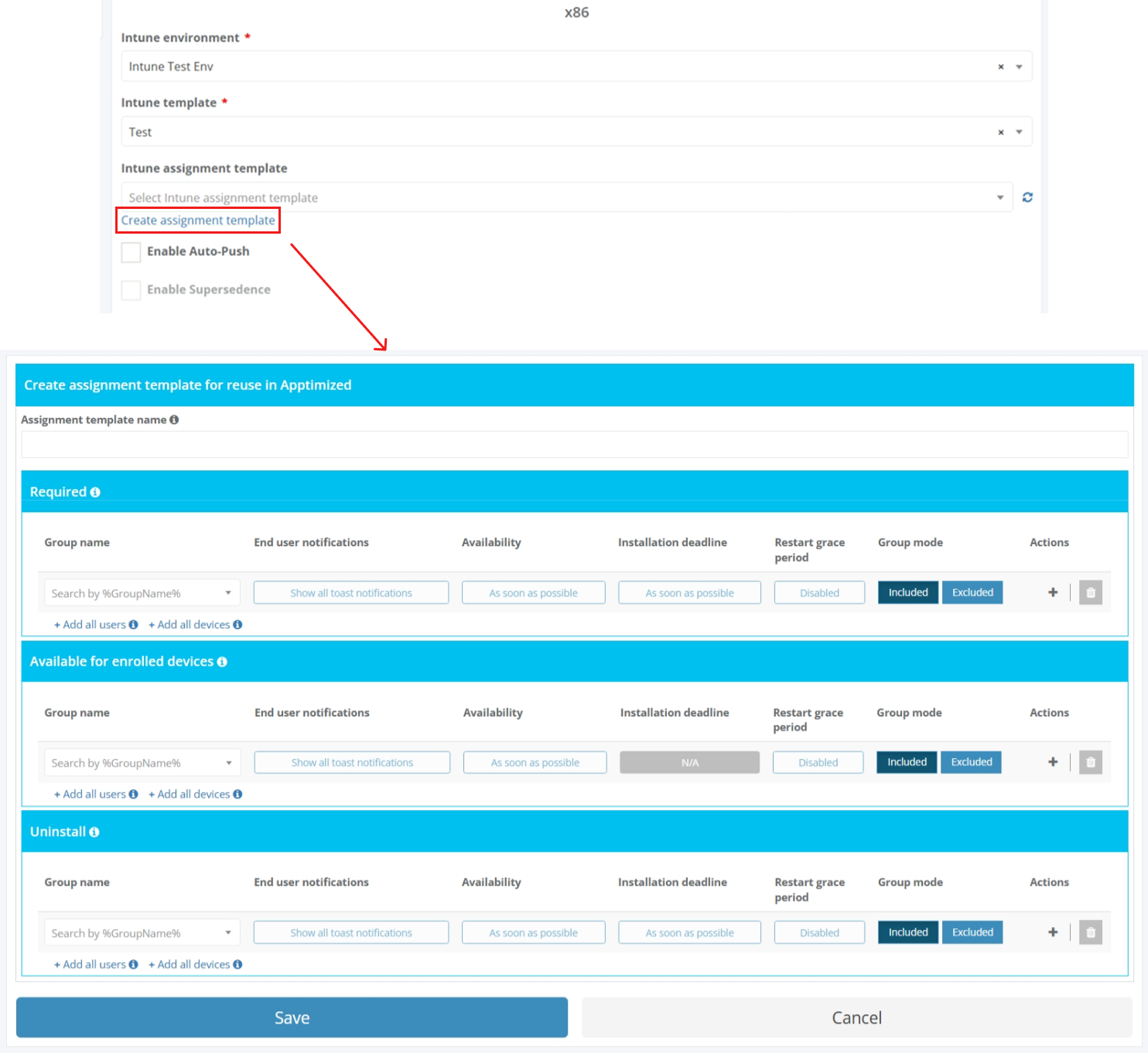
Apptimized shows the following screen when successful:
The option to edit assignment settings is available under the End user notifications, Availability, Installation deadline, and Restart grace period fields. The Edit required assignment modal window opens when successful.
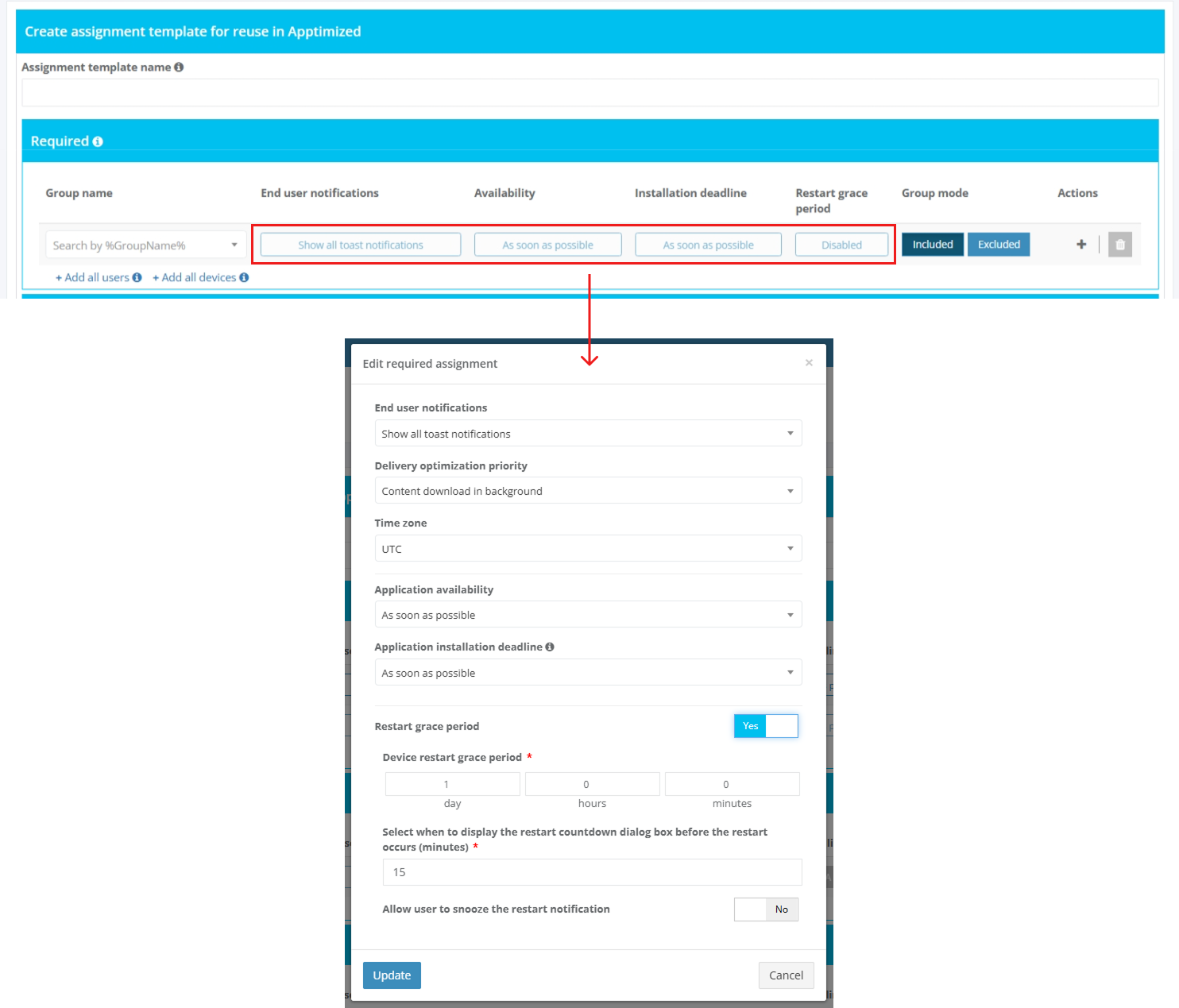
Table 7. Editing Template
|
Option |
Description |
|
End User Notifications |
This option allows choosing to show all toast notifications, show toast notifications for computer restarts or hide all toast notifications. |
|
Delivery Optimization Priority |
This option has two functions: "content download in foreground" and "content download in background". |
|
Time Zone |
This option allows choosing an appropriate time zone. |
|
Application Availability |
This option allows specifying when the app is downloaded to the user's device. |
|
Application Installation Deadline |
This option allows specifying when the app is installed on the targeted device. When more than one assignment is made for the same user or device, the app installation deadline time is picked based on the earliest time possible. |
|
Restart Grace Period |
This option allows starting as soon as the app installation has finished on the device. When the setting is disabled, the device can restart without warning. |
|
Device Restart Grace Period |
The default value is 1,440 minutes (24 hours). This value can be a maximum of 2 weeks. |
Restart grace period will be Enabled by default.
When installing the app, the following window will appear:
SCCM Push Tab
The option to access the SCCM Push settings is available under Updates > Actions > Edit > Customizer > SCCM Push.
Table 8. SCCM Push
|
Option |
Description |
|
SCCM Environment |
This field defines the target SCCM environment where the application will be deployed. |
|
Deployment Type Template |
This field defines the deployment type template used for installation methods and deployment rules. |
|
Deployment Template |
This field defines the deployment configuration template, including scheduling and user experience settings. |
|
Enable Auto-Push |
This option enables automatic application deployment to SCCM. The option is available when Auto-Push is enabled at the project level. |
|
Install the latest version |
This option enables automatic deployment of the latest available application version to SCCM. |
|
Enable Supersedence |
This option enables application supersedence during deployment. |
Auto-Push Workflow
- When Enable Auto-Push is checked:
- The application is automatically exported to SCCM using the selected templates.
- User can specify whether the deployment applies to x86, x64, or both architectures (if applicable).
- No further manual actions are required for deployment initiation.
- Ensure that the SCCM environment and templates are properly configured to avoid deployment issues.
- Use Case for Auto-Push:
- Automating deployments for routine application updates or large-scale rollouts.
- Reducing manual steps in the SCCM deployment process.
Processing customized packages
Once at least one configuration is modified from its default value, Customizer becomes active for the project. When a new version of the application is released, customized packages will be generated alongside the default Care packages.
If a user needs a customized package immediately instead of waiting for a new version release, they can navigate to the Updates menu and generate a customized package for the latest available version by clicking the “Create Customized Packages” button.
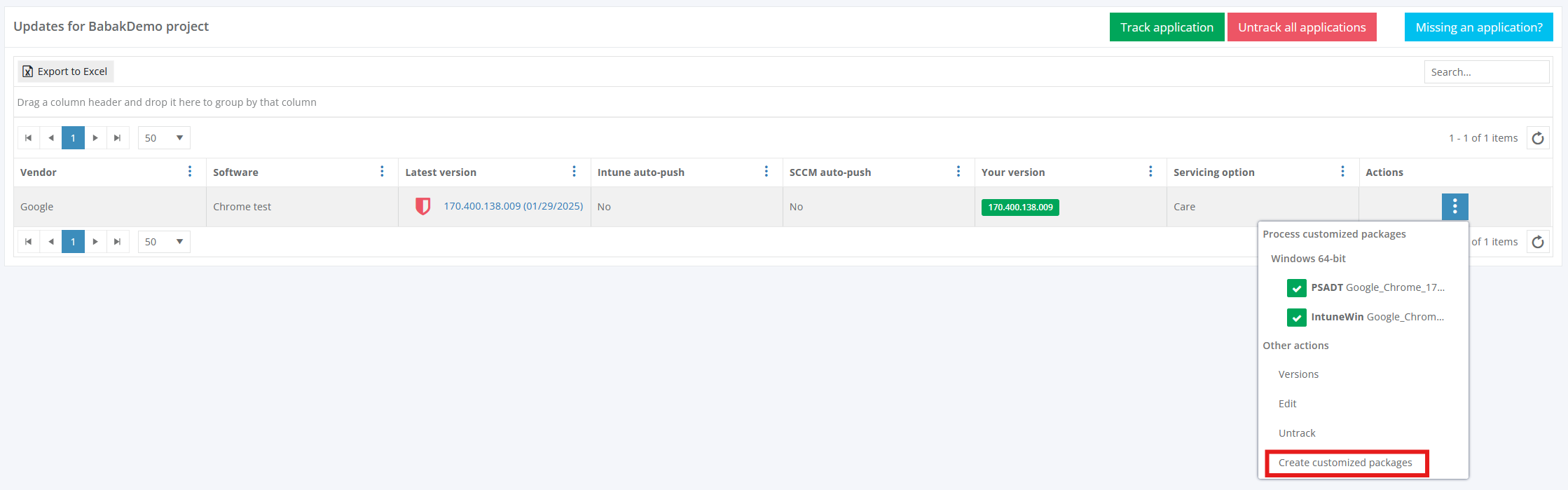
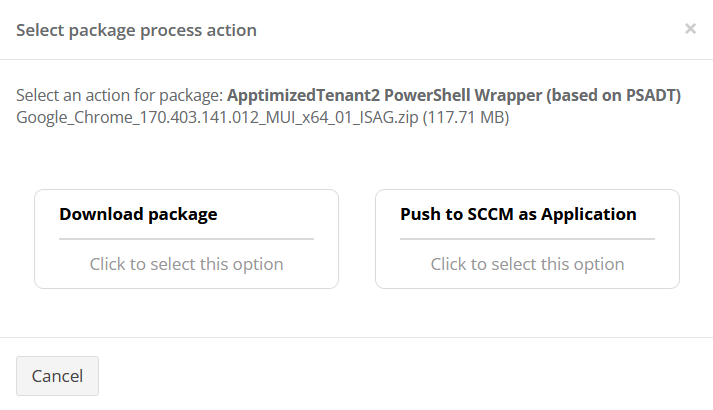
Once customized packages are delivered, users can manage them via the Actions context menu under the “Process Customized Packages” section.
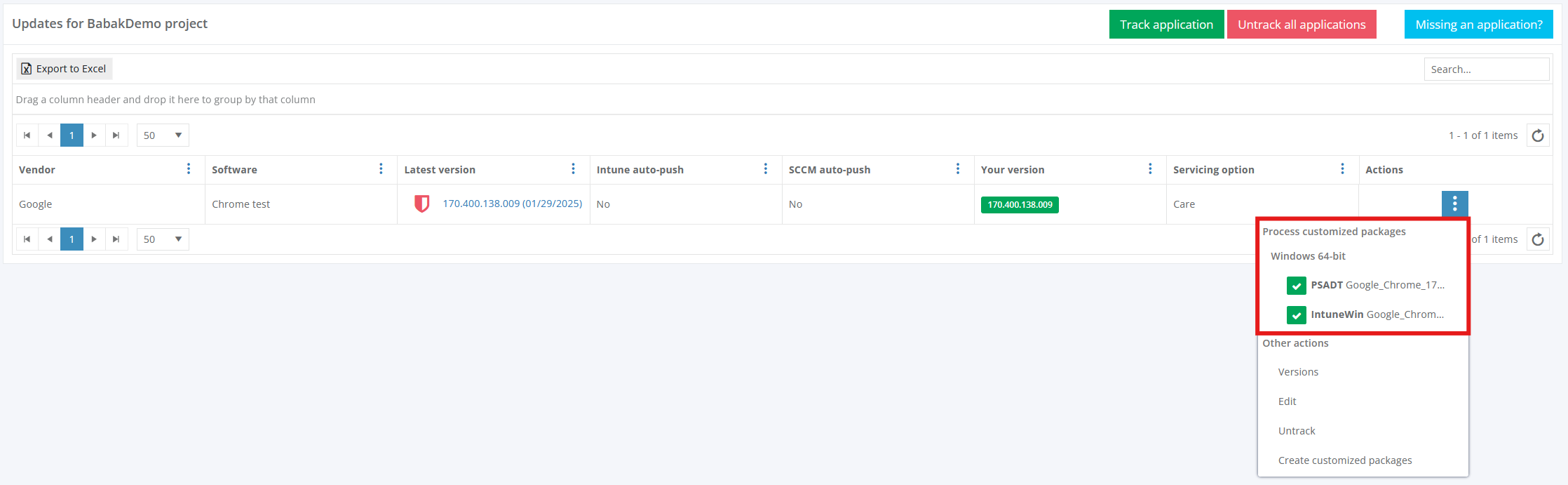
By selecting a package, users can choose to:
-
Download the package locally
-
Push the package to a connected deployment system (Intune or SCCM)
Additionally, users can access all available package versions by clicking the “Versions” button.
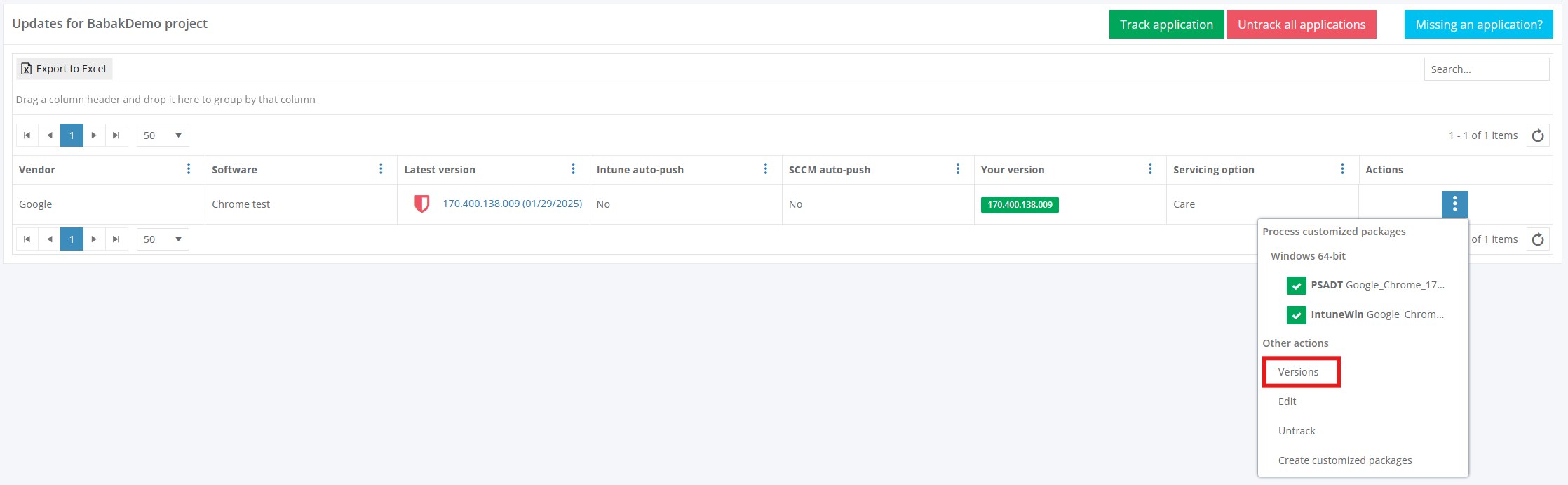
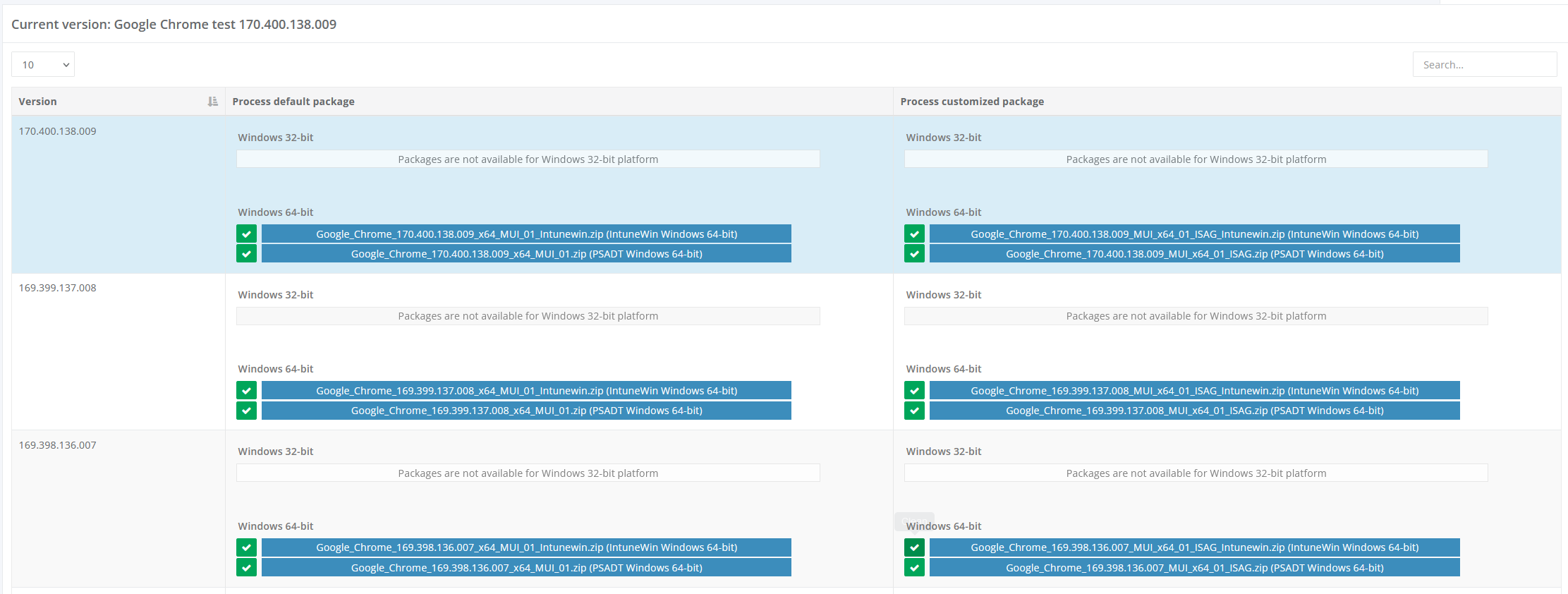
This page lists both default Care and customized packages for all available versions.
Email notifications
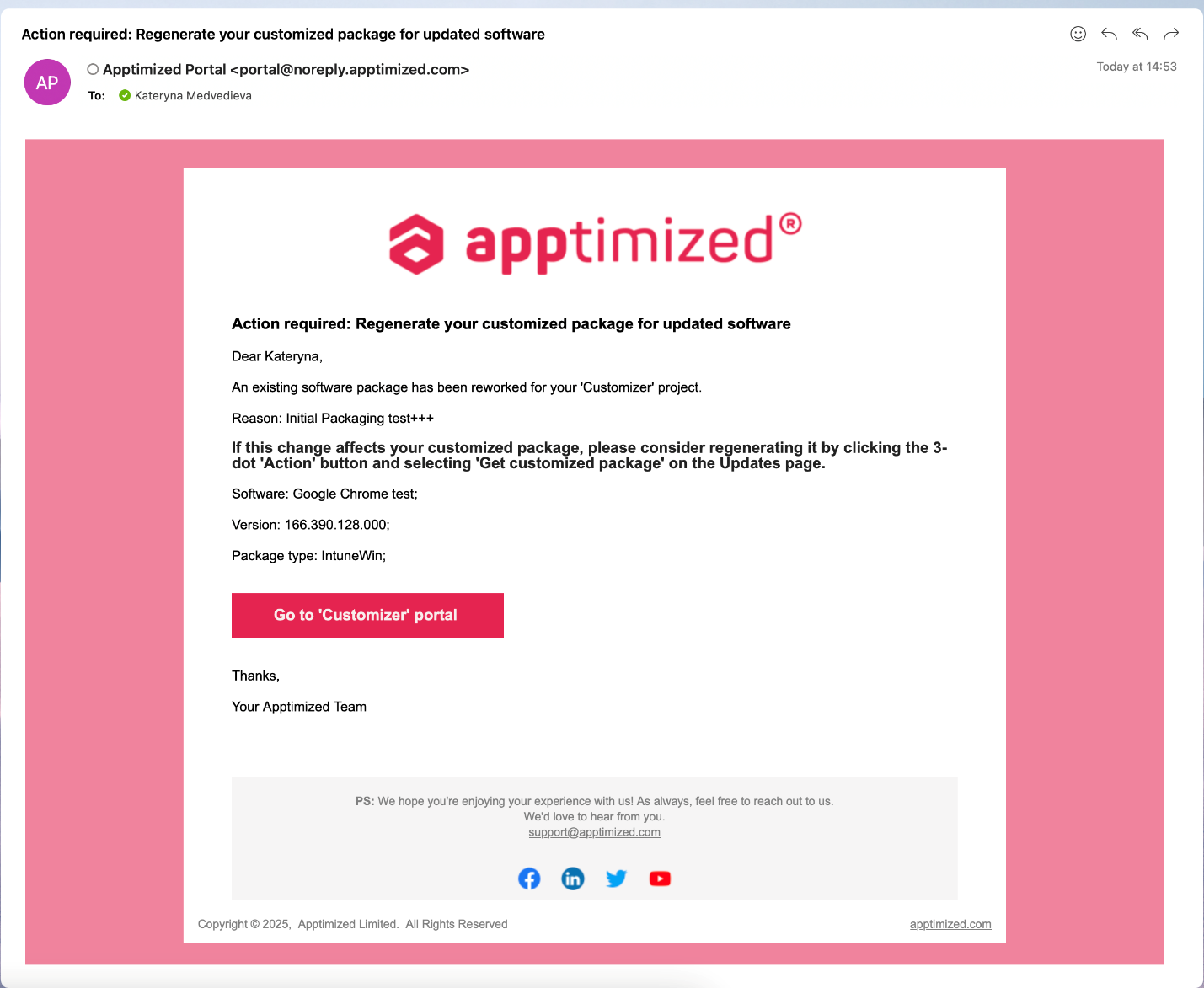
Users receive an email notification when a customized package is delivered.
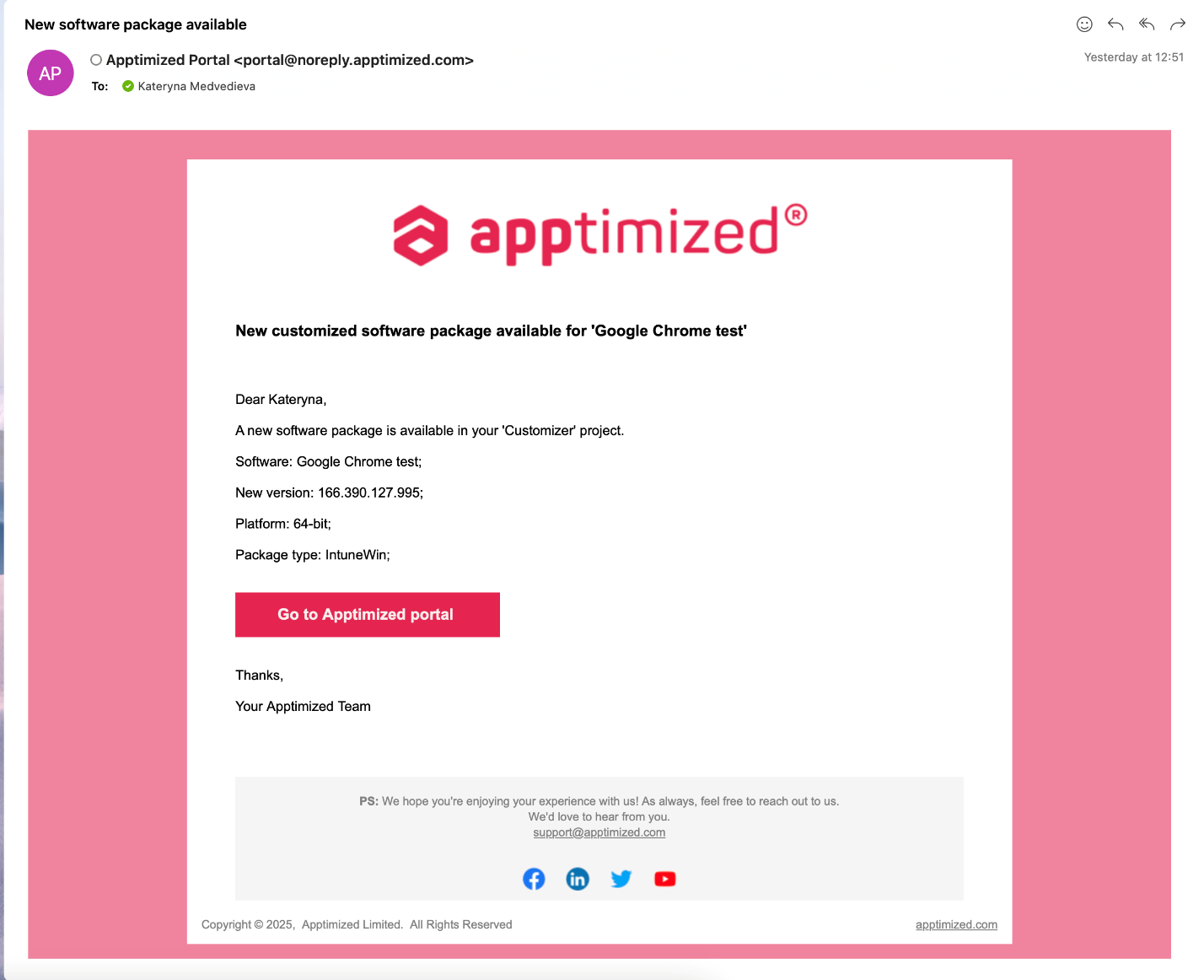
In case a default Care application was reworked, users are notified that regenerating the customized package may be necessary if the mentioned in email reason affects its functionality
Care+
Apptimized Care + is a fully configurable automated application lifecycle management and packaging service.
The "Care +" option appears in Updates after it is initiated in the project settings by the project manager.
Apptimized shows the following screen when clicking Updates button:
The screen above shows the default Apptimized Portal interface when several applications are added.
Care+ and Care groups data into six categories:
Table 1. Care+ and Care data categories
Category
Details
Vendor
This category provides the details about the application’s vendor (e.g., Tim Kosse)
Software
This category provides the details about the application’s name (e.g., FileZilla)
Latest version
This category provides information about the newest version of the application released by the vendor and available in the Apptimized Platform.
Autopush
This category shows if Autopush function is active.
Your version
This category provides information about the latest version of the application that is pinned within the recent user’s activities in the Care page.
The following colors are implemented to indicate the current state of the monitored application:
- The latest version is available in the user’s packaged application portfolio
- The newer version (in comparison to the one a user has in portfolio) has been released by the vendor
- The version a user has in the packaged application portfolio is outdated. This means that there are two or more recent releases of the application provided by the vendor
Note. The application version can be pinned in the following cases:
1. A user started the application package monitoring (Project menu > Updates option > Track updates button > Select the application > Save button)
2. A user requested to process the latest version of the application (Actions column > Process version packages section > Select the Windows bitness > Select PSADT or Intunewin package > Download package or Push to SCCM / Intune > Confirm update software > Yes button)
3. A user changes the version of the application package (Actions column > Versions button > Process package column > Select the application’s version > Download package or Push to SCCM / Intune > Confirm update software > Yes button)
4. A user changes the version of the application manually (Actions column > Edit button > Your version field > Enter the numeric value > Save button)
Сare/+
This category provides information on whether the Care or Care+ service is enabled.
The following options are available:
Actions
This category enables a user to provide the activities under the monitored applications.
The following actions are available:
New package request
The option to track an application package and add it to the monitoring list is available under the Track application button > Select the best matching application > Save button.
The application appears in the list of monitored applications when successful.
New application request
The option to create a request to add an application to the Update monitoring list is available under the Missing an application? button. The Apptimized Team will check the possibility to add the application to the Update monitoring list.
Apptimized shows the modal window when successful:
Enter the value in the Vendor name field > Enter the value in the Software name field > Request button. All required fields are marked with an asterisk *.
Update the application’s version
The option to update the application’s version is available under Actions >Versions:
Apptimized shows the following screen:
Editing Monitored Application Settings
The option to edit the application’s settings is available under Actions >Edit:
Table 2. Editing Settings
Option
Description
Your Version
This category provides information about the latest version of the application.
Send Notifications by Project Role or Group membership
This checkbox enables sending notifications.
Send Notifications to Specific Users
This option allows choosing specific users by providing their emails.
Lifecycle Servicing Option
This option provides information on whether Care or Care+ service is enabled.
Package type
This option indicates which packaging technology should be implemented by Apptimized specialists.
Target platforms
This option indicates which packaging platform should be implemented by Apptimized specialists.
Packaging platform option is enabled by default.
Urgent
This option gives an opportunity to speed up the packaging process. Please clarify the deadlines with your project manager.
Bitness
This option indicates the bitness of the created package.
The following options available:
This option is required.
Both options enabled by default.
Application Manager
This option allows setting up default user assignee for managing application (downloading, editing, deploying, untracking).
Comment
This field gives an opportunity to provide description to auto generated issues and suggestions.
Discovery Document
This option allows uploading the discovery document of the application provided by the Apptimized team.
Trigger
This option allows defining events to control the frequency of update package delivery.
The following triggers available: