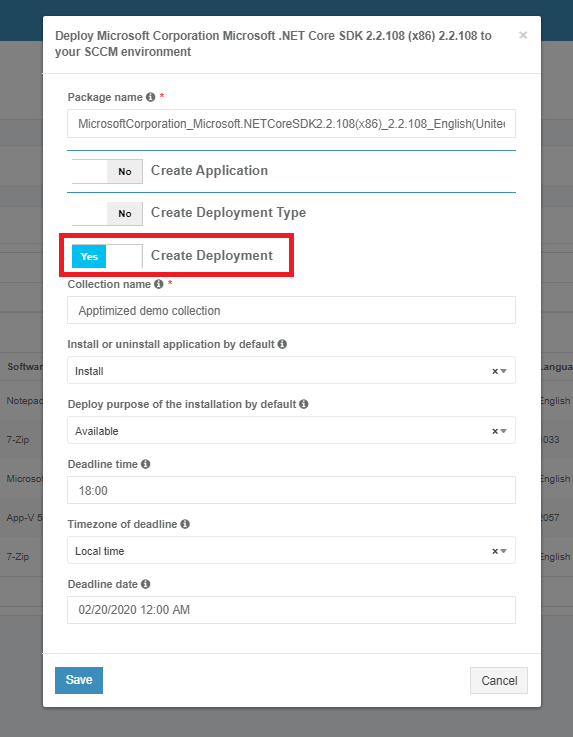
Deploy to SCCM
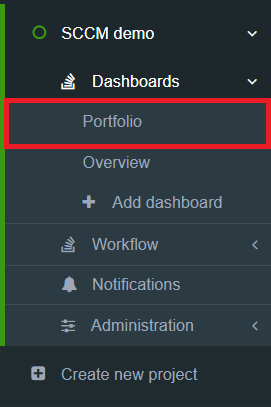
Deployment starts from the project portfolio.
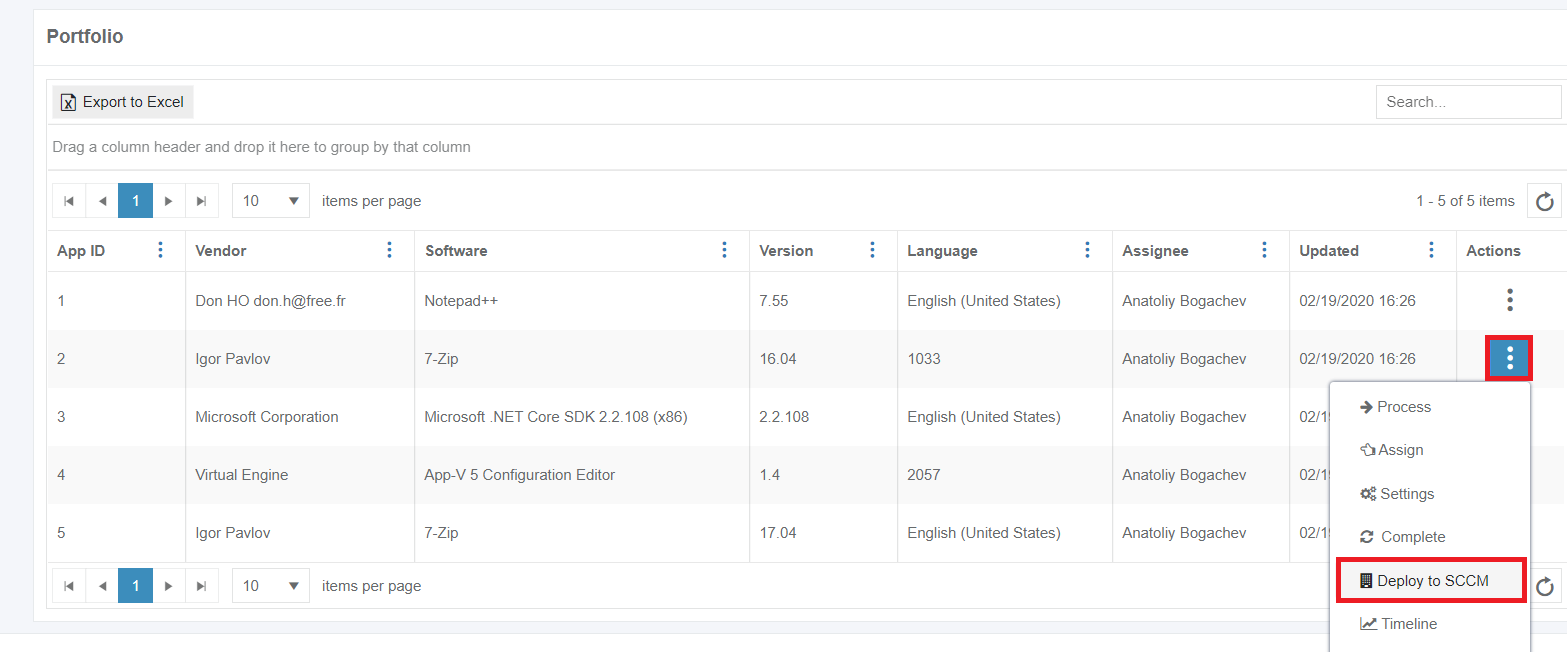
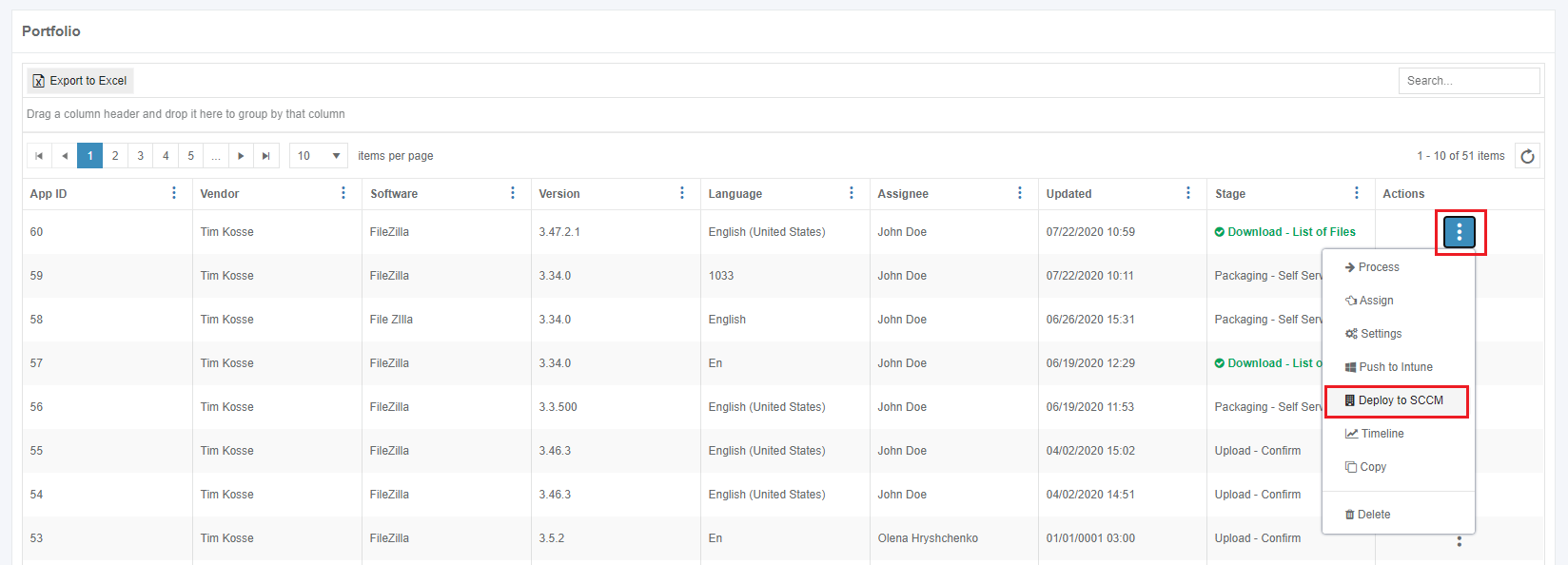
After locating the desired application in the list, the deployment process can be triggered by clicking the extended menu in the Actions column and selecting Deploy to SCCM.
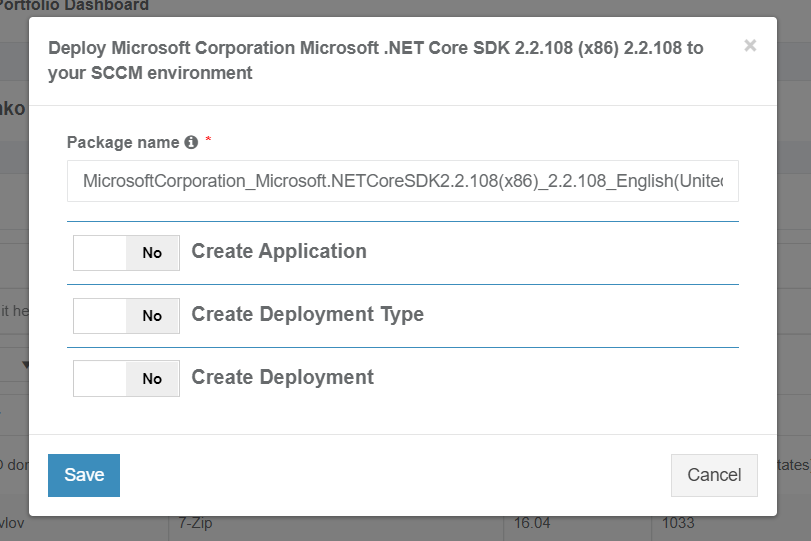
A click opens a dialogue box to create appropriate SCCM objects.
The package name option is the only option that requires manual verification and confirmation. The application inherits default SCCM project settings.

The application should have a package file produced during the Packaging step (Factory or Self-Service). If the required file is missing, Apptimized shows the notification.
After locating the application in the list, the deployment process can be triggered by clicking the extended menu in the Actions column and selecting Deploy to SCCM.
Apptimized shows the following screen when successful:
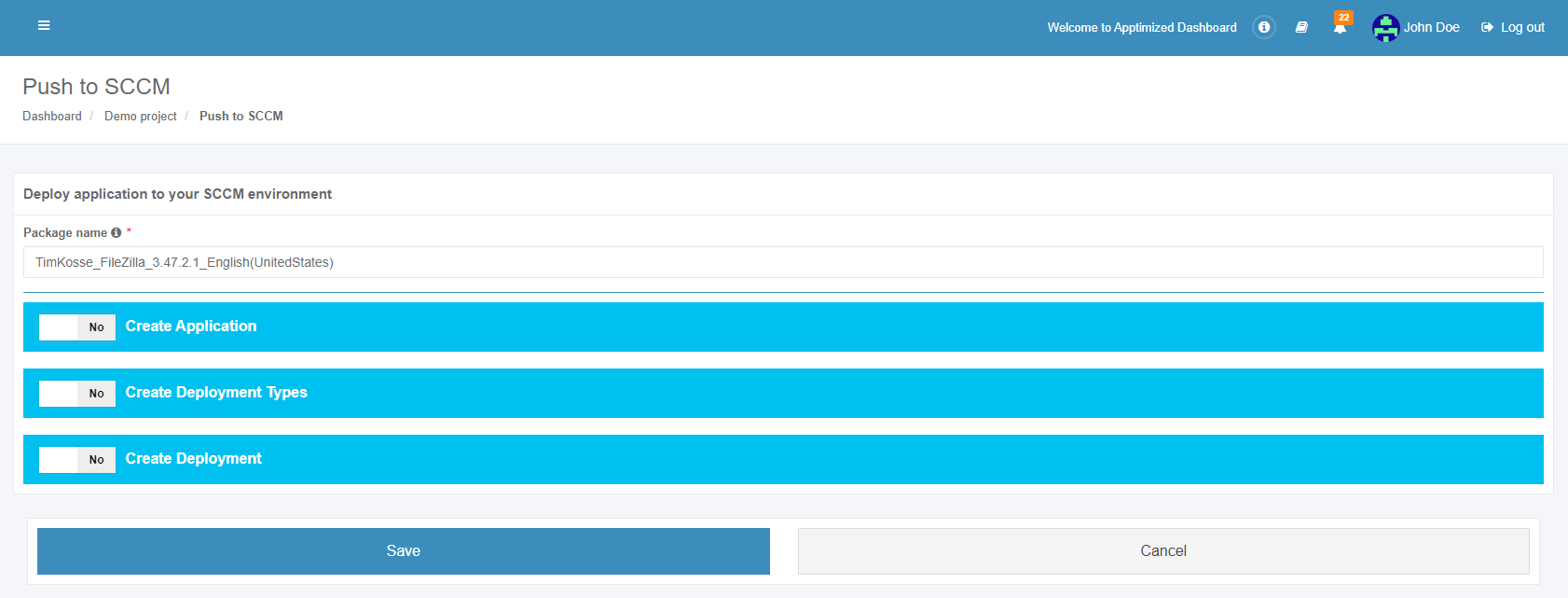
The package name option is the only option that requires manual verification and confirmation. The application inherits default SCCM project settings. . Brief field descriptions is available by hovering the info icon ( )
)
An application is scheduled for deployment by clicking on the Save button. Apptimized shows the following notification when successful:

It takes a few minutes for SCCM objects to appear in the SCCM Admin Console.
Details of the deployment process components are described in the sections 2.1 - 2.3 of the manual.below.
Create the application in SCCM
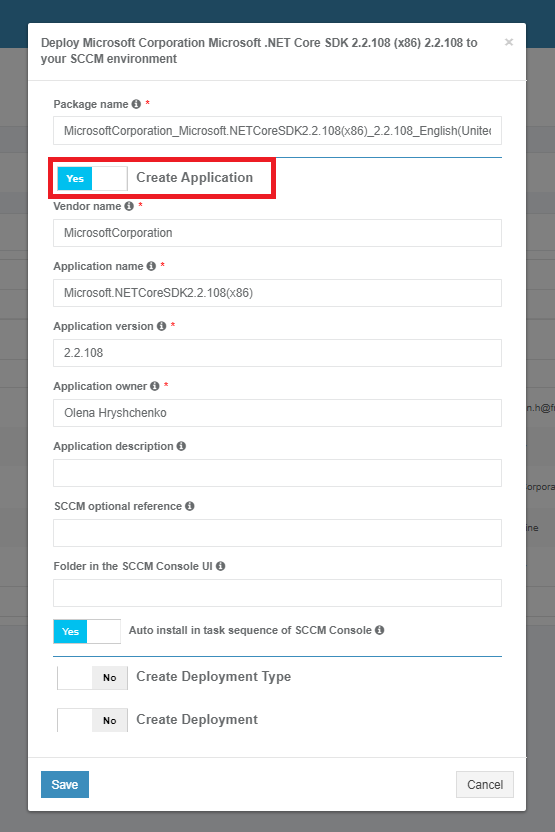
The creation of applications can be enabled by Create Application switch and editing appropriate settings if required. Brief field descriptions are available by hovering the info icon ( ) located near every field.
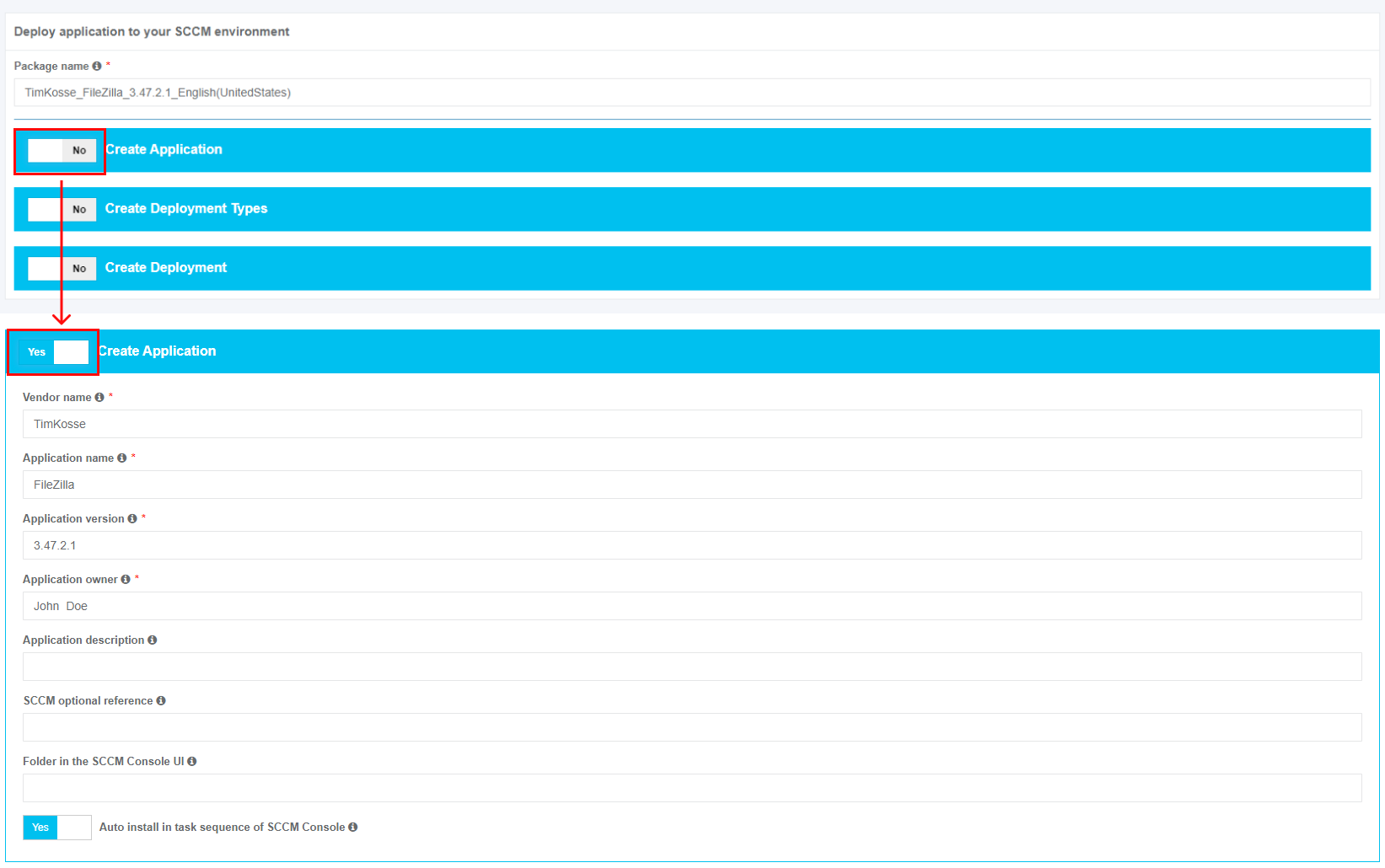
Table 6.4. Application settings
| Settings | Details |
| Vendor name |
The vendor name equals the vendor field of application in the project portfolio. |
| Application name |
The application name equals the application field of application in the project portfolio. |
| Application version |
The application version equals the application version of the application in the project portfolio. |
| Application owner |
Package creator name. The default value is the name of a current user. |
| Application description |
Application description corresponds to the term Administrator comments in the SCCM admin console. |
| SCCM optional reference |
Optional reference to the SCCM environment. |
| A folder in the SCCM Console UI |
This setting indicates the folder for applications in SCCM Console UI. Applications can store in the main folder Applications (default) or any subfolders. |
| Auto-install in task sequence of SCCM Console |
This setting corresponds to the setting Install or uninstall the application by default in the Connection and default configuration step (see Table |
Create the deployment type in SCCM
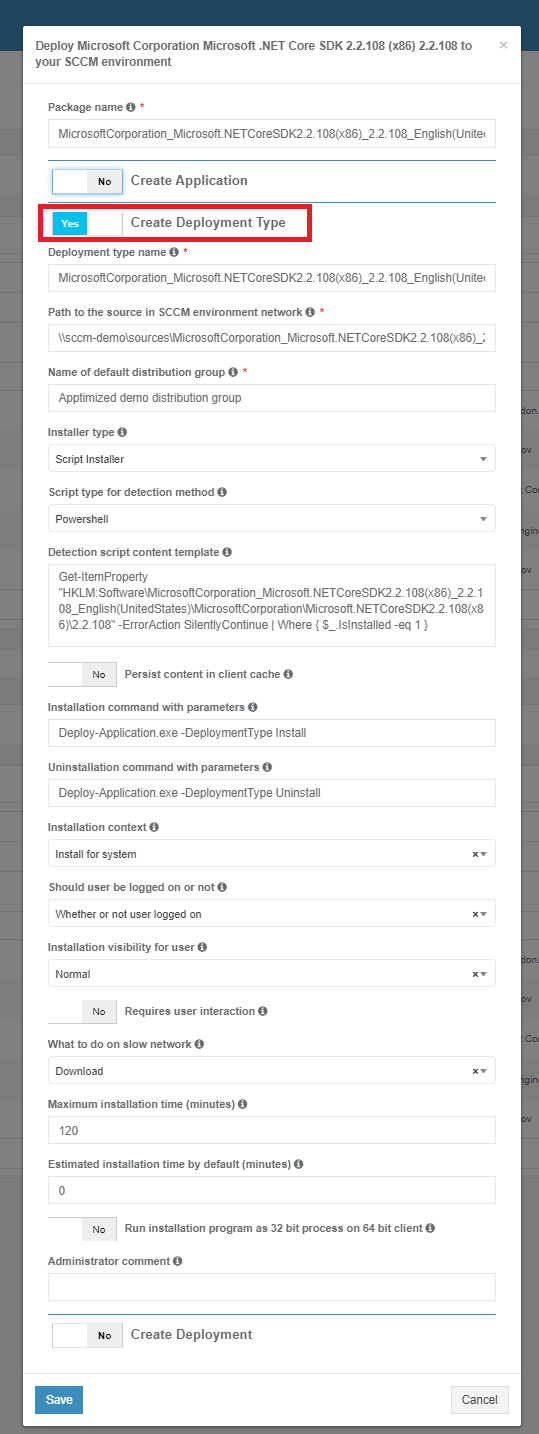
The creation of deployment type can be enabled by Create Deployment Type switch and editing appropriate settings if required. Brief field descriptions are available by hovering the info icon () located near every field.
Table 7. Deployment type settings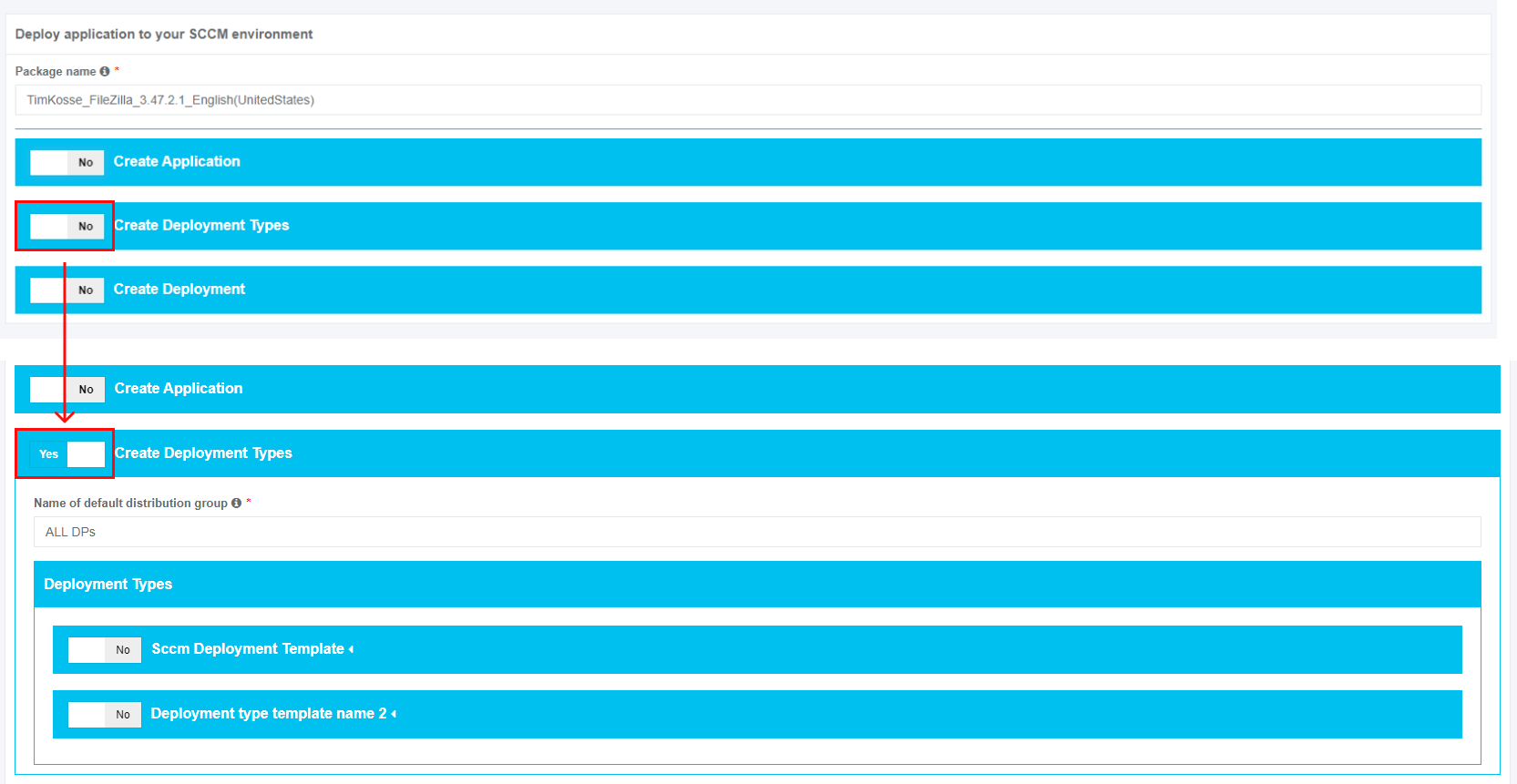
The
Settings
Details
Deployment type name
Value is generated automatically by the pattern "package name +_DT."
Path to the source in SCCM environment network
Value is generated automatically from the network path indicated in project settings (see Table 1) and includes folder name with application sources.
Name of the default distribution group
This settingfield corresponds to the setting Name of a default distribution group setting in the the Connection and default configuration step (see see Table 1).
The
list of createdInstallerdeployment type
ThisIntegration setting corresponds to the setting> Installer type in the Connection and default configuration step) stepis (seeavailable Tableunder 2).the Deployment types block. All templates are disabled by default. A template becomes active when switched on.
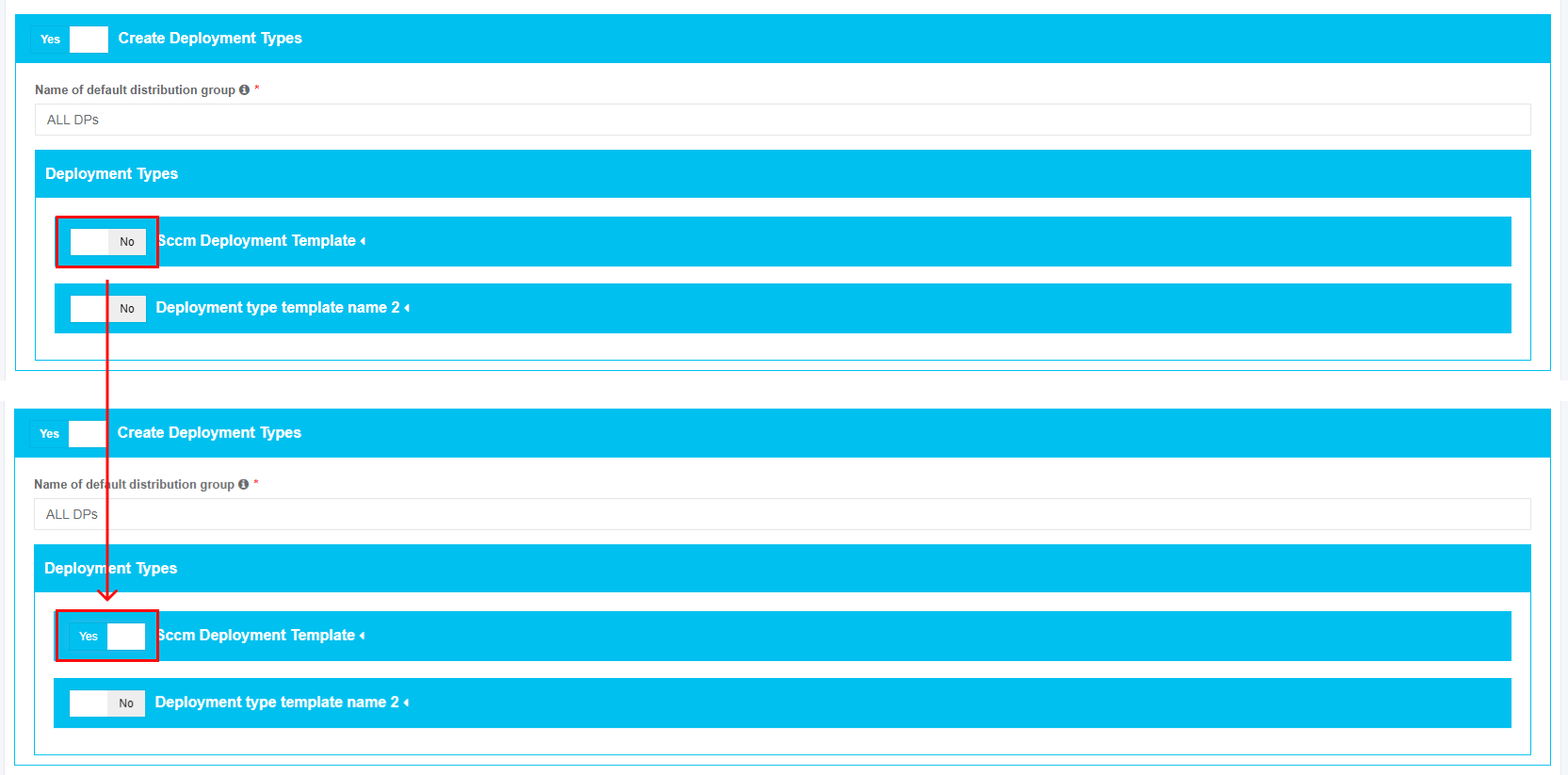
ScriptThe option to expand deployment type fortemplate is available under the detection method symbol.
A
userThiscan settingchange correspondspre-configured template settings if needed. Template settings correspond to the setting Script type for the detection method in the Connection and default configuration step (see Table 3).
Detection script content template
This setting corresponds to the setting Detection script content template in the Connection and default configuration step (see Table 3).
Persist content in the client cache
This setting corresponds to the setting Persist content in the client cache in the Connection and default configuration step (see Table 3).
Installation command with parameters
This setting corresponds to the setting Installation command with parameters in the Connection and default configuration step (see Table 4).
Uninstallation command with parameters
This setting corresponds to the setting Uninstallation command with parameters in the Connection and default configuration step (see Table 3).
Installation context
This setting corresponds to the setting Installation context in the Connection and default configuration step (see Table 3).
Should the user be logged on or not
This setting corresponds to the setting Should the user be logged on or not in the Connection and default configuration step (see Table 3).
Installation visibility for the user
This setting corresponds to the setting of Installation visibility for the user in the Connection and default configuration step (see Table 3).
Requires user interaction
This setting corresponds to the setting Requires user interaction in the Connection and default configuration step (see Table 3).
What to do on a slow network
This setting corresponds to the setting What to do on a slow network in the Connection and default configuration step (see Table 2).
Maximum installation time (minutes)
This setting corresponds to the setting Maximum installation time in the Connection and default configuration step (see Table 2).
Estimated installation time by default (minutes)
This setting corresponds to the setting Estimated installation time by default in the Connection and default configuration step (see Table 2).
Run installation program as a 32-bit process on 64-bit client
This setting corresponds to the setting Run installation program as a 32-bit process on the 64-bit client in the Connection and default configuration step (see Table 4).
Administrator comment
This optional field corresponds to the term Administrator comments in the SCCM adminintegration console.
Create the deployment in SCCM
Creation of deployment can be enabled by Create Deployment switch and editing appropriate settings if required. Brief field descriptions are available by hovering the info icon () located near every field.

Table 8.5. Deployment settings
|
Settings |
Details |
|
Collection name |
This setting corresponds to the setting Device collection name in the Connection and default configuration step (see Table 1). |
|
Install or uninstall the application by default |
This setting corresponds to the setting Install or uninstall the application by default in the Connection and default configuration step (see Table 2). |
|
Deploy the purpose of the installation by default |
This setting corresponds to the setting Deploy purpose of the installation by default in the Connection and default configuration step (see Table 2). |
|
Deadline time |
This setting corresponds to the setting Deadline time in the Connection and default configuration step (see Table |
|
Time zone of deadline |
This setting corresponds to the setting Time zone of a deadline in the Connection and default configuration step (see Table 1). |
|
Deadline date |
This setting sets the deadline date for the application installation. The default value sets to the current date. |