# On-boarding

### Log in

Apptimized portal is available at [https://app.apptimized.com/](https://app.apptimized.com/)

Apptimized portal supports login via single sign-on.

The Apptimized portal supports authentication via Microsoft AAD.

The option to enforce authentication via Microsoft AAD is available in the organization security settings. When this option is enabled, all users of the organization are required to authenticate via Microsoft AAD. The login screen provides the Microsoft button, and local account sign-in is disabled.

[![AAD Log In.png](https://docs.apptimized.com/uploads/images/gallery/2026-03/scaled-1680-/aad-log-in.png)](https://docs.apptimized.com/uploads/images/gallery/2026-03/aad-log-in.png)

The account linking functionality is performed automatically during authentication. The system links the Microsoft AAD identity to the existing user account based on the matching email address. If the system cannot find a corresponding account, an error is displayed.

Apptimized sends the follow-up email when the user has been accessed the Apptimized Portal:

[![on-boarding_0_1.png](https://docs.apptimized.com/uploads/images/gallery/2021-09/scaled-1680-/fWxf1giOsPZlXHzL-on-boarding_0_1.png)](https://docs.apptimized.com/uploads/images/gallery/2021-09/fWxf1giOsPZlXHzL-on-boarding_0_1.png)

Apptimized shows the **Welcome screen guide message** when the user logs in:

[![log_04.png](https://docs.apptimized.com/uploads/images/gallery/2020-04/scaled-1680-/f63ZeEAqHeksCCh5-log_04.png)](https://docs.apptimized.com/uploads/images/gallery/2020-04/f63ZeEAqHeksCCh5-log_04.png)

The option to disable the guide notifications is available under **Do not show this message again** checkbox.

<p class="callout info">**Note**. Apptimized shows the following screen when the user logs in after registration (see [**Register to Apptimized Portal**](https://docs.apptimized.com/books/apptimized-admincenter-user-manual/page/single-sign-on#bkmrk-register-to-apptimiz)):  
  
[![sso_reg_4.png](https://docs.apptimized.com/uploads/images/gallery/2021-09/scaled-1680-/7I3eGDTnhRVRi4CL-sso_reg_4.png)](https://docs.apptimized.com/uploads/images/gallery/2021-09/7I3eGDTnhRVRi4CL-sso_reg_4.png)</p>
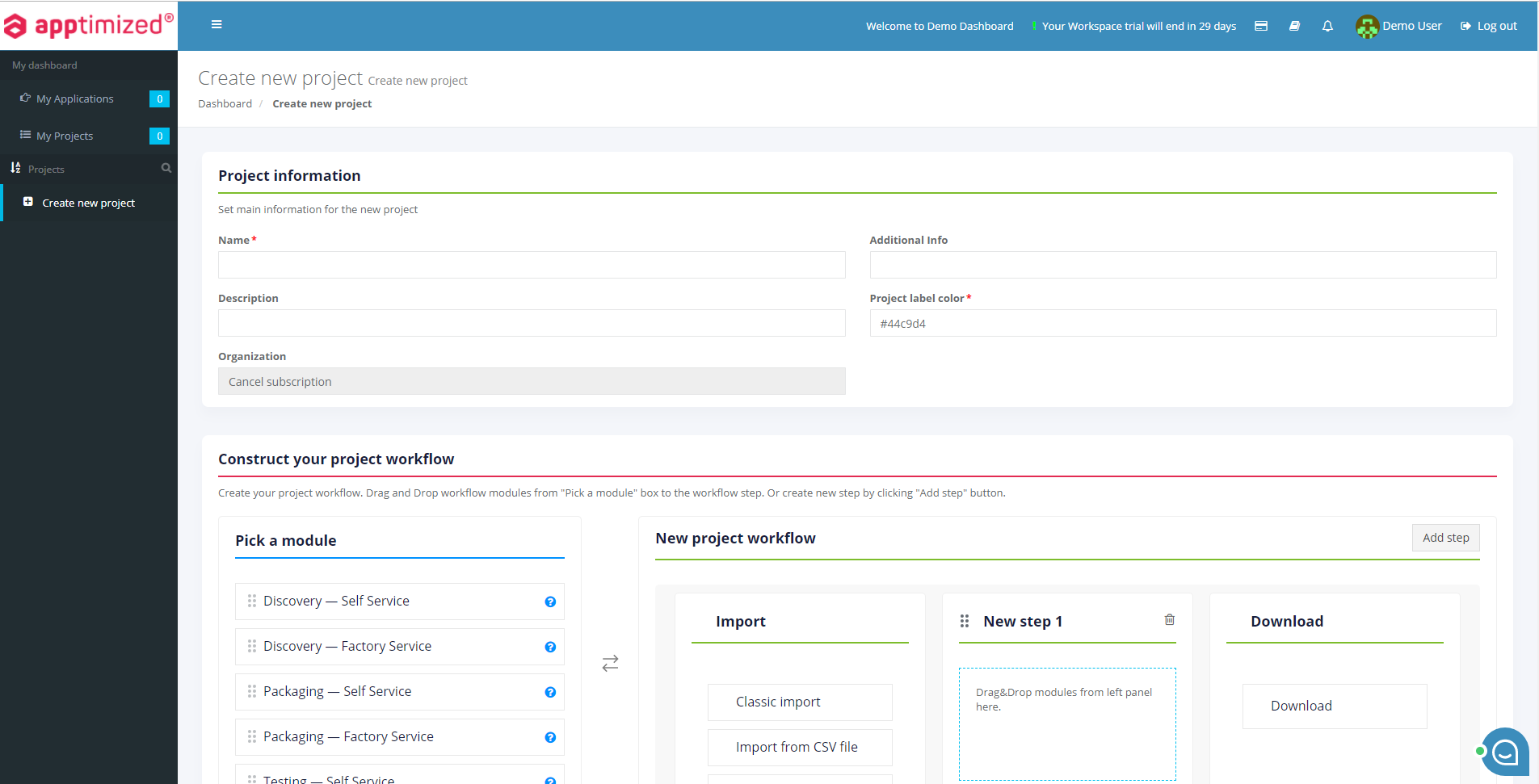
When a user does not have an assigned project, Apptimized shows the **Create new page** screen:

[![log_05.png](https://docs.apptimized.com/uploads/images/gallery/2020-04/scaled-1680-/Gg7LKr44kfK9cCRK-log_05.png)](https://docs.apptimized.com/uploads/images/gallery/2020-04/Gg7LKr44kfK9cCRK-log_05.png)

A manual to create a project is available at the chapter [**Create project**](https://docs.apptimized.com/books/apptimized-platform-user-manual/page/create-project "Create project").

When a user has an assigned project, Apptimized shows the **Project list page** screen:

[![log_03.png](https://docs.apptimized.com/uploads/images/gallery/2020-04/scaled-1680-/hkfEmE4iP2jrxmCa-log_03.png)](https://docs.apptimized.com/uploads/images/gallery/2020-04/hkfEmE4iP2jrxmCa-log_03.png)
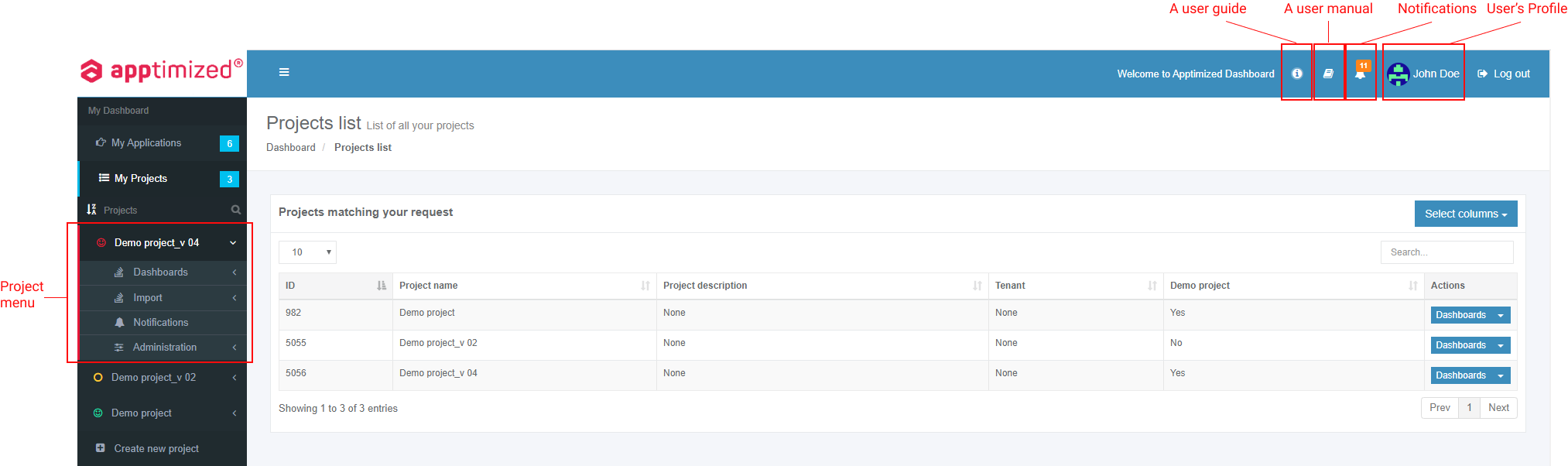
A project assigns to a user by a project administrator.

When a user logs in after invitation via email, Apptimized shows the project user has been invited to (see [**Invite via email**](https://docs.apptimized.com/link/244#bkmrk-if-the-person-does-n)):

[![sso_reg_5.png](https://docs.apptimized.com/uploads/images/gallery/2021-09/scaled-1680-/68lqUF8jL5K3Olbw-sso_reg_5.png)](https://docs.apptimized.com/uploads/images/gallery/2021-09/68lqUF8jL5K3Olbw-sso_reg_5.png)
When a user logs in via trial account, Apptimized shows the following screen:

[![onb1.png](https://docs.apptimized.com/uploads/images/gallery/2021-09/scaled-1680-/iIuW4HTnMYgmqThl-onb1.png)](https://docs.apptimized.com/uploads/images/gallery/2021-09/iIuW4HTnMYgmqThl-onb1.png)
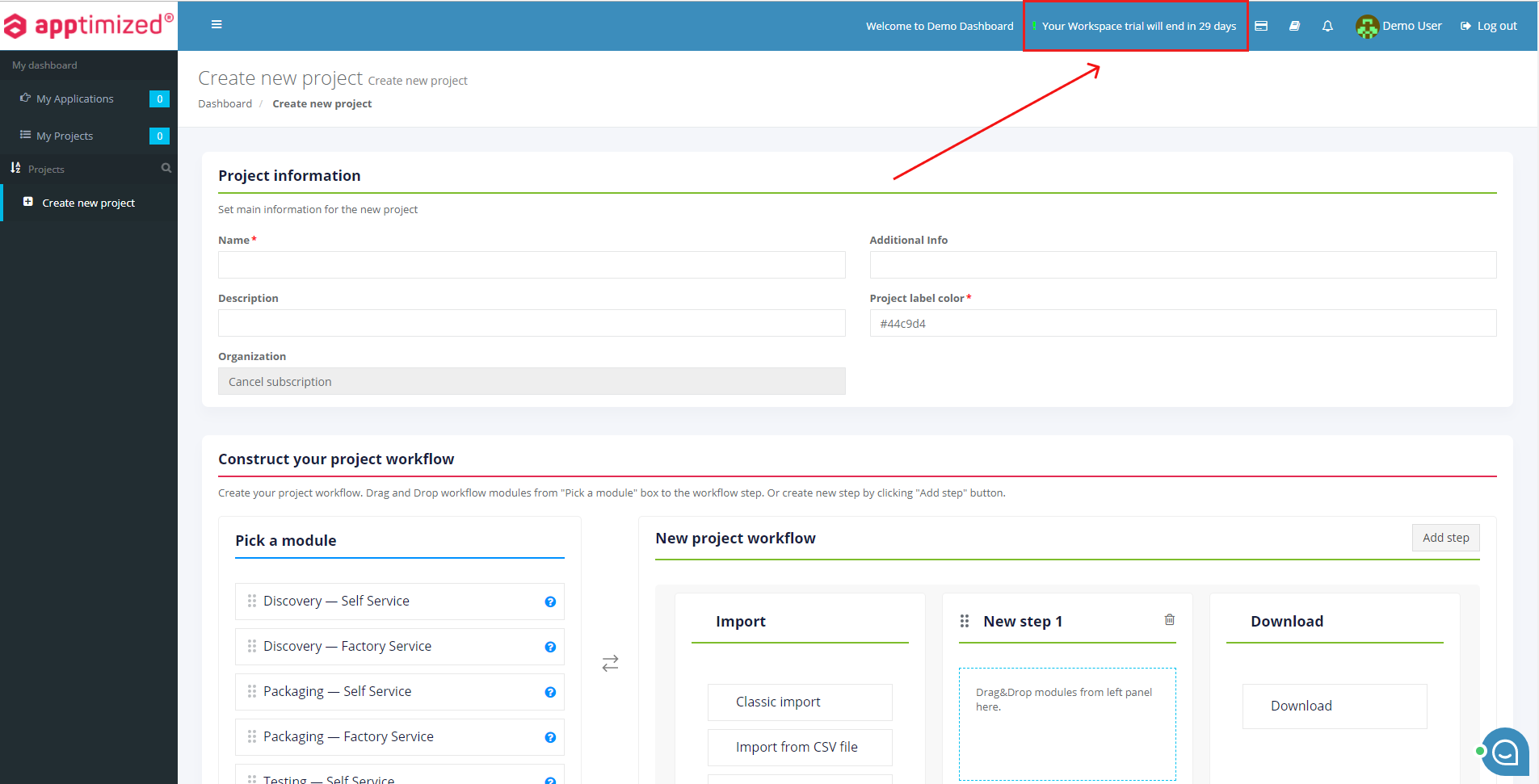
The notification about the remaining trial period is displayed in the header:

[![on_b_3.png](https://docs.apptimized.com/uploads/images/gallery/2021-09/scaled-1680-/cWQRmbAGtaUIeh6M-on_b_3.png)](https://docs.apptimized.com/uploads/images/gallery/2021-09/cWQRmbAGtaUIeh6M-on_b_3.png)
[![on_b_4.png](https://docs.apptimized.com/uploads/images/gallery/2021-09/scaled-1680-/08IBz5Is6cgDWqz9-on_b_4.png)](https://docs.apptimized.com/uploads/images/gallery/2021-09/08IBz5Is6cgDWqz9-on_b_4.png)

The option to **cancel a subscription** is available under the **Your Workspace trial end in X days** button.

Apptimized shows the following modal window when successful:

[![on_b_5-(1).png](https://docs.apptimized.com/uploads/images/gallery/2021-09/scaled-1680-/tcuQkLcwGvcm9Tbc-on_b_5-(1).png)](https://docs.apptimized.com/uploads/images/gallery/2021-09/tcuQkLcwGvcm9Tbc-on_b_5-(1).png)

The option to **Confirm subscription cancellation** is available under **Yes** button.

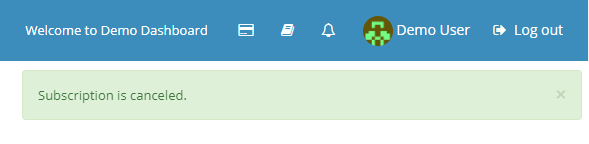
Apptimized shows the following notification when successful:

[![on_b_6.png](https://docs.apptimized.com/uploads/images/gallery/2021-09/scaled-1680-/E3B3xIiELth0cYZG-on_b_6.png)](https://docs.apptimized.com/uploads/images/gallery/2021-09/E3B3xIiELth0cYZG-on_b_6.png)
### User Guides 

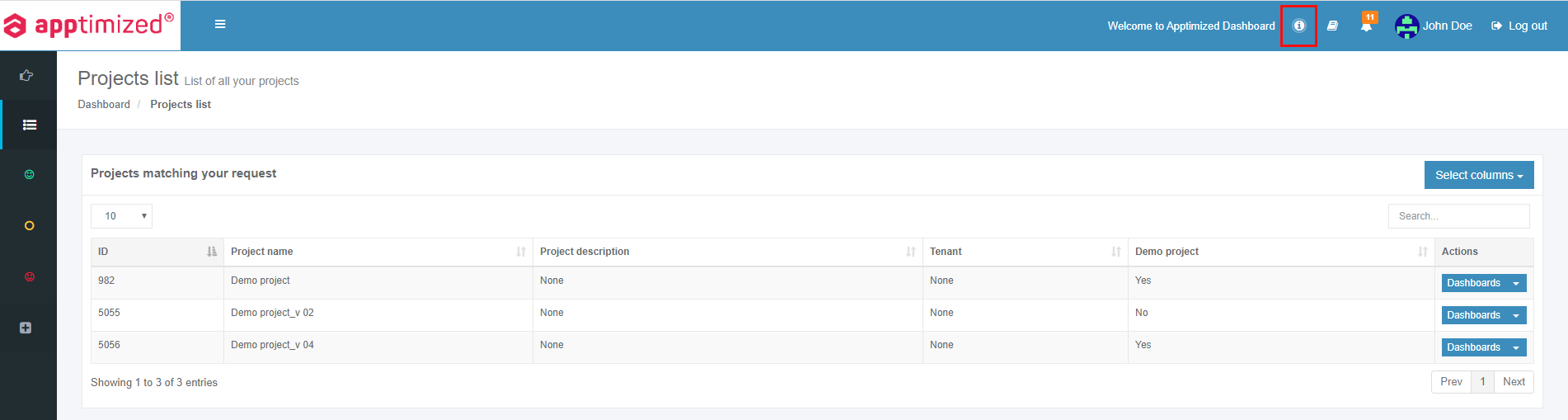
The User Guides enable a user to check the step-by-step instruction of using the Apptimized platform and solutions.

The option to check the user guides is available under the **Information** button.

[![guides_1.png](https://docs.apptimized.com/uploads/images/gallery/2021-01/scaled-1680-/fqMjRsEnrVNrnM01-guides_1.png)](https://docs.apptimized.com/uploads/images/gallery/2021-01/fqMjRsEnrVNrnM01-guides_1.png)
Apptimized solution guides are also available in PDF format.

<table border="1" class="align-left" id="bkmrk-solution-description" style="height: 66px; width: 100%; border-collapse: collapse;"><tbody><tr style="height: 28px;"><td style="width: 16.4197%; height: 28px;">**Solution**</td><td style="width: 53.3334%; height: 28px;">**Description**</td><td style="width: 30.247%; height: 28px;">**User Guide**</td></tr><tr style="height: 28px;"><td class="align-left" style="width: 16.4197%; height: 10px; vertical-align: top;">Apptimized Workspace </td><td class="align-left" style="width: 53.3334%; height: 10px; vertical-align: top;">Packaging Self-service to package and test applications from Apptimized portfolio (check the **[Packaging](https://docs.apptimized.com/books/apptimized-platform-user-manual/page/packaging "Packaging")**).</td><td class="align-left" style="width: 30.247%; height: 10px; vertical-align: top;">[![pdf.png](https://docs.apptimized.com/uploads/images/gallery/2020-08/scaled-1680-/5fI9CGqIZPji9gPq-pdf.png)](https://docs.apptimized.com/attachments/126)</td></tr><tr style="height: 28px;"><td class="align-left" style="width: 16.4197%; height: 28px; vertical-align: top;">Apptimized Catalogue</td><td class="align-left" style="width: 53.3334%; height: 28px; vertical-align: top;">Pre-packaged applications on-demand (check the [**Catalogue**](https://docs.apptimized.com/books/apptimized-platform-user-manual/page/catalogue)).</td><td class="align-left" style="width: 30.247%; height: 28px; vertical-align: top;">[![pdf.png](https://docs.apptimized.com/uploads/images/gallery/2020-08/scaled-1680-/5fI9CGqIZPji9gPq-pdf.png)](https://docs.apptimized.com/attachments/127)</td></tr></tbody></table>

### Dashboard settings

**My Dashboard** page provides information about all applications and projects that are assigned to a user or created by a user.

Applications overview is available under the **My Applications** page:

[![dash_set_01.PNG](https://docs.apptimized.com/uploads/images/gallery/2020-04/scaled-1680-/gYG2NEvZsCmZV1ky-dash_set_01.PNG)](https://docs.apptimized.com/uploads/images/gallery/2020-04/gYG2NEvZsCmZV1ky-dash_set_01.PNG)

Projects overview is available under the **My Projects** page:

[![dash_set_02.PNG](https://docs.apptimized.com/uploads/images/gallery/2020-04/scaled-1680-/aZpWM3uMrE1BDD1g-dash_set_02.PNG)](https://docs.apptimized.com/uploads/images/gallery/2020-04/aZpWM3uMrE1BDD1g-dash_set_02.PNG)

The option to filter projects alphabetically (i.e., from A to Z or from Z to A) is available under the filtering symbol:

[![dash_set_04.PNG](https://docs.apptimized.com/uploads/images/gallery/2020-04/scaled-1680-/O5Exsfr38DMRfDjb-dash_set_04.PNG)](https://docs.apptimized.com/uploads/images/gallery/2020-04/O5Exsfr38DMRfDjb-dash_set_04.PNG)

Keyword search mode available (**Loupe** symbol &gt; Enter a search keyword):

[![dash_set_05.png](https://docs.apptimized.com/uploads/images/gallery/2020-04/scaled-1680-/08SsOkljxV5hxK3h-dash_set_05.png)](https://docs.apptimized.com/uploads/images/gallery/2020-04/08SsOkljxV5hxK3h-dash_set_05.png)

The option to pin a project available. The project pins when clicking on its icon:

[![dash_set_06.png](https://docs.apptimized.com/uploads/images/gallery/2020-04/scaled-1680-/UM0tpIIEvcWL6tZy-dash_set_06.png)](https://docs.apptimized.com/uploads/images/gallery/2020-04/UM0tpIIEvcWL6tZy-dash_set_06.png)

The option to unpin a project available. The project unpins when clicking on its icon:

[![dash_set_07.png](https://docs.apptimized.com/uploads/images/gallery/2020-04/scaled-1680-/iaSAu6gclzoRUcjG-dash_set_07.png)](https://docs.apptimized.com/uploads/images/gallery/2020-04/iaSAu6gclzoRUcjG-dash_set_07.png)

The option to extend the workspace is available under the [![dash_set_08.PNG](https://docs.apptimized.com/uploads/images/gallery/2020-04/scaled-1680-/Xauz8UMMfHplfBTM-dash_set_08.PNG)](https://docs.apptimized.com/uploads/images/gallery/2020-04/Xauz8UMMfHplfBTM-dash_set_08.PNG) symbol:

[![dash_set_09.png](https://docs.apptimized.com/uploads/images/gallery/2020-04/scaled-1680-/lOBHom32DRPL1cij-dash_set_09.png)](https://docs.apptimized.com/uploads/images/gallery/2020-04/lOBHom32DRPL1cij-dash_set_09.png)

The workspace reverts to the initial state when clicking the [![dash_set_08.PNG](https://docs.apptimized.com/uploads/images/gallery/2020-04/scaled-1680-/Xauz8UMMfHplfBTM-dash_set_08.PNG)](https://docs.apptimized.com/uploads/images/gallery/2020-04/Xauz8UMMfHplfBTM-dash_set_08.PNG) symbol.

### Notifications

#### **Apptimized Email notifications**

Apptimized provides email notifications:

1\. Account activation request;

2\. Account activation confirmation;

3\. Account creation confirmation;

4\. Password recovery;

5\. Discovery/Packaging/Testing activities:

- The request status changes;
- New comment on the request;
- New attachment on the request

6\. Update Monitoring:

- New version available;
- Application vulnerability identification.

7\. Step execution (If someone in a project doesn`t have the permission to step activities);

8\. Project invitation.

#### **Apptimized system notifications**

System notifications inform project members about system maintenance or troubles, the short-term shutdown of all or parts of the system, new releases, etc.

System notifications create by a Global Administrator to all project members. Apptimized provides a system notification as a banner – a small line on the top of the page. A system notification remains pinned and available for selected users (a Global Administrator defines them) as long as a user is logged in or as long as Global Administrator set to show it.

System notifications’ types are described in the table below:

Table 1. Types of system notifications

<table border="1" class="align-left" id="bkmrk-notification-type-de" style="width: 800px;" width="800"><tbody><tr><td width="108">**Notification type**

</td><td width="174">**Description**

</td><td width="336">**Example**

</td></tr><tr><td width="108">Blue banner

</td><td class="align-left" style="vertical-align: middle;" width="174">This notification provides some news.

</td><td width="336">[![notif_02.PNG](https://docs.apptimized.com/uploads/images/gallery/2020-04/scaled-1680-/tTHiUx017cppyl4n-notif_02.PNG)](https://docs.apptimized.com/uploads/images/gallery/2020-04/tTHiUx017cppyl4n-notif_02.PNG)</td></tr><tr><td width="108">Green banner

</td><td class="align-left" style="vertical-align: middle;" width="174">This notification informs a user about success action.

</td><td width="336">[![notif_03.PNG](https://docs.apptimized.com/uploads/images/gallery/2020-04/scaled-1680-/p6qEUbS9SKXIXziP-notif_03.PNG)](https://docs.apptimized.com/uploads/images/gallery/2020-04/p6qEUbS9SKXIXziP-notif_03.PNG)</td></tr><tr><td width="108">Yellow banner

</td><td class="align-left" style="vertical-align: middle;" width="174">This notification warnings a user.

</td><td width="336">[![notif_04.PNG](https://docs.apptimized.com/uploads/images/gallery/2020-04/scaled-1680-/gAzv3dvkZOQppqBq-notif_04.PNG)](https://docs.apptimized.com/uploads/images/gallery/2020-04/gAzv3dvkZOQppqBq-notif_04.PNG)</td></tr><tr><td width="108">Red banner

</td><td class="align-left" style="vertical-align: middle;" width="174">This notification informs a user about danger or failure action.

</td><td width="336">[![notif_05.PNG](https://docs.apptimized.com/uploads/images/gallery/2020-04/scaled-1680-/NVuNPCzNpCoFV2Js-notif_05.PNG)](https://docs.apptimized.com/uploads/images/gallery/2020-04/NVuNPCzNpCoFV2Js-notif_05.PNG)</td></tr></tbody></table>

#### **Apptimized modal window notifications**

Modal window notification appears when a user logs in.

[![notif_06.PNG](https://docs.apptimized.com/uploads/images/gallery/2020-04/scaled-1680-/p1OvkNuBk3e2S8Dn-notif_06.PNG)](https://docs.apptimized.com/uploads/images/gallery/2020-04/p1OvkNuBk3e2S8Dn-notif_06.PNG)

The option to disable the modal window notification is available under the **Do not show this message again** checkbox.

Modal window notification appears when a user needs to confirm an action (i.e., create /delete confirmation, task finishing confirmation, task restarting confirmation, etc.).

[![notif_07.png](https://docs.apptimized.com/uploads/images/gallery/2020-04/scaled-1680-/cf1bo0DtnUMuGnED-notif_07.png)](https://docs.apptimized.com/uploads/images/gallery/2020-04/cf1bo0DtnUMuGnED-notif_07.png)

[![notif_08.png](https://docs.apptimized.com/uploads/images/gallery/2020-04/scaled-1680-/tsPMEmUxlZKJ8sBE-notif_08.png)](https://docs.apptimized.com/uploads/images/gallery/2020-04/tsPMEmUxlZKJ8sBE-notif_08.png)

#### **Project notification settings**

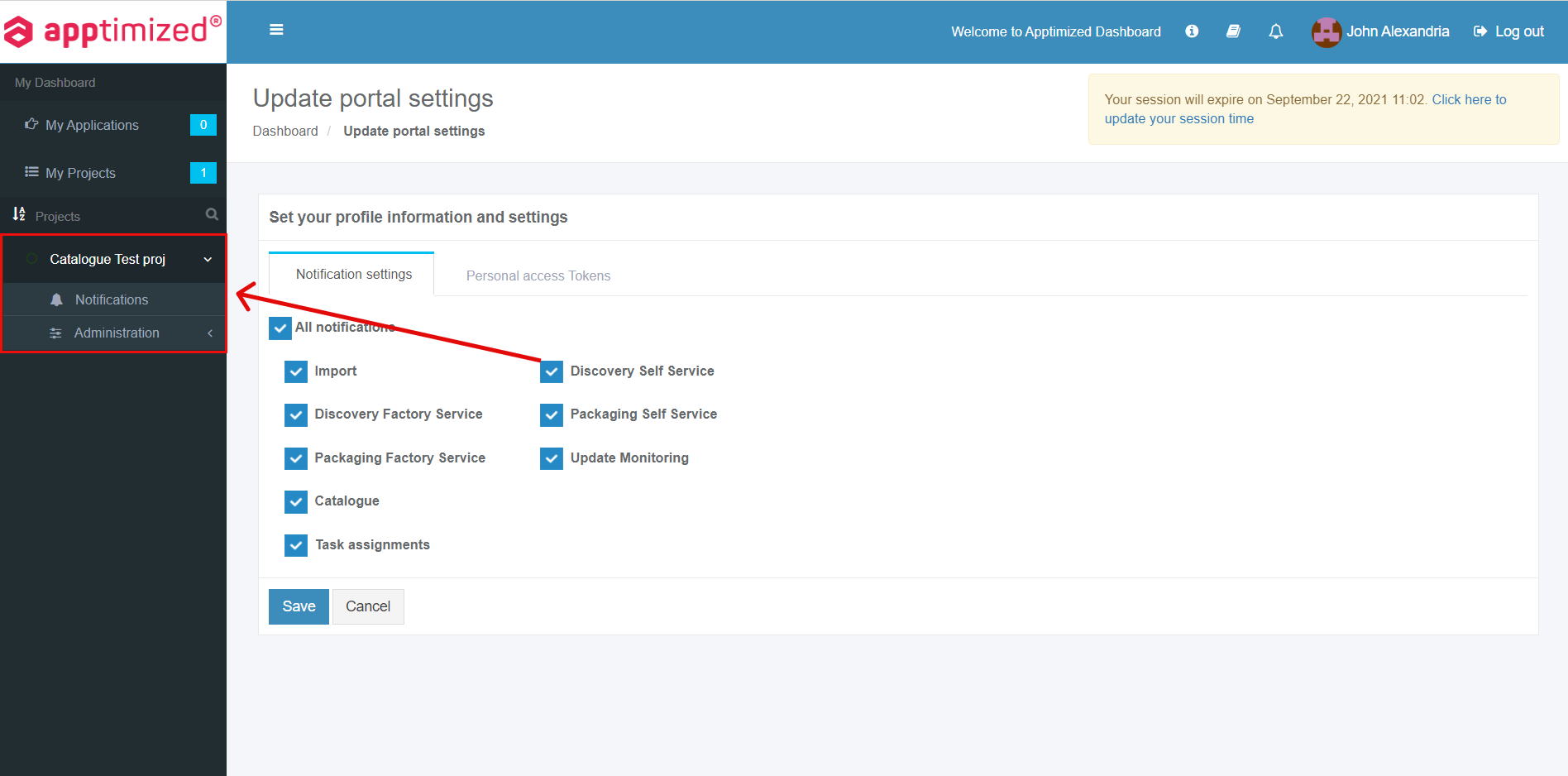
The project notifications settings are available in the project menu under **Notifications**.

The screenshot below shows the default settings for the project’s notifications:

[![notif_01.PNG](https://docs.apptimized.com/uploads/images/gallery/2020-04/scaled-1680-/IlDnztec5k5TA6KY-notif_01.PNG)](https://docs.apptimized.com/uploads/images/gallery/2020-04/IlDnztec5k5TA6KY-notif_01.PNG)

To exclude notification types from the project, uncheck boxes next to the name not required in use.

### Review a profile

The entry point to the user's profile configurations is available Apptimized portal menu under the user’s avatar and name:

[![prof_info_01.PNG](https://docs.apptimized.com/uploads/images/gallery/2020-04/scaled-1680-/PZRglLnYKBy5g0yd-prof_info_01.PNG)](https://docs.apptimized.com/uploads/images/gallery/2020-04/PZRglLnYKBy5g0yd-prof_info_01.PNG)

Apptimized shows the following screen when successful:

[![prof_info_02.PNG](https://docs.apptimized.com/uploads/images/gallery/2020-11/scaled-1680-/DapqGJnfEAfYpWAz-prof_info_02.PNG)](https://docs.apptimized.com/uploads/images/gallery/2020-11/DapqGJnfEAfYpWAz-prof_info_02.PNG)

Two options available: **User profile** and **Portal configuration**.

#### User profile

Apptimized redirects a user to [SSO application](https://docs.apptimized.com/books/apptimized-admincenter-user-manual/page/single-sign-on#bkmrk-about-single-sign-on-0) when clicking the **User profile** option.

This application enables a user:

- To secure login with single credentials.
- To configure <span style="font-family: -apple-system, BlinkMacSystemFont, 'Segoe UI', Oxygen, Ubuntu, Roboto, Cantarell, 'Fira Sans', 'Droid Sans', 'Helvetica Neue', sans-serif; font-size: 14px; font-style: normal; font-variant-ligatures: normal; font-variant-caps: normal; font-weight: 400;">the user’s profile </span>settings.
- To export personal data.
- To delete an account.

#### Portal configuration

Apptimized shows the following screen when successful:

[![prof_info_03.PNG](https://docs.apptimized.com/uploads/images/gallery/2020-11/scaled-1680-/Wo8IFllQnob4DGPQ-prof_info_03.PNG)](https://docs.apptimized.com/uploads/images/gallery/2020-11/Wo8IFllQnob4DGPQ-prof_info_03.PNG)

Two tabs available: **Notification settings** and **Personal access tokens**.

##### Notification settings

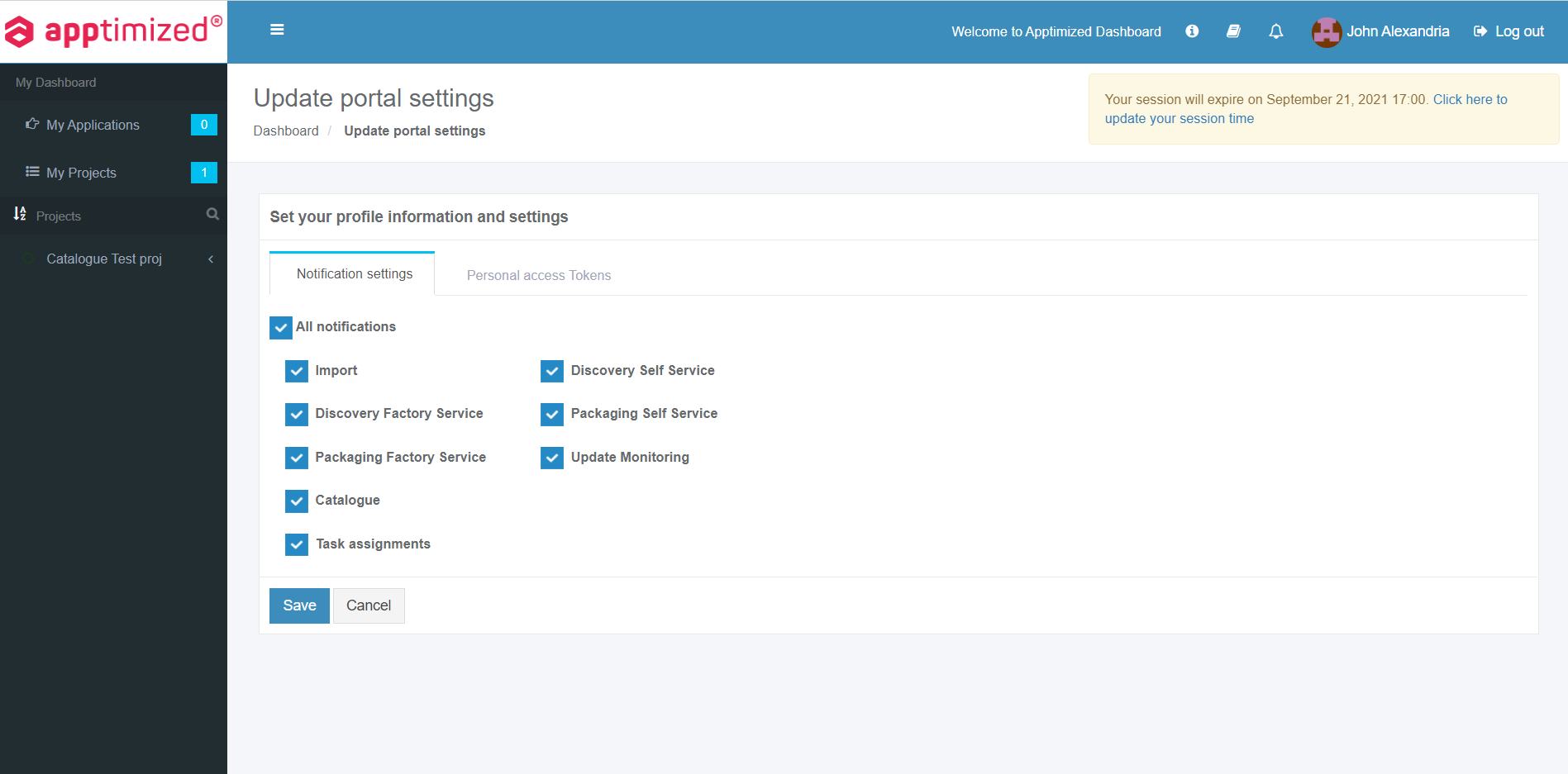
To disable the notification, uncheck the box in front of the notification’s name not need in use.

[![prof_info_04.PNG](https://docs.apptimized.com/uploads/images/gallery/2020-11/scaled-1680-/QwWapRUkKnX2dC4f-prof_info_04.PNG)](https://docs.apptimized.com/uploads/images/gallery/2020-11/QwWapRUkKnX2dC4f-prof_info_04.PNG)

The changes to the profile apply when clicking on the **Save** button.

##### Personal access tokens

Personal access tokens can be used instead of a login and password for [REST APIs ](https://app.apptimized.com/api-docs/index.html)and transferred in the authorization header to access REST APIs.

[![prof_info_05_1.PNG](https://docs.apptimized.com/uploads/images/gallery/2020-11/scaled-1680-/qUKR5PtZvWPgwKIJ-prof_info_05_1.PNG)](https://docs.apptimized.com/uploads/images/gallery/2020-11/qUKR5PtZvWPgwKIJ-prof_info_05_1.PNG)

The list of personal access tokens is empty by default.

The following screenshot shows the Apptimized screen when tokens exist:

[![prof_info_09.png](https://docs.apptimized.com/uploads/images/gallery/2020-11/scaled-1680-/LRVoBdIcLa91f2Wl-prof_info_09.png)](https://docs.apptimized.com/uploads/images/gallery/2020-11/LRVoBdIcLa91f2Wl-prof_info_09.png)

Tokens data is grouped into the following categories:

- Token name
- Token creation date
- Token expiration date
- Actions

The option to create a token is available under the **Create new token** button &gt; **Create new personal access token** modal window &gt; **Token name** field &gt; Token expires in (Select the value from the drop-down list) &gt; **Save** button:

[![prof_info_05.png](https://docs.apptimized.com/uploads/images/gallery/2020-11/scaled-1680-/FgELHu585FE0kBO8-prof_info_05.png)](https://docs.apptimized.com/uploads/images/gallery/2020-11/FgELHu585FE0kBO8-prof_info_05.png)

- **Note.** A user needs to copy the token to the clipboard before closing the modal window. This option is available under the **Copy token to clipboard** button or Copy icon:  
    [![prof_info_06.png](https://docs.apptimized.com/uploads/images/gallery/2020-11/scaled-1680-/ROlUcyZ0Zx6vhcad-prof_info_06.png)](https://docs.apptimized.com/uploads/images/gallery/2020-11/ROlUcyZ0Zx6vhcad-prof_info_06.png)  
    Apptimized shows the following notification when successful:  
    [![prof_info_07.png](https://docs.apptimized.com/uploads/images/gallery/2020-11/scaled-1680-/Sqa1TTsgo2L2ch5F-prof_info_07.png)](https://docs.apptimized.com/uploads/images/gallery/2020-11/Sqa1TTsgo2L2ch5F-prof_info_07.png)

Apptimized shows the following screen when successful:

[![prof_info_08.png](https://docs.apptimized.com/uploads/images/gallery/2020-11/scaled-1680-/gXFZad6B8MU9N2An-prof_info_08.png)](https://docs.apptimized.com/uploads/images/gallery/2020-11/gXFZad6B8MU9N2An-prof_info_08.png)

The option to delete token from user's account is available under the **Actions** column &gt; **Delete** button &gt; **Confirm delete token** modal window &gt; **Delete** button.

Apptimized shows the following notification:

[![prof_info_10.png](https://docs.apptimized.com/uploads/images/gallery/2020-11/scaled-1680-/iA0scNocTUw2sqU6-prof_info_10.png)](https://docs.apptimized.com/uploads/images/gallery/2020-11/iA0scNocTUw2sqU6-prof_info_10.png)