The **Project administrators** group appears as an initial default group after the project was created. Project administrators can perform any workflow action.
To complete the tasks with role assignments, a user must be a Project administrator or must have permission for these activities.
### Create a group The option to create a group with needed permissions is available under **Groups & users** in project settings (**Project** menu > **Administration** > **Groups & users**). [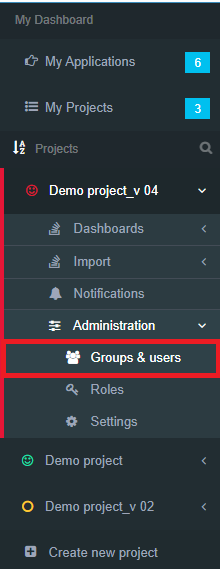](https://docs.apptimized.com/uploads/images/gallery/2020-04/xpctEC0Ncr1uRdEG-groups_01.PNG) Apptimized shows the following screen when successful: [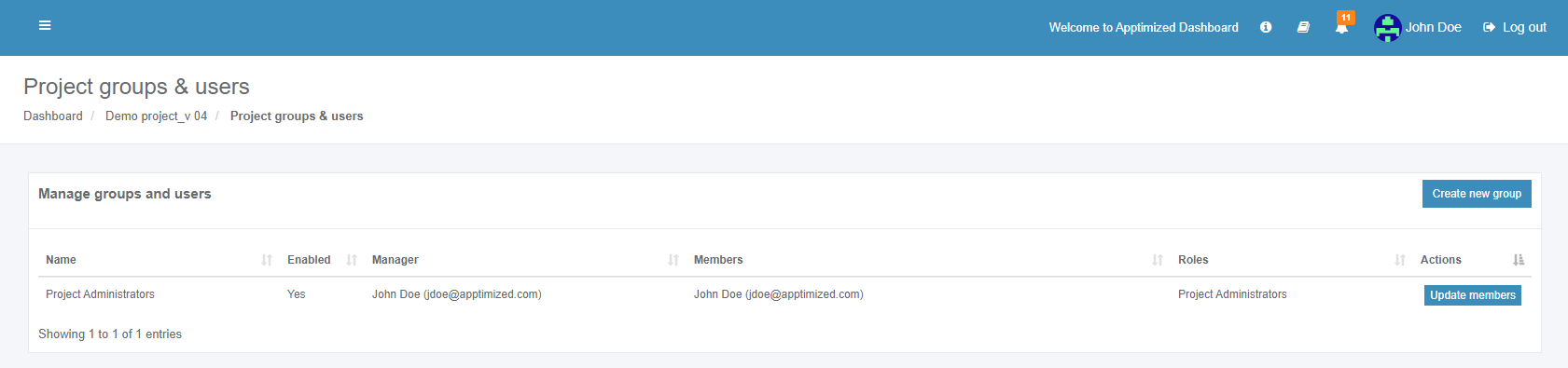](https://docs.apptimized.com/uploads/images/gallery/2020-04/A1DHiv3ZbZ9rjKoR-groups_02.PNG) The option to create a new group is available under the **Create new group** button:[](https://docs.apptimized.com/uploads/images/gallery/2020-04/XG43yI7Jf2YMF8CB-groups_03.PNG) Apptimized shows the following modal window when successful: [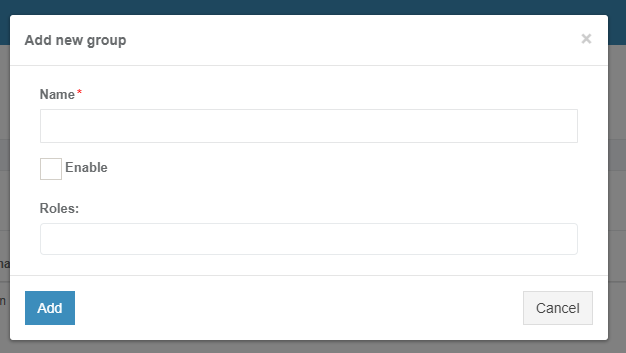](https://docs.apptimized.com/uploads/images/gallery/2020-04/jQmR0CfwIZ223O69-groups_04.PNG) The new group requires its name and role. All required fields are marked with an asterisk \*. [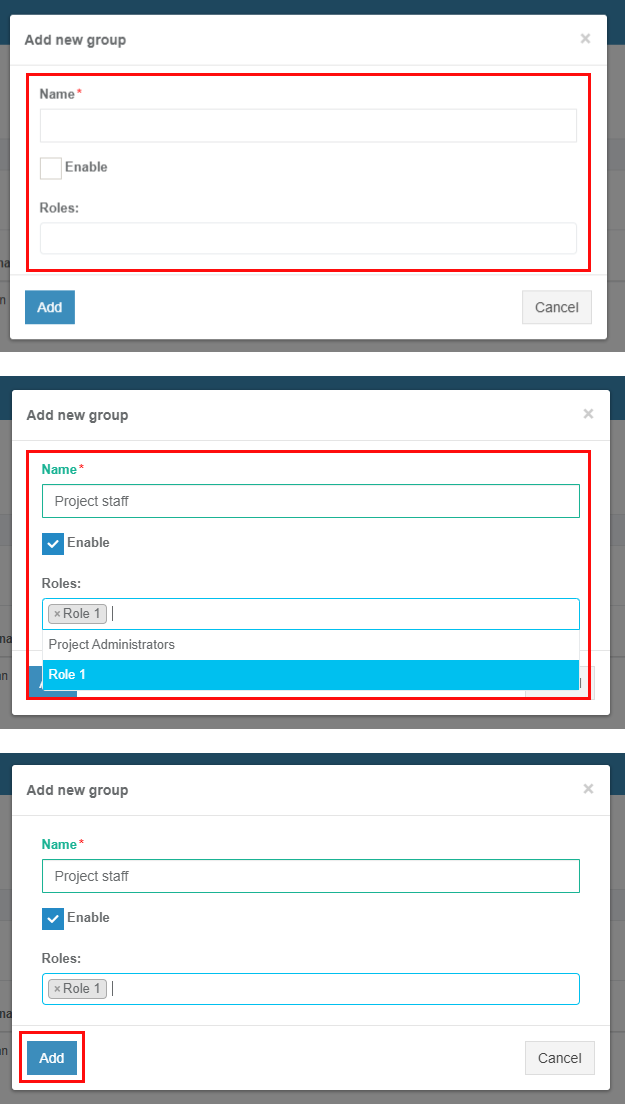](https://docs.apptimized.com/uploads/images/gallery/2020-04/nfNe3xsbNRIh8RPq-groups_05.png) Adding a role to a group implies that the role has already been created (see [**Project roles** ](https://docs.apptimized.com/books/apptimized-platform-user-manual/page/project-roles)chapter). Apptimized shows the following notification and screen when successful: [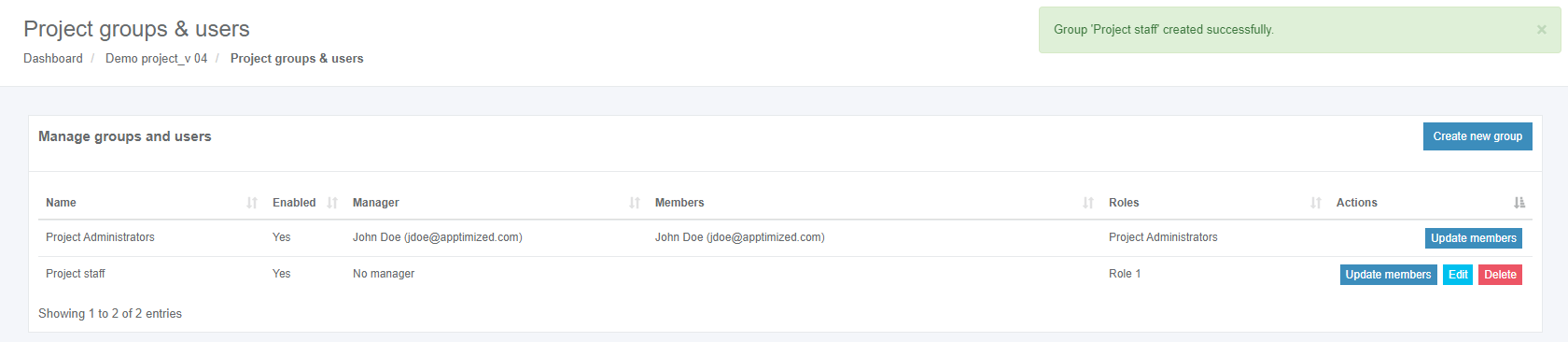](https://docs.apptimized.com/uploads/images/gallery/2020-04/MWrt4kRvVZoB1G6K-groups_06.png) ### Manage a group Users can be added to the group via the **Update members** button (**Update members** button > **Add users** field > Select a user from a drop-down list > **Save** button). [](https://docs.apptimized.com/uploads/images/gallery/2020-04/g7N4VT0ppA7dkeBF-groups_07.png) [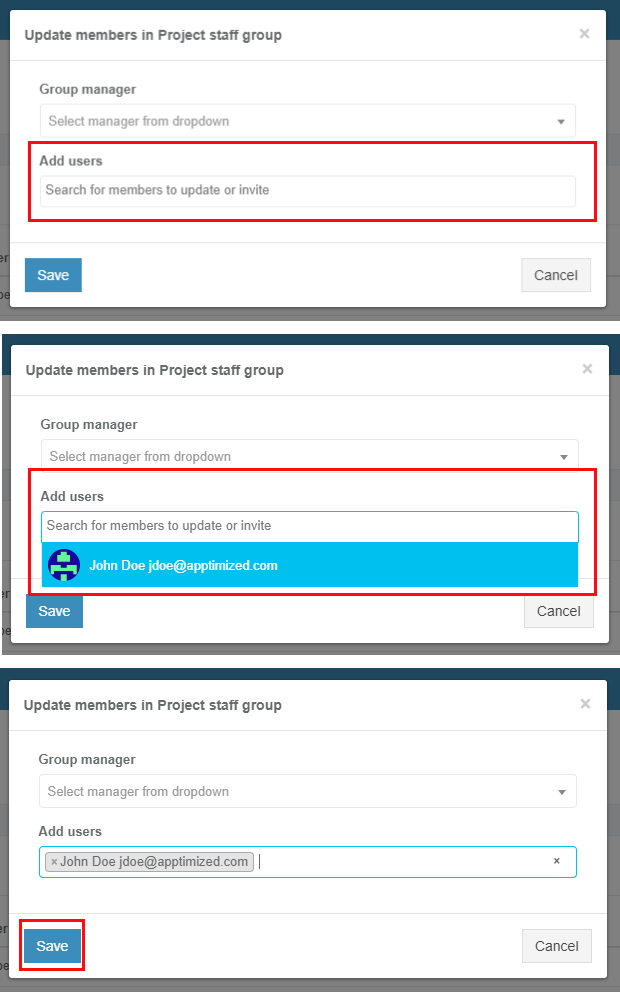](https://docs.apptimized.com/uploads/images/gallery/2020-04/29pdSx6cIyzzGRbM-groups_08.png) Apptimized shows the following notifications and screen when successful: [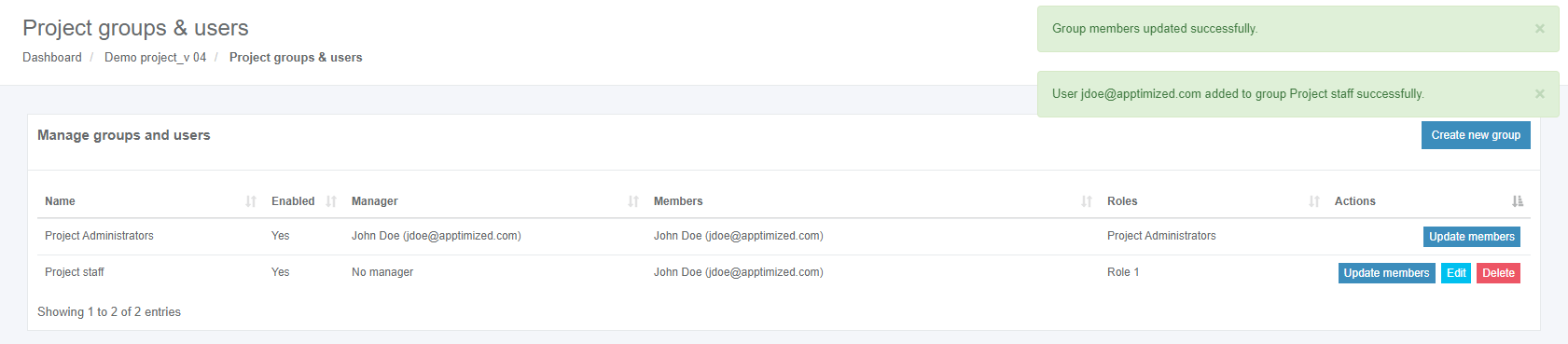](https://docs.apptimized.com/uploads/images/gallery/2020-04/9UHp0rYUL0tAJaWf-groups_09.png) If the person does not have an Apptimized account, the Email address will not appear in the drop-down menu. The option to invite a new user to Apptimized and to add the to-be-created user account to a group is available under the **Update members** button > **Add users** field > Enter Email > **Save** button. The person will be informed via Email (see **[Register to Apptimized Portal](https://docs.apptimized.com/books/apptimized-admincenter-user-manual/page/single-sign-on#bkmrk-register-to-apptimiz))**. [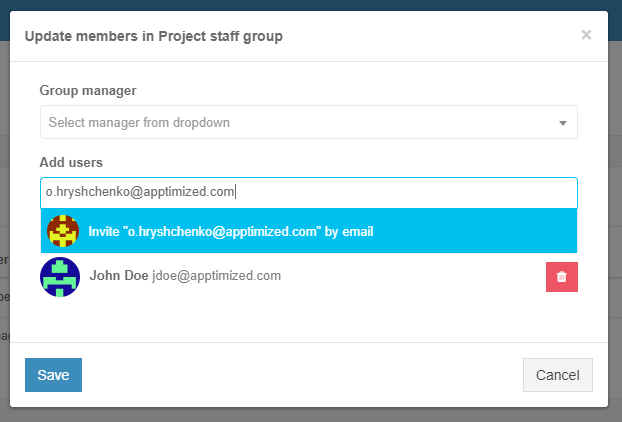](https://docs.apptimized.com/uploads/images/gallery/2020-04/NIn8zQHKobRed807-groups_10.png) [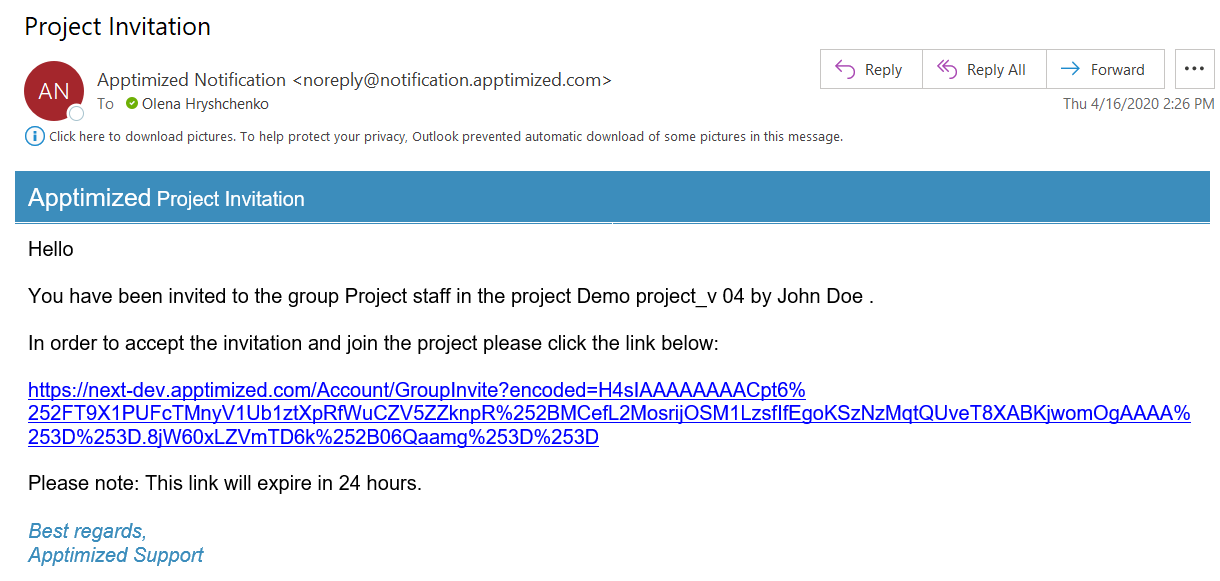](https://docs.apptimized.com/uploads/images/gallery/2020-04/9AYlVnFGOZvATQeG-groups_10_1.png) The option to delete a group member is available under the **Update members** button > **Bin** symbol in front of the user's name > **Save** button. [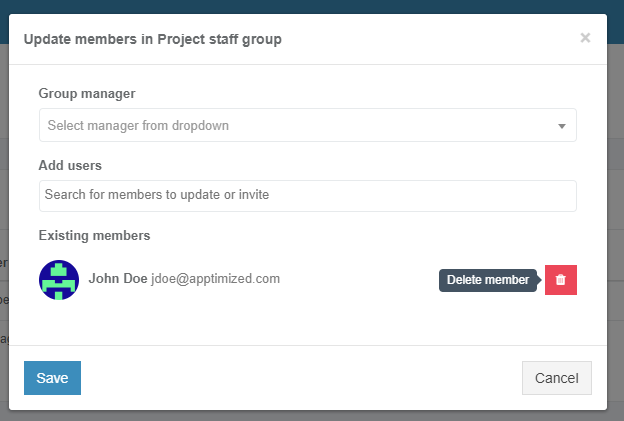](https://docs.apptimized.com/uploads/images/gallery/2020-04/D6eB8UevrLkYXDgP-groups_11_1.png) The option to set a group manager is available under the **Update members** button > **Group manager** field > Select a user from a drop-down list > **Save** button. [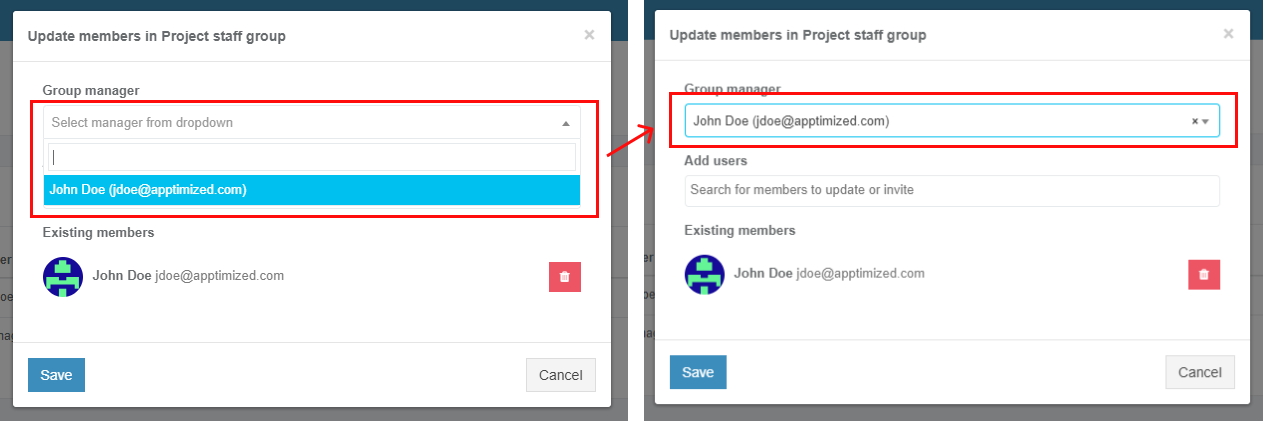](https://docs.apptimized.com/uploads/images/gallery/2020-04/Nv6rZb5cieSgBTgQ-groups_13.png) A group can be changed with the **Edit** button and by following the same set of operations as for adding a new group. [](https://docs.apptimized.com/uploads/images/gallery/2020-04/eC2SegGsBaaZDZXX-groups_12.png) The option to delete the group is available under the **Delete** button. [](https://docs.apptimized.com/uploads/images/gallery/2020-04/7qRsPErjNWRv8J3a-groups_14.png) Apptimized shows the following modal window: [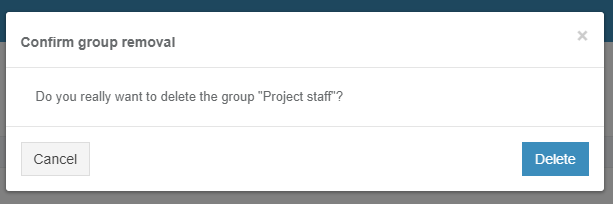](https://docs.apptimized.com/uploads/images/gallery/2020-04/xeaME8rL86jSifwF-groups_15.png) Apptimized shows the following notification and screen when successful: [](https://docs.apptimized.com/uploads/images/gallery/2020-04/Dgcyo1aOTCvx3kQP-groups_16.png)