**Note.** With this type of import, the user can skip loading the source.
[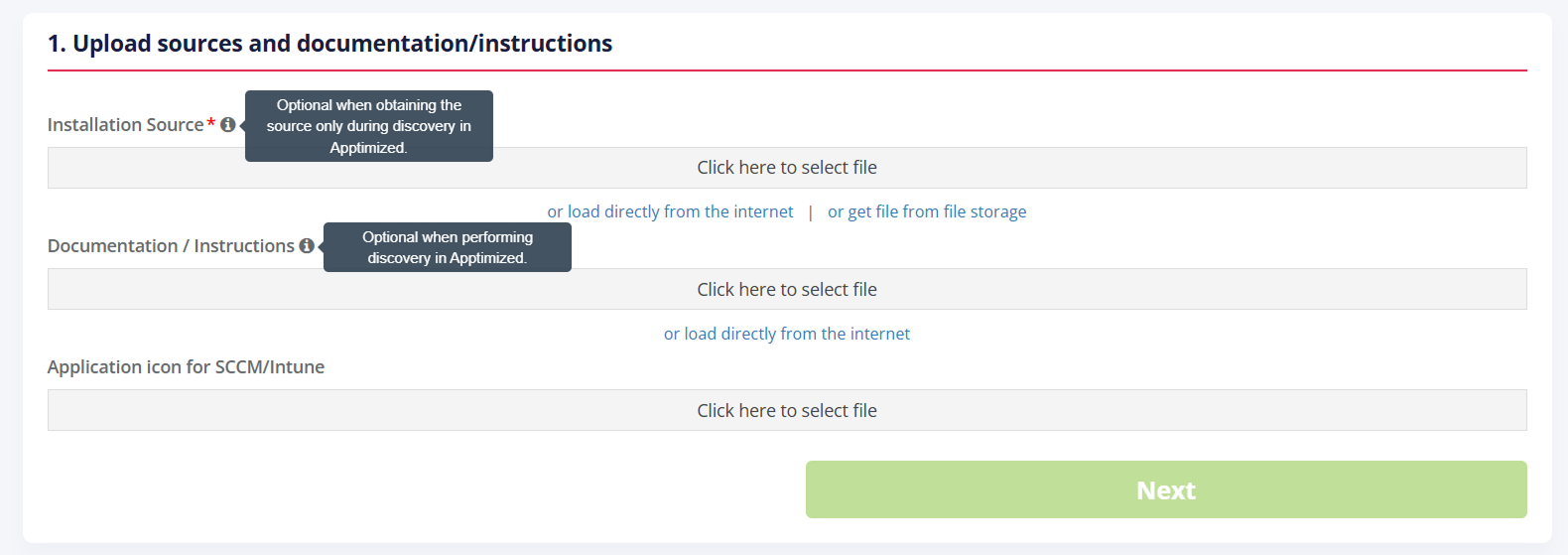](https://docs.apptimized.com/uploads/images/gallery/2026-06/optional-installation-source-and-documentation.png)In this case, the user enters the application metadata manually. But it should be noted that after the import step is completed, the user isn't able to perform actions on the workflow. Subsequently, the user can assign another user to the project, which downloads the source and perform actions on workflow.
Three options available to upload **Installation Source**: - Upload application file from user's PC; [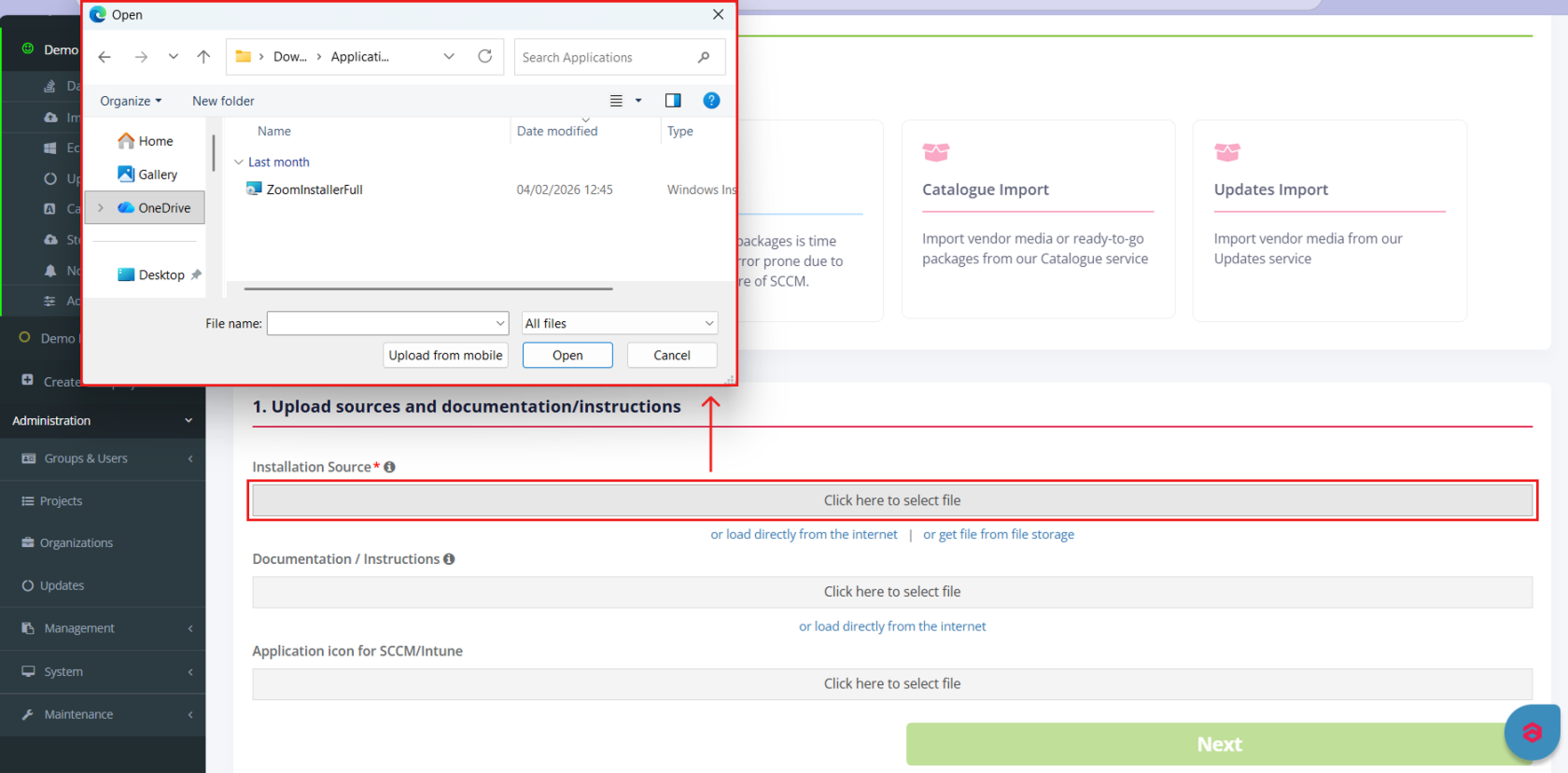](https://docs.apptimized.com/uploads/images/gallery/2026-03/upload-application-file-from-users-pc.png) - Upload application file from the Internet; [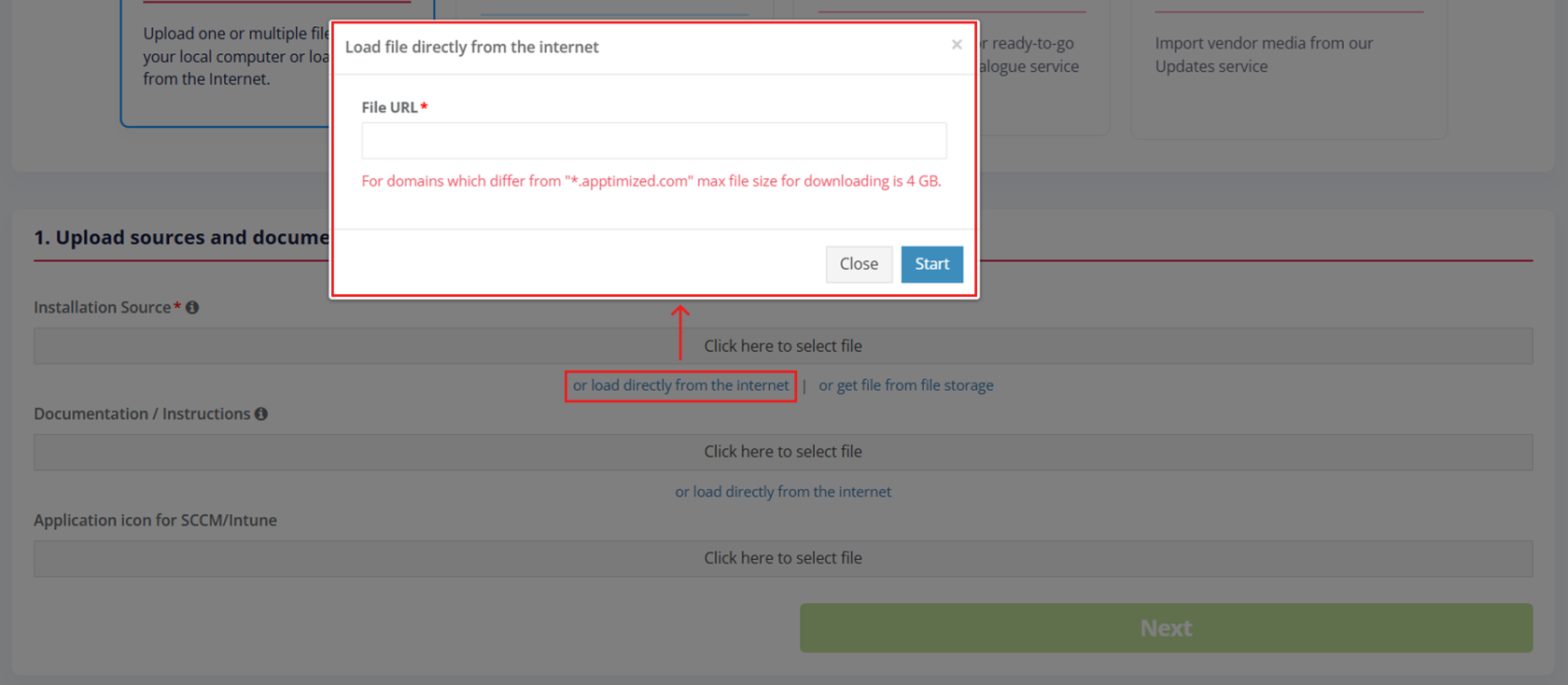](https://docs.apptimized.com/uploads/images/gallery/2026-03/upload-application-file-from-the-internet.png) - Upload application file from the file storage. [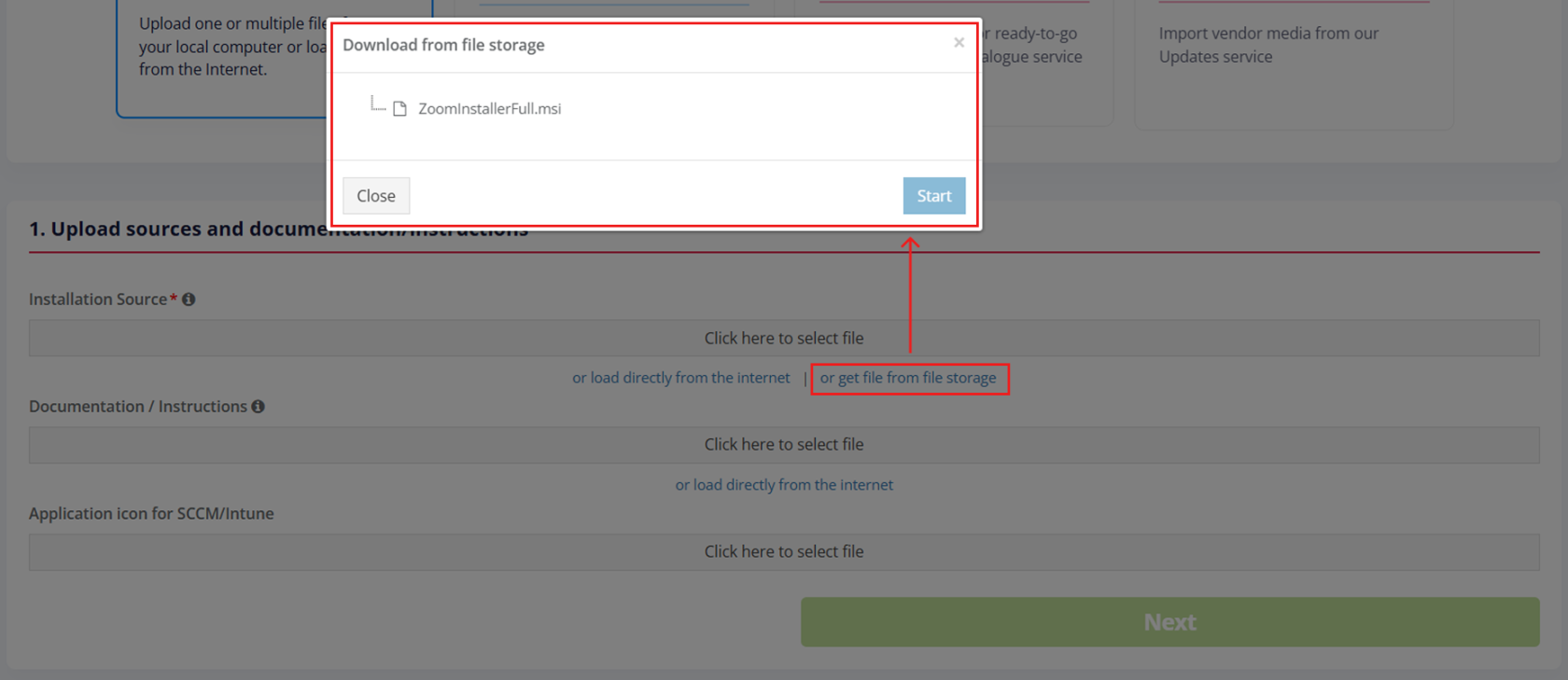](https://docs.apptimized.com/uploads/images/gallery/2026-03/upload-application-file-from-the-file-storage.png) The **Installation Source** uploading progress displays as follows: [](https://docs.apptimized.com/uploads/images/gallery/2026-03/the-installation-source-uploading-progress.png) The upload time depends on the application's size. When each download of an application is completed, the user can start uploading another application. **Five** application uploads are available for one session. Uploading **Discovery** **Document** is optional. A discovery document can be generated on previous sessions. Two options available to upload **Discovery** **Document**: - Upload application file from user's PC; [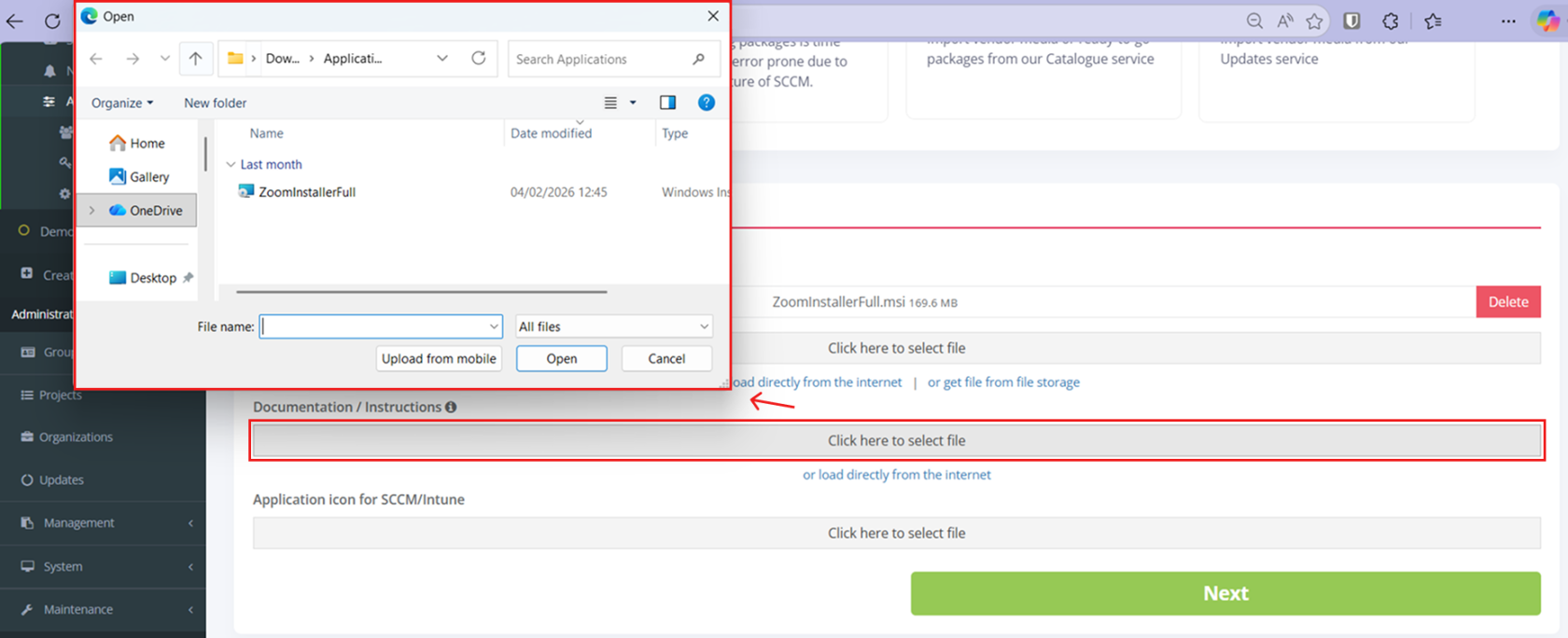](https://docs.apptimized.com/uploads/images/gallery/2026-03/instructions-select-a-file.png) - Upload documentation file from the Internet. [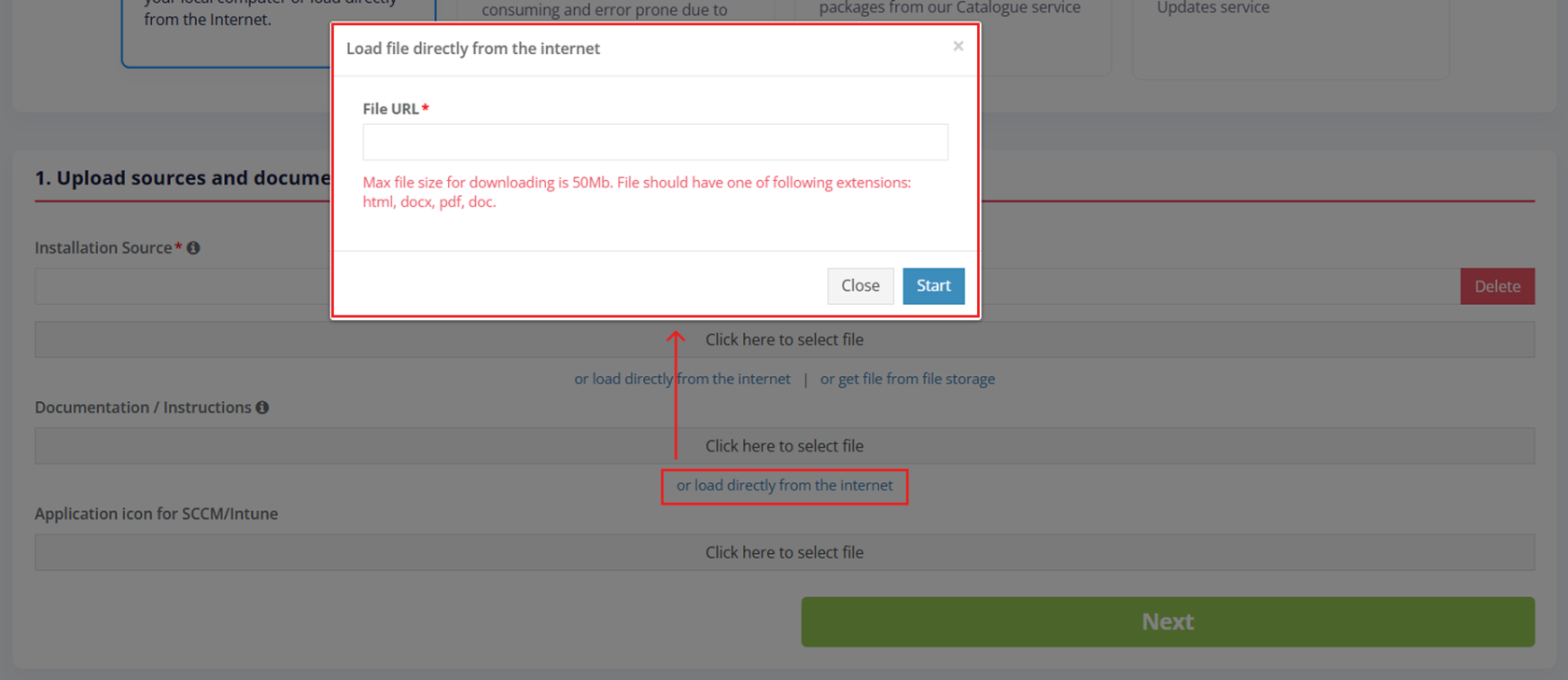](https://docs.apptimized.com/uploads/images/gallery/2026-03/load-documentation-from-the-internet.png) **One** discovery document upload is available for **one** session. Uploading **Application icon for SCCM/Intune** is optional. Supported file formats are **.png**, **.jpeg**, and **.jpg**. The maximum file size is **2 MB**. [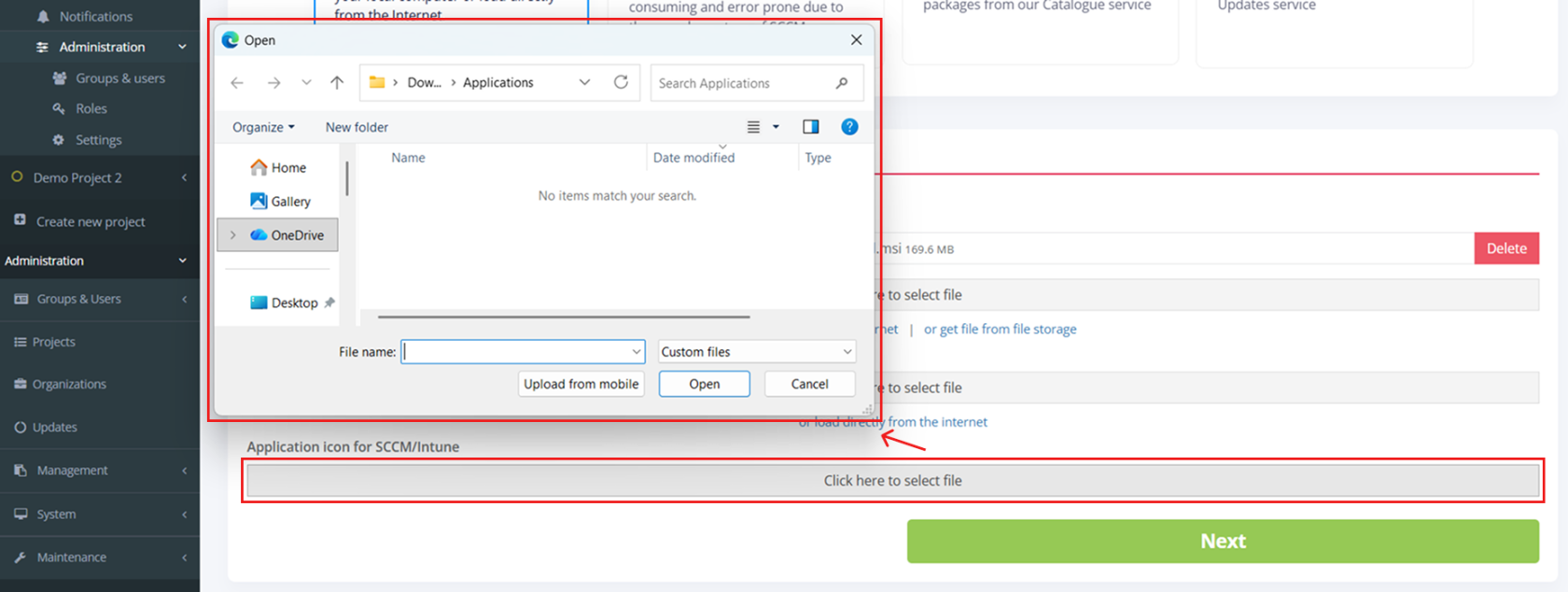](https://docs.apptimized.com/uploads/images/gallery/2026-03/application-icon-for-sccmintune.png) The **Upload sources and discovery document** step is finalised by clicking the **Next** button. [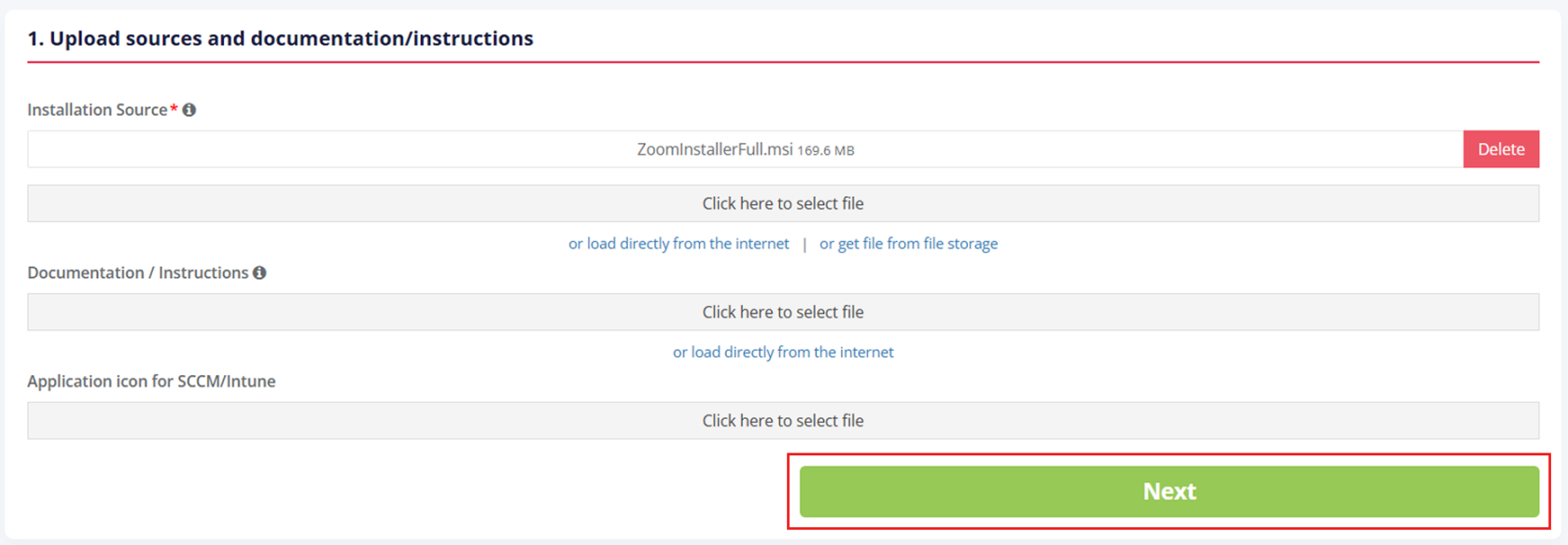](https://docs.apptimized.com/uploads/images/gallery/2026-03/the-next-button.png) Apptimized shows the **Metadata** step when successful. [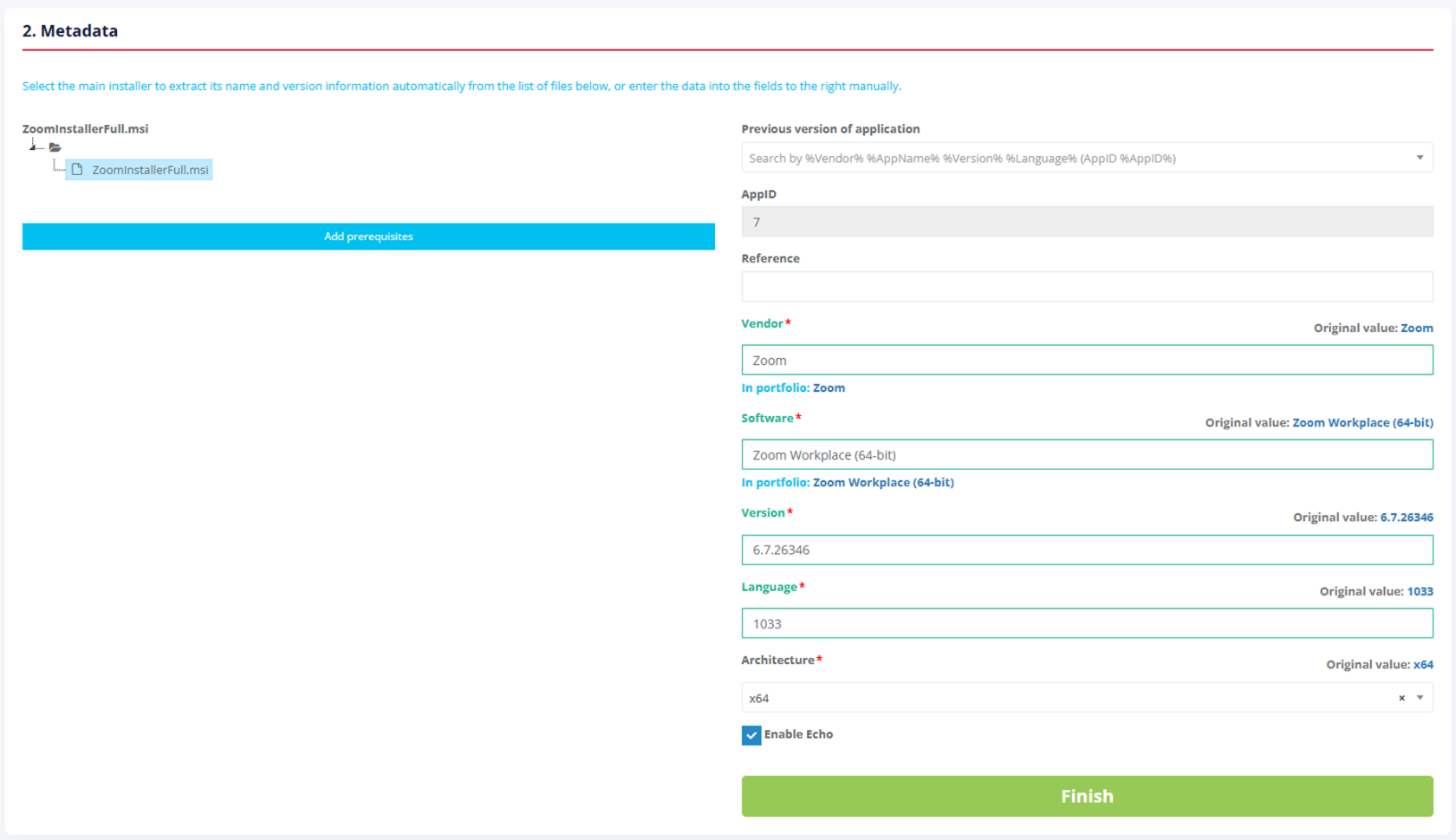](https://docs.apptimized.com/uploads/images/gallery/2026-03/metadata.png) If a previous version of the application already exists in the portfolio, it can be selected in the **Previous version of an application** field. [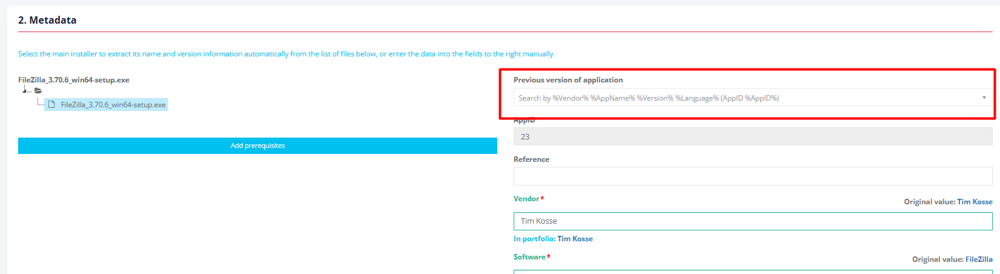](https://docs.apptimized.com/uploads/images/gallery/2026-06/image.png) This field displays applications that have already been added to the portfolio, ordered by the most recently added first. [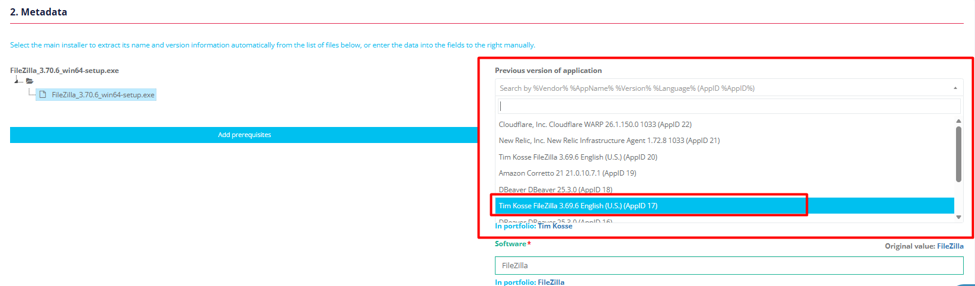](https://docs.apptimized.com/uploads/images/gallery/2026-06/YEvimage.png) After a value is selected in the Previous version of application field, the metadata names used in the selected application version are displayed below the current metadata fields. [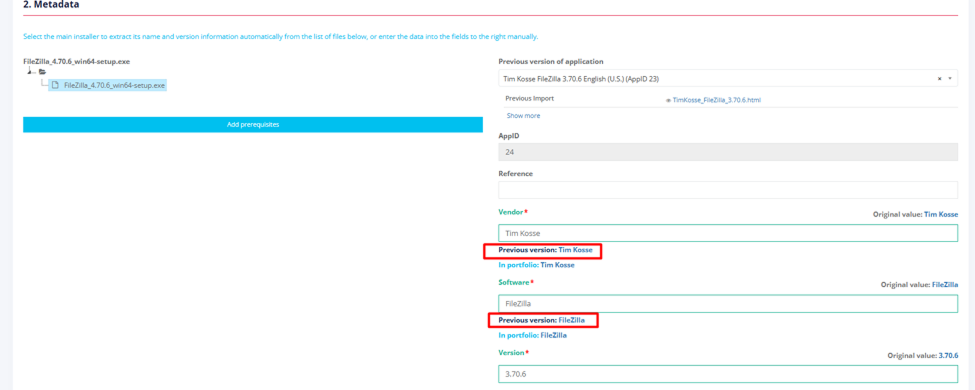](https://docs.apptimized.com/uploads/images/gallery/2026-06/previous-version-naming.png) After a previous application version is selected, the option to view documents associated with the selected application version is available. [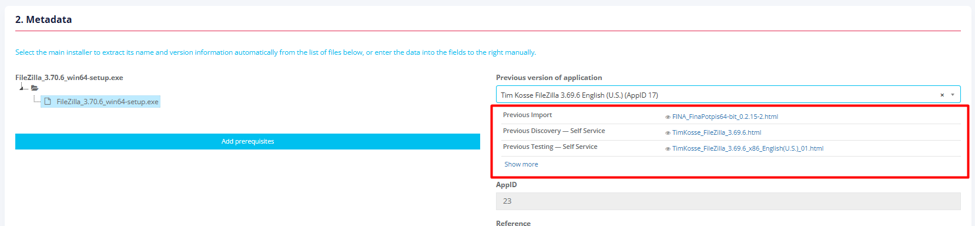](https://docs.apptimized.com/uploads/images/gallery/2026-06/1z3image.png) The option to view the version history of related application versions is available under the **Show more** link. [](https://docs.apptimized.com/uploads/images/gallery/2026-06/fNHimage.png) The **Previous Documents** modal window opens when successful. [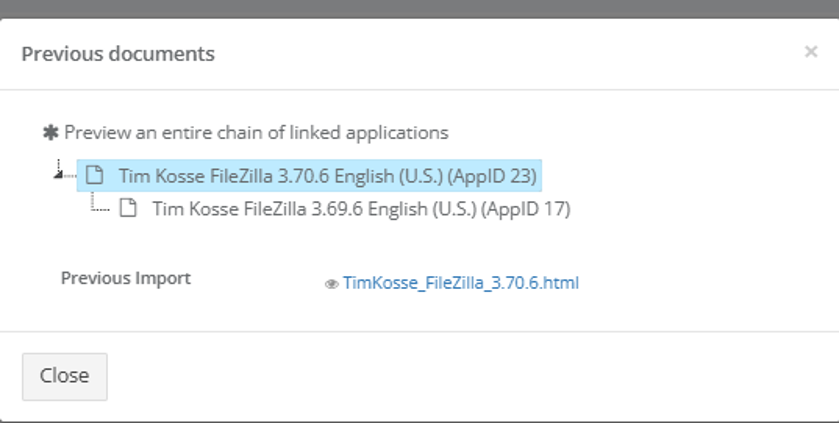](https://docs.apptimized.com/uploads/images/gallery/2026-06/6A2image.png) [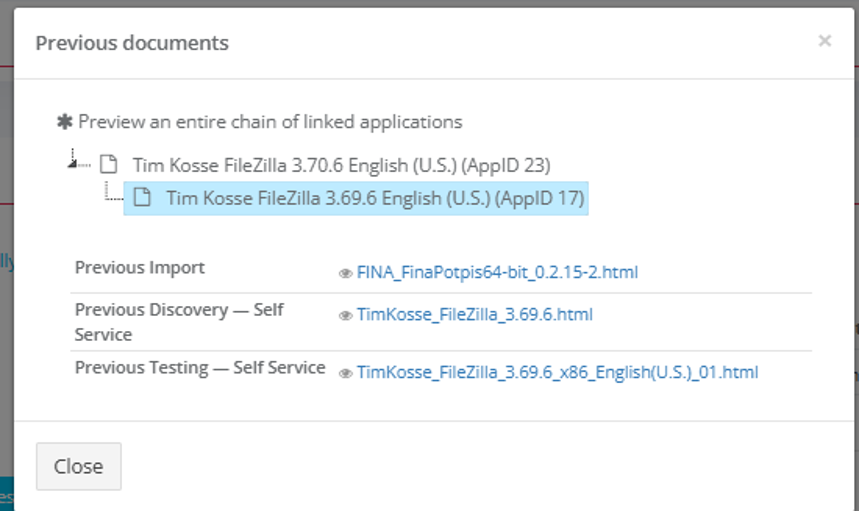](https://docs.apptimized.com/uploads/images/gallery/2026-06/6BSimage.png) The option to view a document is available by clicking on the document name. A click opens the document in a new browser tab. [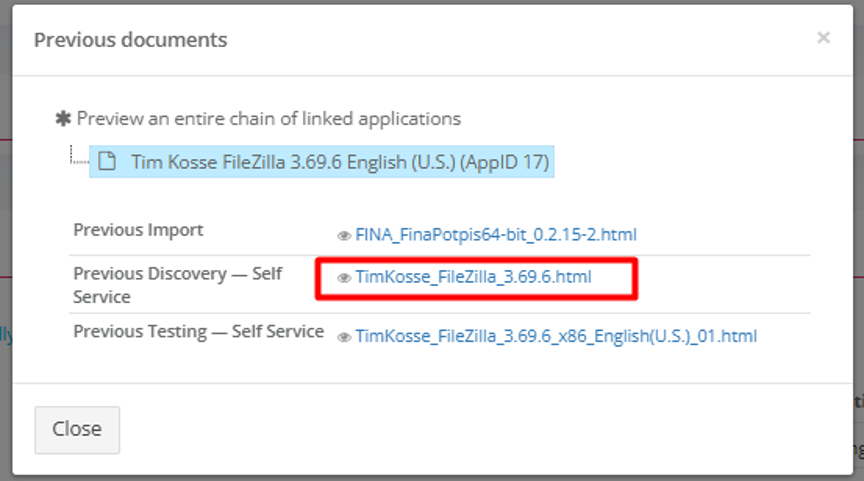](https://docs.apptimized.com/uploads/images/gallery/2026-06/hgoimage.png) [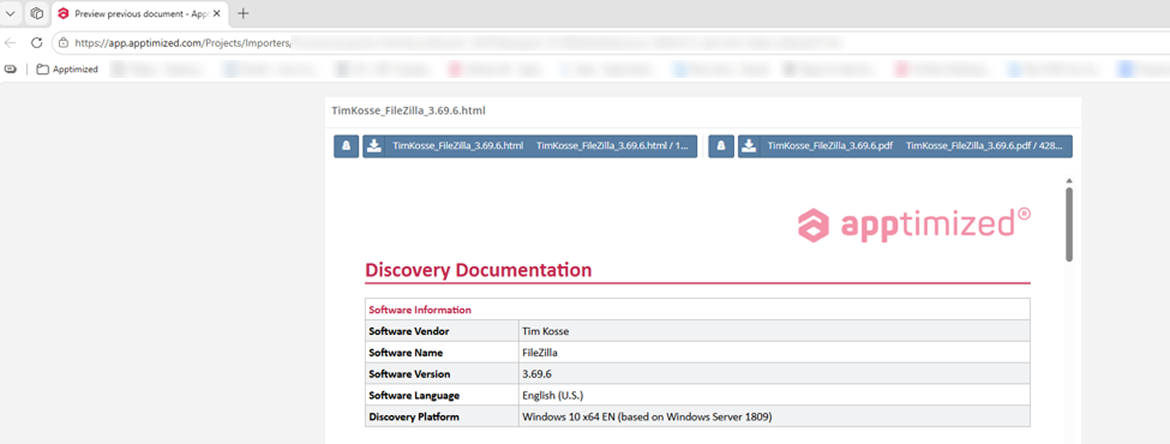](https://docs.apptimized.com/uploads/images/gallery/2026-06/preview-previous-document.png) The option to preview a document is also available by clicking on the preview link. A click opens the document preview in a new browser tab. [](https://docs.apptimized.com/uploads/images/gallery/2026-06/DcDimage.png) The process reverts to the previous step by clicking on the **Upload sources and documentation/instructions** button. [](https://docs.apptimized.com/uploads/images/gallery/2026-03/revert-to-the-previous-step.png) To extract the application metadata automatically a user can select the main installer from the list on the left or can enter the metadata manually into the fields on the right. All required fields are marked with an asterisk \*.**Note.** Apptimized automatically extracts metadata from the following files: exe, msi, msix, msixbundle, appx, appxbundle.
The following metadata will be provided: Table 1. Application metadata| **Metadata** | **Details** |
| Previous version of an application | This field defines if the previous version of the application is available in the portfolio. The default value is *Search by %Vendor% %AppName% %Version% %Language% (AppID %AppID%)*. A click opens a dropdown list to select the previous version of the application from the list. |
| Application ID | The application ID is a unique identifier generated automatically for every application during its upload. Application ID provides application identification. |
| Reference | This field is optional and can stay blank. This field provides additional comments from a user to the Apptimized portal (i.e. internal application ID). |
| Vendor | This field defines the vendor name. This is a required field. |
| Software | This field defines the application name. This is a required field. |
| Version | This field defines the application version. This is a required field. |
| Language | This field defines the application language. This is a required field. |
| Architecture | The Architecture field defines the system architecture supported by the application. The original value is detected from the installation source. This is a required field. |
| Enable Echo | This option defines if Echo is needed to be enabled. The Echo is enabled by default. |