# Catalogue

**Apptimized Catalogue** is one of the Apptimized features that provides access to a store, where a user can purchase the version of the application which is packaged according to a standard procedure and is ready for use.

The latest application versions available for orders within 24 hours release of the update by the vendor, and ready for download within 48 hours after the request.

<p class="callout info">**Note.** The "catalogue" option appears in the project menu after it is initiated in the [project settings](https://docs.apptimized.com/books/apptimized-platform-user-manual/page/project-settings "Project settings") by the project administrator.</p>

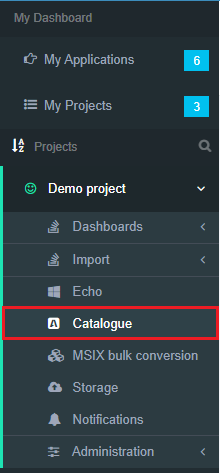
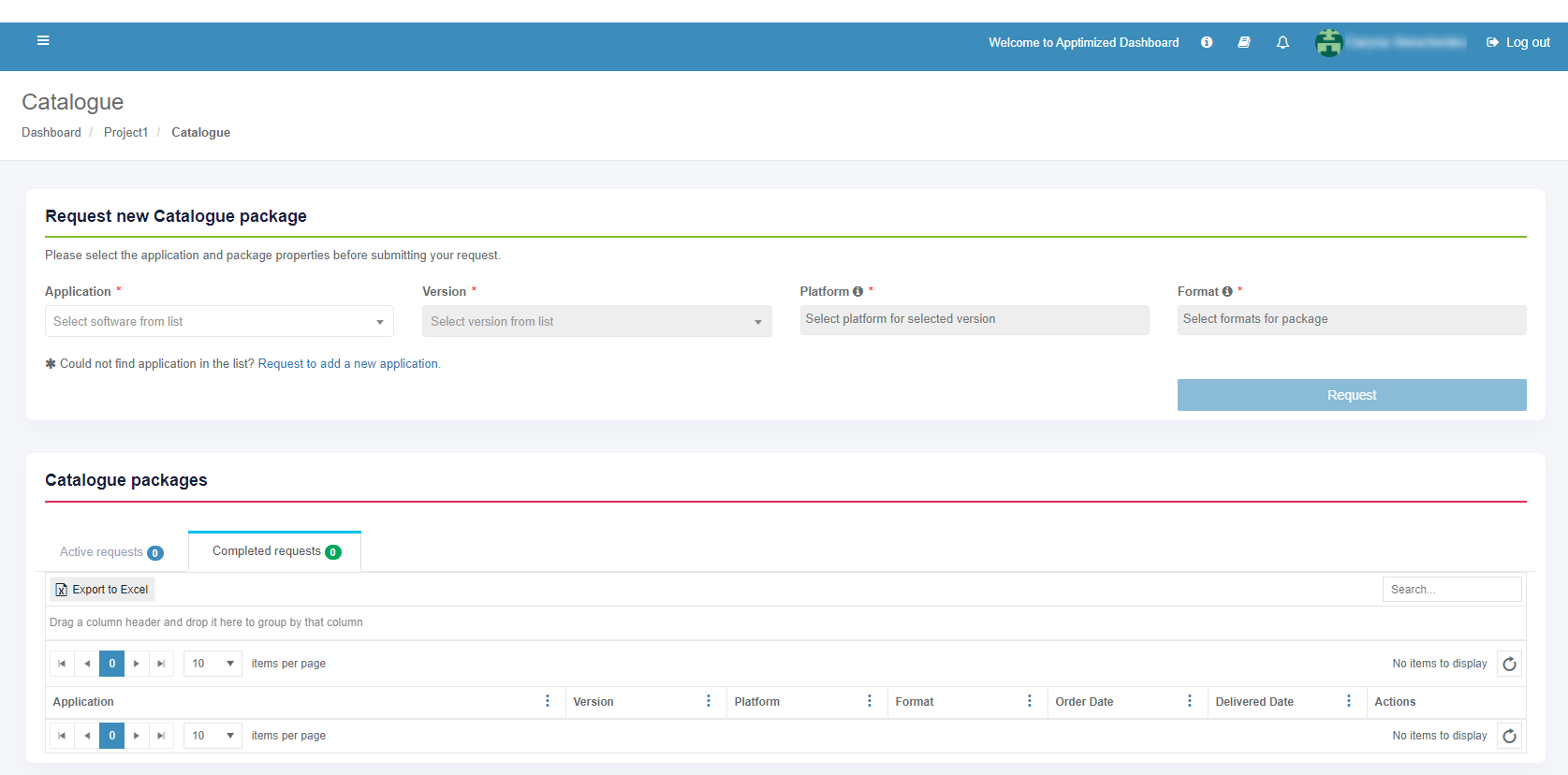
The **Catalogue** is available under the **Project** menu &gt; **Catalogue**:

[![catalogue_02.PNG](https://docs.apptimized.com/uploads/images/gallery/2020-04/scaled-1680-/tIupzeiM5DmsUAOU-catalogue_02.PNG)](https://docs.apptimized.com/uploads/images/gallery/2020-04/tIupzeiM5DmsUAOU-catalogue_02.PNG)

Apptimized shows the following screen when successful:

[![catalogue_01_02.png](https://docs.apptimized.com/uploads/images/gallery/2021-12/scaled-1680-/gkSyEng0Fa2Zu9SN-catalogue_01_02.png)](https://docs.apptimized.com/uploads/images/gallery/2021-12/gkSyEng0Fa2Zu9SN-catalogue_01_02.png)
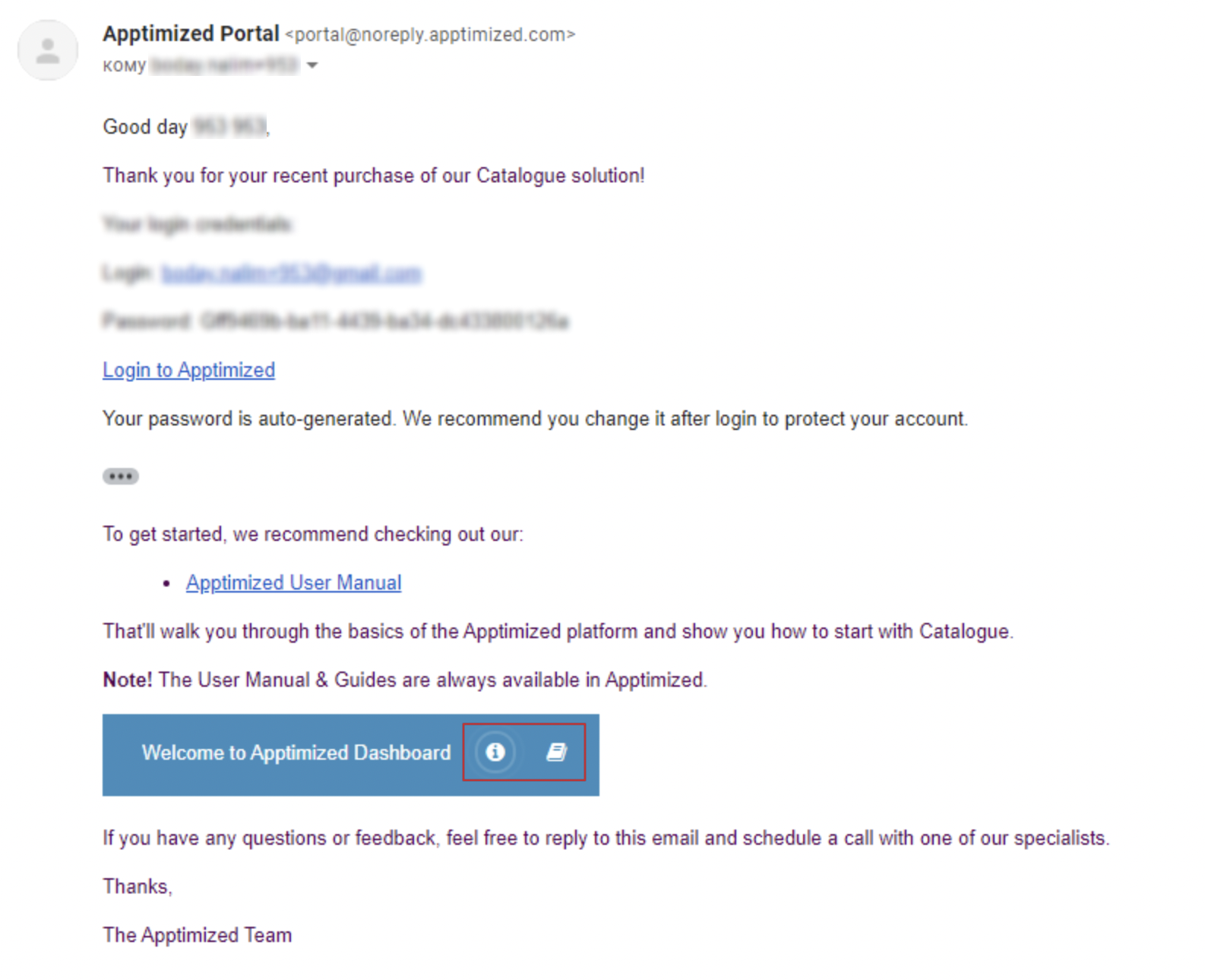
Apptimized sends the follow-up email when the user has been accessed the Apptimized Catalogue:

[![caralogue_18.png](https://docs.apptimized.com/uploads/images/gallery/2021-09/scaled-1680-/sbJmA367Enhrm5Ru-caralogue_18.png)](https://docs.apptimized.com/uploads/images/gallery/2021-09/sbJmA367Enhrm5Ru-caralogue_18.png)
#### New request

##### New package request

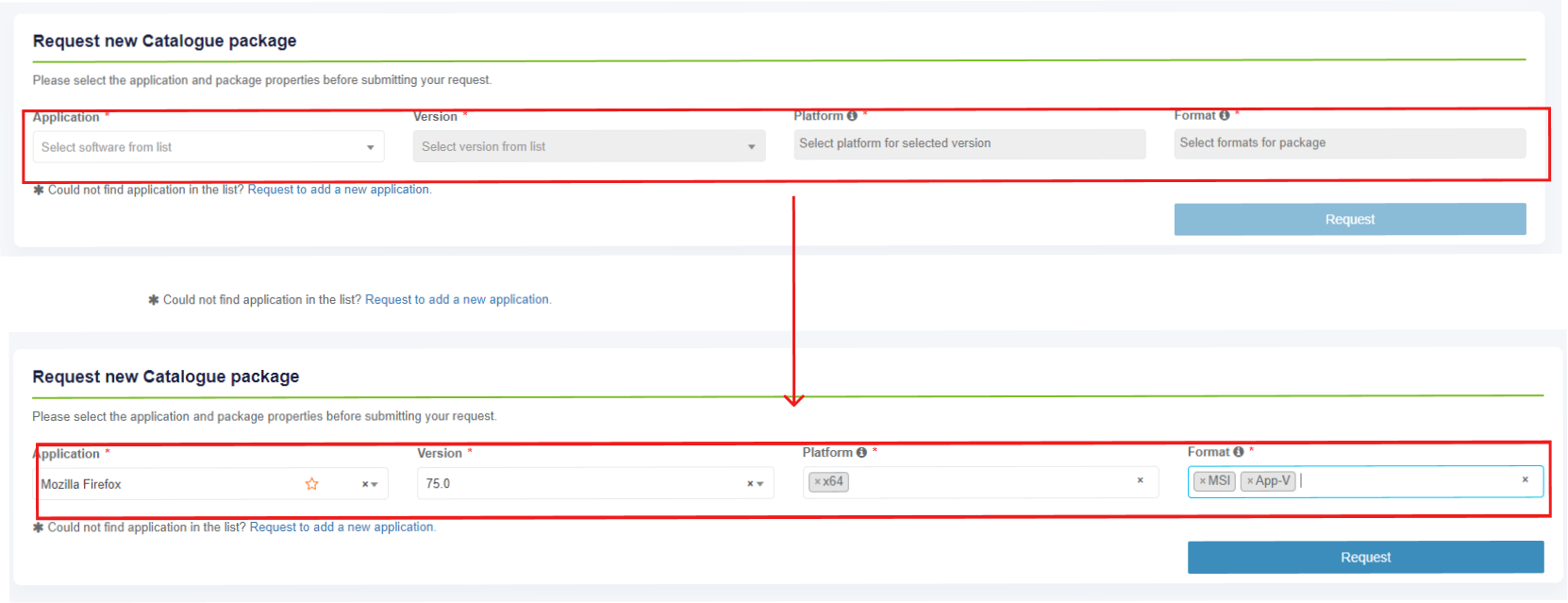
The option to make a request for a new package in the Apptimized Catalogue is available under the **Request new Catalogue package** block &gt; Select the value from the drop-down list in the **Application** field &gt; Select the value from the drop-down list in the **Version** field &gt; Select the value from the drop-down list in the **Platform** field &gt; Select the value from the drop-down list in the **Format** field &gt; **Request** button. All required fields are marked with an asterisk <span style="color: #ff0000;">\*</span>.

<p class="callout info">**Note.** The multiple-choice option is available in the **Platform** and **Format** fields. For each selected item, a separate catalogue request will be created.</p>

[![catalogue_03.png](https://docs.apptimized.com/uploads/images/gallery/2021-12/scaled-1680-/fO3uZn2Ptjv4DKt6-Group-4.png)](https://docs.apptimized.com/uploads/images/gallery/2021-12/fO3uZn2Ptjv4DKt6-Group-4.png)

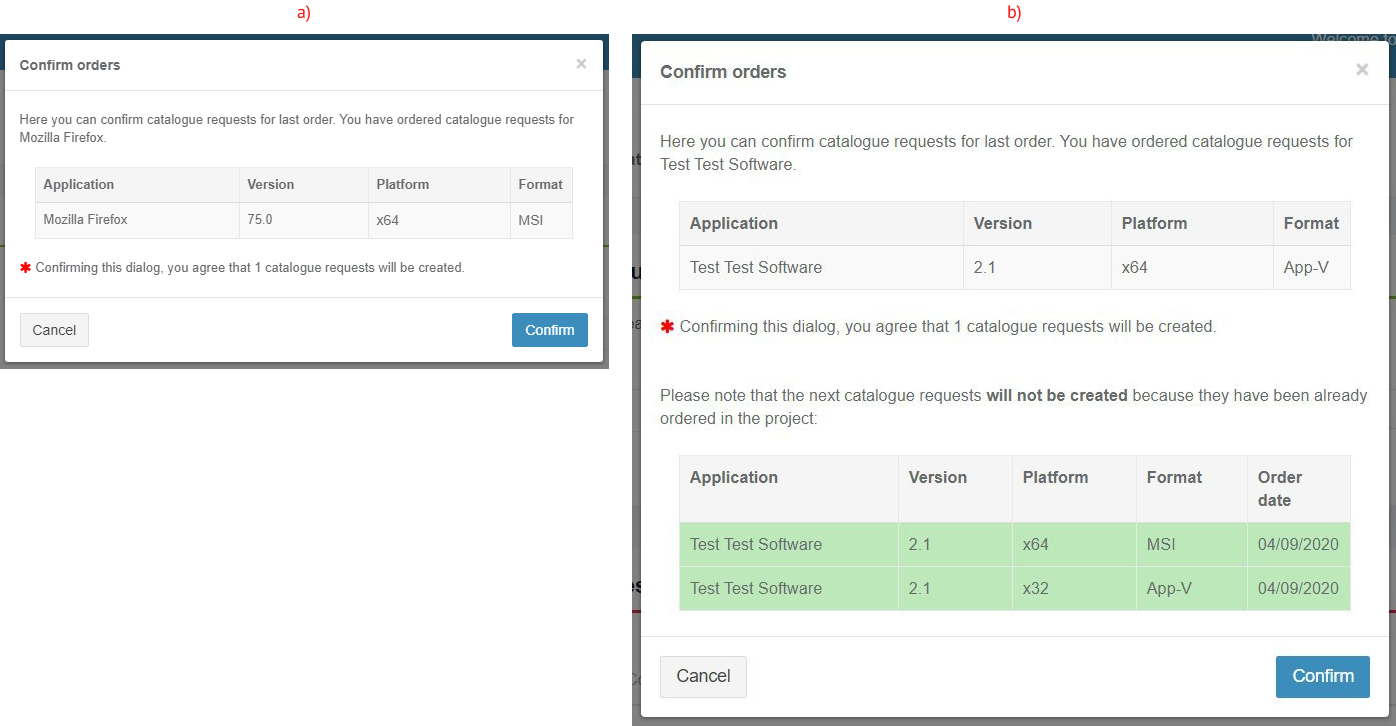
Apptimized shows one of the following modal windows:

a) the request doesn’t include a match to the previously made request;

b) the request includes a match to the previously made request.

[![catalogue_04.png](https://docs.apptimized.com/uploads/images/gallery/2020-04/scaled-1680-/aPMZ0FsyOuHPQukc-catalogue_04.png)](https://docs.apptimized.com/uploads/images/gallery/2020-04/aPMZ0FsyOuHPQukc-catalogue_04.png)
Apptimized shows the following screen when successful:

[![catalogue_05.png](https://docs.apptimized.com/uploads/images/gallery/2020-04/scaled-1680-/k91nfWfaJlRa7DYi-catalogue_05.png)](https://docs.apptimized.com/uploads/images/gallery/2020-04/k91nfWfaJlRa7DYi-catalogue_05.png)
##### New package request from the Updates

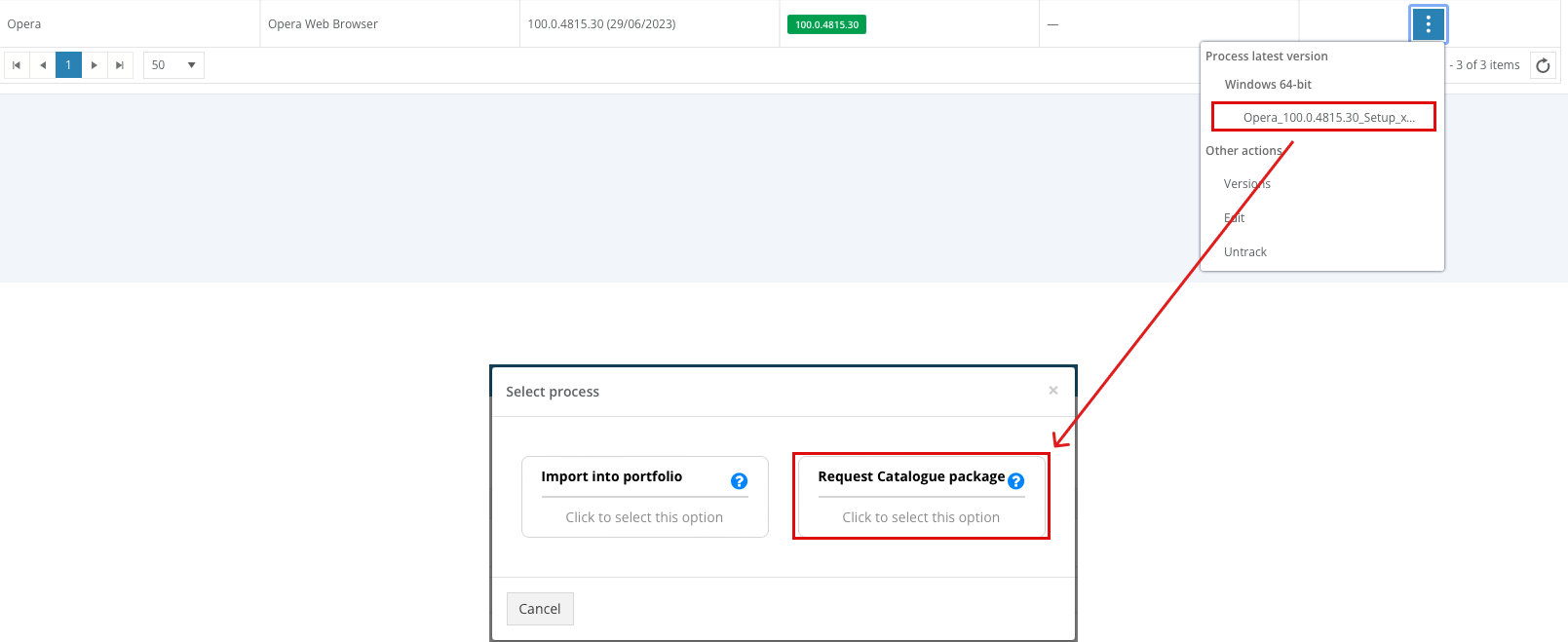
The option to import source file from the Updates interface is available under Actions &gt; **Process latest version** &gt; Select source file &gt; **Request catalogue package**[![catalogue_20.png](https://docs.apptimized.com/uploads/images/gallery/2023-07/scaled-1680-/Of09z1MItRC6RUyf-catalogue_20.png)](https://docs.apptimized.com/uploads/images/gallery/2023-07/Of09z1MItRC6RUyf-catalogue_20.png)

Apptimized shows the following screen when successful:

[![image-1688395630898.png](https://docs.apptimized.com/uploads/images/gallery/2023-07/scaled-1680-/8B1WTDbeDYSqCkiD-image-1688395630898.png)](https://docs.apptimized.com/uploads/images/gallery/2023-07/8B1WTDbeDYSqCkiD-image-1688395630898.png)

##### New application request

The option to create a request to add an application to the Catalogue list is available under the **Request for add application** link. The Apptimized Team will check the possibility to add the application to the Catalogue list.

[![catalogue_10.png](https://docs.apptimized.com/uploads/images/gallery/2021-12/scaled-1680-/G8aoxumZFVQPipCO-Group-2.png)](https://docs.apptimized.com/uploads/images/gallery/2021-12/G8aoxumZFVQPipCO-Group-2.png)

Apptimized shows the modal window when successful:

[![catalogue_07.png](https://docs.apptimized.com/uploads/images/gallery/2020-08/scaled-1680-/zfuTWzzHfLK4RVT2-catalogue_07.png)](https://docs.apptimized.com/uploads/images/gallery/2020-08/zfuTWzzHfLK4RVT2-catalogue_07.png)
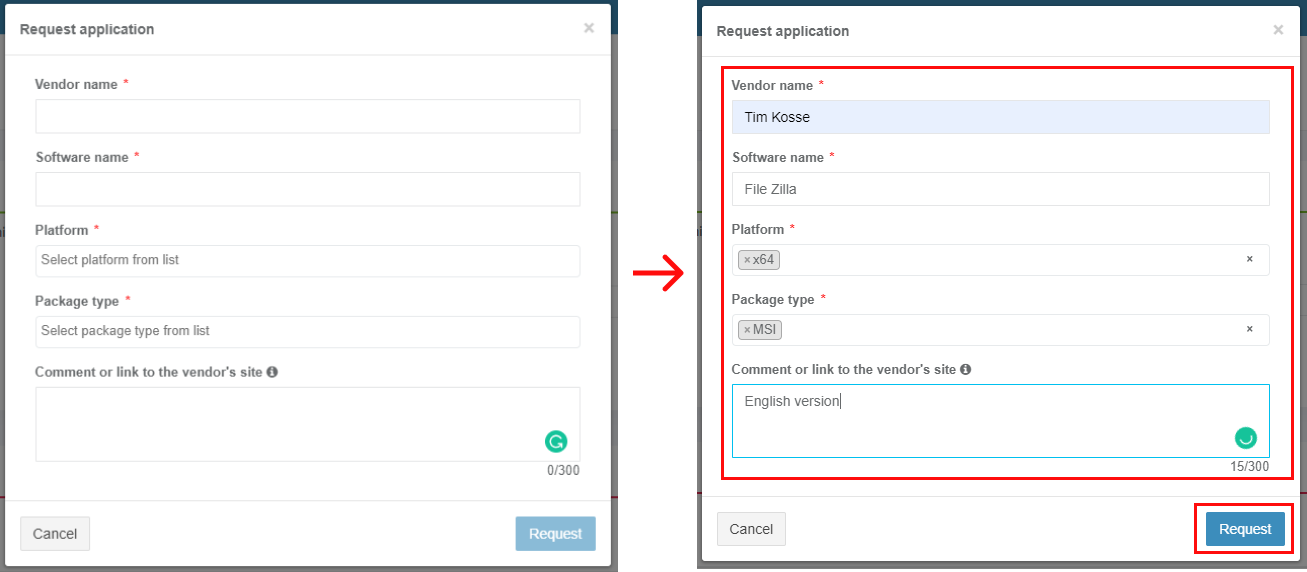
Enter the value in the **Vendor name** field &gt; Enter the value in the **Software name** field &gt; Select the value from the drop-down list in the **Platform** field &gt; Select the value from the drop-down list in the **Package type** field &gt; **Request** button. All required fields are marked with an asterisk <span style="color: #ff0000;">\*</span>.

<p class="callout info">**Note.** The multiple-choice option is available in the **Platform** and **Package type** fields. For each selected item, a separate request will be created.</p>

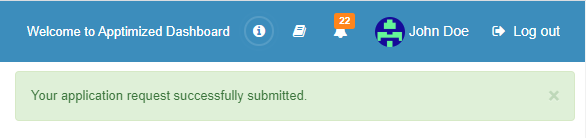
Apptimized notifies the user when the request is submitted. The following screen provides an example of the notifications:

[![catalogue_08.png](https://docs.apptimized.com/uploads/images/gallery/2020-08/scaled-1680-/CS4kM2ZggahGa8ag-catalogue_08.png)](https://docs.apptimized.com/uploads/images/gallery/2020-08/CS4kM2ZggahGa8ag-catalogue_08.png)
[![catalogue_email.png](https://docs.apptimized.com/uploads/images/gallery/2020-08/scaled-1680-/nbm4yo5FgQey3AQ3-catalogue_email.png)](https://docs.apptimized.com/uploads/images/gallery/2020-08/nbm4yo5FgQey3AQ3-catalogue_email.png)
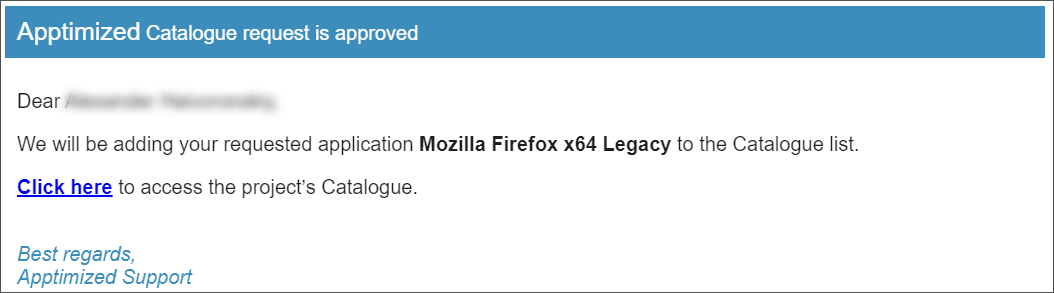
<span style="font-family: -apple-system, BlinkMacSystemFont, 'Segoe UI', Oxygen, Ubuntu, Roboto, Cantarell, 'Fira Sans', 'Droid Sans', 'Helvetica Neue', sans-serif; font-size: 14px; font-style: normal; font-variant-ligatures: normal; font-variant-caps: normal; font-weight: 400;">Apptimized sends the following email when </span><span style="font-family: -apple-system, BlinkMacSystemFont, 'Segoe UI', Oxygen, Ubuntu, Roboto, Cantarell, 'Fira Sans', 'Droid Sans', 'Helvetica Neue', sans-serif; font-size: 14px; font-style: normal; font-variant-ligatures: normal; font-variant-caps: normal; font-weight: 400;">the application</span><span style="font-family: -apple-system, BlinkMacSystemFont, 'Segoe UI', Oxygen, Ubuntu, Roboto, Cantarell, 'Fira Sans', 'Droid Sans', 'Helvetica Neue', sans-serif; font-size: 14px; font-style: normal; font-variant-ligatures: normal; font-variant-caps: normal; font-weight: 400;"> can </span><span style="font-family: -apple-system, BlinkMacSystemFont, 'Segoe UI', Oxygen, Ubuntu, Roboto, Cantarell, 'Fira Sans', 'Droid Sans', 'Helvetica Neue', sans-serif; font-size: 14px; font-style: normal; font-variant-ligatures: normal; font-variant-caps: normal; font-weight: 400;">be added to </span><span style="font-family: -apple-system, BlinkMacSystemFont, 'Segoe UI', Oxygen, Ubuntu, Roboto, Cantarell, 'Fira Sans', 'Droid Sans', 'Helvetica Neue', sans-serif; font-size: 14px; font-style: normal; font-variant-ligatures: normal; font-variant-caps: normal; font-weight: 400;">the </span><span style="font-family: -apple-system, BlinkMacSystemFont, 'Segoe UI', Oxygen, Ubuntu, Roboto, Cantarell, 'Fira Sans', 'Droid Sans', 'Helvetica Neue', sans-serif; font-size: 14px; font-style: normal; font-variant-ligatures: normal; font-variant-caps: normal; font-weight: 400;">Catalogue list.</span>

[![catalogue_approved.png](https://docs.apptimized.com/uploads/images/gallery/2020-08/scaled-1680-/HkAhabBRL7kLv13H-catalogue_approved.png)](https://docs.apptimized.com/uploads/images/gallery/2020-08/HkAhabBRL7kLv13H-catalogue_approved.png)

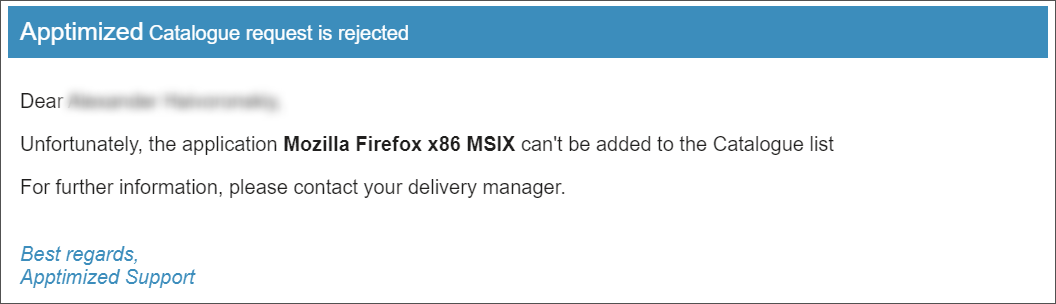
Apptimized sends the following email when <span lang="EN-US">the application</span><span lang="EN-US"> can't</span><span lang="EN-US"> </span><span lang="EN-US">be added to </span><span lang="EN-US">the </span><span lang="EN-US">Catalogue list.</span>

<span lang="EN-US"> [![catalogue_rejected.png](https://docs.apptimized.com/uploads/images/gallery/2020-08/scaled-1680-/drfaWyid0b9C4gEp-catalogue_rejected.png)](https://docs.apptimized.com/uploads/images/gallery/2020-08/drfaWyid0b9C4gEp-catalogue_rejected.png)</span>

####  

#### Catalogue request monitoring

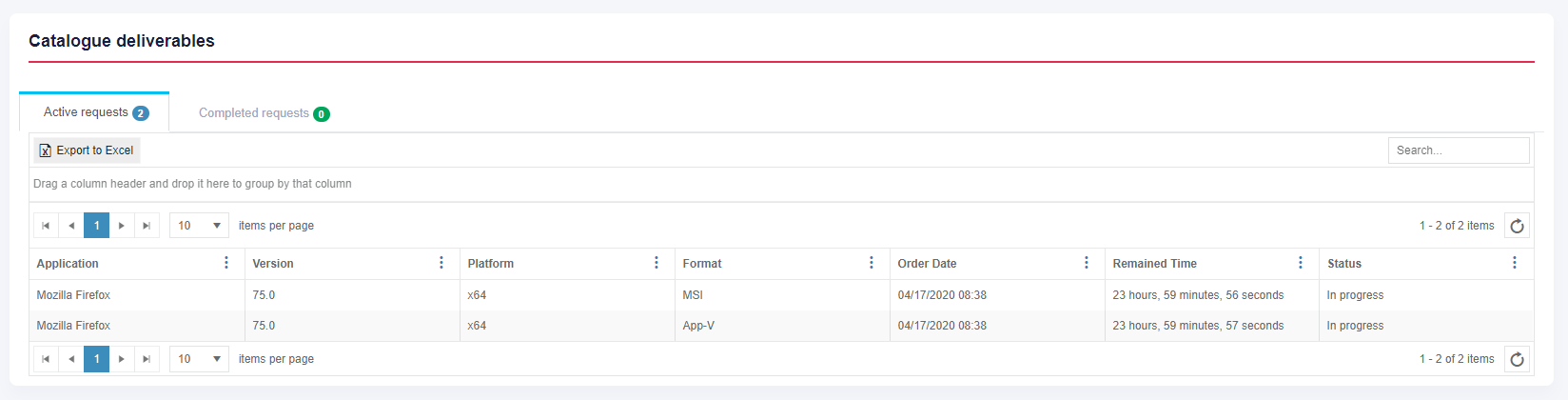
New Catalogue requests appear in the **Active requests** tab of the **Catalogue deliverables** block. After the Apptimized processed the request and the package is available, the request appears in the **Completed requests** tab.

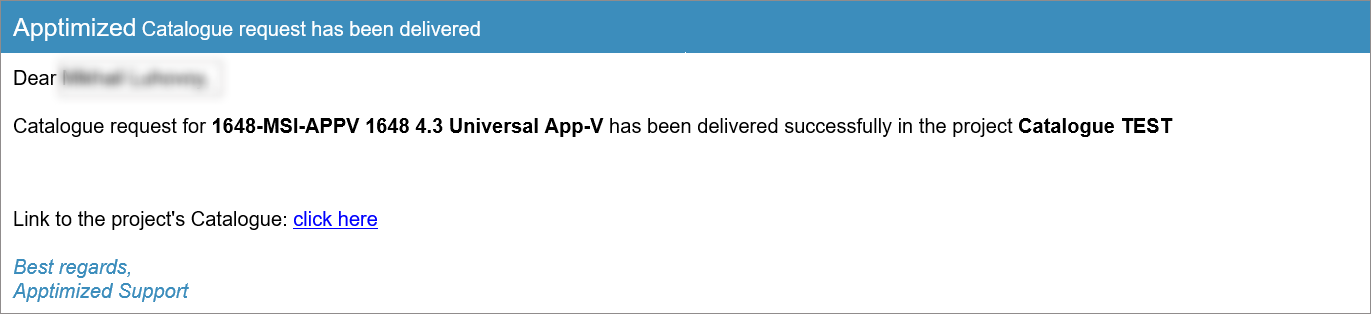
Apptimized notifies the user when the requested package is ready. The following screen provides the example of the notification:

[![catalogue_email.png](https://docs.apptimized.com/uploads/images/gallery/2020-08/scaled-1680-/nbm4yo5FgQey3AQ3-catalogue_email.png)](https://docs.apptimized.com/uploads/images/gallery/2020-08/nbm4yo5FgQey3AQ3-catalogue_email.png)

Catalogue active request data is grouped into 7 categories:

- Application;
- Version;
- Platform;
- Format;
- Order date;
- Remained time;
- Status.

The columns in the catalogue request table can be swapped and grouped in any order. A user can drag and drop a column header to a suitable place.

To exclude columns in the catalogue request table, uncheck the box next to the column name not required in view. This option is available under **Edit Column Settings** &gt; **Columns**.

To sort data in columns select ascending or descending mode. This option is available under **Edit Column Settings** &gt; **Sort Ascending** or **Edit Column Settings** &gt; **Sort Descending**.

To filter data in columns use **Edit Column Settings** &gt; **Filter** &gt; Select a value &gt; **Filter** button. To exclude the item the catalogue request table, uncheck boxes next to the name not required in view.

Keyword search mode available.

Catalogue completed request data is grouped into 7 categories:

- Application;
- Version;
- Platform;
- Format;
- Order date;
- Delivered date;
- Actions.

Request history can be downloaded as an Excel file by clicking the **Export to Excel** button.

<span class="TextRun SCXW80435314 BCX8" data-contrast="auto" lang="EN-GB" xml:lang="EN-GB"><span class="NormalTextRun SpellingErrorV2 SCXW80435314 BCX8">Apptimized</span><span class="NormalTextRun SCXW80435314 BCX8"> shows the following screen after the request was completed:</span></span>

<span class="TextRun SCXW80435314 BCX8" data-contrast="auto" lang="EN-GB" xml:lang="EN-GB"><span class="NormalTextRun SCXW80435314 BCX8">[![image-15-(1).png](https://docs.apptimized.com/uploads/images/gallery/2021-07/scaled-1680-/sSAa3UqeAFhMcsAR-image-15-(1).png)](https://docs.apptimized.com/uploads/images/gallery/2021-07/sSAa3UqeAFhMcsAR-image-15-(1).png)</span></span>

The option to download a package after the catalogue request is completed is available under the **Actions** column &gt; **Download**.

<span data-contrast="auto">The option to import application as a source is available under the </span>**<span data-contrast="auto">Actions &gt; Import as source</span>**<span data-ccp-props="{"201341983":0,"335559739":160,"335559740":259}"> </span>

<span data-ccp-props="{"201341983":0,"335559739":160,"335559740":259}"> [![catalogue_12-(1).png](https://docs.apptimized.com/uploads/images/gallery/2021-07/scaled-1680-/PYTPJjQmF3H7QrpF-catalogue_12-(1).png)](https://docs.apptimized.com/uploads/images/gallery/2021-07/PYTPJjQmF3H7QrpF-catalogue_12-(1).png)</span>

<span data-contrast="auto">Apptimized shows the following modal window when successful:</span><span data-ccp-props="{"201341983":0,"335559739":160,"335559740":259}"> </span>

<span data-ccp-props="{"201341983":0,"335559739":160,"335559740":259}"> [![catalogue_13-(1).png](https://docs.apptimized.com/uploads/images/gallery/2021-07/scaled-1680-/vbJ57pz7JOp1opI7-catalogue_13-(1).png)](https://docs.apptimized.com/uploads/images/gallery/2021-07/vbJ57pz7JOp1opI7-catalogue_13-(1).png)</span>

<span data-contrast="none">Enter the value in the </span>**<span data-contrast="none">Vendor name</span>**<span data-contrast="none"> field &gt; Enter the value in the </span>**<span data-contrast="none">Software name</span>**<span data-contrast="none"> field &gt; Enter the value in the </span>**<span data-contrast="none">Version </span>**<span data-contrast="none">field &gt; Enter the value in the </span>**<span data-contrast="none">Language </span>**<span data-contrast="none">field &gt; </span>**<span data-contrast="none">Import </span>**<span data-contrast="none">button. All required fields are marked with an asterisk </span><span data-contrast="none">\*</span><span data-contrast="none">.</span><span data-ccp-props="{"201341983":0,"335559739":160,"335559740":259}"> </span>

<span data-contrast="none">Apptimized shows the following notification and screen when successful:</span><span data-ccp-props="{"201341983":0,"335559739":160,"335559740":259}"> </span>

<span data-ccp-props="{"201341983":0,"335559739":160,"335559740":259}"> [![catalogue_14-(1).png](https://docs.apptimized.com/uploads/images/gallery/2021-07/scaled-1680-/JpWaSljXNmm4rdZM-catalogue_14-(1).png)](https://docs.apptimized.com/uploads/images/gallery/2021-07/JpWaSljXNmm4rdZM-catalogue_14-(1).png)</span>

<span data-contrast="none">The option to import application as a package is available under the </span>**<span data-contrast="none">Actions &gt; Import as package</span>**<span data-contrast="none">.</span><span data-ccp-props="{"201341983":0,"335559739":160,"335559740":259}"> </span>

<span data-ccp-props="{"201341983":0,"335559739":160,"335559740":259}">[![catalogue_15-(2).png](https://docs.apptimized.com/uploads/images/gallery/2021-07/scaled-1680-/DmwmMawGaFJ3WQBU-catalogue_15-(2).png)](https://docs.apptimized.com/uploads/images/gallery/2021-07/DmwmMawGaFJ3WQBU-catalogue_15-(2).png)</span>

<p class="callout info"><span data-contrast="none">**Note**. This option becomes available if </span>**<span data-contrast="none">Packaging – Self Service </span>**<span data-contrast="none">module is presented on the project.</span><span data-ccp-props="{"201341983":0,"335559739":160,"335559740":259}"> </span></p>

<span data-contrast="none">Apptimized shows the following modal window when successful:</span><span data-ccp-props="{"201341983":0,"335559739":160,"335559740":259}"> </span>

<span data-ccp-props="{"201341983":0,"335559739":160,"335559740":259}"> [![catalogue_16-(1).png](https://docs.apptimized.com/uploads/images/gallery/2021-07/scaled-1680-/RZLKcGCQKTjNi8MV-catalogue_16-(1).png)](https://docs.apptimized.com/uploads/images/gallery/2021-07/RZLKcGCQKTjNi8MV-catalogue_16-(1).png)</span>

<span data-contrast="none">Enter the value in the </span>**<span data-contrast="none">Vendor name</span>**<span data-contrast="none"> field &gt; Enter the value in the </span>**<span data-contrast="none">Software name</span>**<span data-contrast="none"> field &gt; Enter the value in the </span>**<span data-contrast="none">Version </span>**<span data-contrast="none">field &gt; Enter the value in the </span>**<span data-contrast="none">Language </span>**<span data-contrast="none">field &gt; </span>**<span data-contrast="none">Import </span>**<span data-contrast="none">button. All required fields are marked with an asterisk </span><span data-contrast="none">\*</span><span data-contrast="none">.</span><span data-ccp-props="{"201341983":0,"335559739":160,"335559740":259}"> </span>

<span data-contrast="none">Apptimized shows the following notification and screen when successful:</span><span data-ccp-props="{"201341983":0,"335559739":160,"335559740":259}"> </span>

<span data-ccp-props="{"201341983":0,"335559739":160,"335559740":259}">[![catalogue_17-(2).png](https://docs.apptimized.com/uploads/images/gallery/2021-07/scaled-1680-/31dMhJlaW2YQGhxm-catalogue_17-(2).png)](https://docs.apptimized.com/uploads/images/gallery/2021-07/31dMhJlaW2YQGhxm-catalogue_17-(2).png)</span>

<span data-ccp-props="{"201341983":0,"335559739":160,"335559740":259}"> </span>