# Catalogue Import
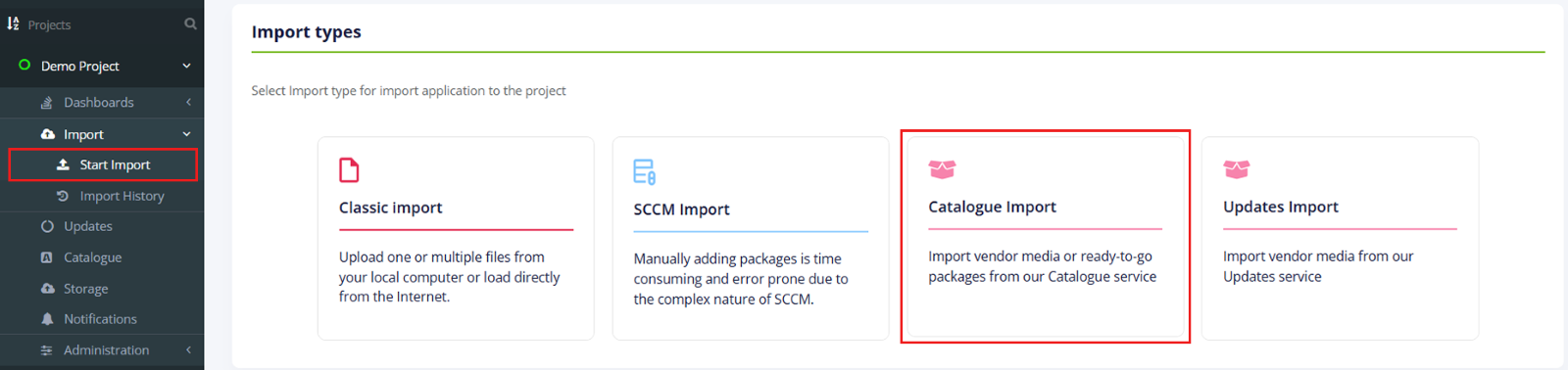
The option to start the import is called **“****Catalogue Import****”**. It is available under Import in project menu > **Start Import** > **Catalogue Import** option.
When successfully imported, Apptimized shows the **Choose Applications from Catalogue** step.
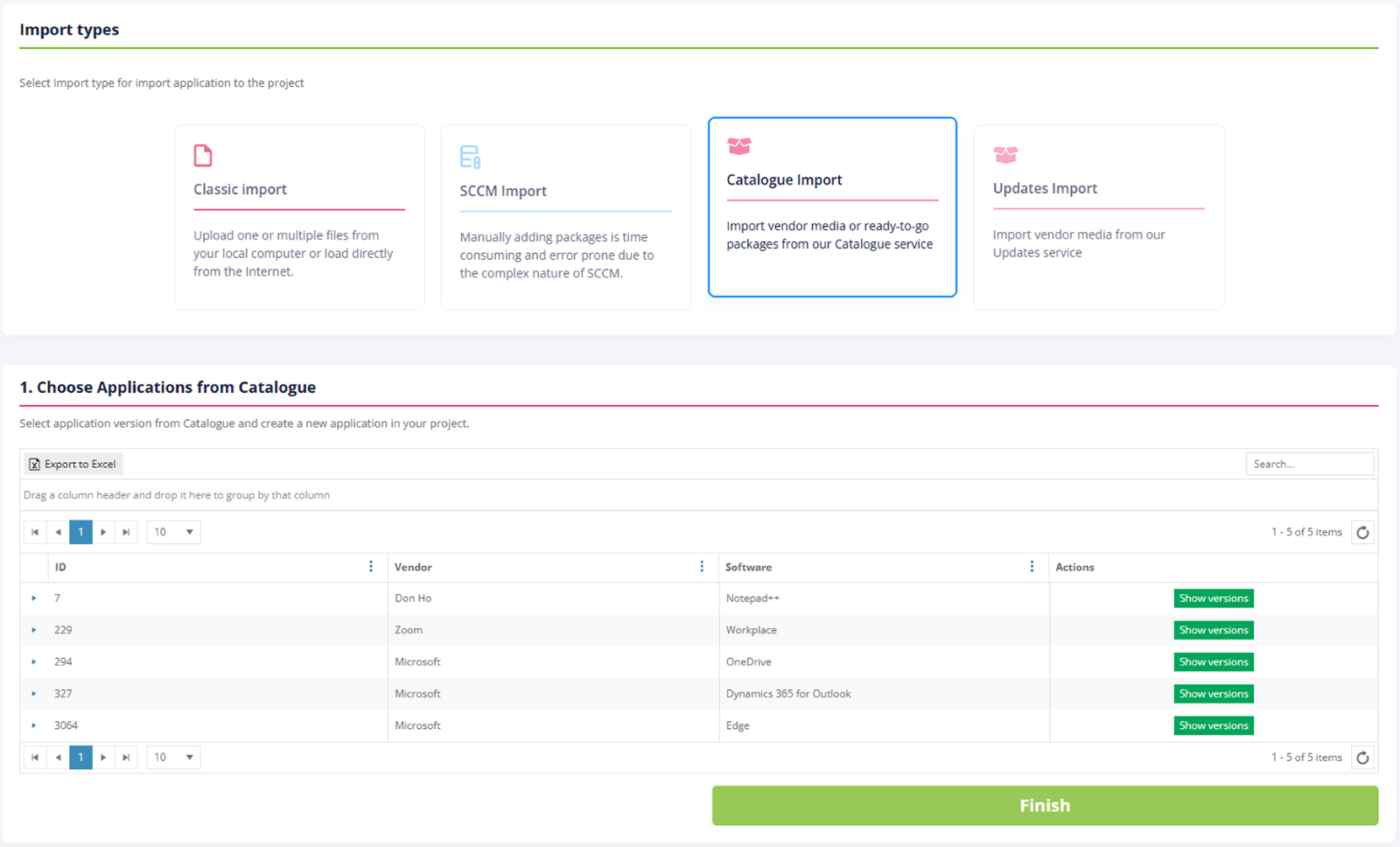 Application import data is grouped into 4 categories:
- ID;
- Vendor;
- Software;
- Actions.
The default view is 10 items per page. The number of items per page can be changed to 10, 50, 100, or all items.

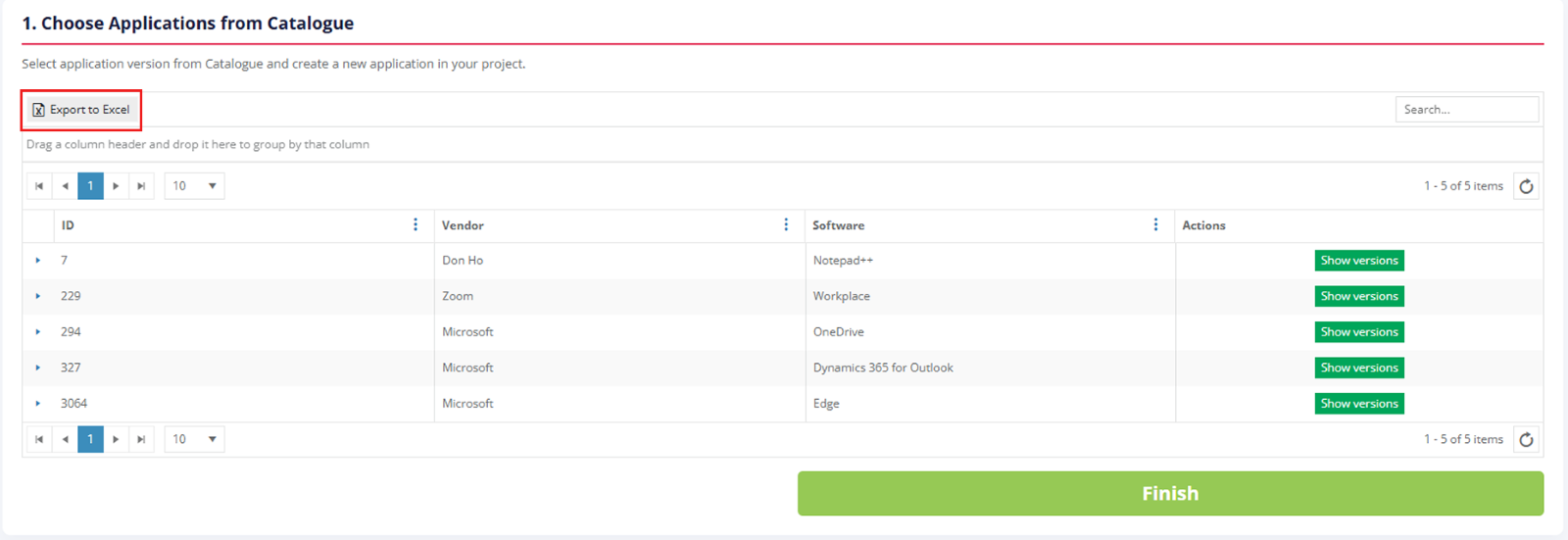
An application database can be downloaded as an Excel file by clicking on the **Export to Excel** button.
The columns in the import table can be swapped and grouped in any order. A user can drag and drop a column header to a suitable place.
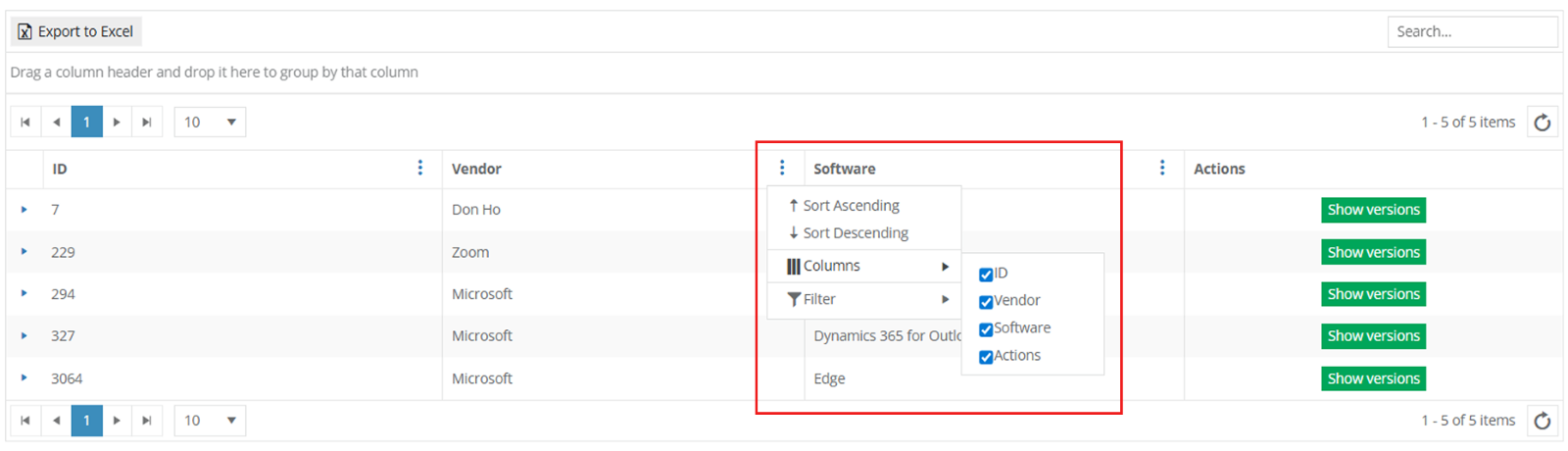
To exclude columns in the import table, uncheck the box next to the column name not required in view. This option is available under **Edit Column Settings** > **Columns**.
 Keyword search mode available:
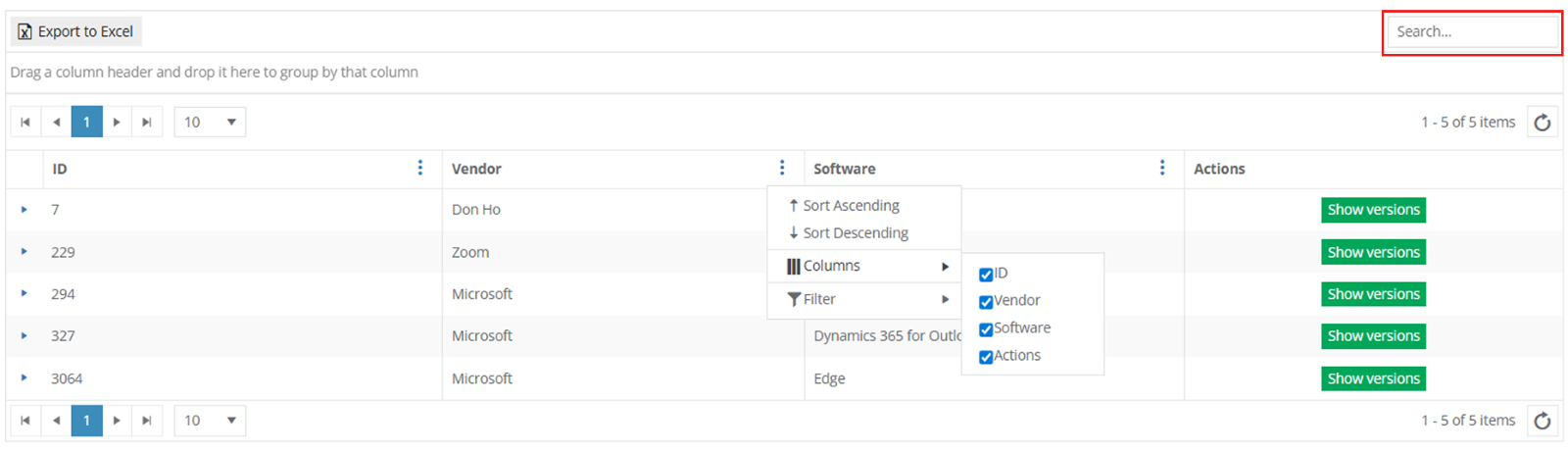
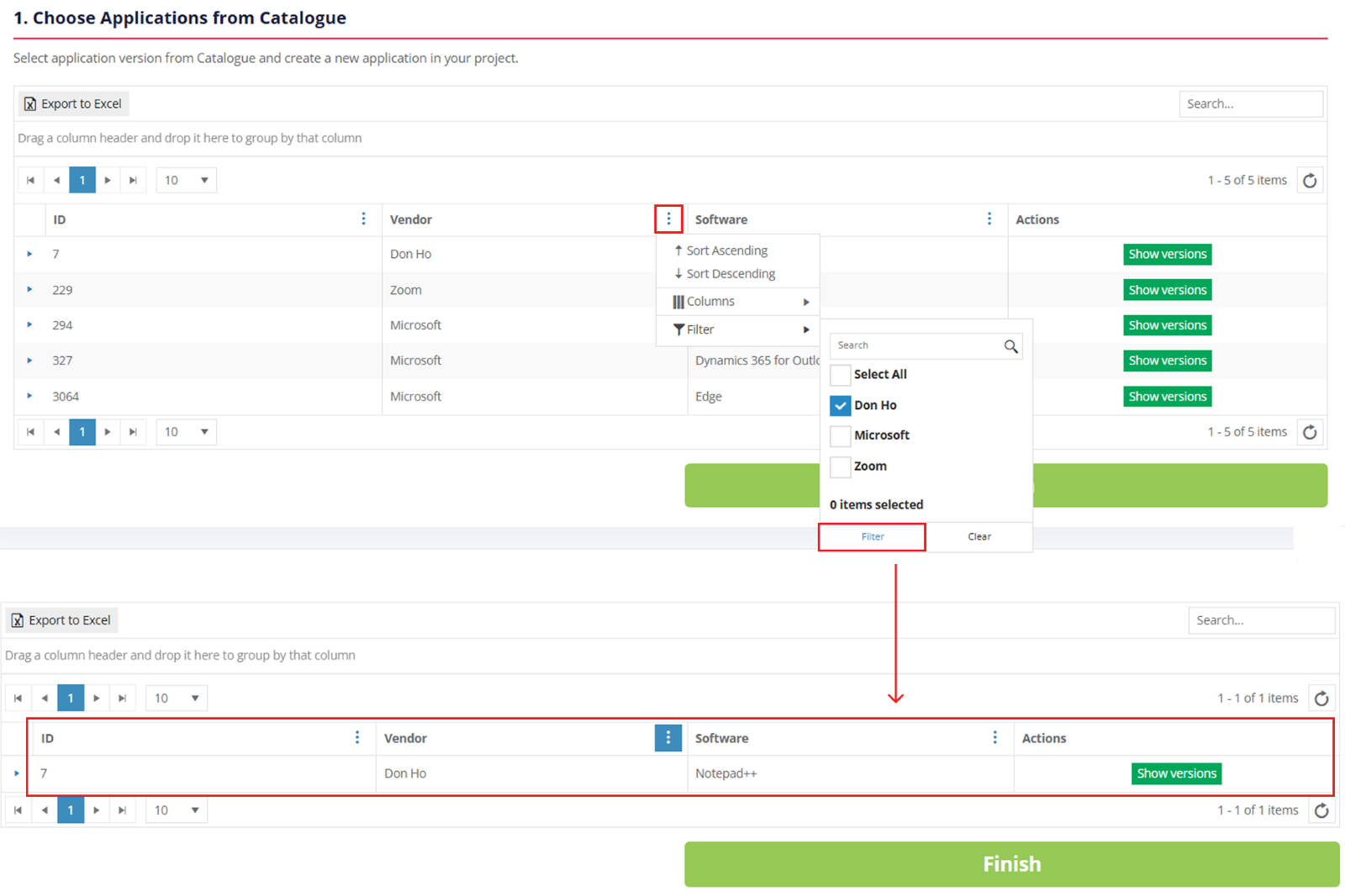
To filter data in columns **ID, Vendor,** or **Software**, use **Edit Column Settings** > **Filter** > Select one or multiple items > **Filter** button. To exclude data from the import table, uncheck boxes next to the name not required in view.
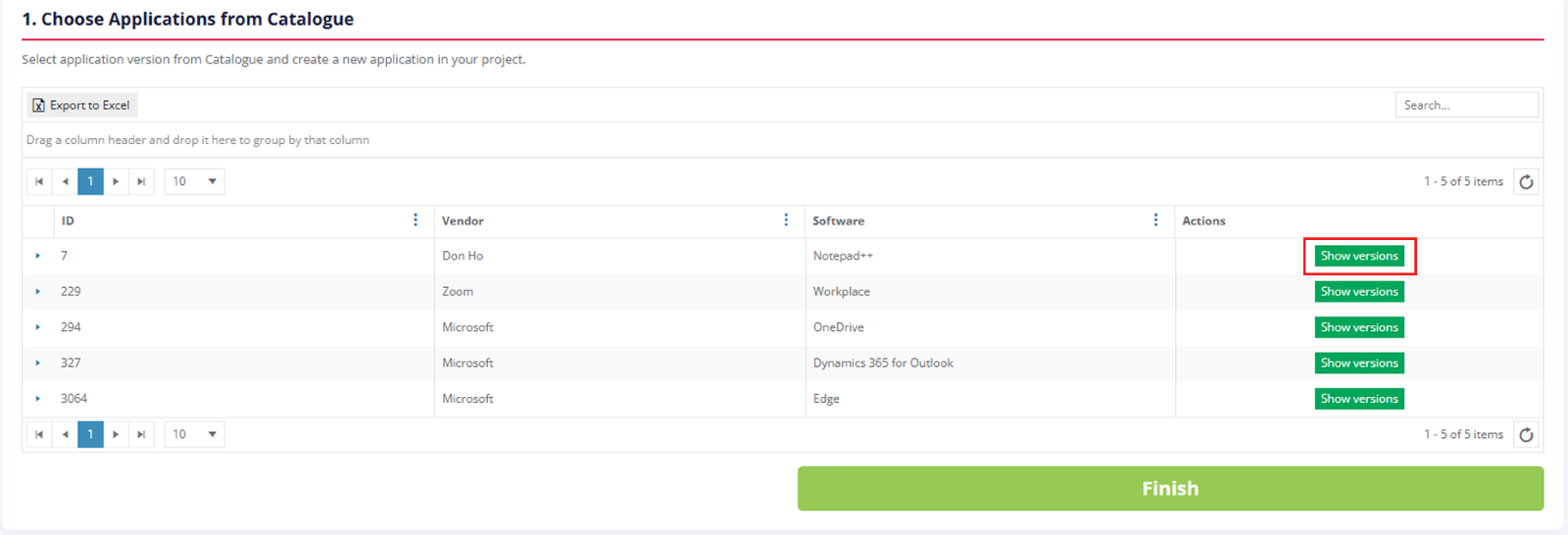
The option to see all available application versions is available under the **Show versions** button.
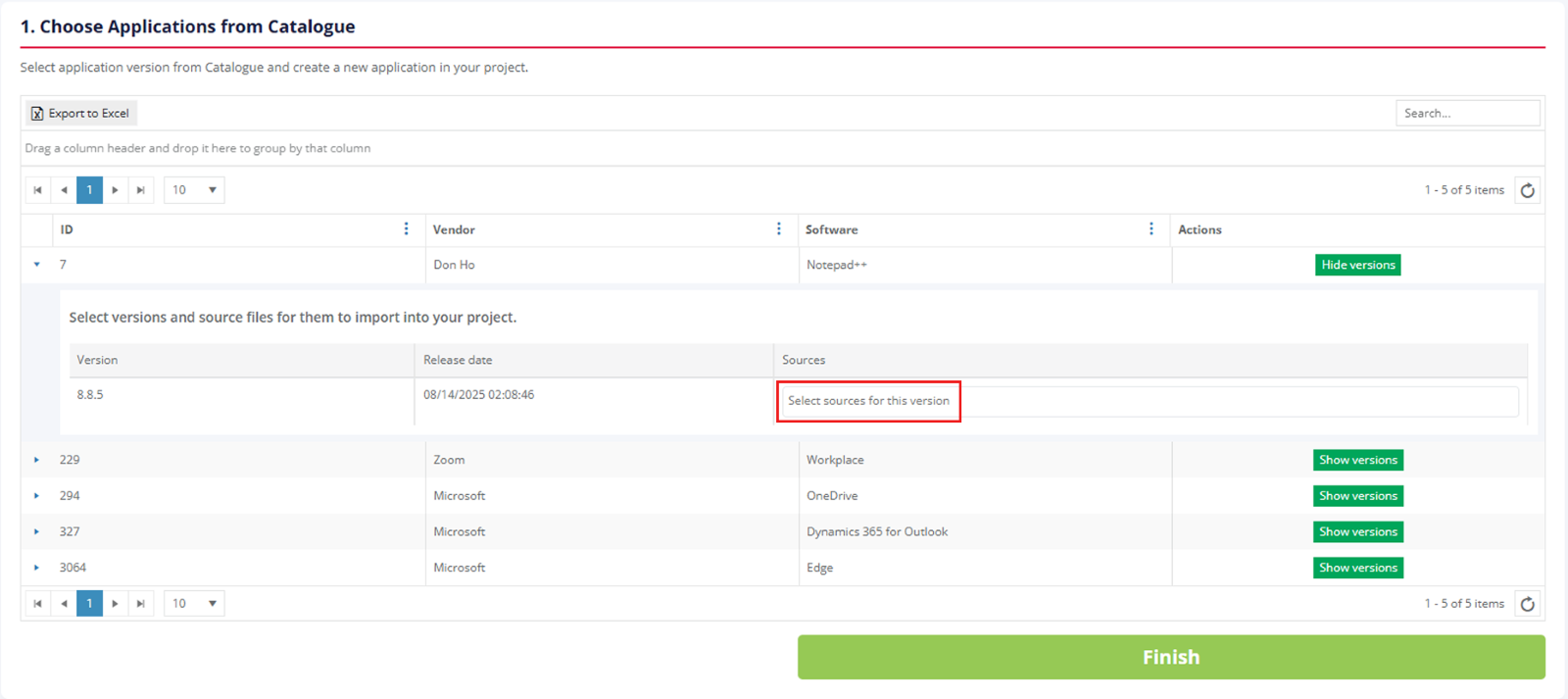
The option to select an application version from Catalogue is available under the **Select sources to this version** field.
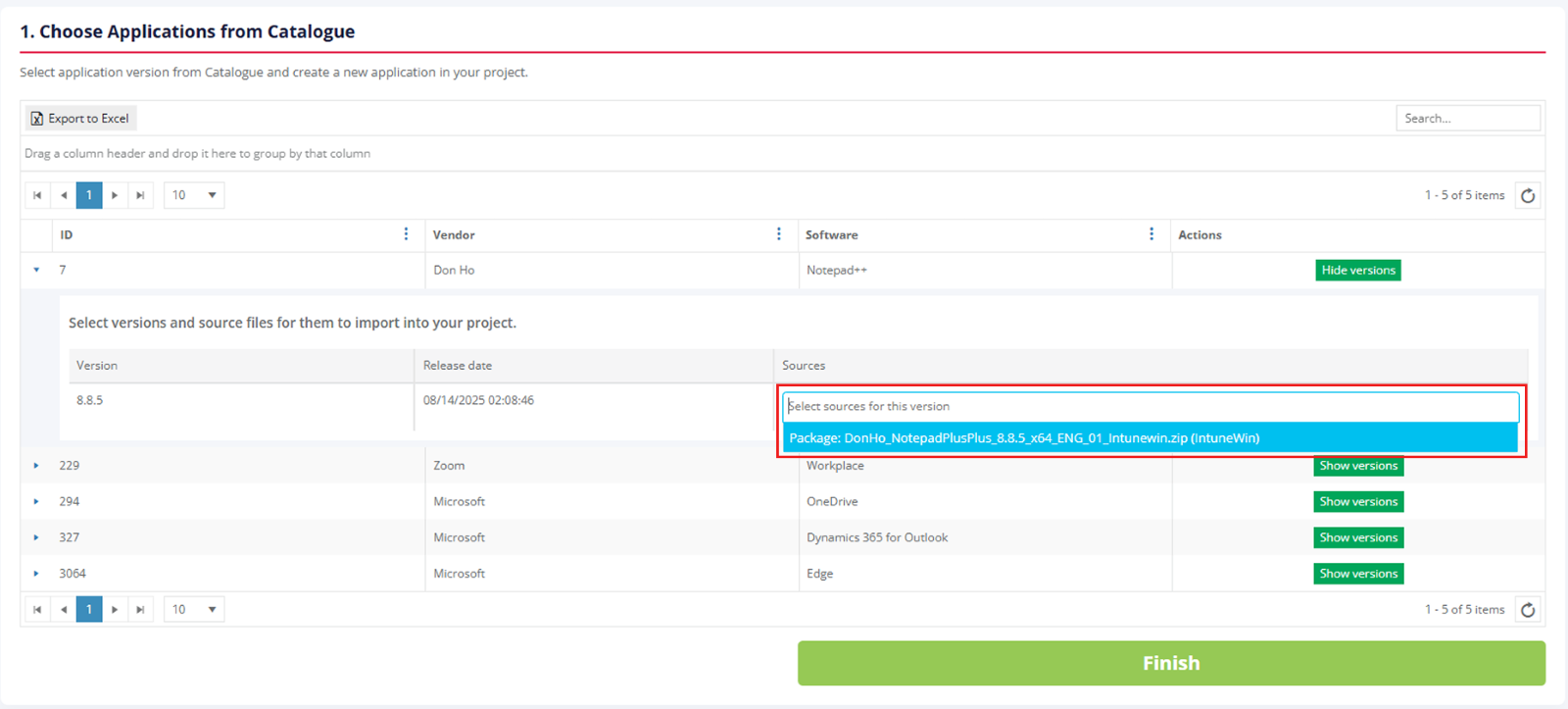
Apptimized shows the following notification when the application version selected:

The **Catalogue Import** finalizes by clicking on the Finish button.
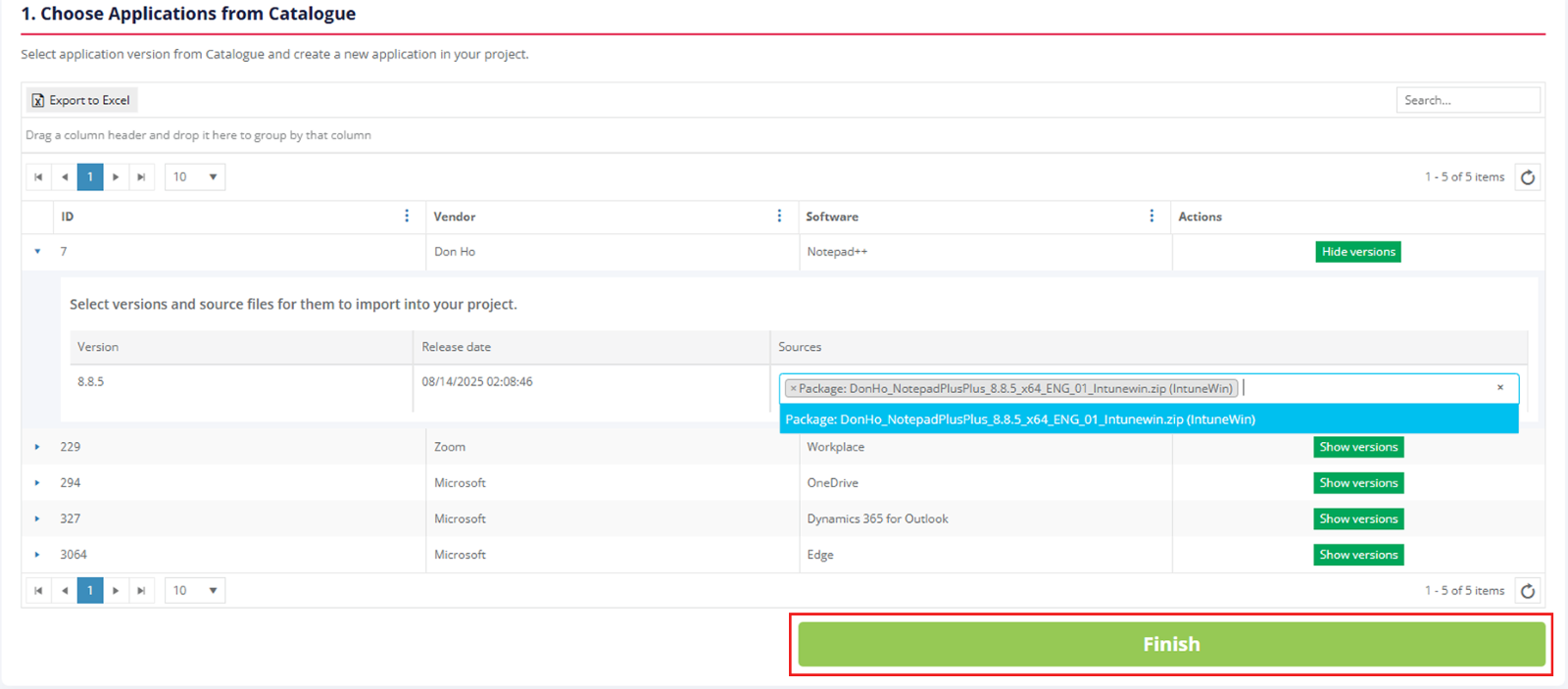 Apptimized shows the following notification when successful:

The imported applications are available in portfolio.
