# Import from SCCM

SCCM application import starts from the **Import** submenu of the workflow item in the menu of a project.

[![sccm_36.png](https://docs.apptimized.com/uploads/images/gallery/2020-03/scaled-1680-/xD0ivu6Fc5gwcvAn-sccm_36.png)](https://docs.apptimized.com/uploads/images/gallery/2020-03/xD0ivu6Fc5gwcvAn-sccm_36.png)

The option to start the import is called **“SCCM Import.”**

<span style="font-size: 12.0pt; line-height: 130%; color: #4f4f4f;">[![sccm_39.png](https://docs.apptimized.com/uploads/images/gallery/2020-03/scaled-1680-/V8C1sPOKmLy2OraY-sccm_39.png)](https://docs.apptimized.com/uploads/images/gallery/2020-03/V8C1sPOKmLy2OraY-sccm_39.png)</span>

The initial preparation process may take a while.

In case of a connection failure, Apptimized shows the following message:

[![sccm_40.png](https://docs.apptimized.com/uploads/images/gallery/2020-03/scaled-1680-/BFcYzLgKtvbDwrAd-sccm_40.png)](https://docs.apptimized.com/uploads/images/gallery/2020-03/BFcYzLgKtvbDwrAd-sccm_40.png)

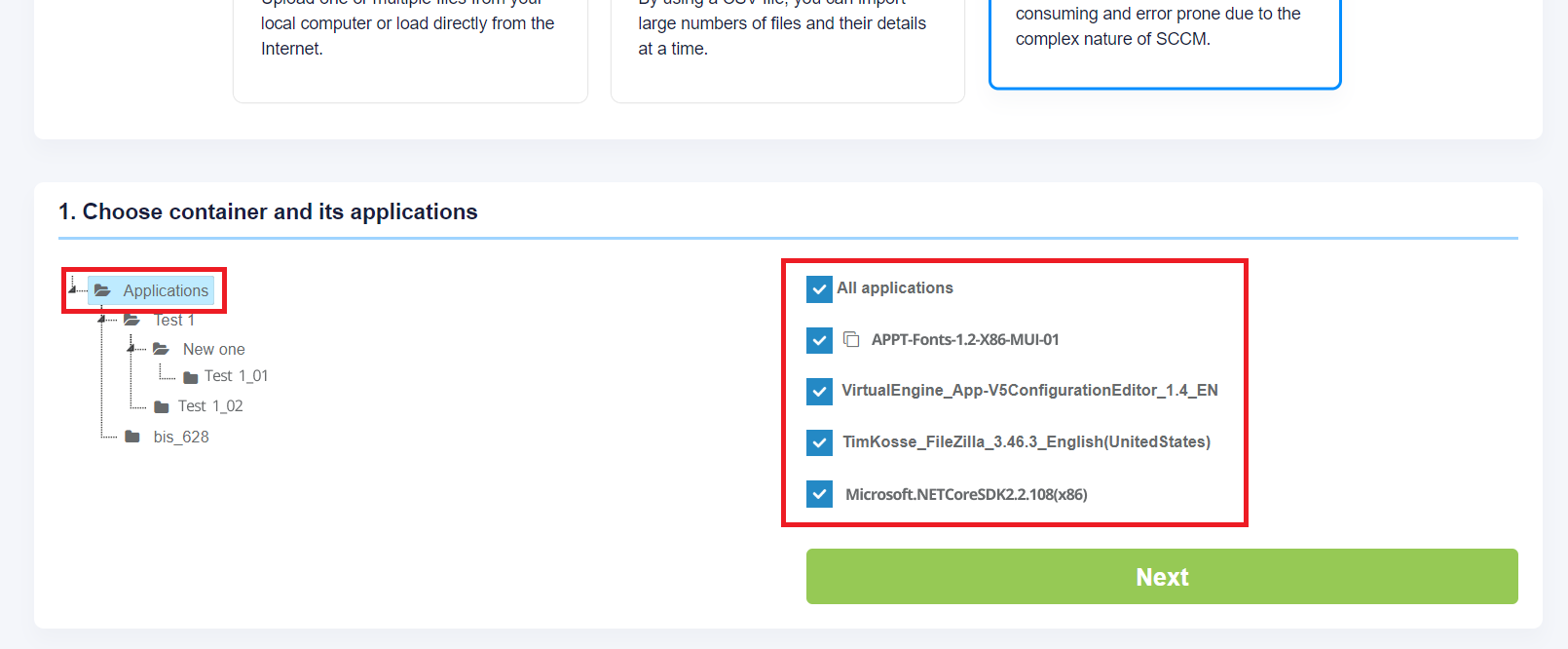
Single import session imports a single folder. For example, one of the following folders import in the scope of import session: root folder **Application** or folder **Test 1** or folder **bis\_628**.

<p class="callout info">The checkbox **All applications** always relates to the current folder. The screen below shows the import of contained in the root **Applications** folder.</p>

Applications can be excluded from import by unticking checkboxes in front of their names.

[![sccm_module_03.png](https://docs.apptimized.com/uploads/images/gallery/2020-04/scaled-1680-/zYxPLIhV3Rp2T9pf-sccm_module_03.png)](https://docs.apptimized.com/uploads/images/gallery/2020-04/zYxPLIhV3Rp2T9pf-sccm_module_03.png)
<p class="callout info">The icon below means that this application already exists in the project portfolio but can be imported for a second time. As a result, this created duplicates in the project portfolio.  
  
[![sccm_module_04.png](https://docs.apptimized.com/uploads/images/gallery/2020-04/scaled-1680-/Jyi0LGvtlEZsCLcQ-sccm_module_04.png)](https://docs.apptimized.com/uploads/images/gallery/2020-04/Jyi0LGvtlEZsCLcQ-sccm_module_04.png)</p>

The import process starts by clicking on the **Next** button. It takes up to **30 minutes** and will depend on the number of applications and their size.

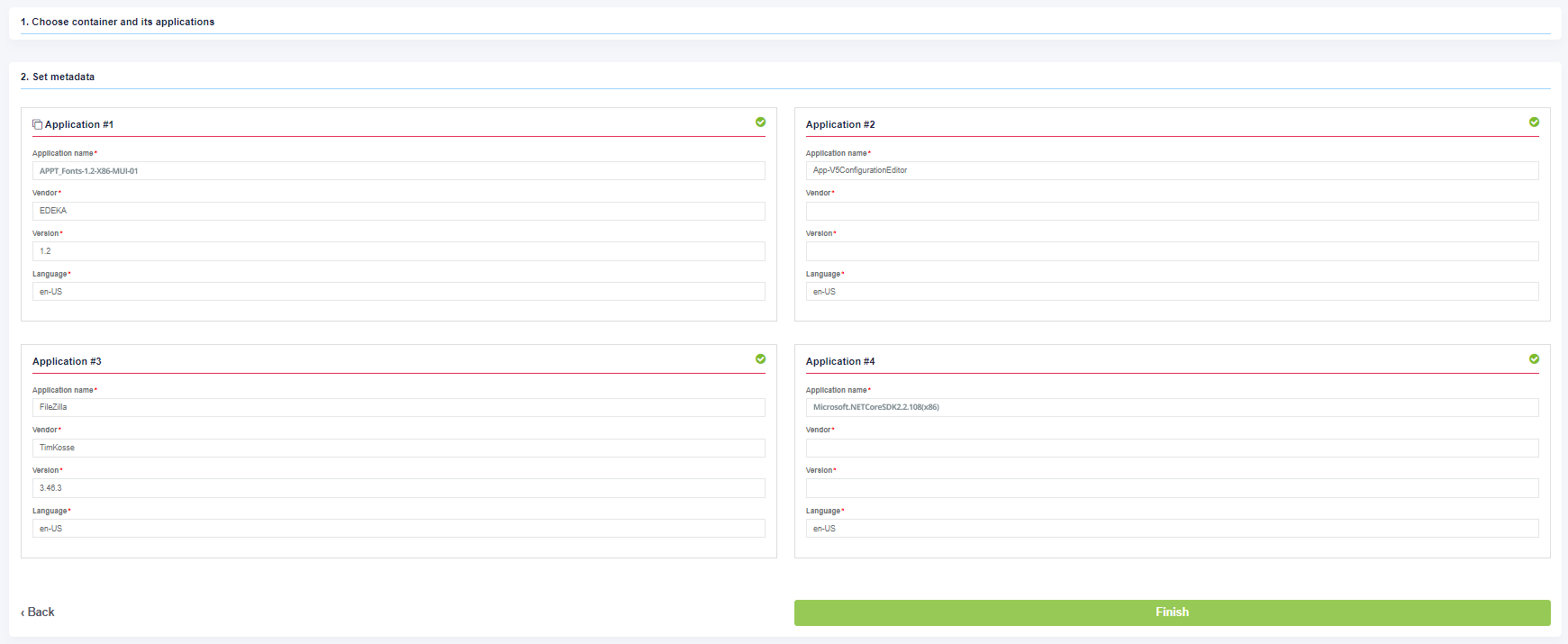
“Set metadata” shows import candidates' meta information and provides the ability to update it to desired values. All required fields have <span style="color: #ff0000;">\*</span> in front of their label.

[![sccm_module_05.png](https://docs.apptimized.com/uploads/images/gallery/2020-04/scaled-1680-/Lyp1yNdT7Sc9HTFd-sccm_module_05.png)](https://docs.apptimized.com/uploads/images/gallery/2020-04/Lyp1yNdT7Sc9HTFd-sccm_module_05.png)

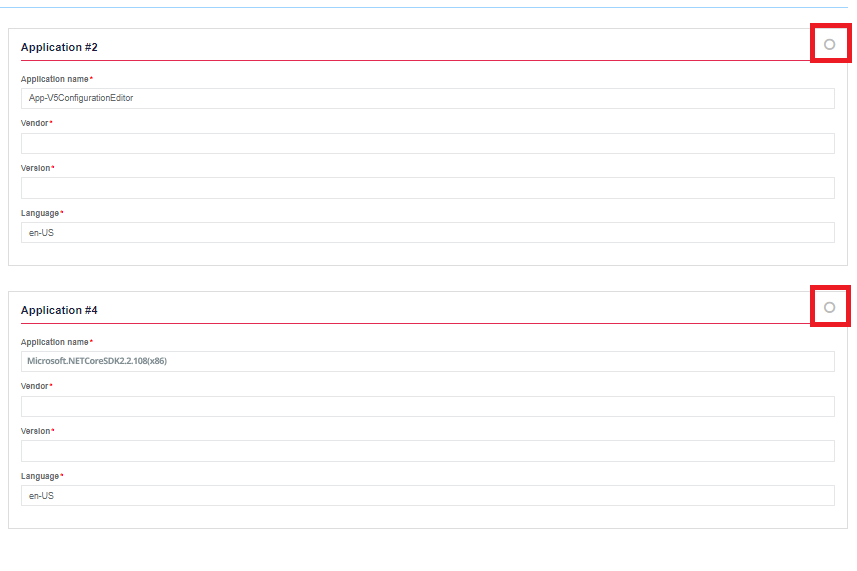
Exclude applications from the import by unticking the checkbox.

[![sccm_44_2.png](https://docs.apptimized.com/uploads/images/gallery/2020-03/scaled-1680-/Ty7FwEwZjuy2SN4h-sccm_44_2.png)](https://docs.apptimized.com/uploads/images/gallery/2020-03/Ty7FwEwZjuy2SN4h-sccm_44_2.png)
The process reverts to the initial screen by clicking on the **Back** button and finalizes by clicking on the **Finish** button.

Apptimized shows the following notification when successful:

[![sccm_47_1.png](https://docs.apptimized.com/uploads/images/gallery/2020-03/scaled-1680-/rObzWVuuipTlcfx9-sccm_47_1.png)](https://docs.apptimized.com/uploads/images/gallery/2020-03/rObzWVuuipTlcfx9-sccm_47_1.png)
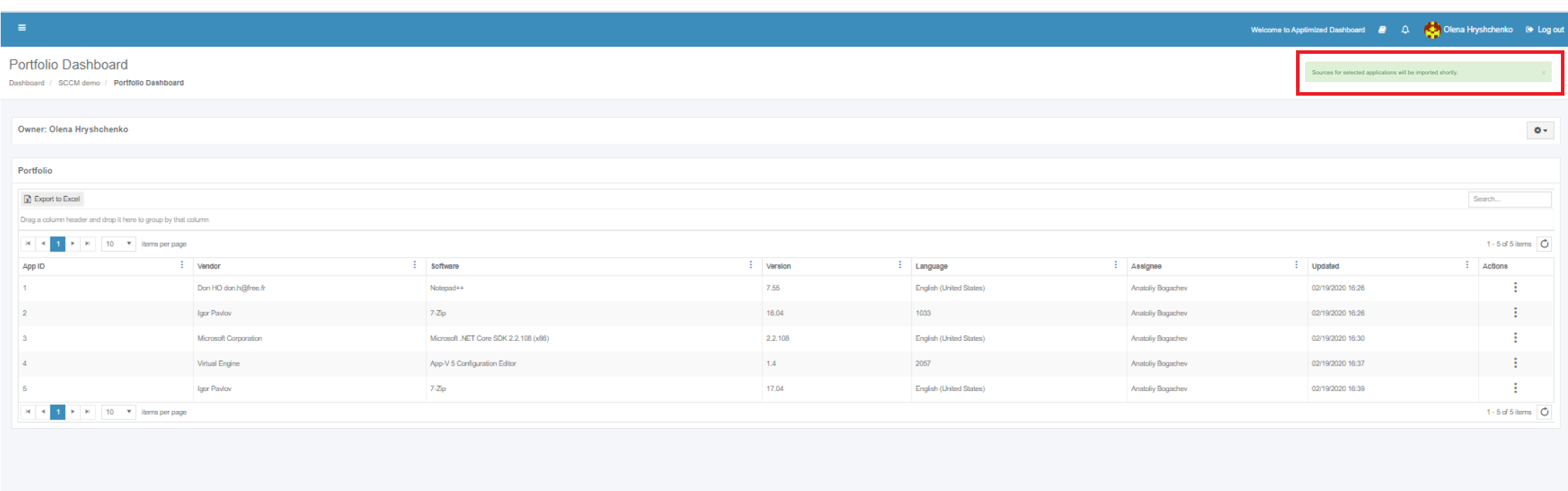
Imported applications immediately appear in the project portfolio.