| **Metadata** | **Details** |
| Application ID | The application ID is a unique identifier generated automatically for every application during its upload. Application ID provides application identification. |
| Reference | This field is optional and can stay blank. This field provides additional comments from a customer to the Apptimized portal (i.e. internal application ID). |
| Vendor | This field defines the vendor name (i.e. Tim Kosse). This is a required field. |
| Software | This field defines the application name (i.e. FileZilla). This is a required field. |
| Version | This field defines the application version (i.e. 3.46.3). This is a required field. |
| Language | This field defines the application language (i.e. English (United States)). This is a required field. |
| A previous version of an application | This field defines if the previous version of the application is available in the portfolio. The default value is **None, it is the first version of the application in the portfolio**. A click opens a dropdown list to select the previous version of the application from the list. |
| Enable Echo | This option defines if Echo is needed to be enabled. The Echo is enabled by default. |
A prerequisite may be a specific application that must be installed before the target application.
A field "**Select media type for** …" is filled automatically can be changed if needed. A prerequisite is added by clicking on the **Save** button. Apptimized shows the following notification when successful: [](https://docs.apptimized.com/uploads/images/gallery/2020-03/uynQC32RqzBfxMhM-to_go_16.png) Current prerequisites can be changed by clicking on the **Edit** **prerequisites** button and by following the same set of operations as for adding a prerequisite. [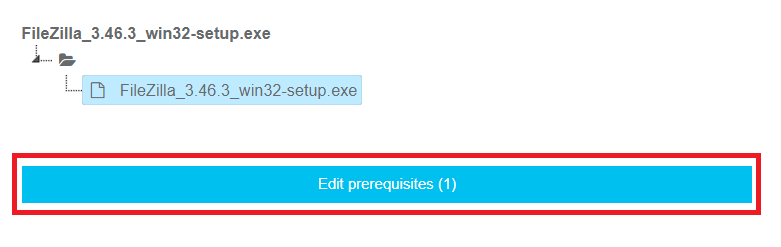](https://docs.apptimized.com/uploads/images/gallery/2020-03/8hkyypxwFMXxJN1Z-to_go_15.png) The **Metadata** step finalizes by clicking on the **Finish** button. A **Transition screen** for application immediately appears where the **Workflow scheme** and modalities for interaction with the application (namely discovery, packaging, testing) are available. [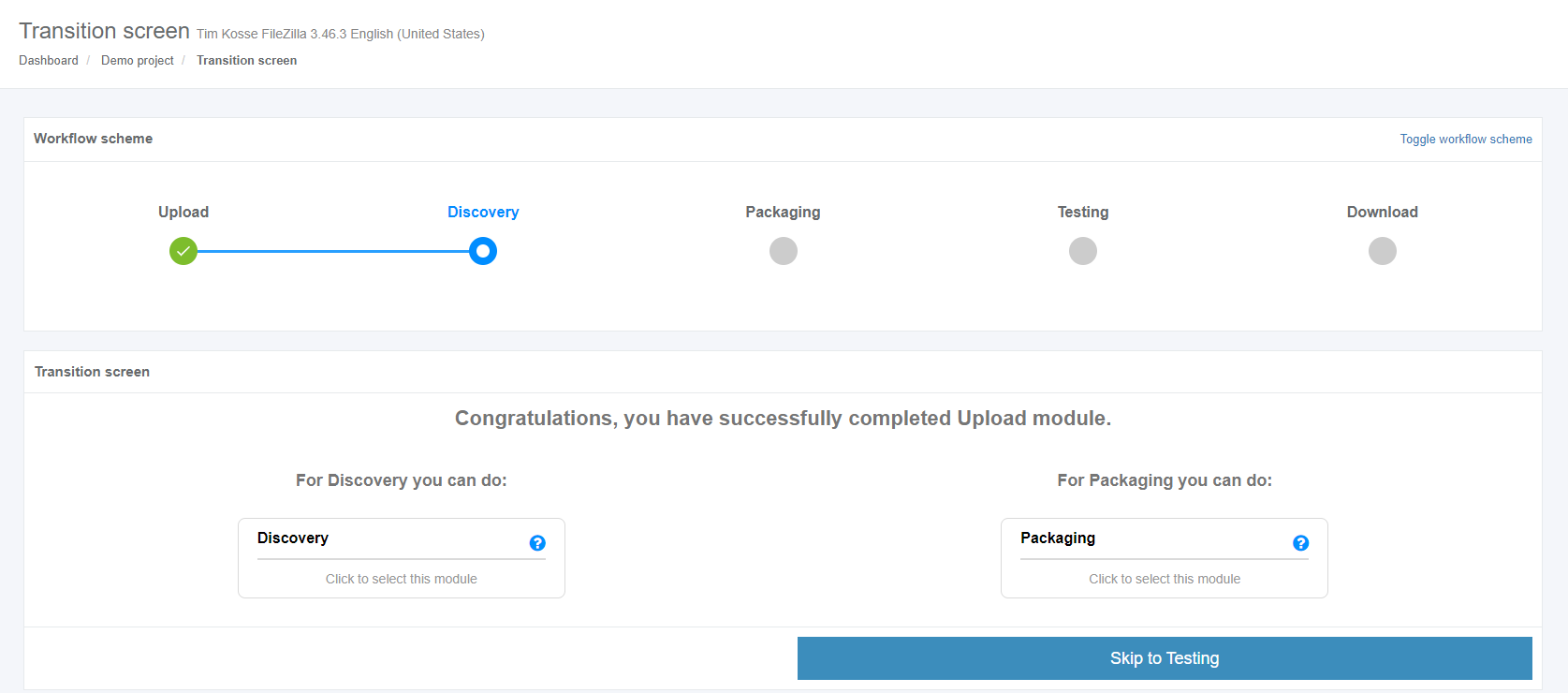](https://docs.apptimized.com/uploads/images/gallery/2020-03/MUPMaHIf3KkZXkcC-to_go_17.png) **Apptimized TO GO** can be used only for **Discovery** and **Testing**. # Run the Apptimized TO GO agent Launching **Apptimized TO GO** agent is available in two options: **Download To Go file** or **Use a deployment code.** #### **Using a TO GO file** When clicking on the **Download TO GO** **file** button a file becomes available on the customer's PC in the **Downloads** folder. [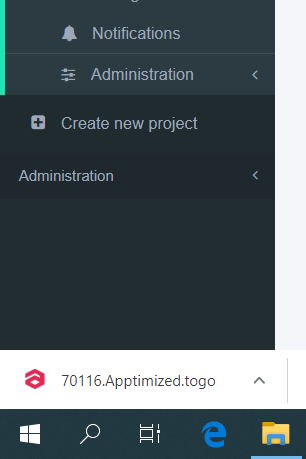](https://docs.apptimized.com/uploads/images/gallery/2020-03/TvwyZLrHYHrj4HIK-to_go_20_1.png) **Apptimized TO GO** **agent** launches when clicking on the **Apptimized - TO GO Manifest** file (i.e. **70116.Apptimized.togo**). [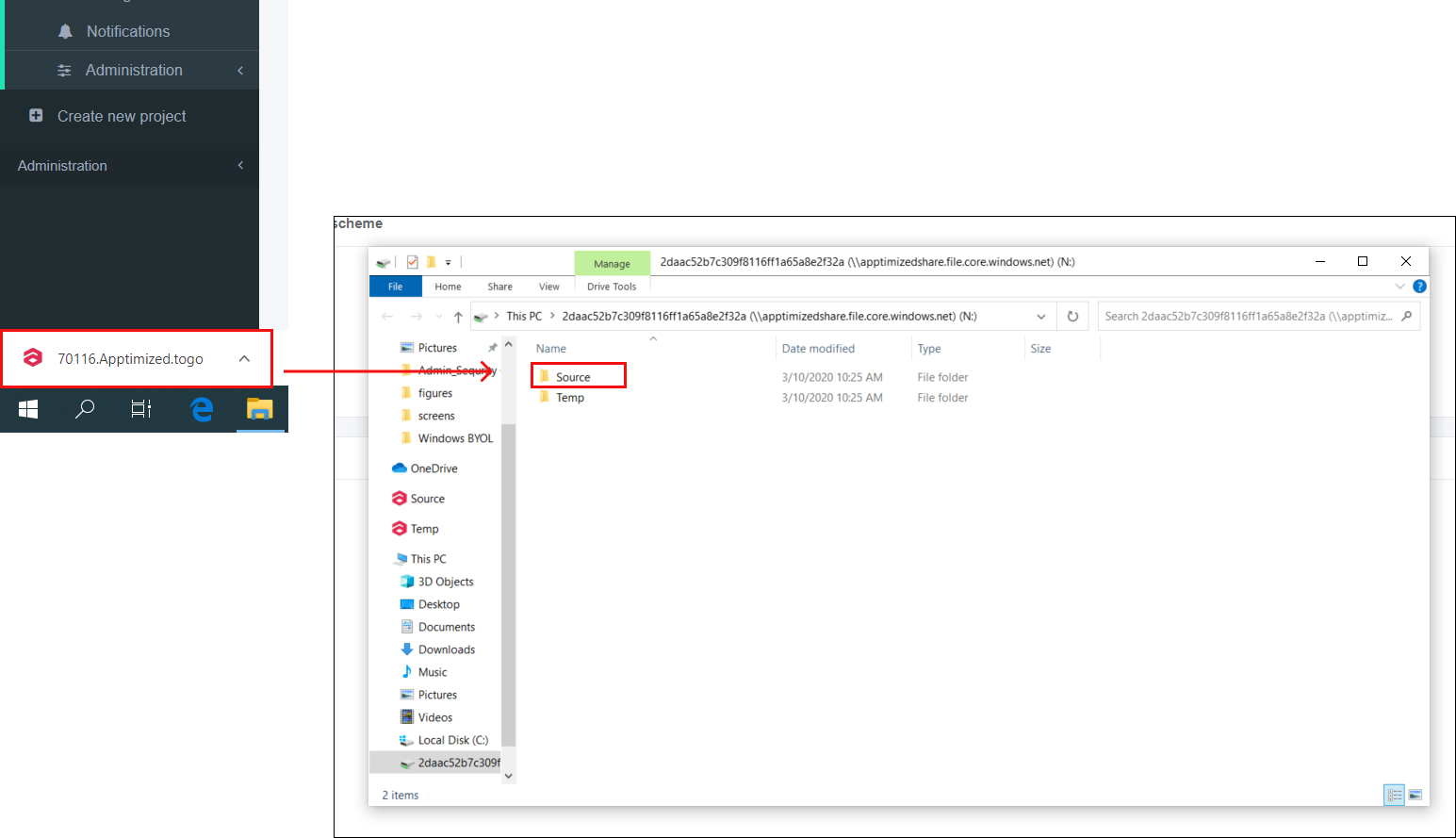](https://docs.apptimized.com/uploads/images/gallery/2020-03/lOvBbLqzFMS9uarx-to_go_20_3.png) A guide recording process via **Apptimized TO GO agent** starts. A customer needs to navigate to the files to be installed. As it is shown on the screenshot below the file is available in the **Source** folder. [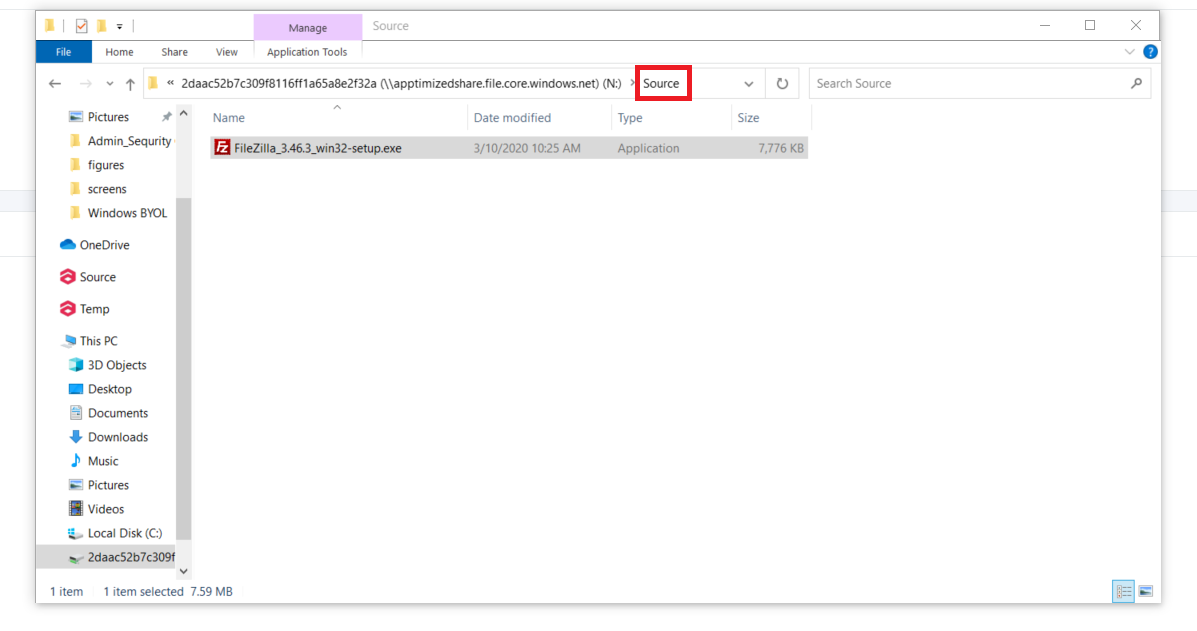](https://docs.apptimized.com/uploads/images/gallery/2020-03/FZtgGWeXdZjQtVsw-to_go_24.png) The initial preparation process may take a while. [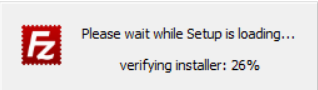](https://docs.apptimized.com/uploads/images/gallery/2020-03/goy1TaIXgQwcs5vO-to_go_22_2.png) To transfer a customer experience to Apptimized all installation and configuration steps with the application must be proceeded. [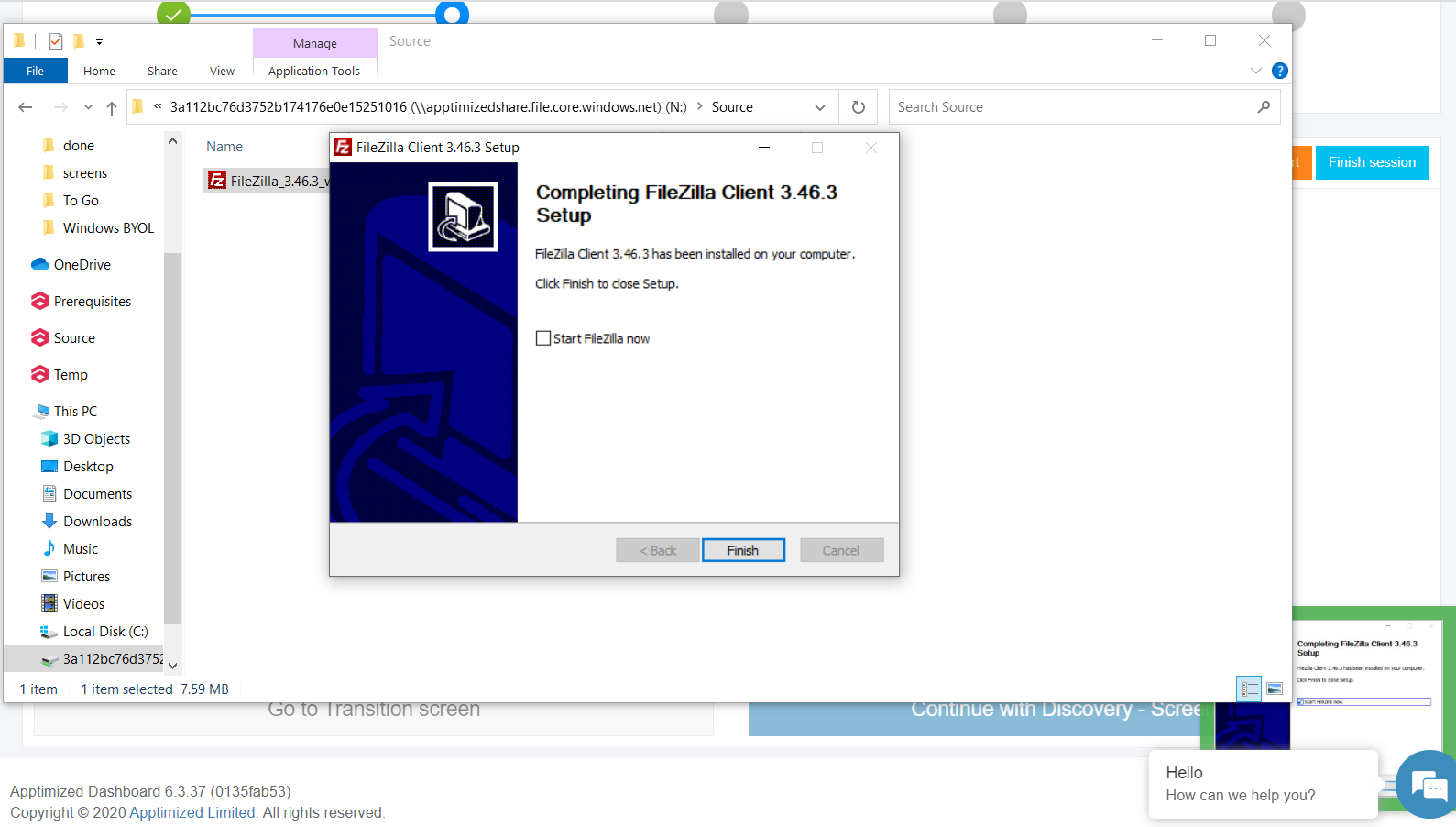](https://docs.apptimized.com/uploads/images/gallery/2020-03/xKQZo5veuF9sEX0m-to_go_25.png) The session finishes by clicking on the **Finish session** button. [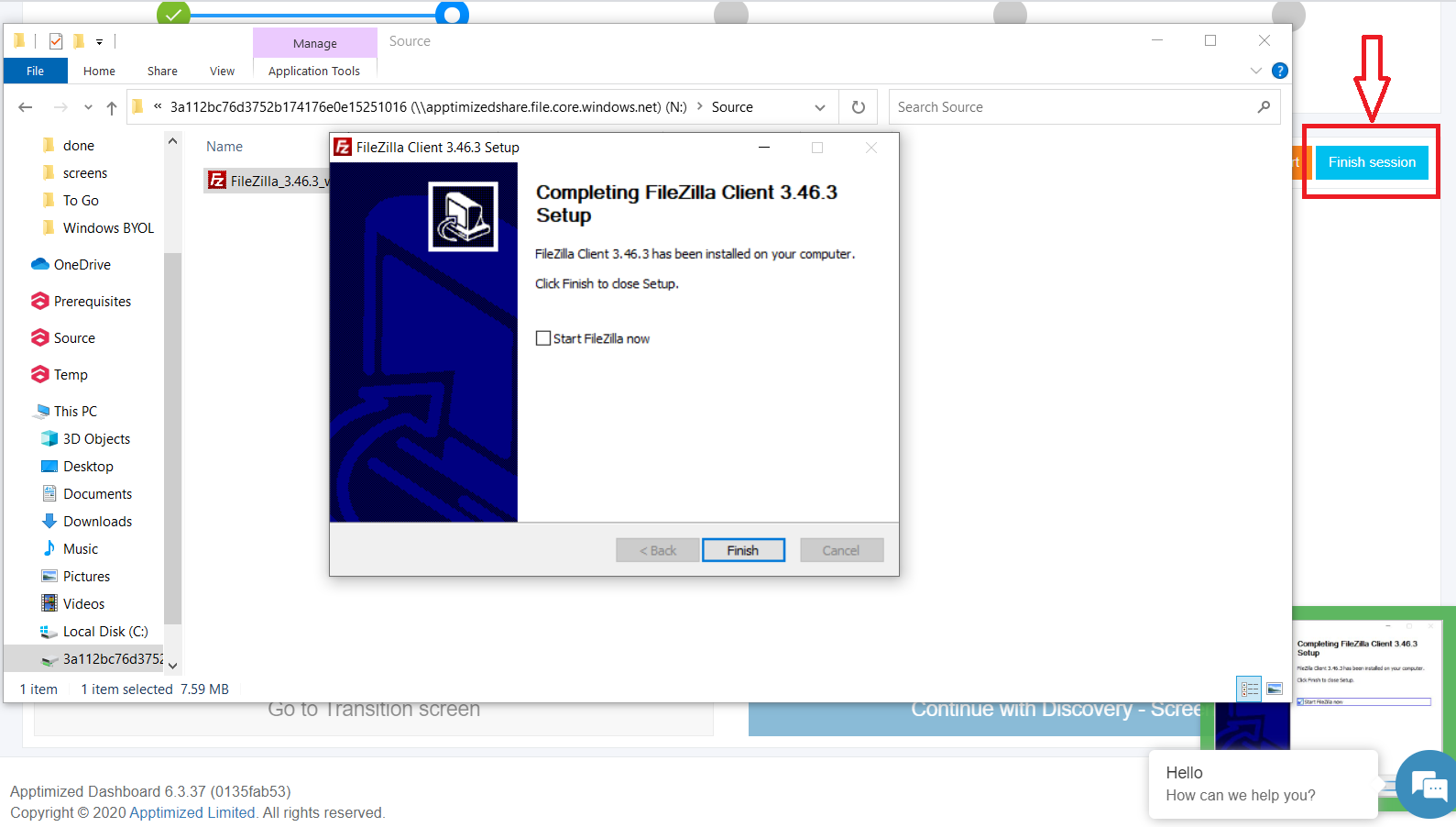](https://docs.apptimized.com/uploads/images/gallery/2020-03/zsbURxQ6G4xu79kL-to_go_26.png) The following notifications will appear when successful: [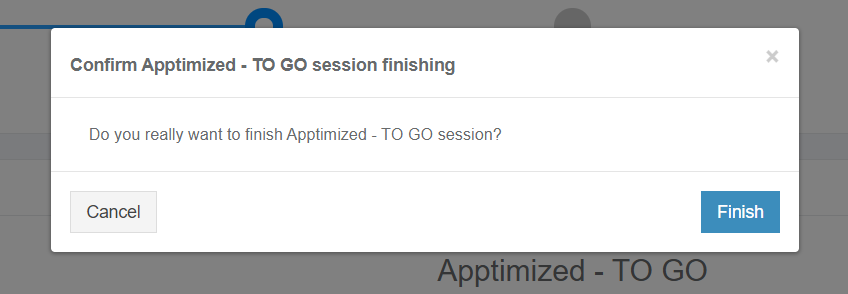](https://docs.apptimized.com/uploads/images/gallery/2020-03/KPlqJa7etv6ypCCK-to_go_28.png) [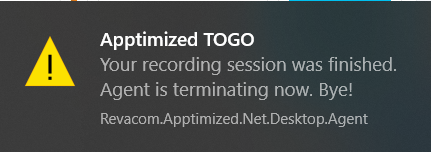](https://docs.apptimized.com/uploads/images/gallery/2020-03/VDRFucllQW7ZURvf-to_go_27.png) ##### #### **Using a deployment code** The text will be copied to a clipboard when clicking on a deployment code. [.png)](https://docs.apptimized.com/uploads/images/gallery/2020-03/nzqoaPFp1DVOaRFx-29-(2).png) To establish a connection of a customer machine with Apptimized in the cloud the **Apptimized TO GO** agent launches from the **Start** menu. Then the deployment code must be entered into a pop-up window. [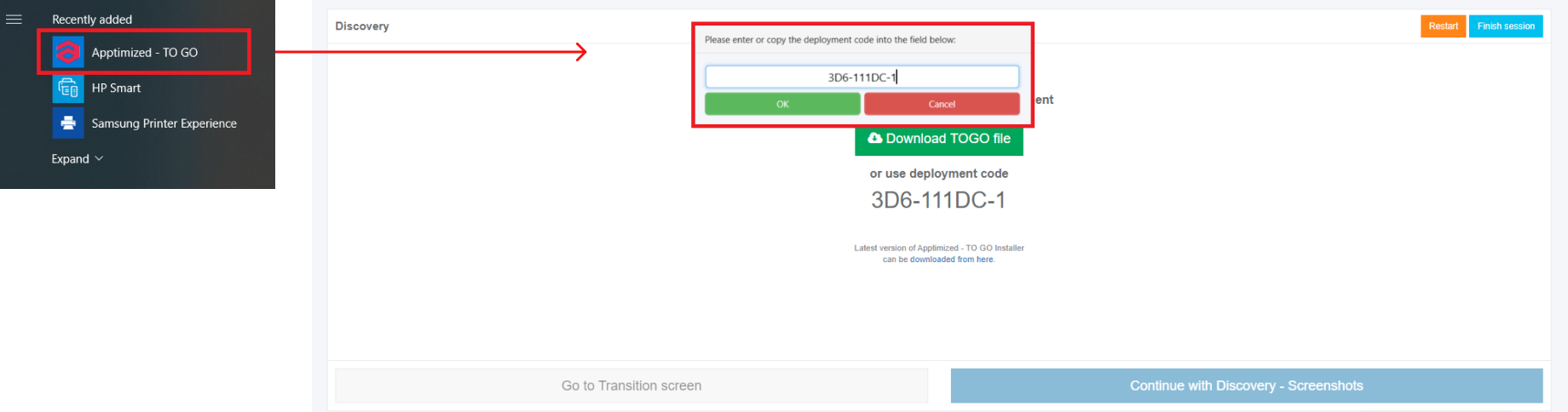](https://docs.apptimized.com/uploads/images/gallery/2020-03/SnlaeoMuZvlM5TXp-to_go_22_1.png) Apptimized Files with uploaded files will be automatically uploaded to the folder after clicking on the **OK** button: [.PNG)](https://docs.apptimized.com/uploads/images/gallery/2020-03/7njQVGUhplkEGXB4-33-(3).PNG) A guide recording process via **Apptimized TO GO agent** starts. A customer needs to navigate to the files to be installed. As it is shown on the screenshot below the file is available in the **Source** folder. [](https://docs.apptimized.com/uploads/images/gallery/2020-03/FZtgGWeXdZjQtVsw-to_go_24.png) The initial preparation process may take a while. [](https://docs.apptimized.com/uploads/images/gallery/2020-03/goy1TaIXgQwcs5vO-to_go_22_2.png) To transfer a customer experience to Apptimized all installation and configuration steps with the application must be proceeded. [](https://docs.apptimized.com/uploads/images/gallery/2020-03/xKQZo5veuF9sEX0m-to_go_25.png) The session finishes by clicking on the **Finish session** button. [](https://docs.apptimized.com/uploads/images/gallery/2020-03/zsbURxQ6G4xu79kL-to_go_26.png) The following notifications will appear when successful: [](https://docs.apptimized.com/uploads/images/gallery/2020-03/KPlqJa7etv6ypCCK-to_go_28.png) [](https://docs.apptimized.com/uploads/images/gallery/2020-03/VDRFucllQW7ZURvf-to_go_27.png) # Discovery via Apptimized TO GO Agent Before implementing the **Discovery** via **Apptimized TO GO** the [application must be imported](https://docs.apptimized.com/books/apptimized-platform-admin-manual/page/apptimized-to-go-integration "Apptimized TO GO integration") to the project. Using the **Discovery** module, a customer can record a guide to install and configure the application. Customer’s actions are automatically captured as step-by-step screenshots and further described in textual format automatically. Before sending a document (which is available in PDF and HTML formats) to Apptimized, the customer can change the scenario that they recorded (i.e., to swap screenshots, to edit comments for each screenshot or to delete unnecessary screenshots). The discovery process starts by clicking on the **Discovery** module on the Transition screen. [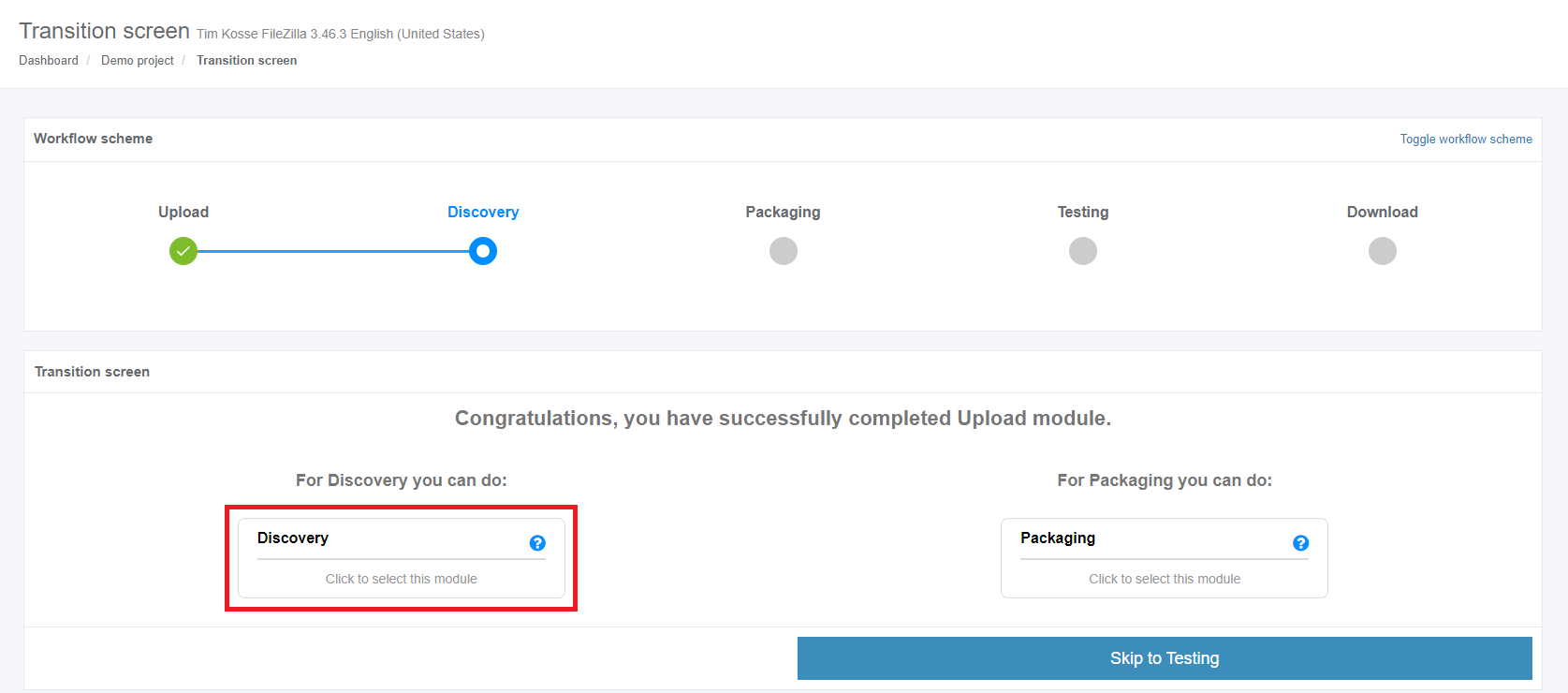](https://docs.apptimized.com/uploads/images/gallery/2020-03/g6sAEB0WmTOZhNbC-to_go_17_1.png) Apptimized shows the following interface when successful: [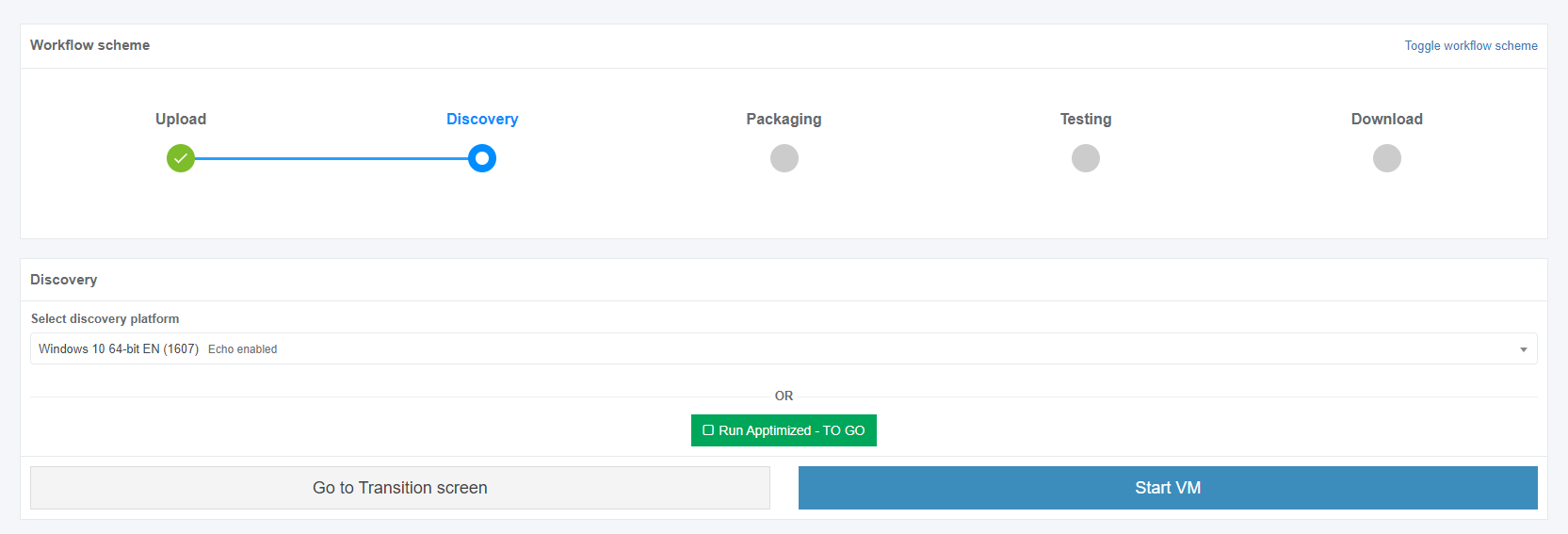](https://docs.apptimized.com/uploads/images/gallery/2020-03/edaRKPapDmlRLOIz-to_go_18_1.png) A field "**Select discovery platform**" is filled automatically and can be changed if needed. [](https://docs.apptimized.com/uploads/images/gallery/2020-03/xyRLkGAXg3B1VcqD-to_go_18.png) The **Apptimized To Go** is enabled by ticking the checkbox and clicking on the **Run Apptimized - To Go** button. [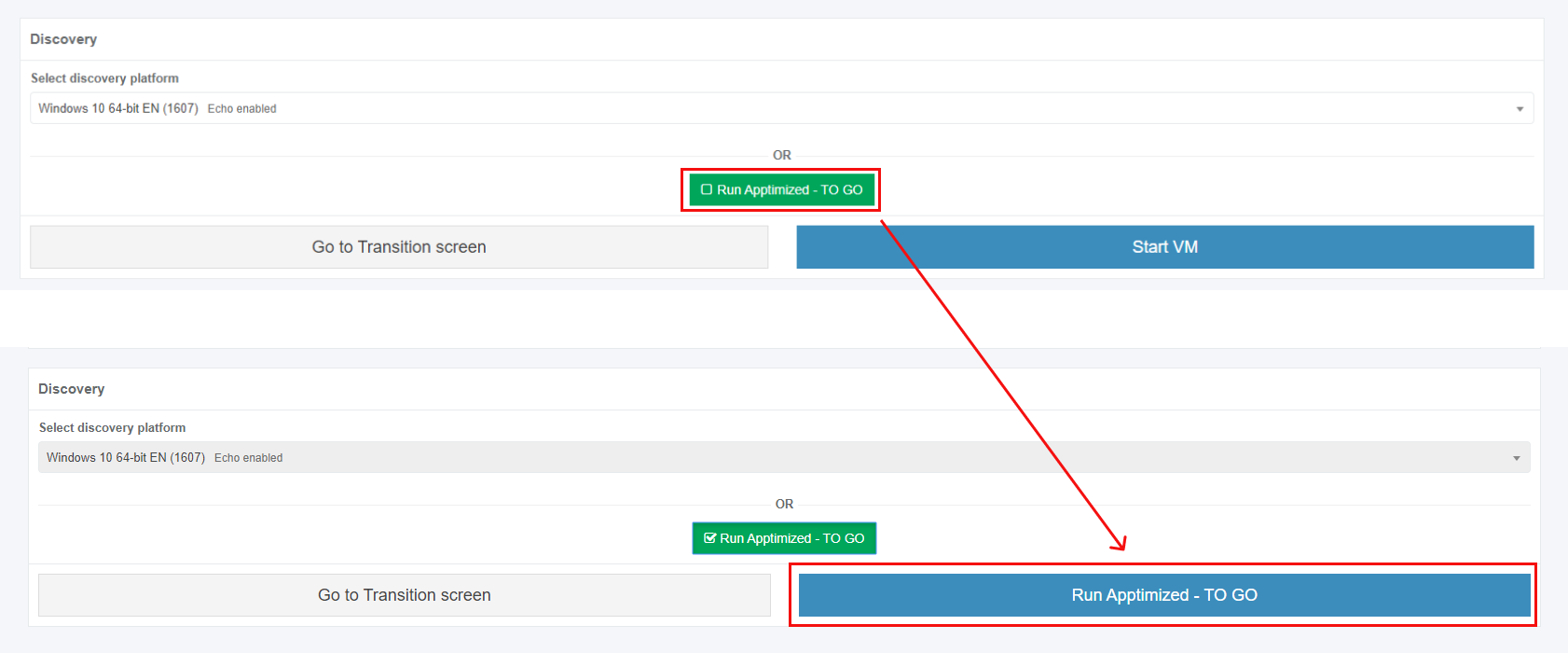](https://docs.apptimized.com/uploads/images/gallery/2020-03/RXqWOPoEzaenFuEA-to_go_19.png) The files synchronizing process may take a while. In case of success, Apptimized shows the following interface: [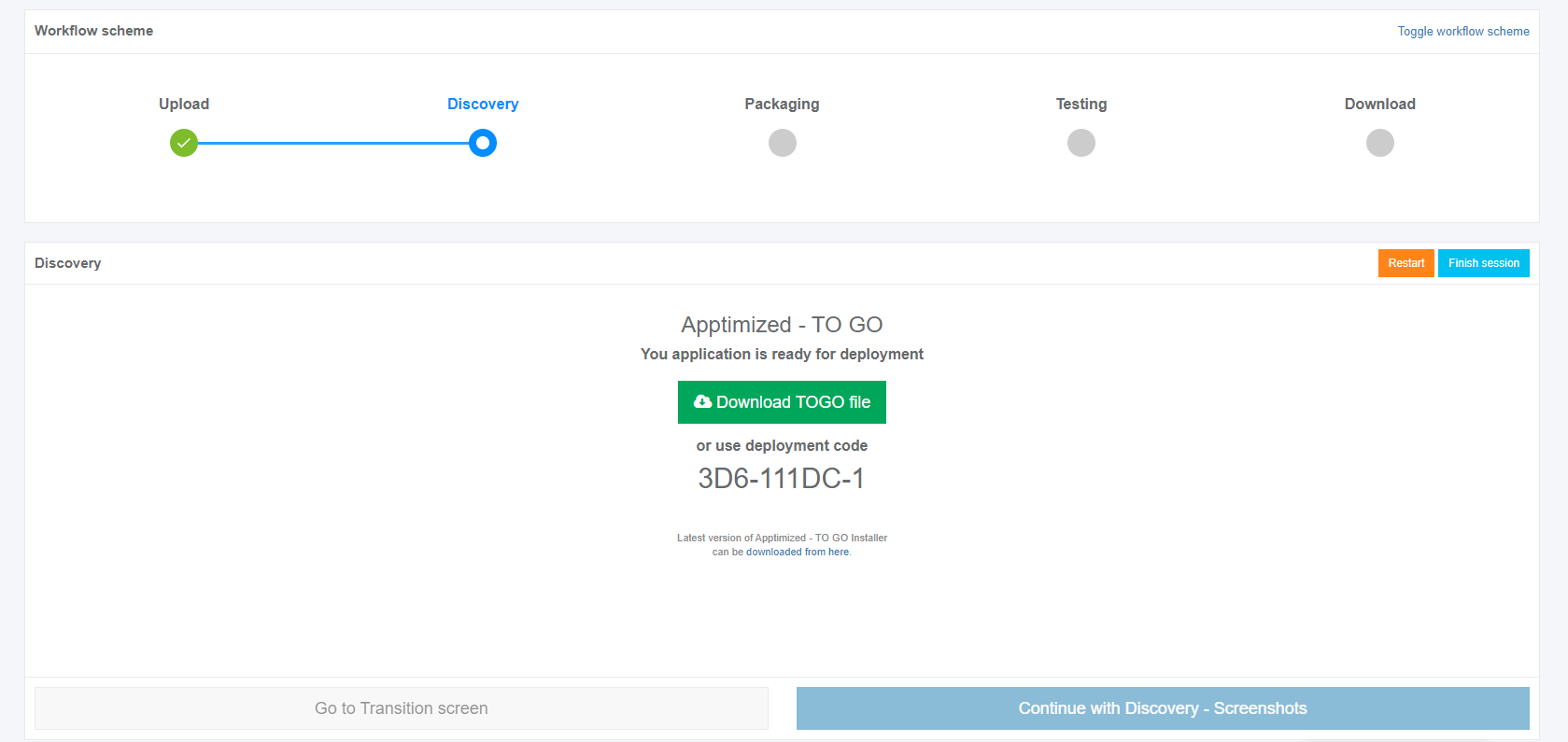](https://docs.apptimized.com/uploads/images/gallery/2020-03/BtfwGEVu3aUsI44a-to_go_20.png) The instructions to launch **Apptimized TO GO agent** were provided in the paragraph "[Run the Apptimized TO GO agent](https://docs.apptimized.com/books/apptimized-platform-admin-manual/page/run-the-apptimized-to-go-agent "Launching Apptimized TO GO agent")". The following interface will appear when recording session with **Apptimized TO GO agent** finishes: [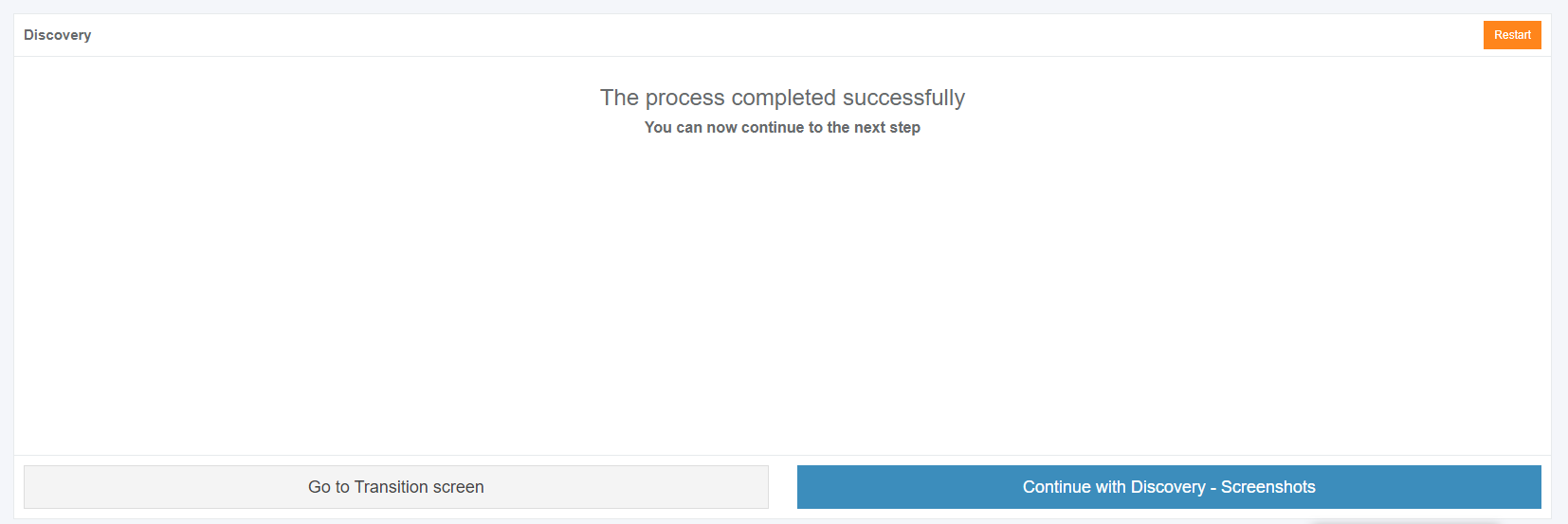](https://docs.apptimized.com/uploads/images/gallery/2020-03/K4eEnhJIakEoWzmN-to_go_29.png) Screenshots editing mode becomes active when clicking on the **Continue with Discovery - Screenshots** button. Screenshots can be excluded from discovery by clicking on the **Delete** button. [.png)](https://docs.apptimized.com/uploads/images/gallery/2020-03/nDCPNpZneFMifFaY-41-(2).png) Screenshots can be excluded from discovery in a multiple mode by unticking checkboxes in front of their ID and clicking on the **Delete selected screenshots** button. [.PNG)](https://docs.apptimized.com/uploads/images/gallery/2020-03/Hg3YH3vskTdt4wCj-52-(2).PNG) Screenshots sequence can be changed in discovery by clicking on the **Up** or **Down** buttons. [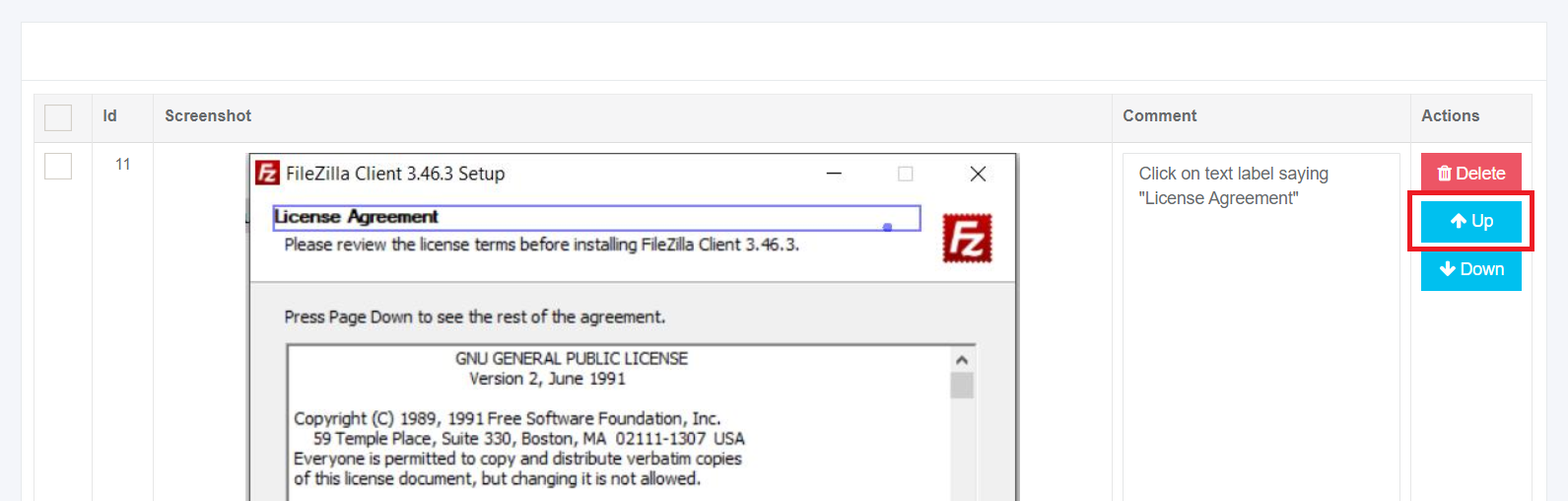](https://docs.apptimized.com/uploads/images/gallery/2020-03/WPOQnKA7WXddSlpf-to_go_32_1.png) [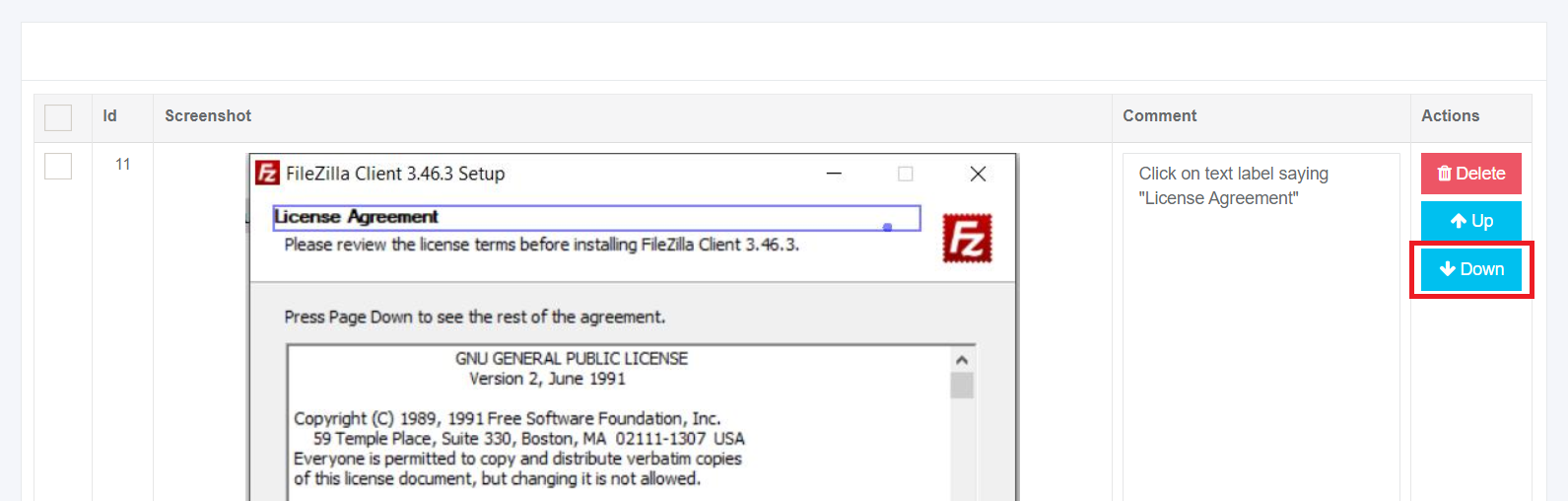](https://docs.apptimized.com/uploads/images/gallery/2020-03/tnVgsFVsTgqwAcZn-to_go_32_2.png) Comments to the screenshots can be edited by clicking on the comment cell. [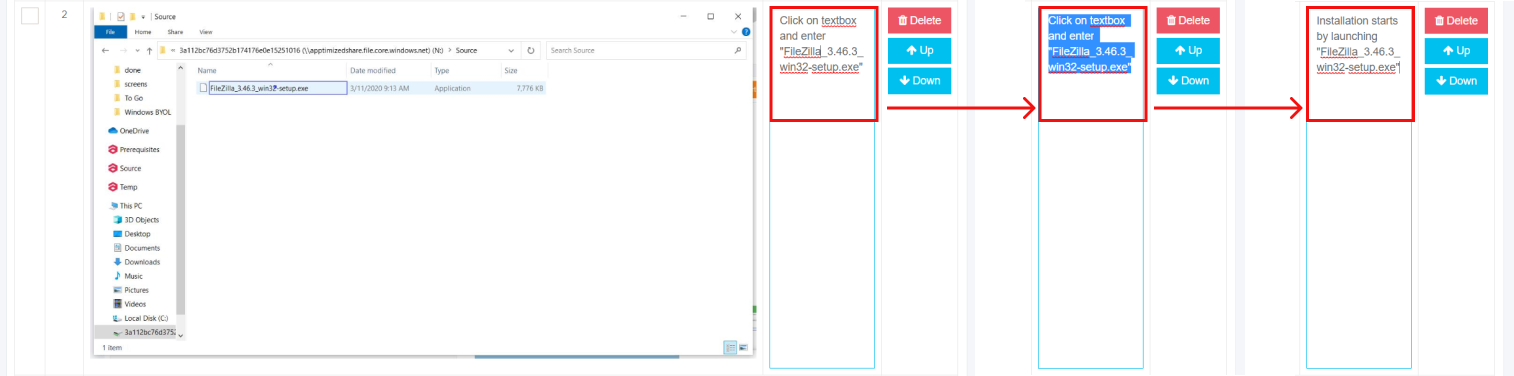](https://docs.apptimized.com/uploads/images/gallery/2020-03/98KvWYS2QjTwrZSA-to_go_33.png) The field **Additional comment (Optional)** can stay blank. Screenshots editing mode finalizes when clicking on the **Save changes** button. [](https://docs.apptimized.com/uploads/images/gallery/2020-03/ARLYAxz2JfszcxD6-to_go_33_4.png) Apptimized shows the following interface when successful: [](https://docs.apptimized.com/uploads/images/gallery/2020-03/9bcoSTYzcvohz25F-to_go_34.png) The generated document is available in PDF and HTML formats. Download starts when clicking on the **Download generated HTML document** or **Download generated PDF document** buttons. A discovery document can be edited by clicking on the **Edit generated document** button. The document editing finalizes by clicking on the **Save** button. [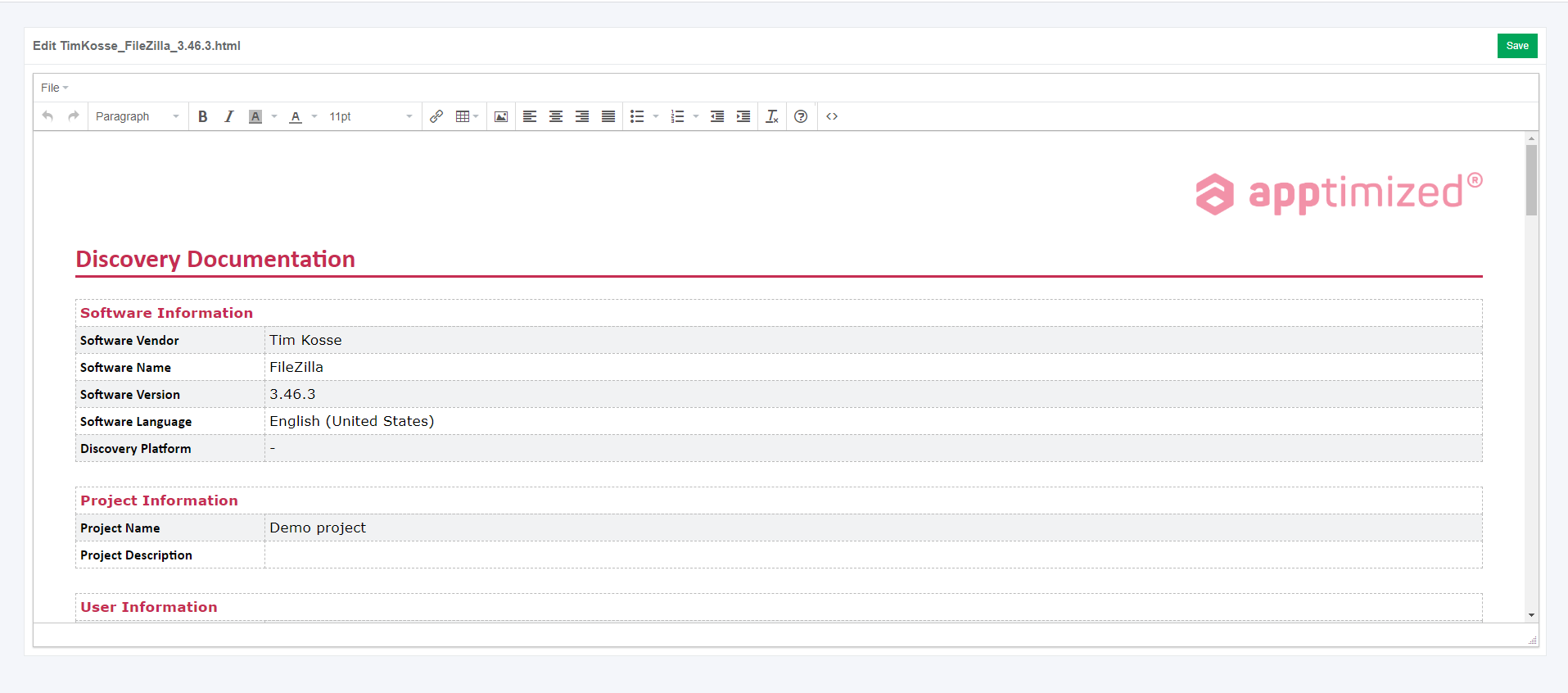](https://docs.apptimized.com/uploads/images/gallery/2020-03/GH21gbxc2sAOaXHG-to_go_35_1.png) The process reverts to the screenshots editing mode by clicking on the **Revert to Discovery - Screenshots** button and finalizes by clicking on the **Finish** button. # Testing via Apptimized TO GO Agent Before implementing the **Testing** via **Apptimized TO GO** the [application must be imported](https://docs.apptimized.com/books/apptimized-platform-admin-manual/page/apptimized-to-go-integration "Apptimized TO GO integration") to the project. Using the **Testing** module, a customer can record a guide to install and configure the application. Also, a testing option can be enabled and the status of the testing can be set. The testing process starts by clicking on the **Skip for Testing** button (before or after discovery step) and clicking in the **Testing** module on the Transition screen. [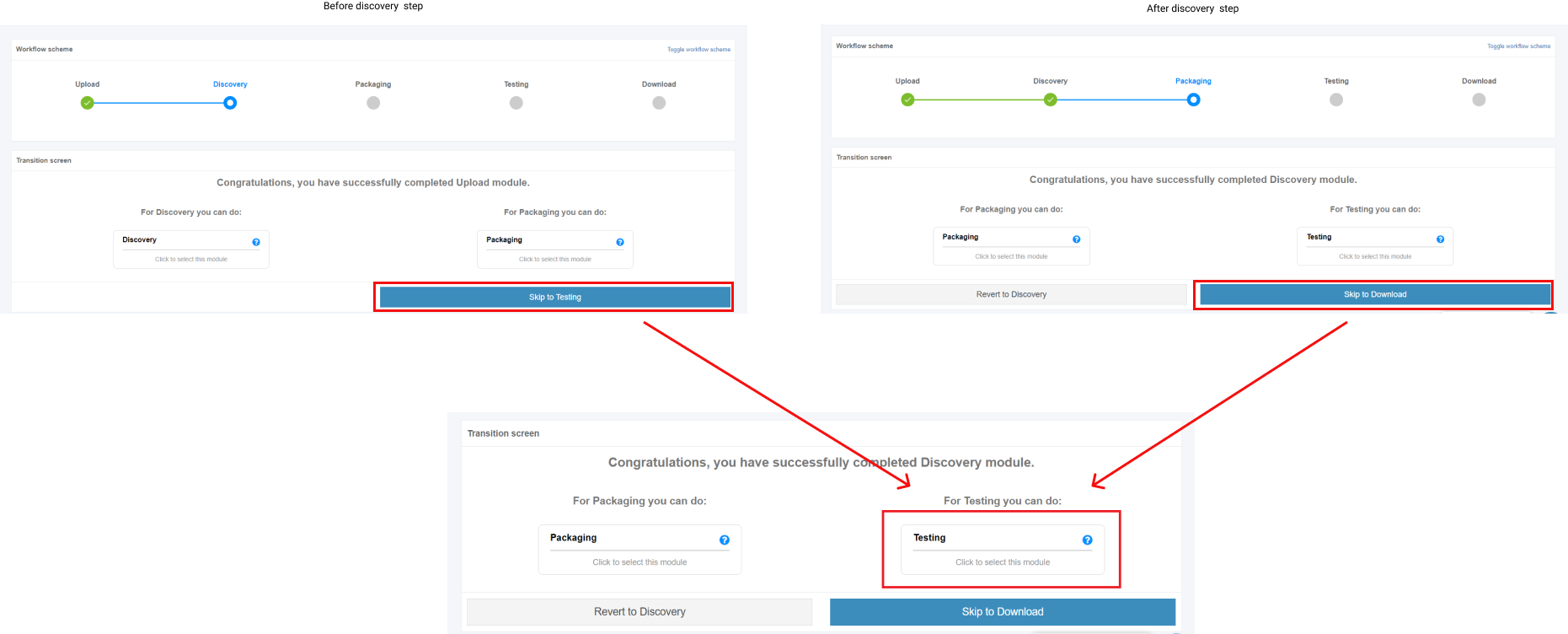](https://docs.apptimized.com/uploads/images/gallery/2020-03/7iPHpzd36RAxHsrU-to_go_39.png) Apptimized shows the following interface when successful: [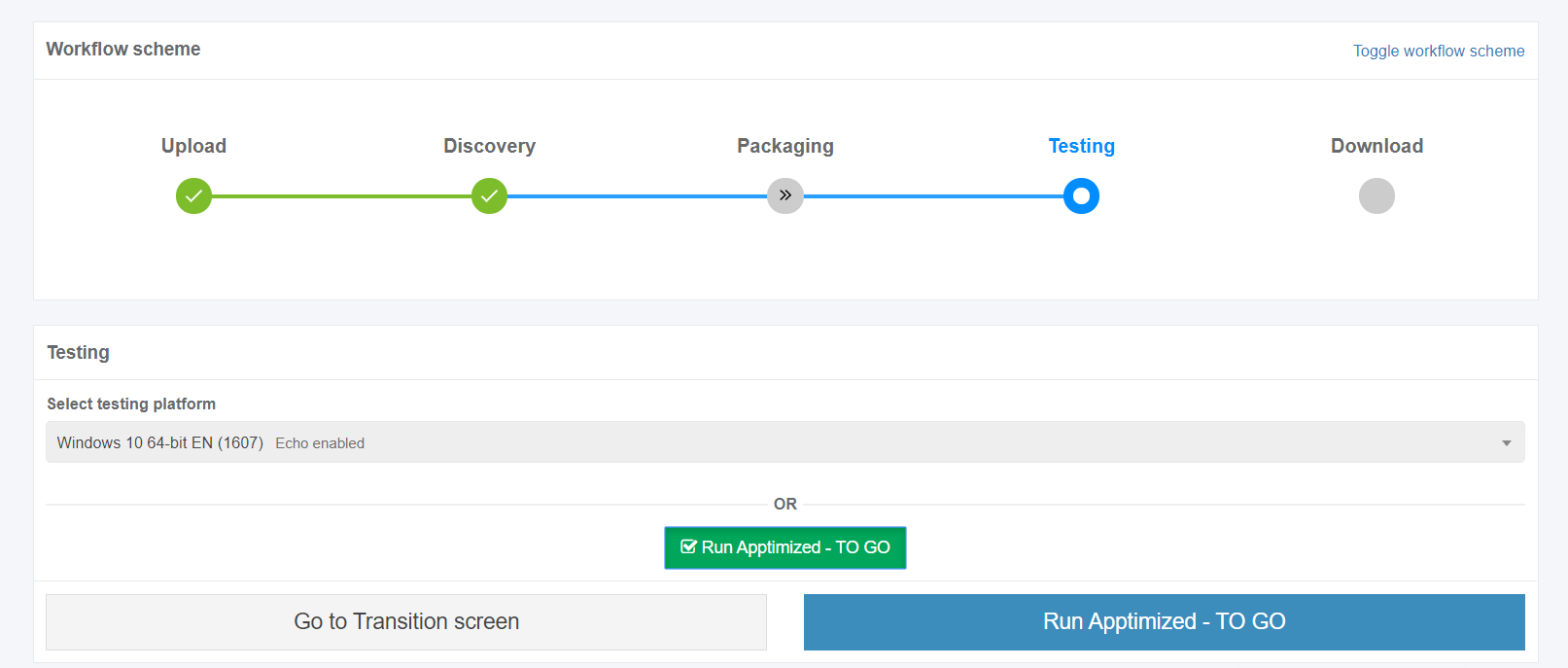](https://docs.apptimized.com/uploads/images/gallery/2020-03/CJaIQN0ozo89EhDS-to_go_40.png) A field "**Select discovery platform**" is filled automatically and can be changed if needed. The **Apptimized To Go** is enabled by ticking the checkbox and clicking on the **Run Apptimized - To Go** button. The files synchronizing process may take a while. In case of success, Apptimized shows the following interface: [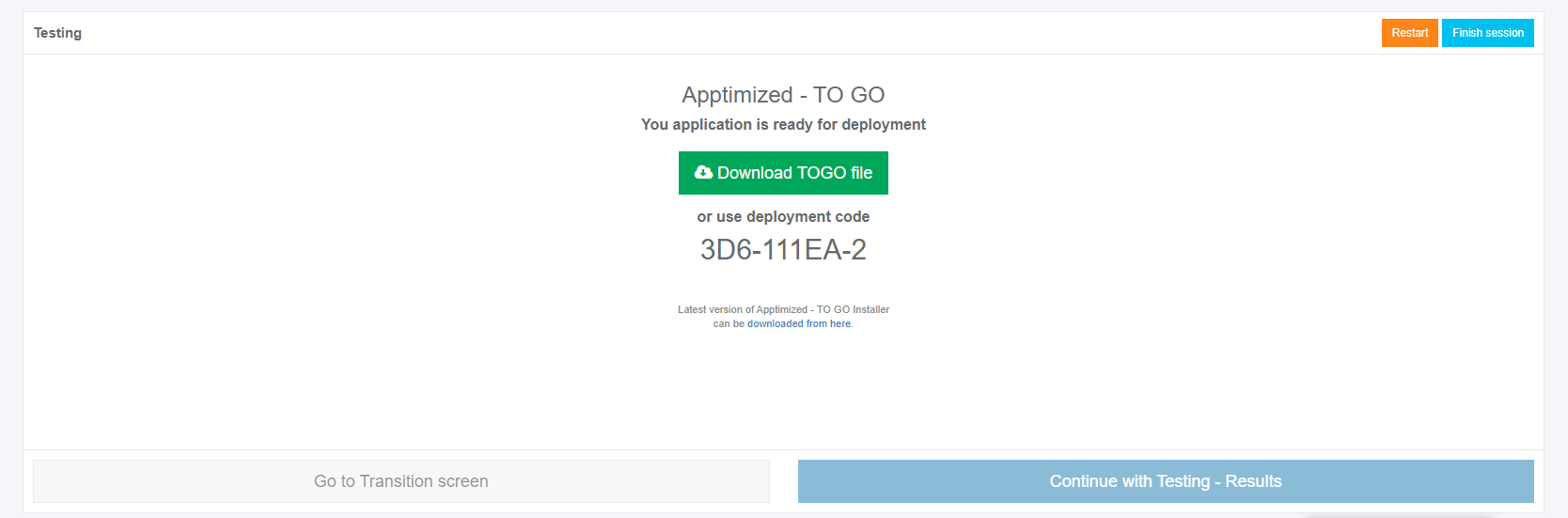](https://docs.apptimized.com/uploads/images/gallery/2020-03/chXvZICyTi5VZS9H-to_go_41.png) The instructions to launch **Apptimized TO GO agent** were provided in the paragraph "[Run the Apptimized TO GO agent](https://docs.apptimized.com/books/apptimized-platform-admin-manual/page/run-the-apptimized-to-go-agent "Launching Apptimized TO GO agent")". The following interface will appear when recording session with **Apptimized TO GO agent** finishes: [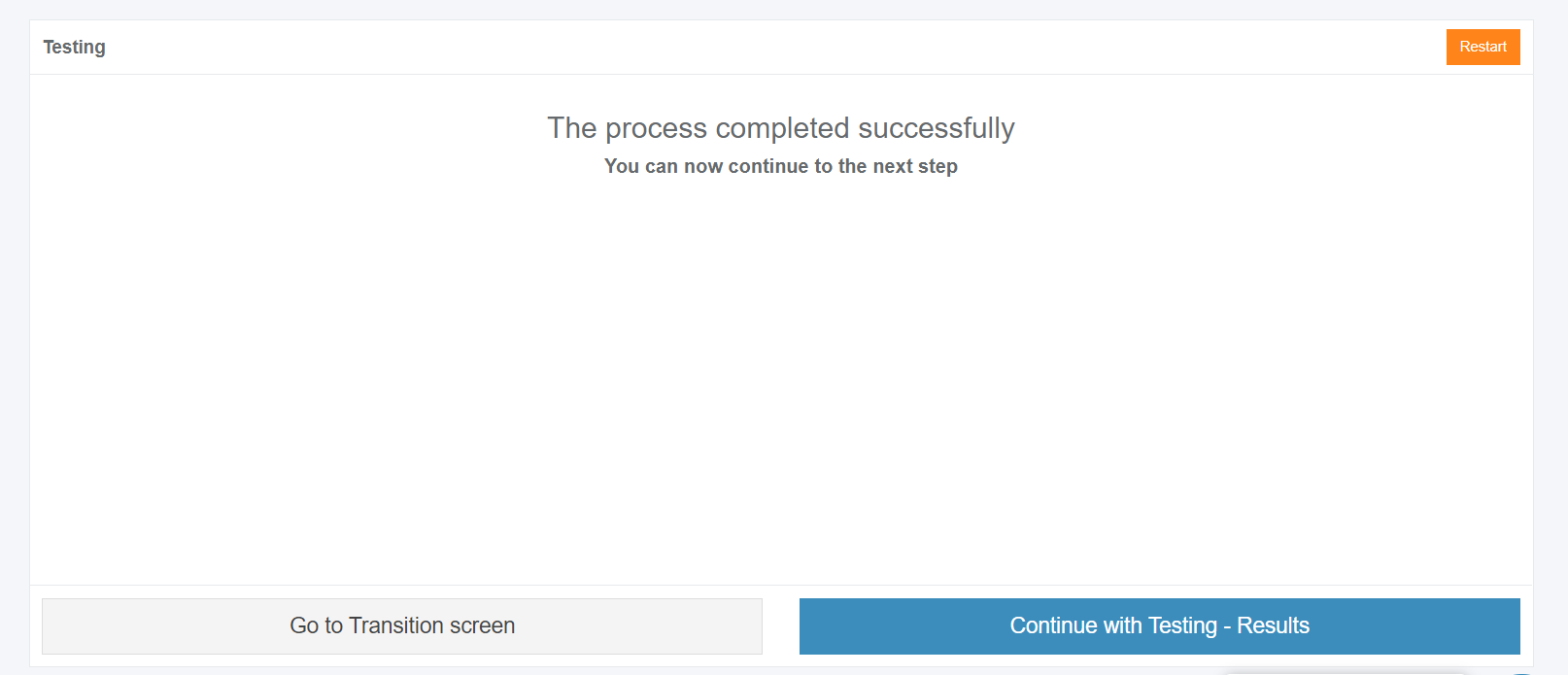](https://docs.apptimized.com/uploads/images/gallery/2020-03/zMjmcXC4NQ91kEL9-to_go_37.png) Screenshots editing mode becomes active when clicking on the **Continue with Testing - Results** button. Apptimized shows the following interface when successful: [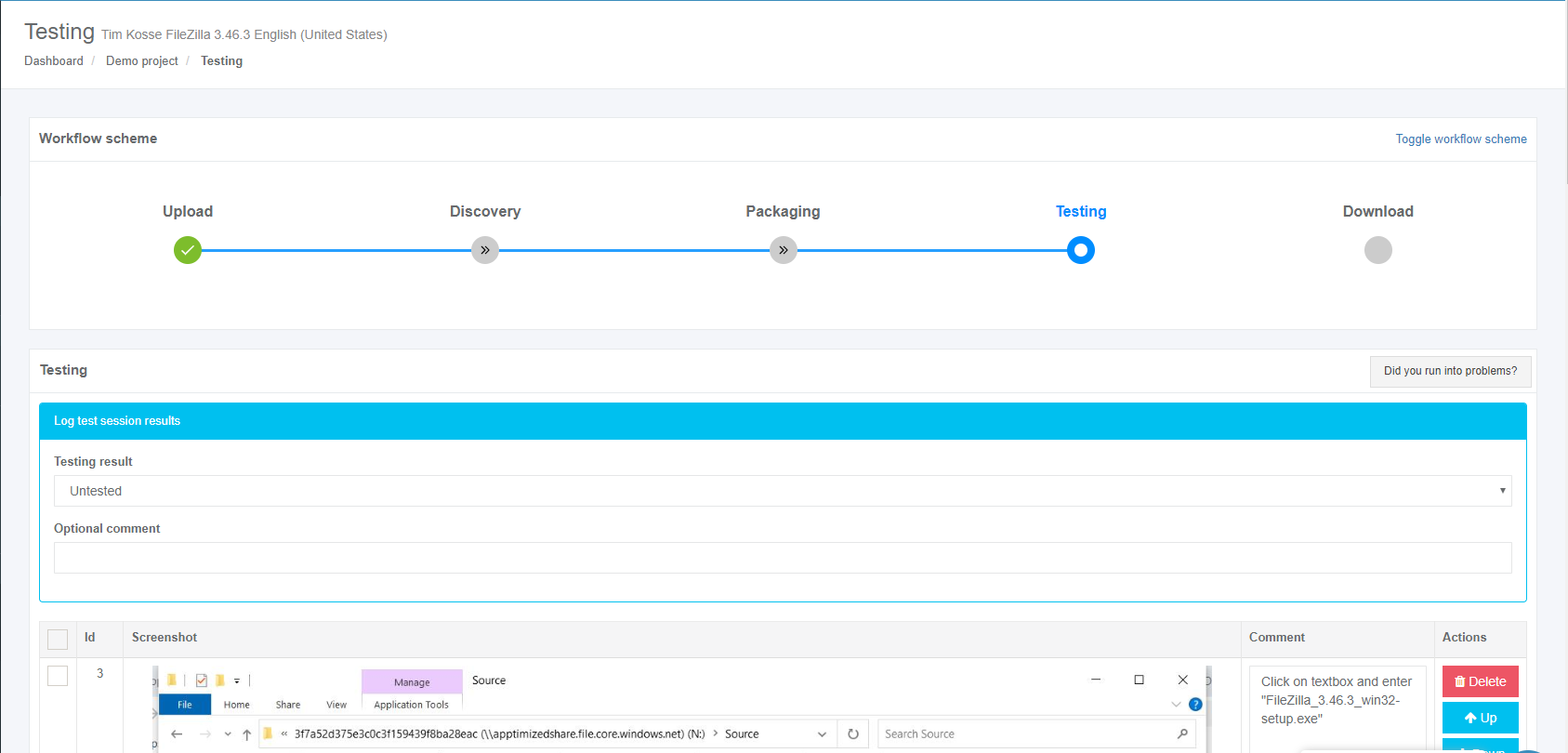](https://docs.apptimized.com/uploads/images/gallery/2020-03/8ivNtExL3gnLL7sF-to_go_42.png) The following options to log test session results are available: - Untested; - Success; - Failed. The default value is **Untested**. [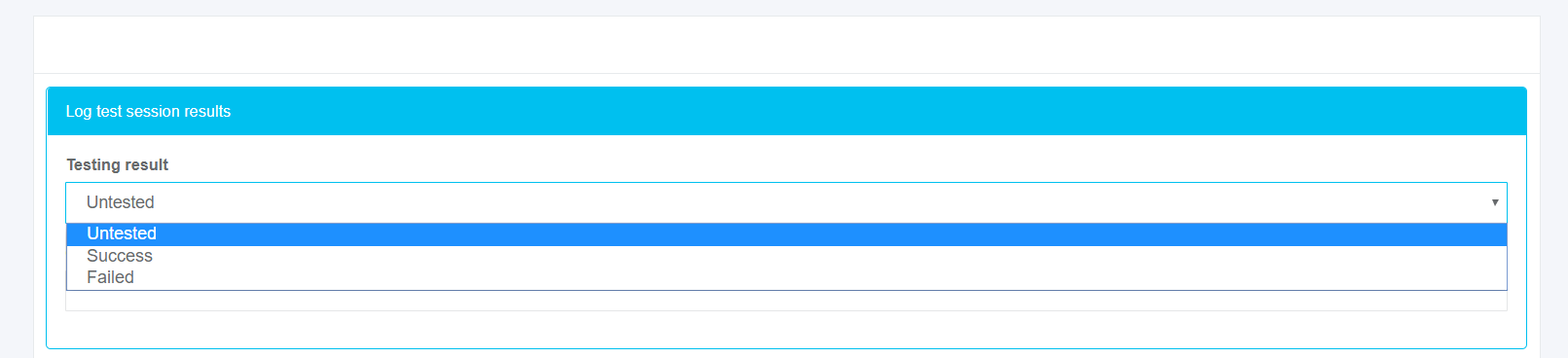](https://docs.apptimized.com/uploads/images/gallery/2020-03/wQ3JQVfDuaqN7IFI-to_go_42_2.png) The field **Optional comment** can stay blank. Screenshots can be excluded from discovery by clicking on the **Delete** button. [.png)](https://docs.apptimized.com/uploads/images/gallery/2020-03/nDCPNpZneFMifFaY-41-(2).png) Screenshots can be excluded from discovery in a multiple mode by unticking checkboxes in front of their ID and clicking on the **Delete selected screenshots** button. [.PNG)](https://docs.apptimized.com/uploads/images/gallery/2020-03/Hg3YH3vskTdt4wCj-52-(2).PNG) Screenshots sequence can be changed in discovery by clicking on the **Up** or **Down** buttons. [](https://docs.apptimized.com/uploads/images/gallery/2020-03/WPOQnKA7WXddSlpf-to_go_32_1.png) [](https://docs.apptimized.com/uploads/images/gallery/2020-03/tnVgsFVsTgqwAcZn-to_go_32_2.png) Comments to the screenshots can be edited by clicking on the comment cell. [](https://docs.apptimized.com/uploads/images/gallery/2020-03/98KvWYS2QjTwrZSA-to_go_33.png) The field **Additional comment (Optional)** can stay blank. [](https://docs.apptimized.com/uploads/images/gallery/2020-03/3mWW4zscqa243gO5-to_go_43.png) Screenshots editing mode finalizes when clicking on the **Save changes** button. Apptimized shows the following interface when successful: [](https://docs.apptimized.com/uploads/images/gallery/2020-03/9sFKRERFa8R9Napl-to_go_43_1.png) The generated document is available in PDF and HTML formats. Download starts when clicking on the **Download generated HTML document** or **Download generated PDF document** buttons. A testing document can be edited by clicking on the **Edit generated document** button. The document editing finalizes by clicking on the **Save** button. [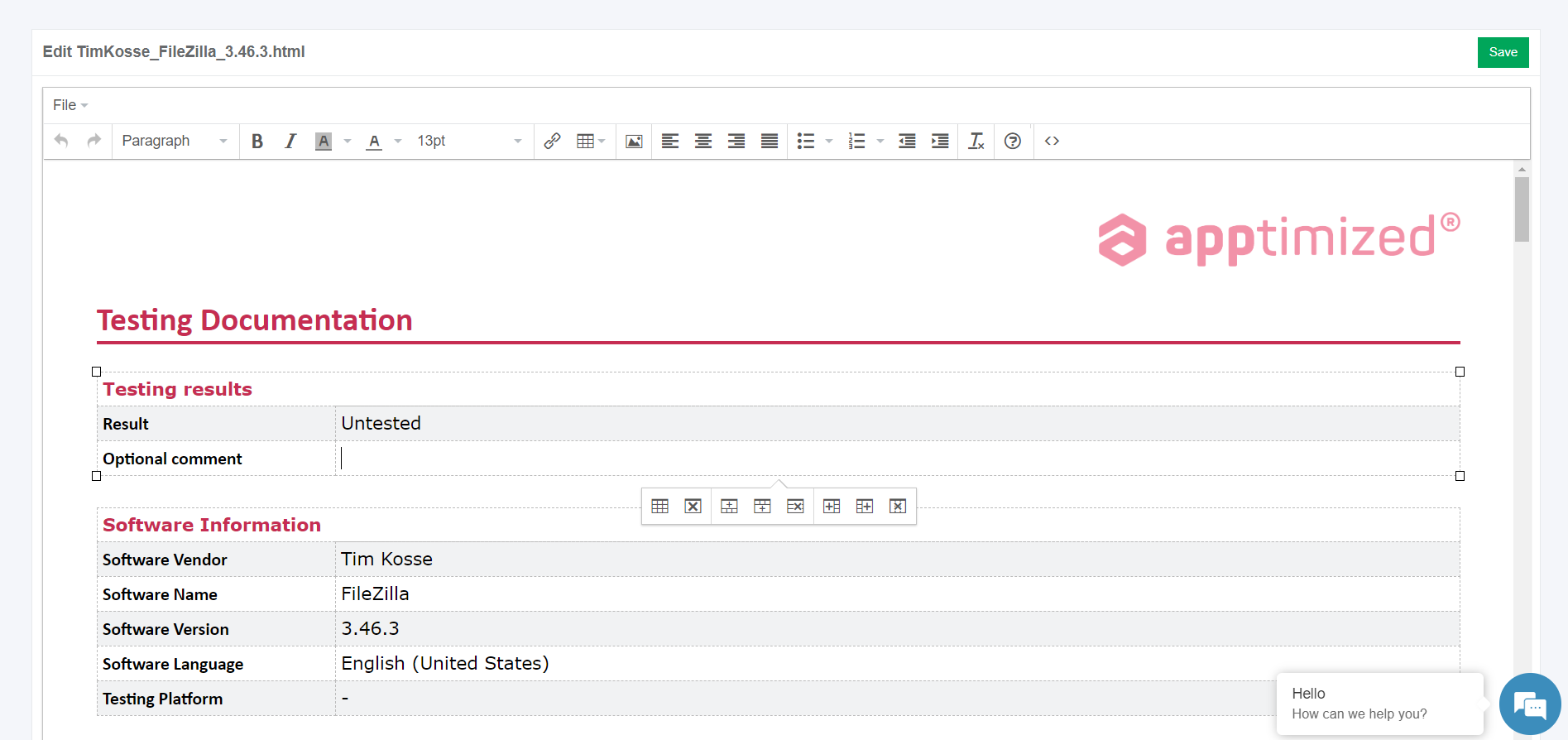](https://docs.apptimized.com/uploads/images/gallery/2020-03/81QuWDcq6wC67C3y-to_go_35.png) The process reverts to the screenshots editing mode by clicking on the **Revert to Testing - Results** button and finalizes by clicking on the **Finish** button. [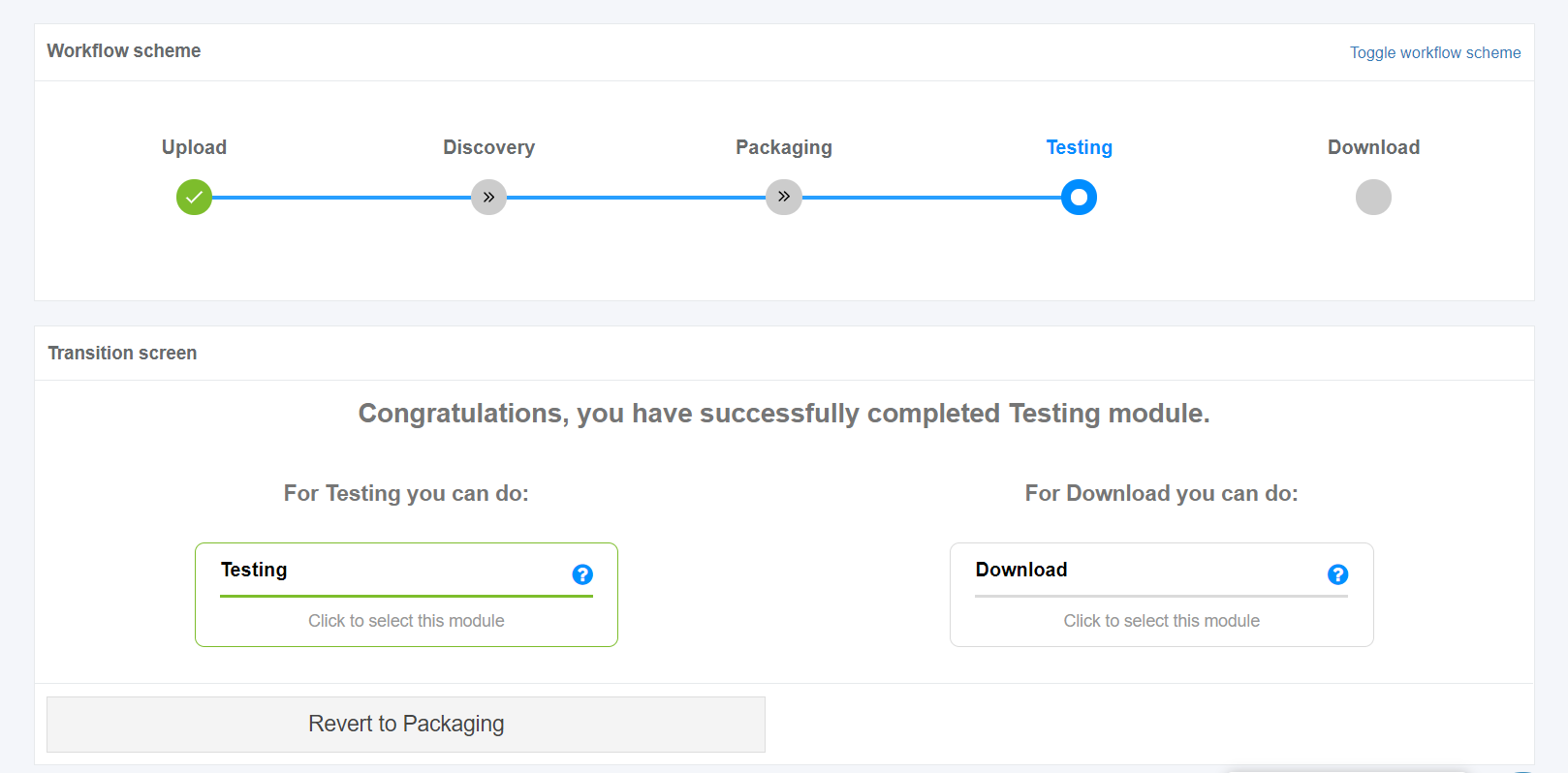](https://docs.apptimized.com/uploads/images/gallery/2020-03/6JYhV1F7S3sn5z31-to_go_44.png) # Download the documentation The download process starts by clicking on the **Download** module on the Transition screen: [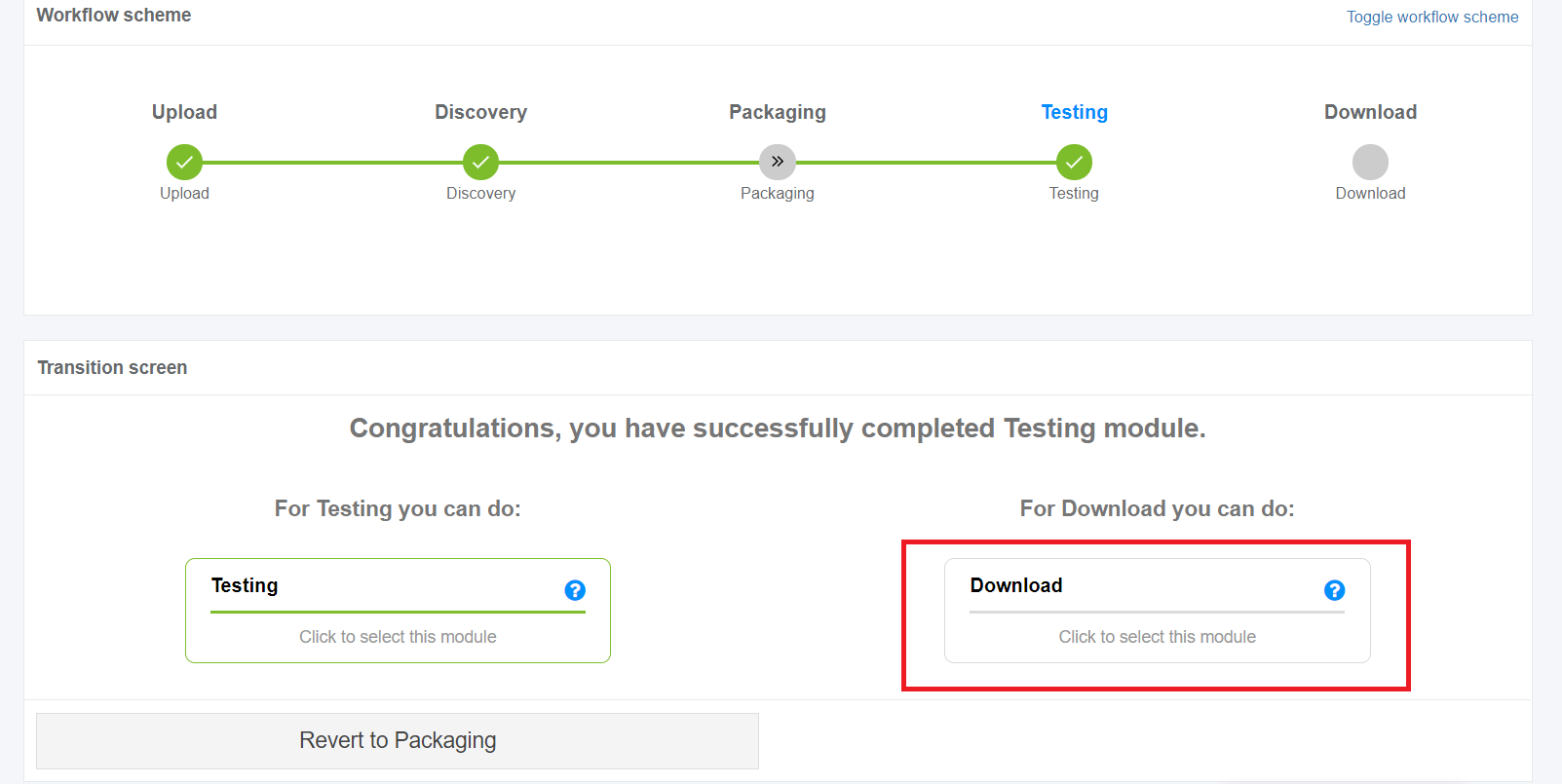](https://docs.apptimized.com/uploads/images/gallery/2020-03/LFUfIak69CnkdafU-to_go_45.png) Apptimized shows the following interface when successful: [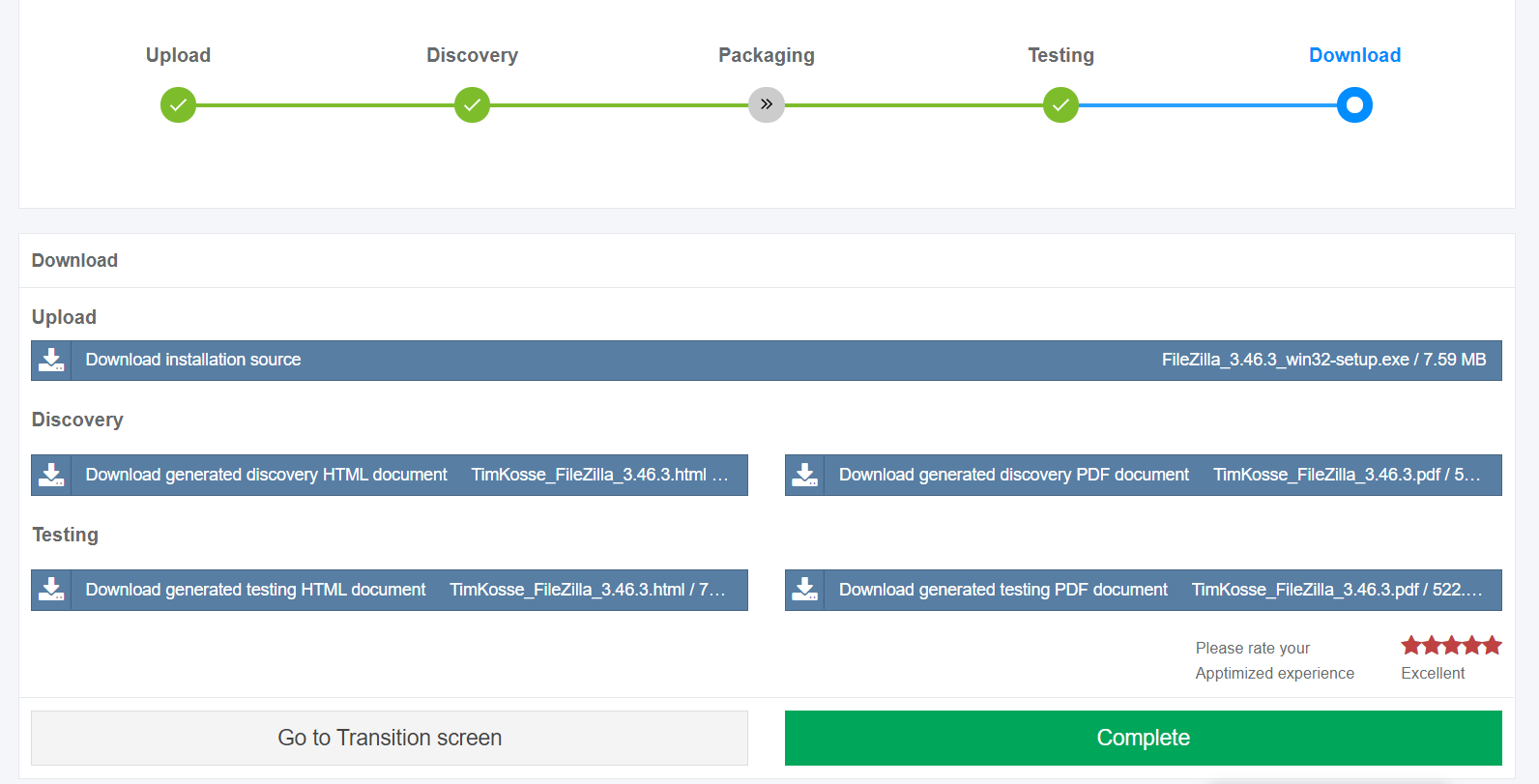](https://docs.apptimized.com/uploads/images/gallery/2020-03/5TYBArtfcPsb8uCi-to_go_46.png) The process reverts to the initial screen by clicking on the **Revert to Transition screen** button. The process finalizes by rating the Apptimized experience and clicking on the **Complete** button. Apptimized shows the following notification when successful: [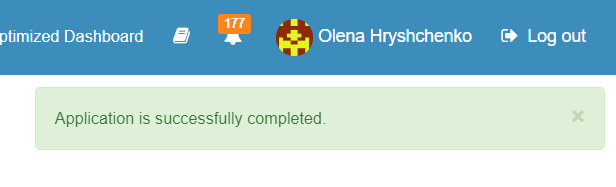](https://docs.apptimized.com/uploads/images/gallery/2020-03/3wkmYICXYij5INag-to_go_47.png)